
Several copies. Different answers.
Keep customers, orders, costs, and status in shared records so teams stop reconciling separate files.
Connect spreadsheet data, calculations, and workflows in one flexible system. Build, run, and improve it with your AI agent.
Need help getting started? We can help review your spreadsheets and set up your first operational workflow.
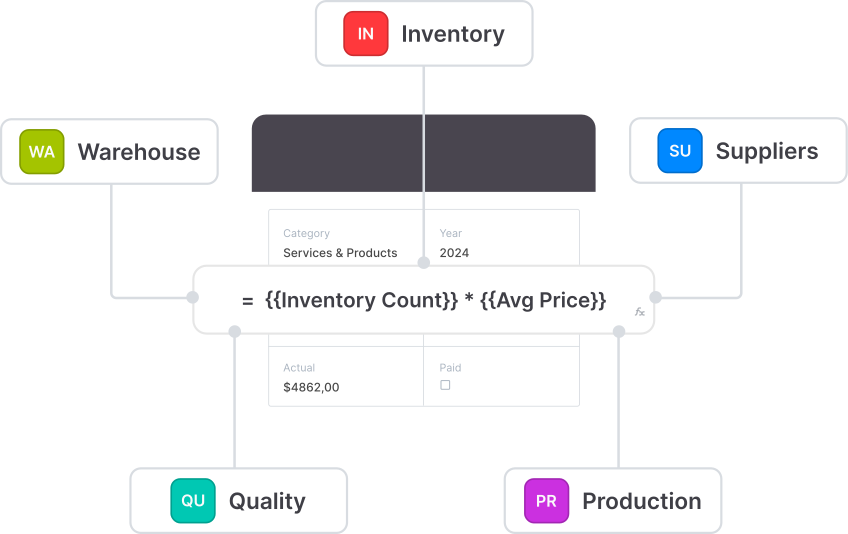
When your company relies on multiple spreadsheets, keeping data consistent, controlling access, and tracking work becomes harder. Here are the challenges AnyDB helps you solve.
Keep customers, orders, costs, and status in shared records so teams stop reconciling separate files.
Turn knowledge buried in formulas, macros, and exceptions into clear calculations and workflows.
Connect requests, decisions, files, and next steps so each team receives the context to act.
Protect internal costs and margins. Give each person access to the records and fields they need.
Connect statuses and deadlines to assignments, review steps, and notifications.
Save report definitions and rerun them for updated results without rebuilding the structure.
Create records for customers, orders, projects, and other parts of your business. Link them so teams can find related information without searching through tabs and files.

Define customers, orders, projects, and other record types with their own fields, owners, and statuses.
Link orders to customers, line items, and delivery records instead of repeating details across tabs.
Keep files, comments, dates, and supporting records together so people can understand the work.
| What you manage today | How you can structure it in AnyDB |
|---|---|
| Customer list and order tracker | Customer records connected to orders, line items, delivery details, and invoices. |
| Stock sheets by location | Items, locations, stock movements, suppliers, and purchasing records linked together. |
| Project plan and cost workbook | Projects connected to tasks, responsible people, expenses, docs, and calculated totals. |
| Requests and approval logs | Requests with supporting information, reviewers, decisions, and follow-up work. |
Use formulas across records and freeform Sheets for calculations that need a flexible layout.
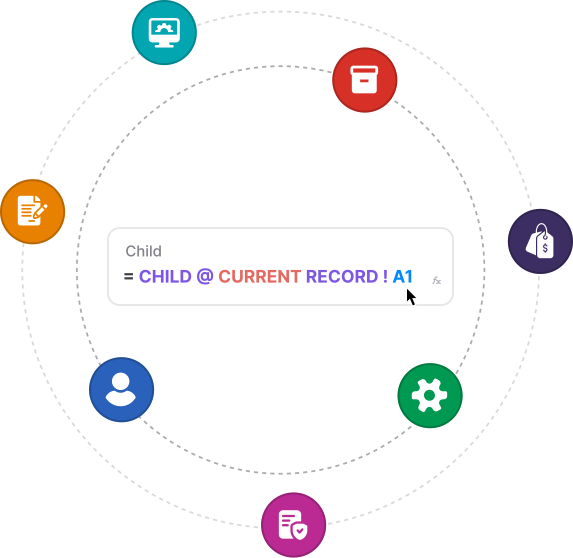
Look up customer or product details and calculate values from related records. For example, total an order’s line items while referencing its customer information.
Recreate essential workbook logic with formulas, validation, and configured actions. Check calculations and exceptions against the original workbook to preserve the results your team relies on.
Use AnyDB Sheets for flexible calculations, link cells to other Sheets or records, and turn reusable layouts into templates.
Use the AnyDB plugin available inside ChatGPT and Claude, or connect your agent through MCP. Work across the records, files, types, Views, reports, and workflows your account can access.
Ask your agent to create types, formulas, and relationships around the operation you describe.
Find records, update assignments, organize files, and generate reports through natural-language requests.
Adjust types and workflows with your agent. Simulate changes and verify results before using them.
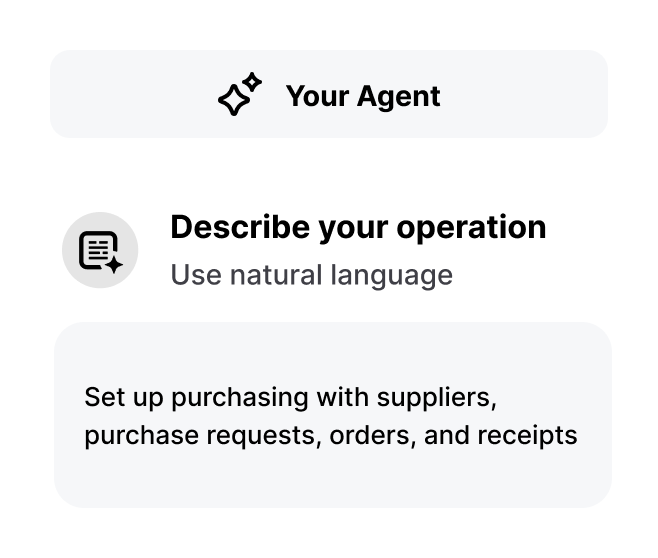
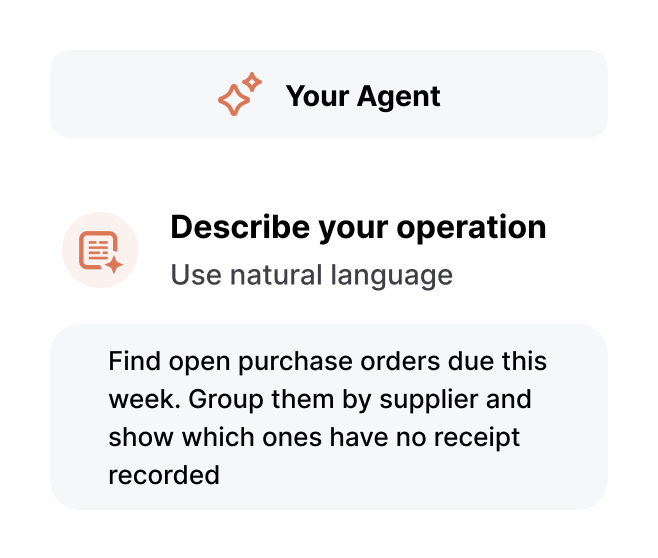
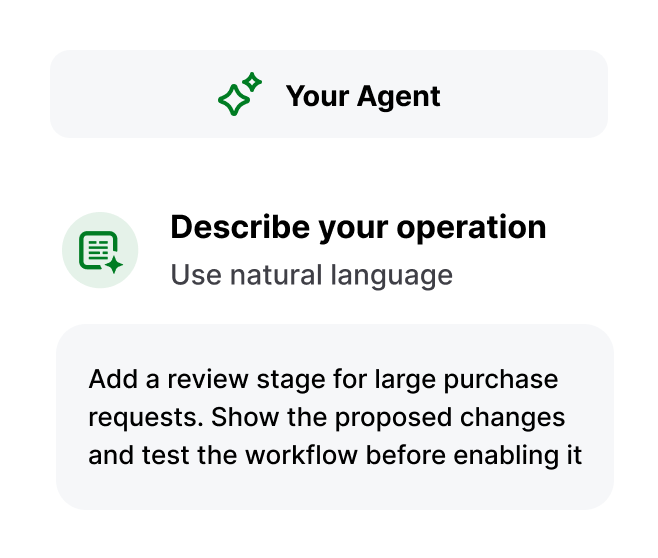
Authorize your AnyDB account to start working with your agent. Describe the records or process you want to change, review its proposed actions, and test important workflows before enabling them.
Connect your AI agent to AnyDB →Give employees, customers, vendors, and partners forms for submitting requests, updates, and documents.
Collect requests, updates, and documents through forms built from your record templates.
Store requests and attachments in the right folder or parent record for your team to review.
Give reviewers focused Views, requesters forms, and collaborators access to selected records.
Define the trigger, conditions, and actions for each step, such as assigning a request or sending it for approval.
Assign work by department, location, or request category so responsibility is clear.
Route requests to reviewers using your business rules, such as purchase amount or department.
Define who handles missing information, rejected requests, and overdue work, and what happens next.
Here is how an order can move from request to delivery and billing in AnyDB.
Keep the customer, order details, and requested items together.
Reference product data and calculate totals from order lines.
Connect purchasing, stock records, delivery tasks, and responsible people.
Keep related invoices and documents connected. Review progress through Views and reports.
Sales may need customer and delivery details while finance needs costs and margins. Set access to match each person’s responsibilities.
Restrict sensitive fields while allowing teams to update the information their work requires.
Share selected records and forms with Viewer or Editor access, including attachments when needed.
Your agent uses the connected account’s permissions. Choose an account with access to the records and actions it needs.
Use Views to track daily work and saved reports to summarize revenue, costs, or workload.
Create Views for open orders, assigned tasks, or pending reviews without maintaining separate data copies.
Save fields, filters, and groupings to summarize revenue, costs, or workload consistently.
Run reports for updated snapshots, view charts, and export results as CSV or XLSX.
Use ready-to-use objects to start your system or add another process. Customize their fields, layouts, and relationships to fit your business.
Connect projects to tasks, documents, deadlines, and costs. Adapt the stages to your delivery process.
Link purchasing to items, suppliers, locations, receipts, and stock movements as your system grows.
Connect customer details with related work and billing. Add the fields your business needs.
Map the workbook, import sample data, and compare the results. Test with the people who use the process before moving daily work into AnyDB.
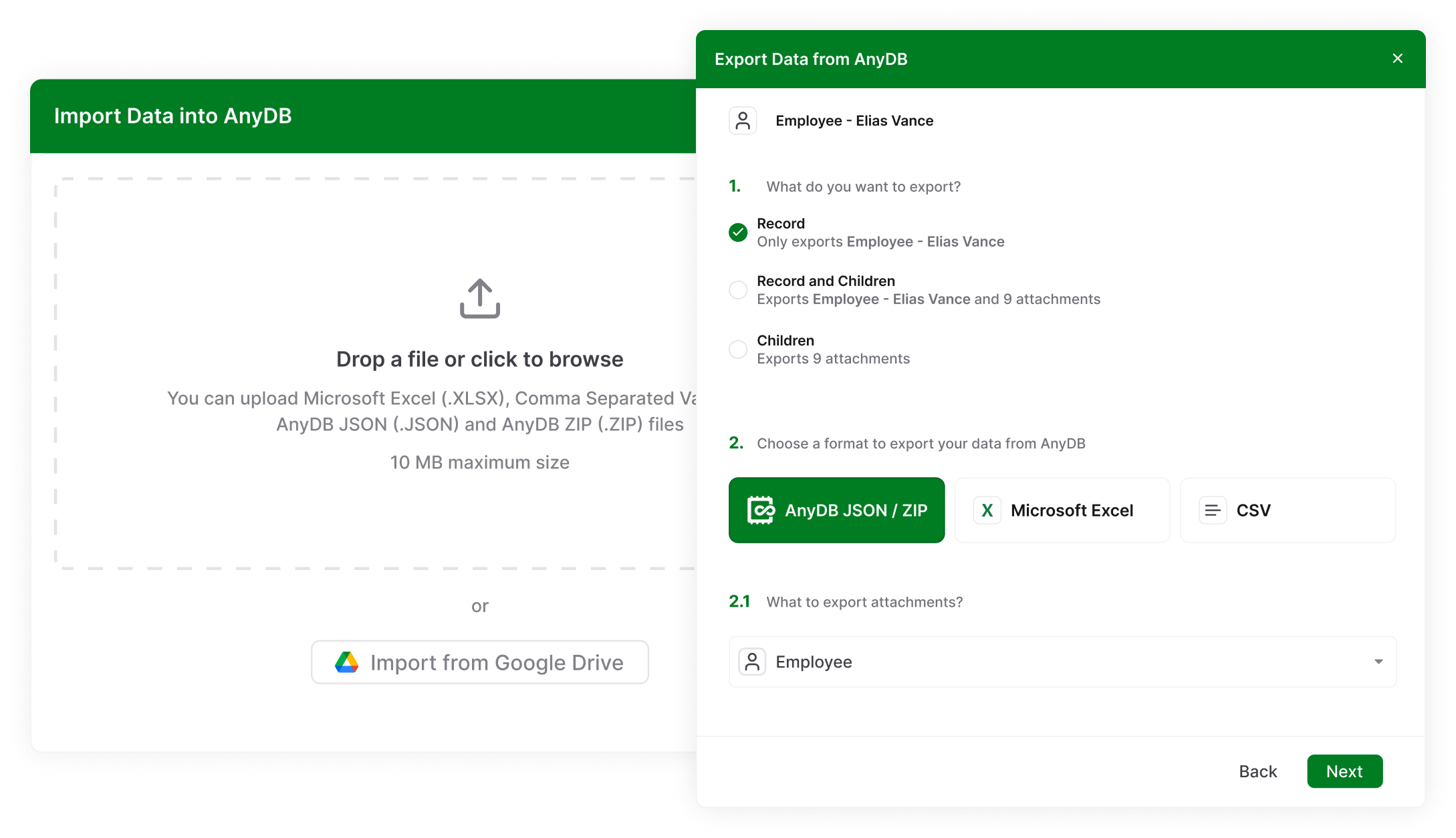
Start with Excel, Google Sheets, or a spreadsheet from another tool. If your CRM, accounting software, or another business system can export data to CSV or XLSX, you can import that data into AnyDB.
Review the columns, map them to fields, and turn rows into records. You can also paste cells into an AnyDB Sheet for a flexible starting point.
Map worksheets, formulas, macros, handoffs, users, and the outputs your business depends on.
Define business objects, relationships, owners, statuses, and required fields before importing.
Clean inconsistent values, map fields, and test imports with records that include real exceptions.
Check calculations, decisions, and exceptions against the original workbook’s expected results.
Have users submit, review, and complete work. Check access and handoffs between teams.
Move the records you need, refine the first workflow, then connect the next process.
Build systems for purchasing, inventory, projects, orders, approvals, and maintenance, using your own fields and rules.
Connect items, locations, movements, suppliers, and receipts to coordinate purchasing and replenishment.
Keep tasks, resources, schedules, documents, and costs connected to the project they support.
Connect customers, quotes, orders, fulfillment, and billing as work moves between teams.
Collect requests, route reviews, record decisions, and connect follow-up work using your approval rules.
Link equipment, inspections, work orders, parts, and service history to coordinate maintenance.
Define your own records, calculations, and actions. Build with your agent or the AnyDB team.
AnyDB supports related records, cross-record calculations, workflows, and access controls. Map your workbook’s rules and dependencies, then test the required calculations and outputs in the new system.
Plan to review and validate workbook logic during migration. AnyDB is not a full Excel replacement, and importing data is not a guarantee of workbook compatibility. Single-document Excel import reads the first worksheet. Use structured row imports for business records and rebuild the rules your process depends on.
Yes. AnyDB Sheets provide a flexible cell-based workspace, and the Type Designer uses a spreadsheet-like editing experience. Combine that flexibility with reusable record layouts and connected data.
Yes. Use the AnyDB plugin in ChatGPT or Claude, or connect through MCP. Supported agents can create and update records, types, Views, reports, and workflows within your account’s permissions.
No. Begin with one process, validate it, and expand gradually. Your existing data, a reusable business object, or a new design can all be starting points.
Start free with your own data, or bring your spreadsheet to a demo. We can help map the process, plan the import, and set up your first workflow.


