AnyDB MCP
Connect Claude, ChatGPT, and other MCP clients to AnyDB, then work with records, files, types, Views, reports, shares, and workflows through natural language.
AnyDB MCP gives supported AI assistants secure access to the AnyDB teams, workspaces, and business information available to your account.
Features
- Natural language operations: Create, read, update, organize, and delete records through conversational requests.
- Search and discovery: Find records by keyword or meaning across a workspace or team.
- Solution building: Discover reusable types and build workspaces, types, formulas, relationships, and migrations.
- Views and reporting: Create filtered Views and grouped reports over your business data.
- Sharing: Create public or private record and form shares for customers and collaborators.
- Workflow automation: Discover, create, simulate, execute, and verify workflows and button actions.
- File management: Download files and upload them inline or through signed URLs.
- Access-aware operations: Check the active identity, Inbox assignments, and permissions before acting.
- Secure OAuth connection: Connect through the hosted AnyDB MCP server without placing an API key in a local configuration file.
Example prompts
Describe the business outcome in ordinary language. Include whether you want one standalone type or a complete solution, and ask the assistant to inspect and reuse compatible workspace content before creating anything new.
Build types and solutions
- "Create an inventory management solution with Inventory, Location, Stock, Stock Level History, Transfer Record, and Stock Adjustment Record types. Reuse compatible existing types before creating new ones."
- "Set up a solution for tracking IT assets and their assignments to employees. Check workspace and built-in types first."
- "Create one standalone Meeting Note type with subject, date, attendees, summary, decisions, and follow-ups. Do not add unrelated types or workflows."
- "Update the Meeting Note type to name records from the meeting date and subject, then wait for its record migration to finish."
Explore your account and data
- "Which AnyDB account am I connected as?"
- "List my AnyDB teams and workspaces."
- "Show what is waiting in my Inbox for the Operations team."
- "Can I create records under this Project, update it, and share it?"
- "Show all Asset records where Status is Repair."
- "Assign asset LAP-1001 to Alice Johnson starting today."
- "Search every workspace in this team for INV-1042."
- "Search this workspace for records related to delayed customer deliveries, even if they do not use those exact words."
Create Views, shares, reports, and workflows
- "Create a View showing Assets that need repair."
- "Create a public form so people outside the team can submit asset requests."
- "Share this Employee record privately with the Operations group as view-only."
- "Create a monthly report of invoice totals by customer, including a grand total."
- "When a Transfer Record's Status changes to Completed, add a Stock Level entry for the destination. Keep the workflow disabled until it has been tested."
- "Run this workflow once in simulation, then show its outputs and errors."
Work with files
- "Download the PDF attached to this record."
- "Upload this document under the Project using the signed-URL workflow."
- "Attach this short text note as a file using UTF-8 content."
For a non-trivial type, solution, report, or workflow, ask for end-to-end verification. For example: "Create this solution, add representative test records, run the workflow once, and inspect its execution history before calling it complete."
Tool reference
The current service exposes 56 tools. The reference is divided by task so you can go directly to the tools you need.
Connect AnyDB MCP
The recommended connection uses the hosted AnyDB MCP server:
https://mcp.anydb.com
The hosted server supports OAuth. There is no package to install or API key to paste.
Claude
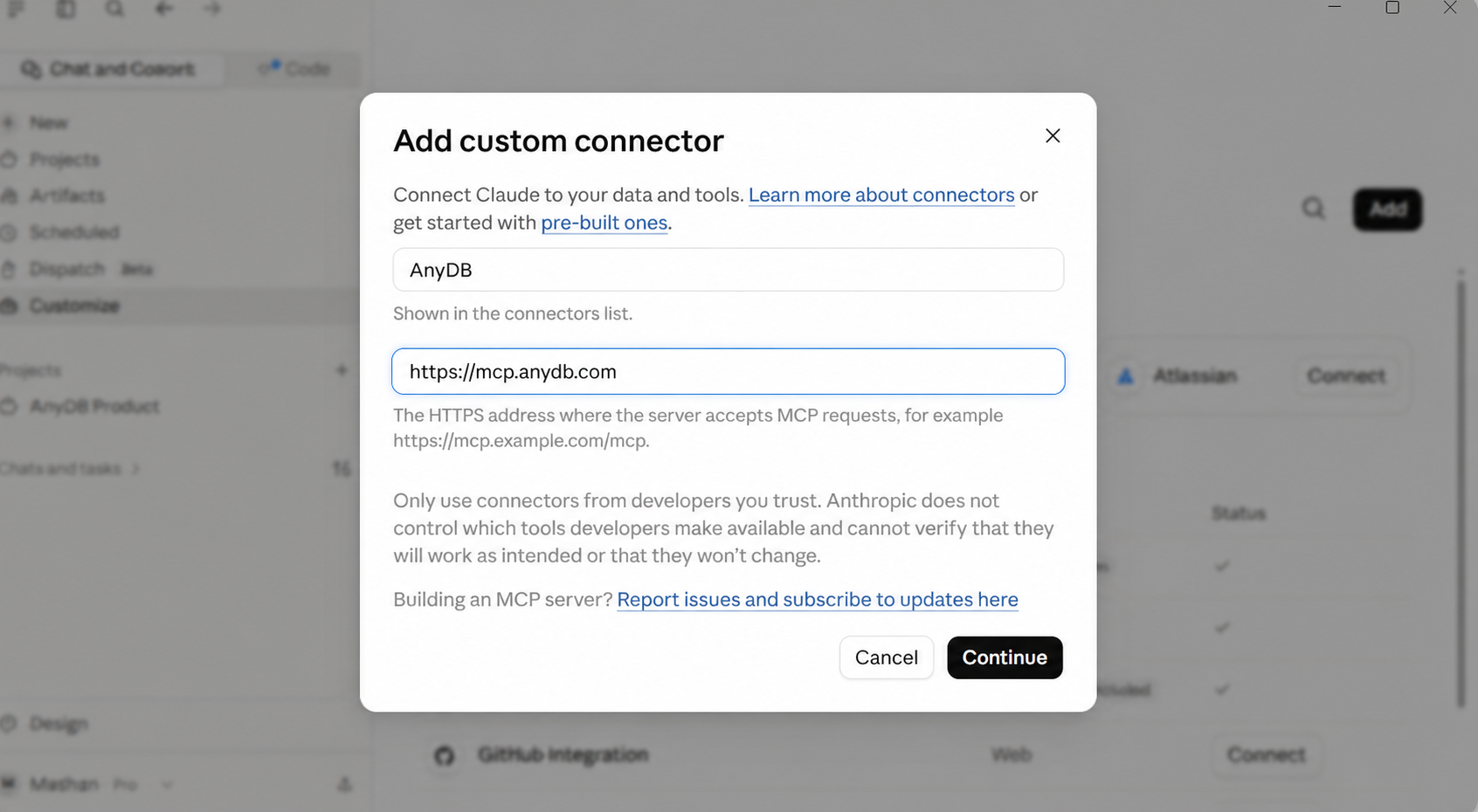
- Open Claude's connector settings.
- Click Add custom connector.
- Enter AnyDB as the connector name.
- Enter
https://mcp.anydb.comas the MCP server URL. - Click Continue.
- Sign in to AnyDB through the OAuth window and approve access.
ChatGPT
- Open Settings and go to the connectors or apps section.
- If the option to add a custom connector is unavailable, enable Developer mode for connectors.
- Add a custom connector named AnyDB.
- Enter
https://mcp.anydb.comas the MCP server URL. - Continue to the AnyDB OAuth flow, sign in, and approve access.
After connecting, select or enable AnyDB in a conversation when you want ChatGPT to use it. Custom connector availability and menu names can vary by ChatGPT plan and workspace settings.
AnyDB marketplace listings are planned for the future. Once available, search for AnyDB in the Claude or ChatGPT connector marketplace and click Add. Marketplace review and rollout can take time, so use the custom connector steps in the meantime.
Verify the connection
Start a new conversation and ask:
Which AnyDB account am I connected as, and what teams can I access?
The assistant can call anydb_whoami to report the active identity and list_teams to show accessible teams.
Troubleshoot hosted connections
| Symptom | Resolution |
|---|---|
| The AnyDB sign-in window does not open | Remove the connector and add it again using exactly https://mcp.anydb.com. Confirm that pop-ups are allowed. |
| AnyDB is not available in a conversation | Enable or select AnyDB for the conversation. In ChatGPT, confirm that Developer mode and custom connectors are allowed for your account or workspace. |
| The wrong AnyDB teams appear | Disconnect AnyDB, reconnect it, and sign in with the intended AnyDB account. |
| No teams appear | Confirm that the authorized AnyDB account belongs to at least one team and has access to its workspaces. |
Need the legacy local package?
The local npm/API-key connection is retained only for environments that cannot use the hosted OAuth server. See Legacy local installation for configuration and troubleshooting.