Scan QR Code
The QR Code feature in AnyDB lets you quickly access records by scanning a code with your mobile device or tablet.
Each QR code links directly to a specific record and is perfect for labeling equipment, inventory, employees, or physical assets.
When scanned, the QR code opens the associated record in AnyDB (as long as the user is logged into the same team in their browser).
How It Works
Every record in AnyDB can generate a unique QR code that links directly to that record’s page.
Once printed or attached to a physical object, anyone with the right permissions can scan the QR code to instantly view the record.
This feature is useful for:
- Inventory Management: Tag products or stock bins for instant lookup
- Equipment Tracking: Attach QR codes to devices, tools, or assets
- Employee Management: Access personnel records during audits or HR reviews
- Project Files: Link physical documents or folders to digital records
Accessing the QR Code
You can generate a QR code for any record from the More Options menu in the record view.
Steps:
- Open the desired record.
- Click the three-dot menu or More Options (
⋮) next to the record title. - Select “Show QR Code”.
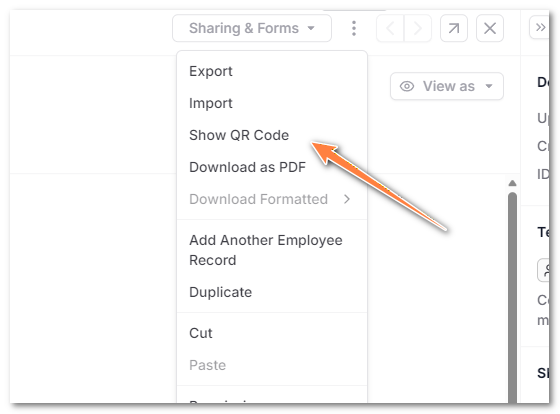
- A popup window will display the QR code linked to that record.
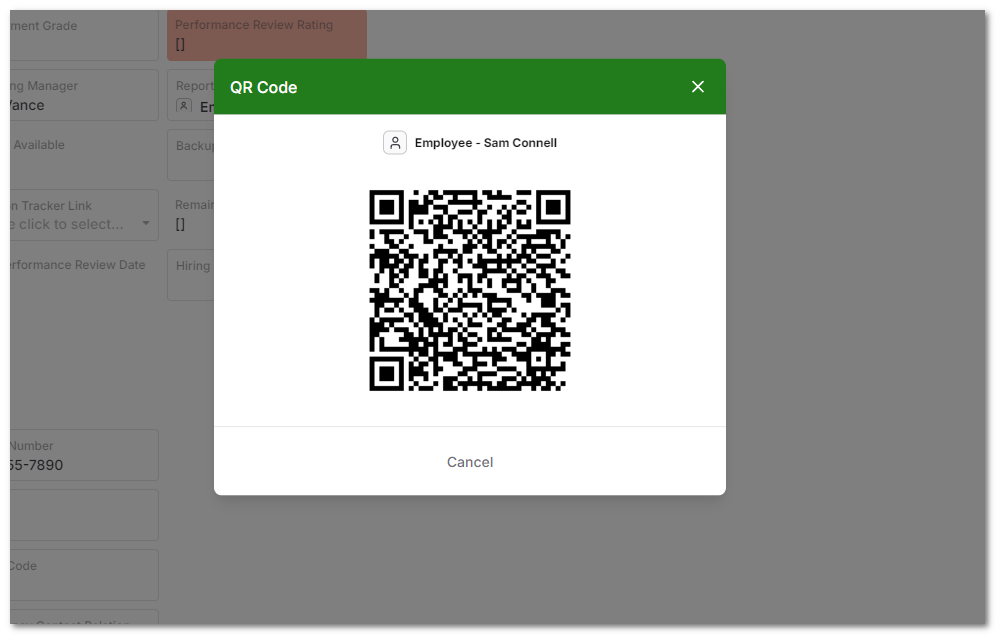
Printing or Saving the QR Code
You can print the QR code directly from your browser or save it as an image for use in labels or tags.
To print:
- Right-click the QR code and choose Save Image As…
- You can then include it on:
- Equipment labels
- Shipping manifests
- Employee badges
- Storage bins or folders
Scanning the QR Code
To open the record:
- Scan the QR code using a mobile camera or QR scanning app.
- The link opens in your default browser.
- If you are logged into AnyDB, it will take you directly to the linked record.
- If not logged in, you’ll be prompted to log in before accessing the record.
Note: The QR code does not bypass permissions. Only users with access to the record can view its contents.
Tips and Best Practices
- For shared or public locations, ensure that only authorized users can access the team workspace.
- Use laminated or durable printed QR labels for long-term physical use.
- Pair QR codes with record views for quick access on mobile devices.
- Consider using formatted print exports (like inventory sheets) that include the QR code alongside key record details.
Example Use Cases
| Department | Use Case | Description |
|---|---|---|
| Warehouse Operations | Inventory Labeling | Tag storage bins or products to instantly open stock records |
| HR / Facilities | Employee Management | Attach QR codes to employee folders for instant digital access |
| Field Service | Equipment Tracking | Scan tools, devices, or machinery for maintenance history |
| Project Management | File Linking | Add QR codes to printed reports to jump back to the digital record |
Summary
The QR Code feature bridges the gap between the physical and digital worlds and lets your team access AnyDB records instantly and securely.
It’s a simple but powerful way to bring context to your operations.