AnyBot
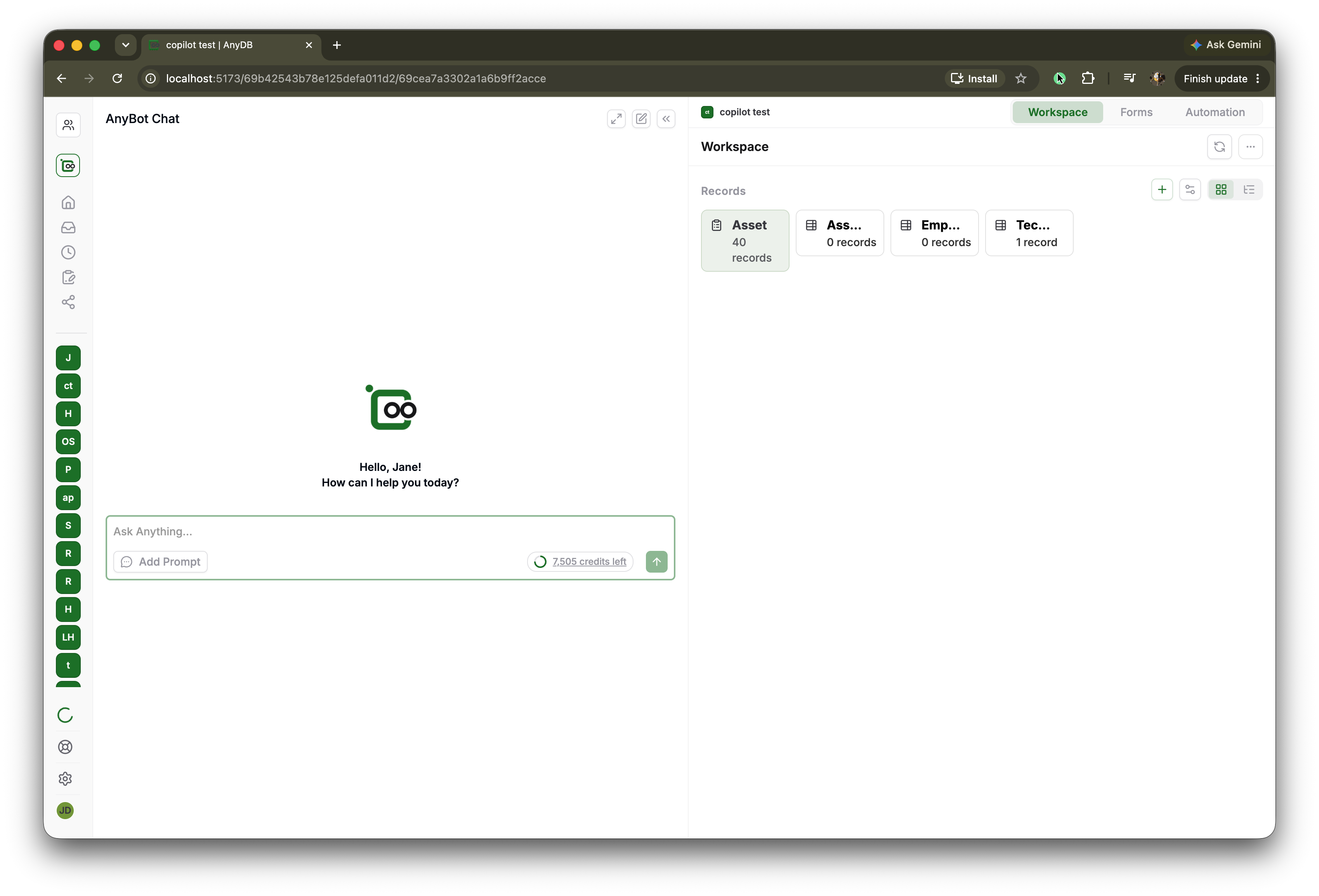
AnyBot is AnyDB's AI chatbot, powered by leading AI models, for building types, querying records, analyzing data, and making controlled updates in your workspace.
Use this guide to learn how to prompt AnyBot effectively so you can get accurate answers, useful analysis, and reliable changes.
AI Analysis and Credits
Data stored in your AnyDB databases is available for AI-assisted analysis through AnyBot, including query, summarization, and guided mutation workflows.
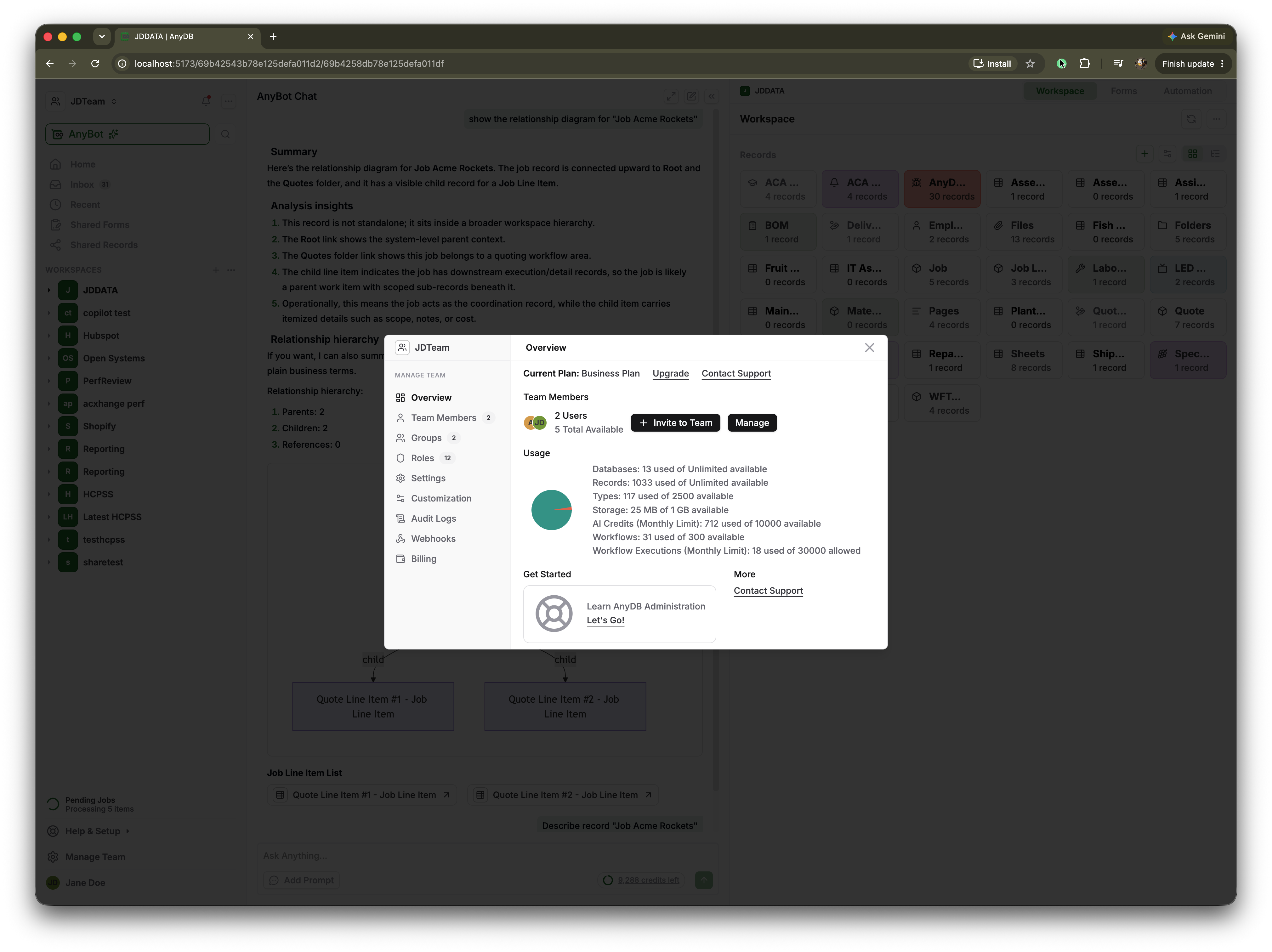
Each AnyDB license includes monthly AI credits. AnyBot usage consumes these credits based on the requests you run.
You can track current credit consumption in Team Overview:
- Go to
Manage Team->Overview - Check AI Credits (Monthly Limit) in the Usage section
What AnyBot Supports
| Capability | Jump to Section |
|---|---|
| System and type creation | 1) System and Type Creation Prompts |
| Data query and analysis | 2) Data Query and Analysis Prompts |
| Charts and visual summaries | 3) Chart and Visual Summary Prompts |
| Reports, PDFs, and email documents | 4) Report, PDF, and Email Document Prompts |
| Data mutation (create, update, delete) | 5) Data Mutation Prompts (Create, Update) |
Before You Start
- Be specific about the type, fields, filters, and time range.
- Use exact type names when possible.
- For updates and deletes, describe exactly which records to target.
- Ask for a preview before large or destructive changes.
Example:
Before making any updates, show me the records you matched and wait for my confirmation.
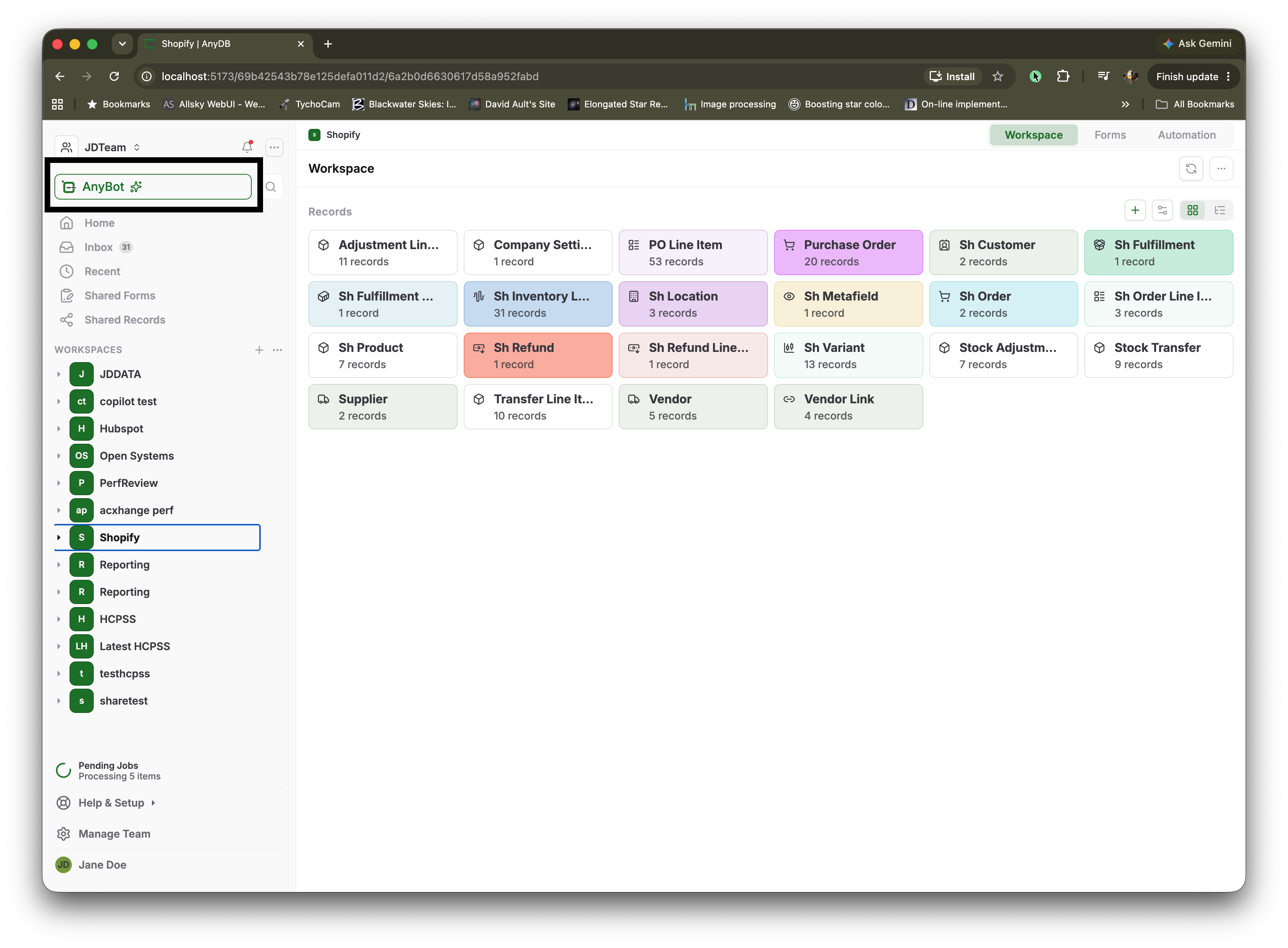
AnyBot is scoped to a Workspace and Once you open a Workspace, You can open AnyBot window by clicking the Anybot button
1) System and Type Creation Prompts
Use these when you want AnyBot to design and create a new system (set of related types) or a single type.
A) Create a single type
Create a new type called Vendor with fields:
- Vendor Name (text, required)
- Vendor ID (text, unique)
- Email (email)
- Phone (text)
- Status (select: Active, Inactive)
- Onboarded Date (date)
Also add a formula field called Days Active.
I want a type called Support Ticket with fields for Priority, Status, Assignee, Due Date, and Customer.
Include good default statuses and priorities.
B) Create a multi-type solution
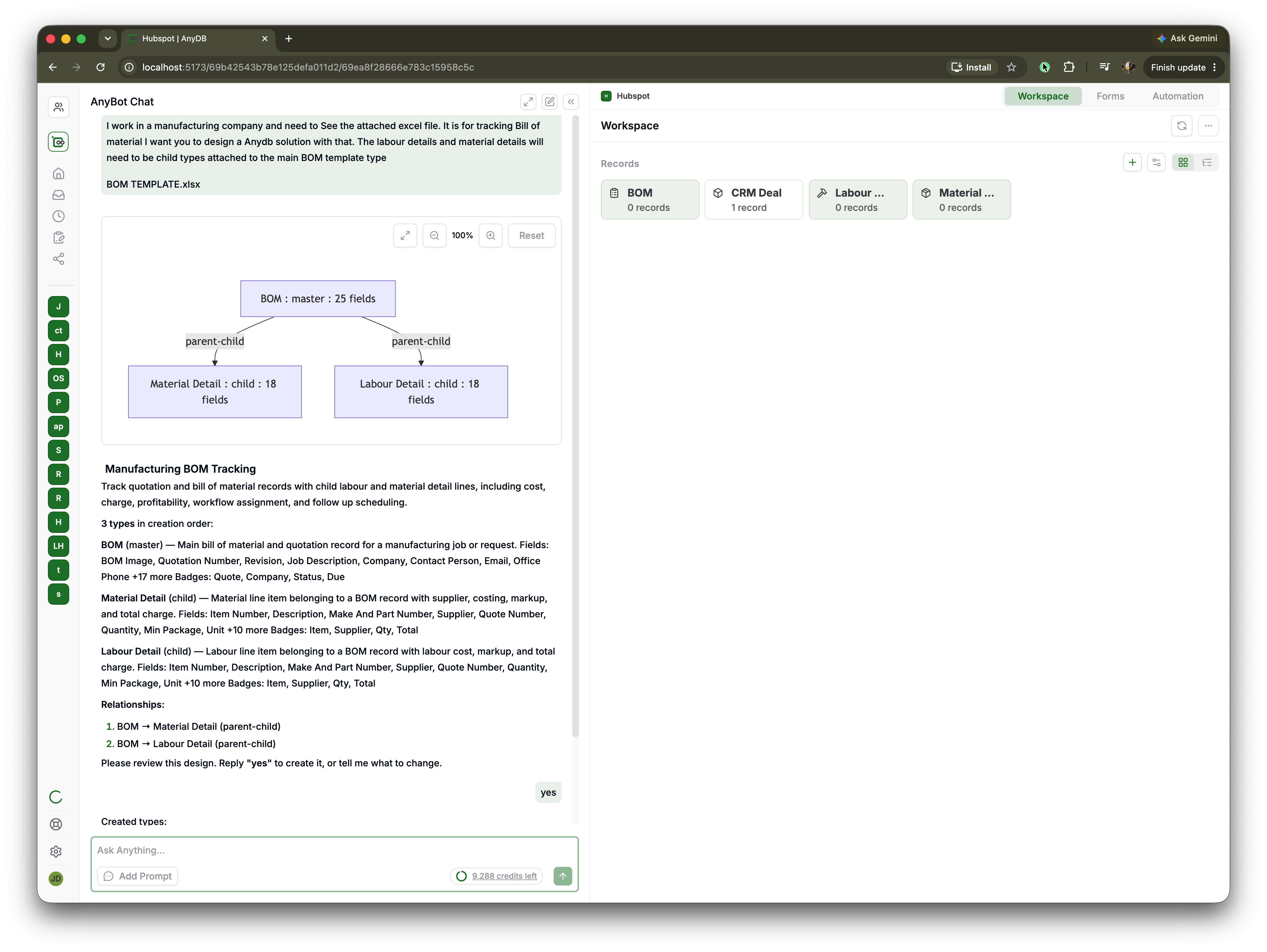
For multi type solution, Provide as much details as possible. Currently, AnyBot is capable of creating multiple interconnected types that makes up a full solution. In future iterations, workflows will also be created to add ayutomation (such us commiting pick lists etc)
Build an accounts payable system with these record types:
- Vendors: Track vendor name, contact name, email, phone, address, tax ID, payment terms, payment method, and active status.
- Vendor Invoices: Track invoice number, vendor, invoice date, due date, subtotal, tax, total amount, currency, purchase order number, department, project, invoice document, status, and notes.
Each Vendor Invoice should contain child Invoice Line Items.
- Invoice Line Items: Track description, quantity, unit price, line amount, expense category, general ledger account, department, project, and purchase order line reference.
- Payments: Track vendor invoice, vendor, payment date, payment amount, payment method, transaction or check number, payment status, and payment confirmation document.
Connect the records as follows:
- A Vendor can have many Vendor Invoices.
- A Vendor Invoice belongs to one Vendor.
- A Vendor Invoice contains many Invoice Line Items.
- A Vendor Invoice can have one or more Payments.
- Each Payment belongs to a Vendor Invoice and Vendor.
C) Improve an existing type
Review my Invoice type and suggest missing fields for approval workflow, payment tracking, and audit history.
Extend the Employee type to support onboarding checklist, manager approval, and document attachments.
2) Data Query and Analysis Prompts
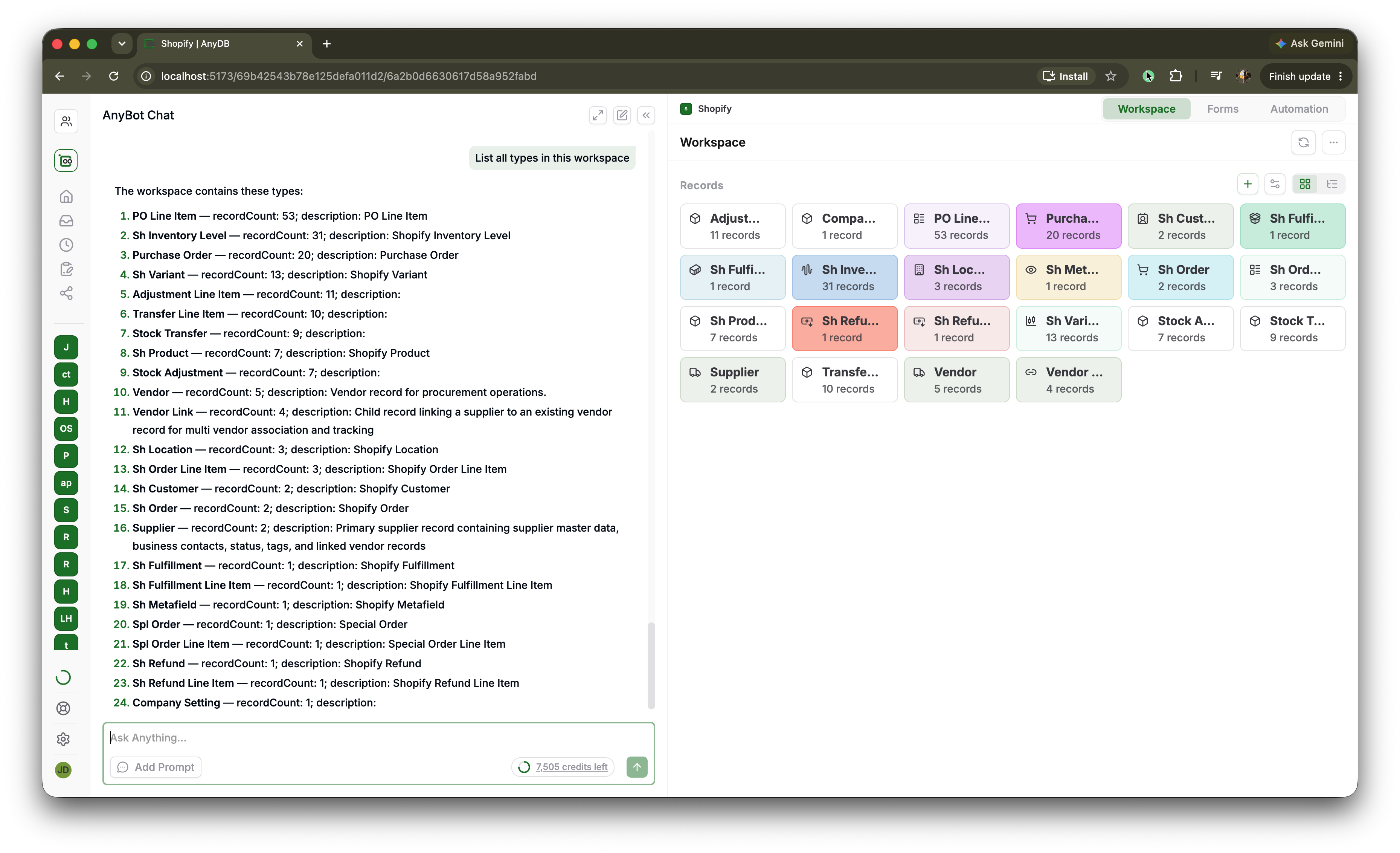
Use these for record lookup, filtered lists, summaries, and trend analysis.
A) List and filter records or types
Show open tickets for Acme sorted by priority and due date.
Find Vendor records where Status is Active and Onboarded Date is in the last 90 days.
List all purchase orders created this month with total amount over 5000.
B) Search and explain
Find records about budget approvals and summarize the current bottlenecks.
Show the relationship diagram for "Job Acme Rockets".
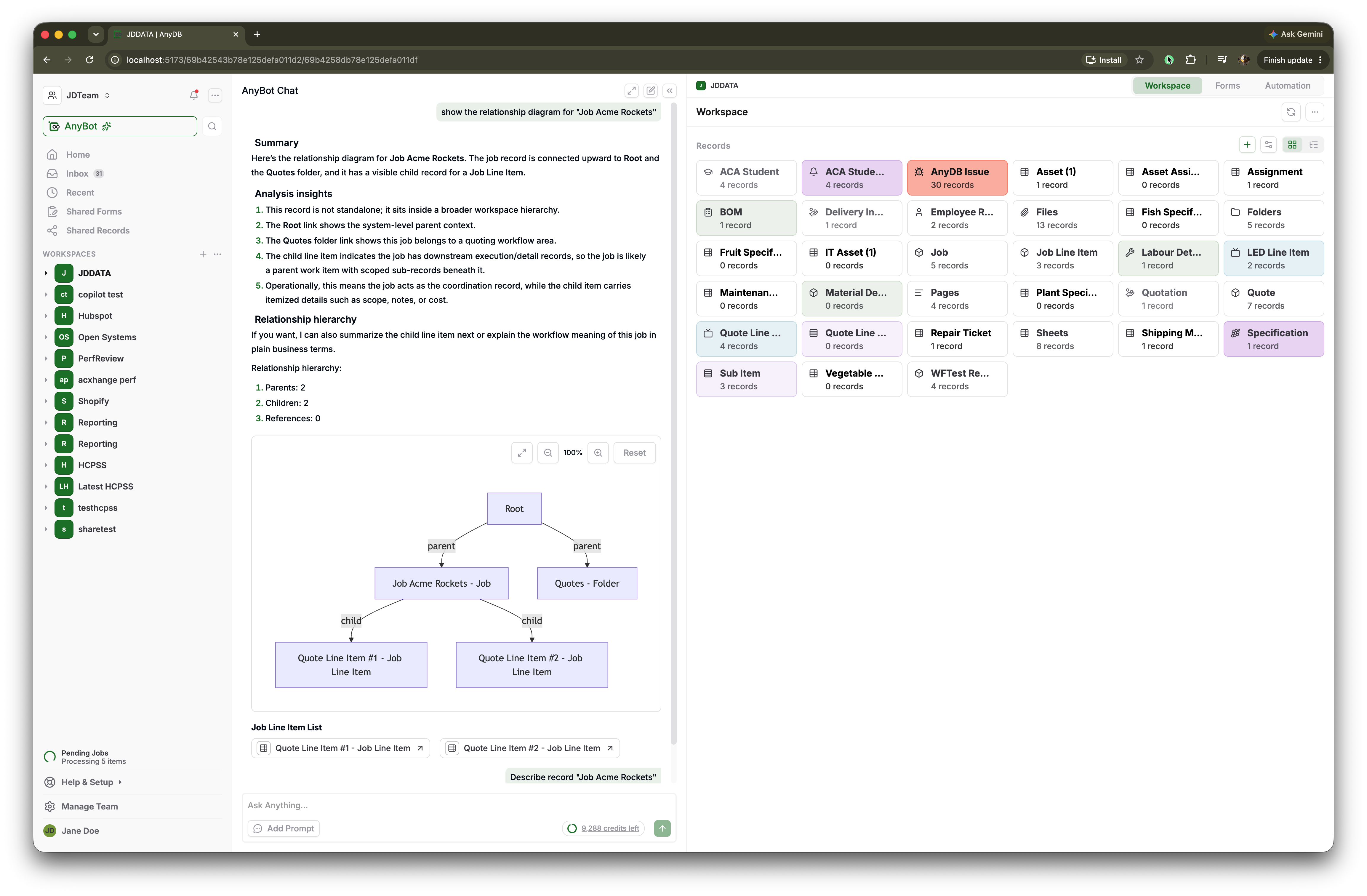
Explain this record in simple terms and list the key related records I should check next.
C) Aggregation and analysis
Count deals by stage and show win rate for this quarter.
Group tickets by assignee and show average time to close.
Compare monthly spend by vendor for the last 6 months and highlight unusual spikes.
D) Safer analysis workflow
First show the filtered records and counts. Then provide analysis based only on those records.
3) Chart and Visual Summary Prompts
Use these when you want AnyBot to turn query results into charts or visual summaries. If the prompt contains instructions to show charts, AnyBot will create charts as shown below
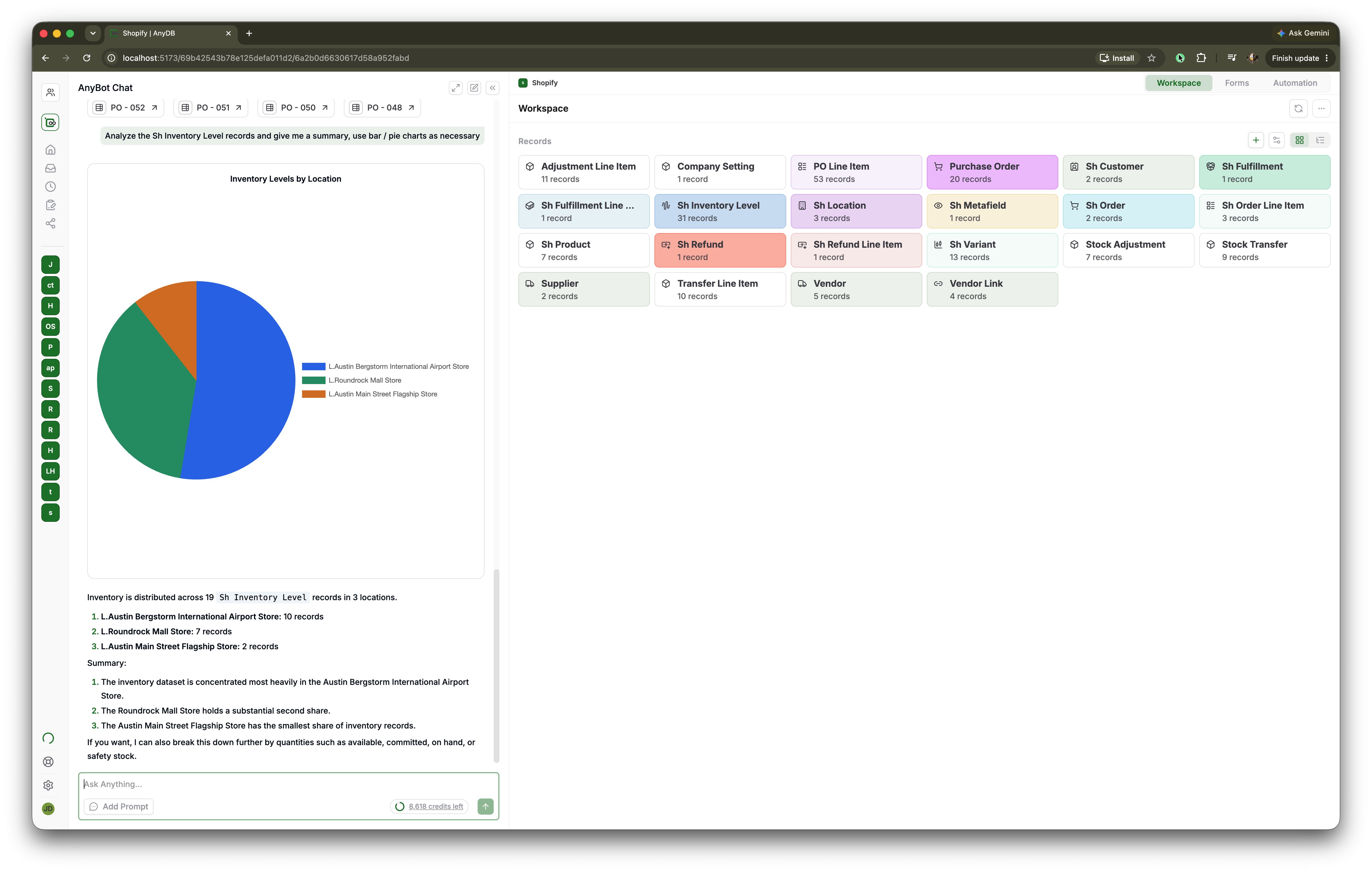
A) Bar charts
Show a bar chart of open tickets by assignee for this month.
Include the record count for each assignee.
Create a bar chart of purchase order spend by vendor for the last 6 months.
Sort vendors from highest spend to lowest.
B) Pie charts
Show a pie chart of deals by stage for this quarter.
Include the percentage and count for each stage.
Create a pie chart showing active employees by department.
Exclude archived or inactive employees.
C) Chart quality tips
- Name the chart type you want, such as bar chart, pie chart, line chart, or stacked bar chart.
- Specify the type, grouping field, metric, and date range.
- Ask AnyBot to show the records or counts used for the chart when you need to verify the data.
Example:
In Purchase Orders, create a bar chart grouped by Vendor / Supplier Ref.
Use Grand Total as the metric and include only records where PO Status is Ordered.
Show the underlying totals used for the chart.
4) Report, PDF, and Email Document Prompts
Use these when you want AnyBot to create a written report, generate a PDF document, or email a document to recipients.
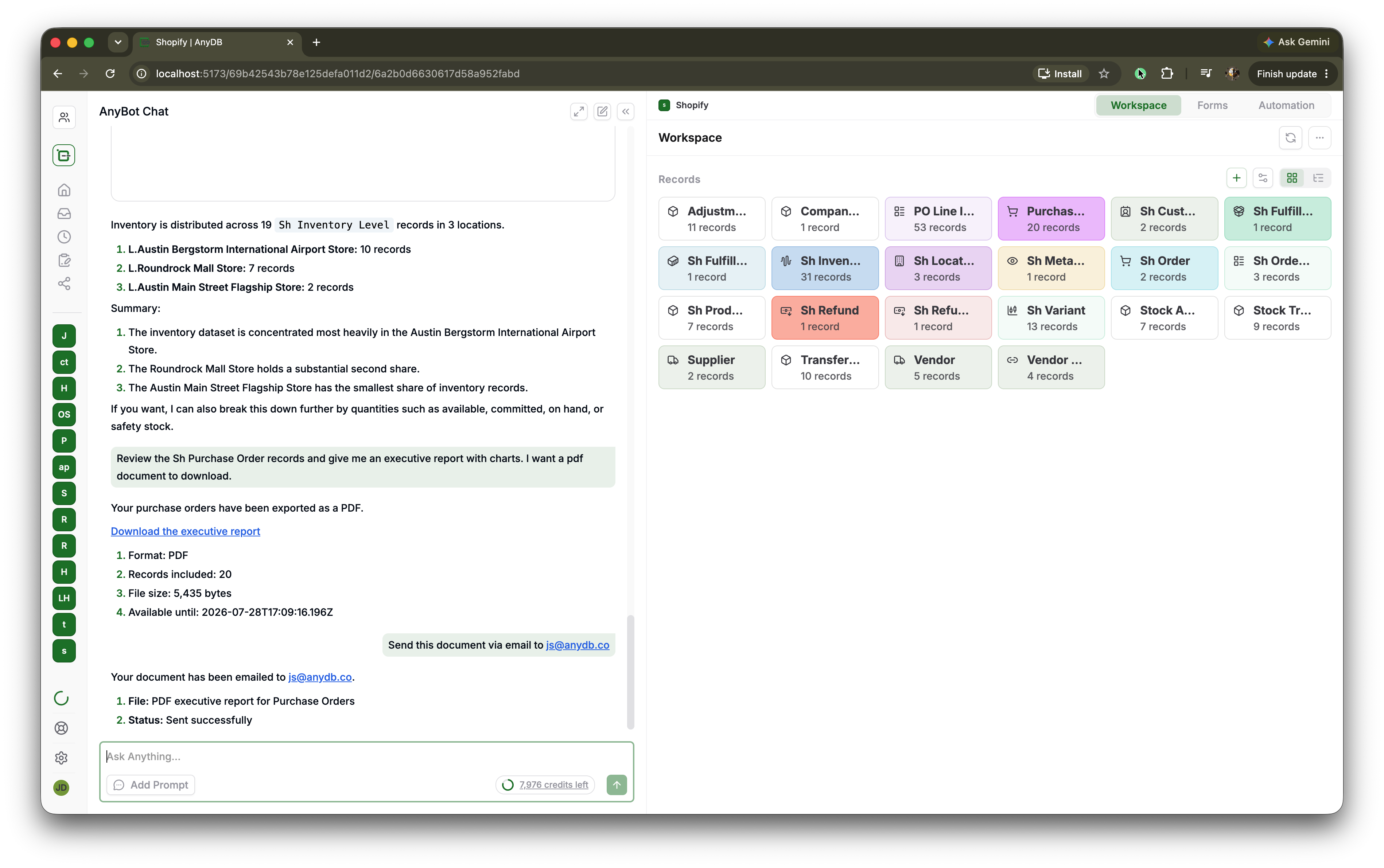
A) Generate a report
Generate a weekly operations report from Support Ticket records.
Include total opened, total closed, overdue tickets, top blockers, and recommended next actions.
Create a vendor performance report for the last quarter.
Summarize purchase order volume, total spend, delivery status, and any unusual delays.
B) Generate a PDF document
Create a PDF report for this project with:
1) Executive summary
2) Current milestones
3) Open risks
4) Tasks due in the next 14 days
Generate a PDF document for Invoice INV-1042 with invoice details, customer information, line items, taxes, and payment instructions.
C) Email a document
Generate a PDF summary of this purchase order and email it to procurement@example.com.
Use the subject: Purchase Order Summary.
Create a monthly status report from Project records and email the PDF to the leadership group.
Include a short message in the email body summarizing the top three highlights.
D) Safer document workflow
For business documents, ask AnyBot to preview the content before sending or emailing anything.
Draft the report first and show me the preview.
Do not generate the final PDF or send email until I confirm.
Prepare the email and attachment, then show me the subject, recipients, and document summary before sending.
5) Data Mutation Prompts (Create, Update)
Use these for controlled data changes. Keep mutation prompts precise.
A) Create records
Add a new Vendor record named Acme with email procurement@acme.com and status Active.
Create three tasks under Project Phoenix:
1) Draft proposal due Friday
2) Security review due next Tuesday
3) Final approval due end of month
B) Update records
Update all open tickets assigned to me: set Priority to High when Due Date is today or overdue.
For deals in stage Proposal with no follow-up date, set follow-up date to next Monday.
Change Vendor Status to Inactive for vendors with no orders in the last 12 months.
Before updating, show me the matched records.
Recommended Prompt Patterns
Pattern: Query then mutate
Find all records matching <criteria>. Show the list first. After I confirm, apply <update/delete action>.
Pattern: Scope + output format
In the <Type Name> type, for records where <filters>, return:
1) Record count
2) IDs
3) Short summary by status
Pattern: Controlled bulk update
Update only records in <Type Name> where <strict filters>.
Do not touch any record outside this set.
Show a dry-run preview before execution.
Troubleshooting Prompt Quality
If AnyBot gives broad or unclear results, refine your prompt with:
- Exact type name
- Exact status or field names
- Date range
- Sort order
- Confirmation requirement
Example improvement:
Bad: Show me pending items.
Good: In Purchase Order type, list records where PO Status is Ordered and Received Quantity is 0, sorted by Created Date descending.
Notes on Permissions
AnyBot actions still follow your AnyDB permissions. If you do not have update/delete access for a workspace or type, mutation requests will not be applied.