Dynamic Views
Dynamic Views use the identity of the logged-in user to determine which records appear in a view. The same view can therefore show different records to different users.
For example, you can create an Assigned Work Orders view where the Assigned field matches the logged-in user's email address. When users open the view, they see only the work orders assigned to them.
This is useful when you want to create one reusable view for:
- Guest users who should see only their assigned records
- Customer, vendor, or partner portals
- Employees who should see only their own tasks or requests
- Large groups of users who need personalized results
How Dynamic Views Work
A Dynamic View uses the Smart Search view type. Its search query includes a user variable that is resolved from the current logged-in user.
Each time a user opens the view, AnyDB evaluates the query using that user's identity. You do not need to create and maintain a separate view for every user.
For example, a query that matches the Assigned field to User Email behaves like this:
| Logged-in user | Records shown |
|---|---|
alex@example.com | Records assigned to alex@example.com |
jamie@example.com | Records assigned to jamie@example.com |
Supported User Variables
You can insert any of the following user variables into a Smart Search query:
| User variable | Value used for matching |
|---|---|
| User ID | The unique AnyDB identifier of the logged-in user |
| User Email | The email address of the logged-in user |
| User First Name | The first name in the user's profile |
| User Last Name | The last name in the user's profile |
| User Display Name | The display name in the user's profile |
The record field used in the query must contain a value that matches the selected user variable. For example, use User Email when the Assigned field contains account email addresses.
Do not use User First Name, User Last Name, or User Display Name to control access when sharing must be secure. Users can change these profile values, which could cause them to match records intended for another user.
Use User ID or User Email for security-sensitive shared views.
Create a Dynamic View
- Open the database where you want to create the view.
- Open the views menu and select + Add Custom View.
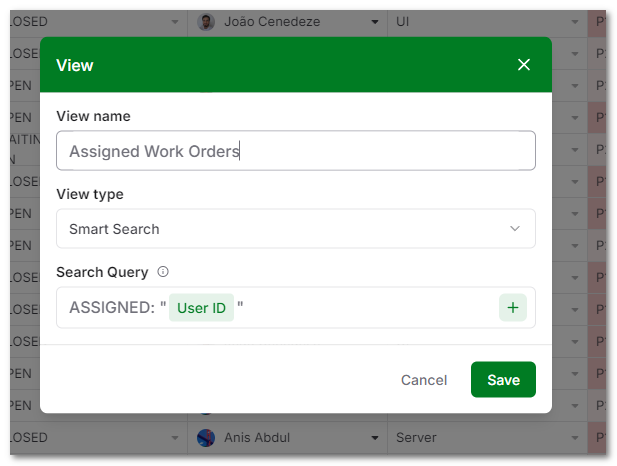
- Enter a descriptive View name, such as
Assigned Work Orders. - Select Smart Search as the View type.
- In Search Query, select the field that identifies the assigned user. For example, select Assigned.
- Click the + button, select User, and insert the user variable that matches the values stored in the field. For example, select User Email if Assigned contains email addresses.
- Click Save.
When a user opens the saved view, AnyDB replaces the user variable with that user's corresponding value and returns only matching records.
If a field name or value contains spaces, enclose it in double quotation marks ("). For example:
"Assigned User":"User Email"
You can combine the user context with other search conditions. For example, a dynamic view could show records assigned to the logged-in user whose status is also Open. See Search in AnyDB for more information about search fields, conditions, and logical operators.
Share a Dynamic View
After creating a Dynamic View, you can share it the same way as any other saved view:
- Open the Dynamic View.
- Open View Options.
- Click Share View.
- Share the view with team members or invite guests.
Each recipient signs in to AnyDB and sees the records that match their own user context. This allows one shared view to serve many users without exposing another user's assigned records through that view.
For complete sharing instructions and permissions, see Sharing.
Example: Assigned Work Orders Portal
Suppose a work orders database contains an Assigned field with each assignee's email address.
Create an Assigned Work Orders Dynamic View with:
- View type: Smart Search
- Field: Assigned which could be a cell format of User.
- Value: User Email
Share the view with your guest accounts. When each guest signs in, the same shared view displays only the work orders whose Assigned value matches that guest's email address.
This provides a simple personalized portal experience while allowing you to manage only one view.
Best Practices
- Use User ID or User Email for views that securely separate records between users.
- Use name variables only for non-security-sensitive personalization.
- Store a value matching the selected user variable in the field used by the Dynamic View.
- Use a clear view name that describes what users will see.
- Test the view with representative user accounts before sharing it broadly.
- Combine the user context with status, date, priority, or other conditions when users need a more focused view.
- Review the view's sharing permissions before inviting guests or team members.