Document Generation (Formatted Export)
The Document Generation feature allows you to generate beautifully formatted documents such as quotes, shipping labels, invoices, or asset reports directly from your AnyDB records.
You can define your own .docx or .xlsx templates with special tags that automatically populate with data from a record.
Example Output
The generated file can be downloaded as .docx or directly exported to .pdf.
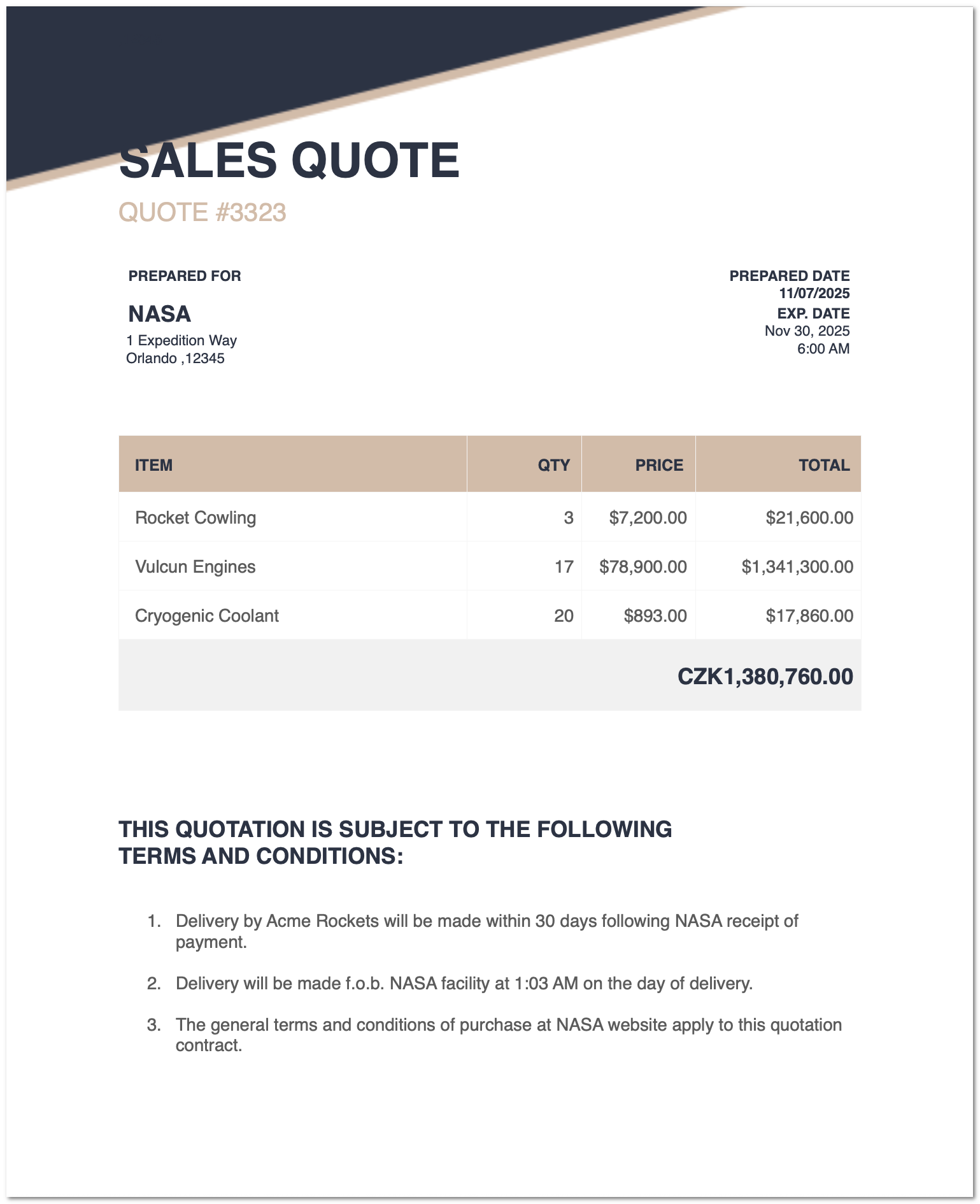
Each placeholder in your document ({FieldName}) is dynamically replaced with the corresponding record field, producing a professional report, quote, or label instantly.
Use Cases
| Department | Example Output | Description |
|---|---|---|
| Sales & Finance | Quotes, Invoices | Generate branded sales documents instantly |
| Operations & Logistics | Shipping Labels | Print directly from asset or order records |
| HR & Admin | Employee Letters | Auto-generate offer letters or certificates |
| Inventory Management | Stock Reports | Export product summaries to Excel |
| Project Management | Job Sheets | Print or share structured task documents |
Supported Formats
| Format | Description |
|---|---|
| .DOCX | Word template supporting text, tables, and placeholders |
| .XLSX | Excel templates for tabular reports and calculations |
| Optional export of generated file as PDF |
Overview
Formatted Export is configured by the database admin inside Manage Database → Formatted Export.
Each export option links a record type (template) with a corresponding document file. Once configured, users can generate the formatted documents from the More Options menu within any record.
| Feature | Description |
|---|---|
| Template Types | Word (.docx) or Excel (.xlsx) |
| Setup By | Database Admin |
| Usage | Available for all records of the selected record type |
| Output | .docx or .pdf (automatically populated with record data) |
| Use Cases | Quotes, Invoices, Shipping Labels, Asset Reports, Certificates, and more |
Setting Up Formatted Export
Step 1: Prepare your templates for your record
- Create a .docx or .xlsx file using Microsoft Word, Excel, or compatible software.
- Insert placeholder tags (e.g.,
{Name},{Date},{A4}) where you want dynamic data to appear.
Refer to the Template Tag Reference section below for tag syntax. - Save and upload the file to anyd AnyDB database folder in your database.
Step 2: Open the Formatted Export Settings
- Navigate to Manage Database for your selected database.
- Choose Formatted Export from the left panel.
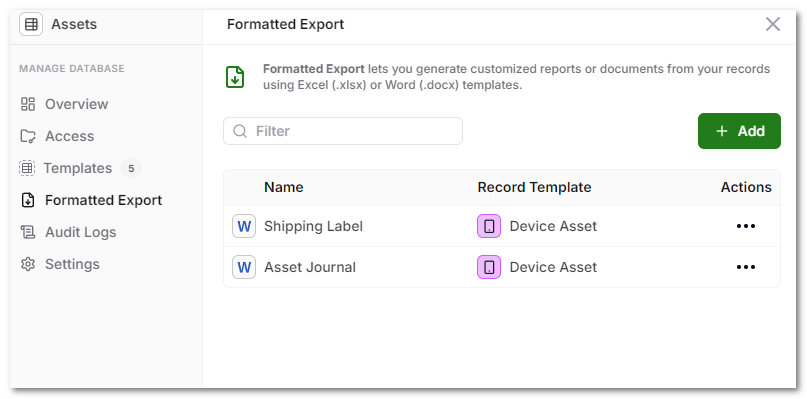
You’ll see a list of all configured export templates. Each export is linked to a specific record type (e.g., Device Asset).
Step 3: Upload a Template File
- Click + Add to create a new export.
- Choose the record template (e.g., Device Asset).
- Upload your .docx or .xlsx file containing special data tags (for example,
{{Name}},{{Order.Number}}, or{{Date}}). - Save your changes.
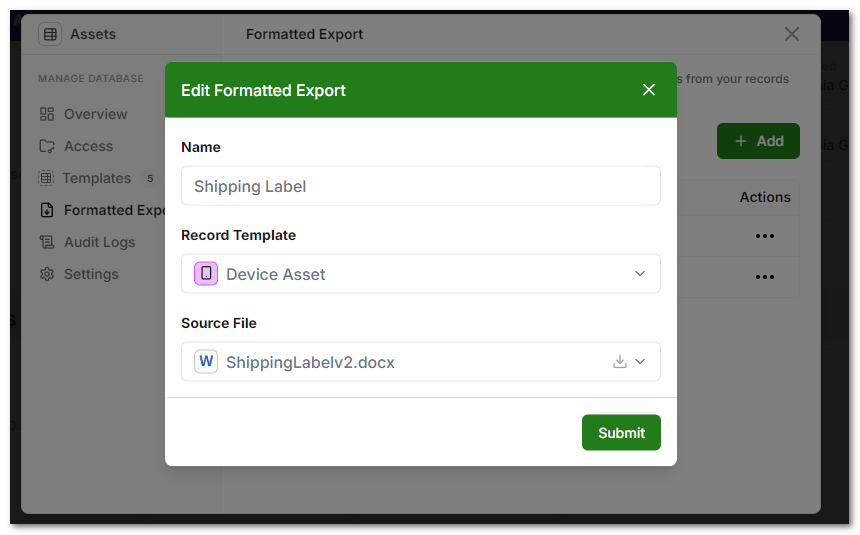
The file must be uploaded inside the database’s folder so that AnyDB can use it for dynamic exports.
Step 3: Configure Associations
Each export can be given a name and linked to a record template.
A record can have multiple export definitions — for instance, one for a Sales Quote, another for a Delivery Note.
| Example | Record Template | Export File |
|---|---|---|
| Shipping Label | Device Asset | ShippingLabelv2.docx |
| Asset Journal | Device Asset | AssetJournal.docx |
Generating a Formatted Export
Once the setup is complete, any user can generate a formatted file directly from a record.
- Open the desired record.
- Click the More Options (⋮) button at the top right.
- Select Download Formatted → [Your Template Name].
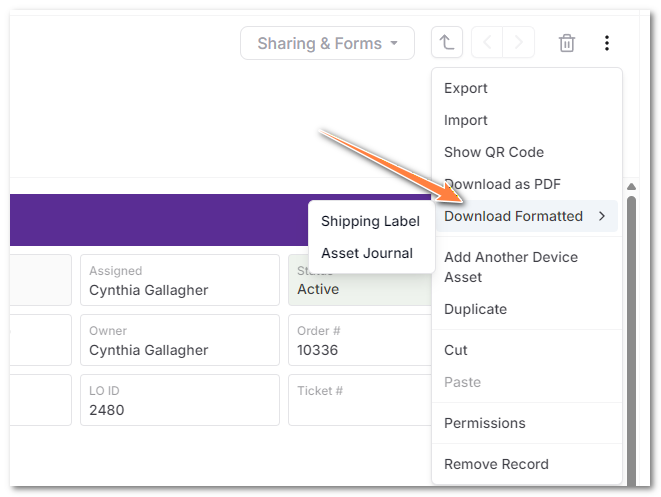
AnyDB will automatically fill in your document template with data from the record.
Tips and Best Practices
- Use descriptive export names like Sales Quote or Asset Journal for clarity.
- Keep template files inside a folder called templates for easy access.
- You can define multiple exports for the same record type to handle different document layouts or audiences.
Template Tag Reference
Templates for formatted exports use placeholder tags (inside { } or {{ }}) to pull values dynamically from AnyDB fields.
Placeholder Tags
{field_name} or {position_name}
or
{{field_name}} or {{position_name}}
- The fields can be referred using thier Position such as A1, A2 etc or using thier Label such as "Name", "Total"
- The format of the field will be used when rendering it for output. For example, if the field format is "Currency" and set to use USD, then the generated document will have currency formatting style. Fields with Date format will use Display values specified.
Examples:
| Tag | Description | Example Output |
|---|---|---|
{Name} or {A5} | Inserts the record’s primary name or title | NASA |
{CreatedAt} | Date when the record was created | 11/07/2025 |
{Total} | Numeric or calculated total value | $13,415,076.00 |
Output Children Data using Loops tag
 {#attachment_position} starts a child loop block
 {child_field_name} or {child_position_name}
 {/} or {/attachment_position} ends it.
- Loops are useful to output dynamic data from children records.
Example:
Say you have a Parent Record with the following fields
| Position | Label | Format | Description | Example data |
|---|---|---|---|---|
| A1 | Name | General | The name of the person. | John. |
| A2 | Age | Number | The age of the person | 23 |
| A3 | Monthly Sale Record | Attachments | The children records |
Lets assume that the Parent has three child records attached. Child Record (Monthly Record) with the following fields -
| Position | Label | Format | Description | Example data of each record. |
|---|---|---|---|---|
| D1 | Date of Sale | Date | Date when sale was made | 01/01/2025, 02/01/2025, 03/01/2025 |
| D2 | Quantity Sold | Number | Total number of items sold | 20, 50, 200 |
| D3 | Sale Price | Currency | Sale value | 70, 150, 500 |
In order to display data from each of the child record and render it in for export Using the following will output three lines (notice the use of Position and Label to refer to children cells)
{#A3} {D2} was sold on {D1} for {Sale Price} {/}
Output may look like (Depending on the display format of the cell).
20 was sold on 01/01/2025 for $7050 was sold on 02/01/2025 for $150200 was sold on 03/01/2025 for $500
Conditional Tags
{#condition} ... {/condition}
You can also use conditional tags to display content based on certain conditions.
You can also use conditional tags to check if a field has a value or not. For example, you can show a specific message if a field is empty.
{#TRN Number}TRN: {TRN Number}{/TRN Number}
HTML Tags
If you have html content you want to render in your document, you can use the HTML tag to render it as HTML content in the generated document.
{#HTML}Your HTML content here{/HTML}
Example
This section shows an Example AnyDB record and a Formatted Export Template document and its output.
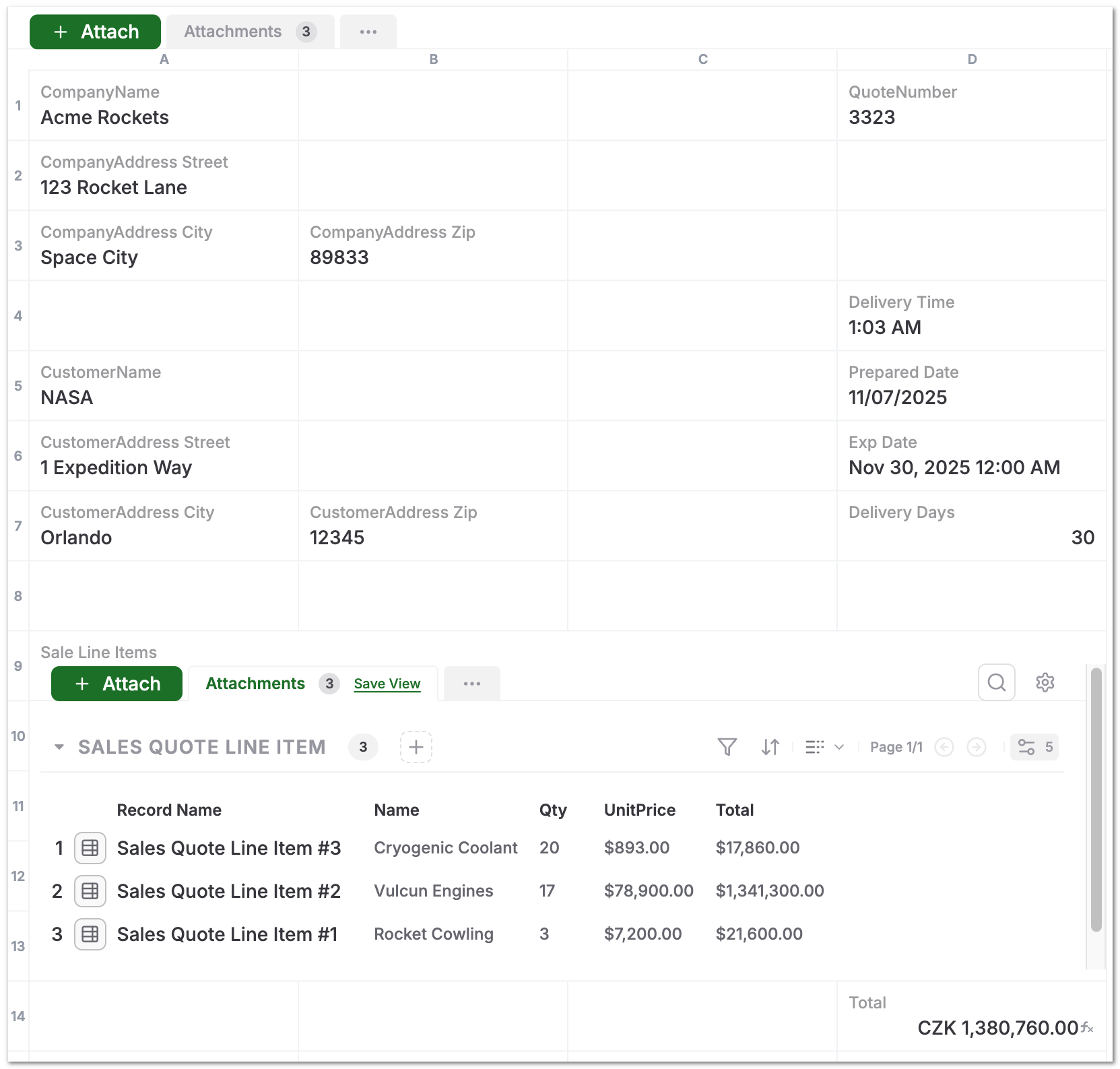
A Formatted Export Template. Locate the position and Labels used in this document in the AnyDB record
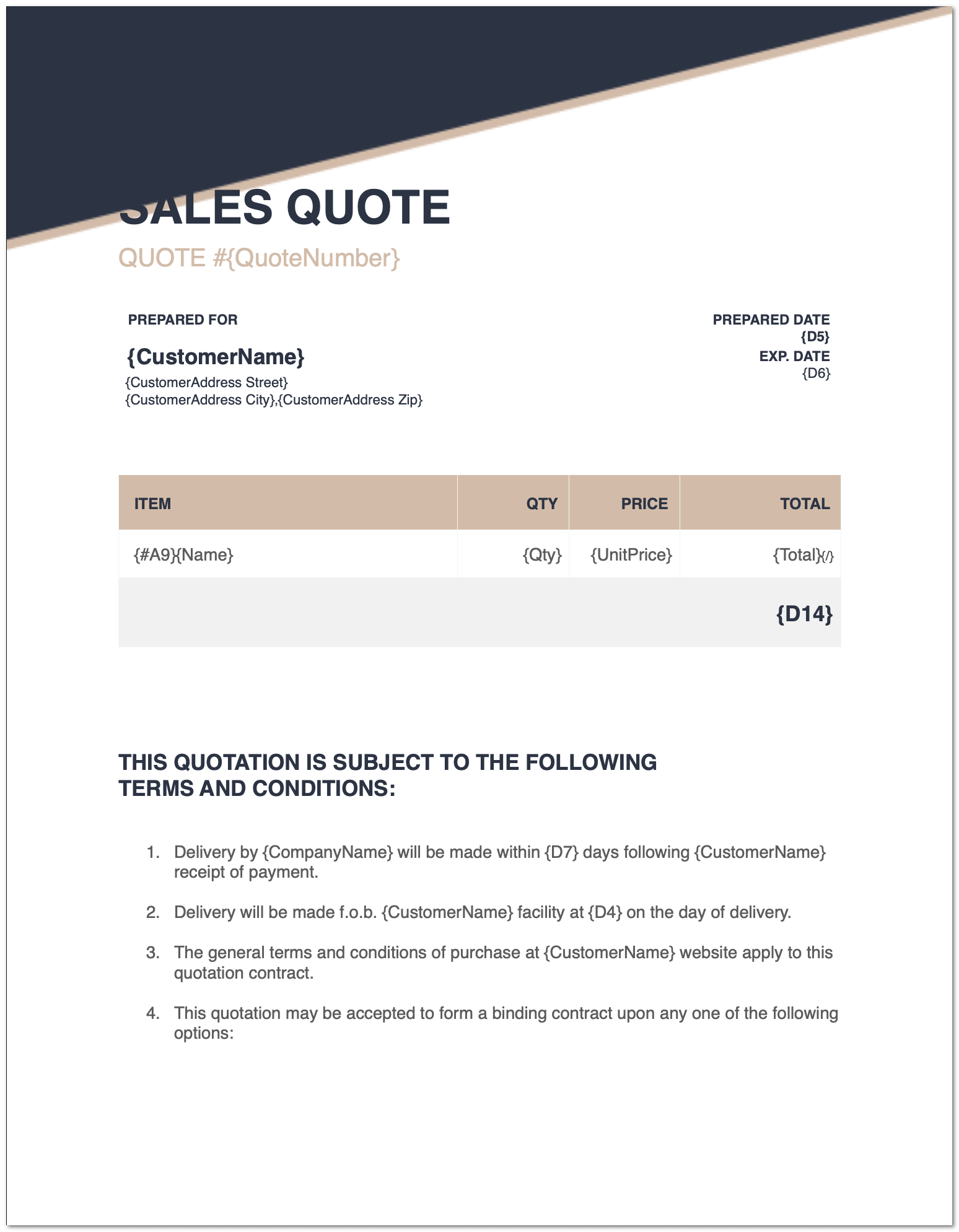
Generated output
Summary
Formatted Export brings automation and flexibility to document generation in AnyDB.
With just a few clicks, you can produce branded, structured, and data-driven documents straight from your records, saving time and eliminating manual formatting work.