Search (Barcodes & QR Codes)
Barcode & QR Code Search
Code Search allows you to locate records in AnyDB by scanning a physical barcode/qrcode. This is designed for fast, operational lookup where users interact with physical items.
Common use cases include:
- Inventory and asset lookup
- Warehouse picking and receiving
- Pharmacy and regulated item tracking
- Field operations with scanners
How Code Search Works
Barcode/QRCode Search matches the scanned or entered value against barcode/QRCode-backed fields in your data. When a match is found, AnyDB opens the corresponding record.
This flow is optimized for keyboard-focused barcode/QRCode scanners, which typically act as fast text input devices.
Opening Barcode/QRCode Search
- Click the Barcode icon in the top navigation bar.
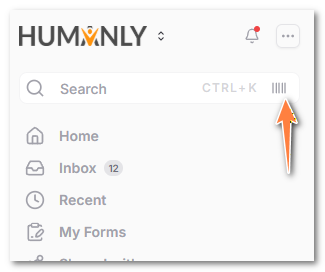
- The Barcode Search dialog opens.
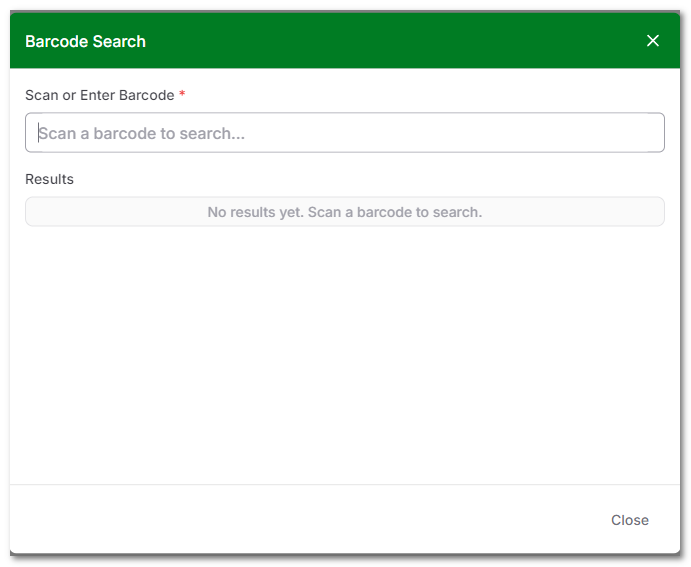
- Your cursor is automatically focused in the input field.
This allows immediate scanning without additional clicks.
Searching by Barcode or QR Code
Scan a barcode or QR code
- Use a hardware barcode/QRCode scanner.
- Scan the barcode or QR code while the input field is focused.
- The value is entered automatically.
- AnyDB searches and returns the matching record.
Enter manually
- Type or paste a barcode value into the input field.
- Press Enter.
- Matching records are shown immediately.
Requirements
- Records must contain a Barcode cell or QR Code cell or a field whose value matches the scanned code.
- The value must match exactly.
- Scanner configuration should include an Enter or Tab suffix for best results.
Printing Barcode Labels in Bulk
If you need to print many barcode labels at once, you can use Avery Design & Print with a spreadsheet of SKUs or barcode values. This is useful when labeling inventory items, assets, bins, shelves, packaging, or any physical item that should be searchable in AnyDB by scan.
Prepare your spreadsheet
Create an Excel file with one row per label. At minimum, include the barcode value that should match the value stored in AnyDB.
Example columns:
| SKU | Item Name | Barcode Value |
|---|---|---|
| SKU-1001 | Wireless Keyboard | SKU-1001 |
| SKU-1002 | USB-C Dock | SKU-1002 |
| SKU-1003 | Laptop Stand | SKU-1003 |
Use the same value in the spreadsheet that users will scan in AnyDB. For example, if the AnyDB Barcode cell is based on the SKU field, the Avery barcode should encode that same SKU value.
Create labels in Avery Design & Print
- Open Avery Design & Print.
- Choose the Avery label product or template that matches the label sheets you plan to print.
- Start a blank design or choose an existing label design.
- Use Avery's data import, mail merge, or data merge option to import your Excel file.
- Add a barcode element to the label design.
- Connect the barcode value to the spreadsheet column that contains the SKU or barcode value.
- Add optional text fields, such as item name, SKU, location, or category.
- Preview the merged labels to confirm each row produces the correct barcode.
- Print a test sheet before printing the full batch.
Best practices
- Keep barcode values stable. Avoid using names or descriptions that may change later.
- Use the same barcode format in Avery that your scanners support, such as Code 128 for alphanumeric SKUs.
- Include human-readable text under the barcode so users can identify labels without scanning.
- Test a few printed labels with your scanner before applying them to items.
- Confirm the scanned value opens the expected AnyDB record using Barcode & QR Code Search.