Views
AnyDB allows you to sort and filter records using multiple criteria, and to create custom views of your data. This allows you to slice and dice your data in various ways to focus on what matters most to you.
View Types
Choose the layout that best matches how you want to work with records.
Watch a video
Create a Custom View
- Click the 'three dots icon' and click on '+ Add Custom View'
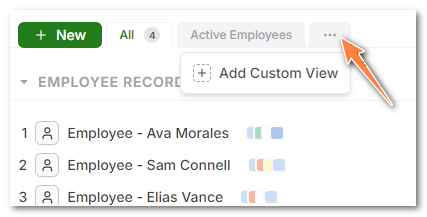
- Type a name for this custom view tab and save it

- Then, you can apply the sort and filter to this custom view tab

- Then you can save the view by clicking on the 'Save View' link next to the tab.
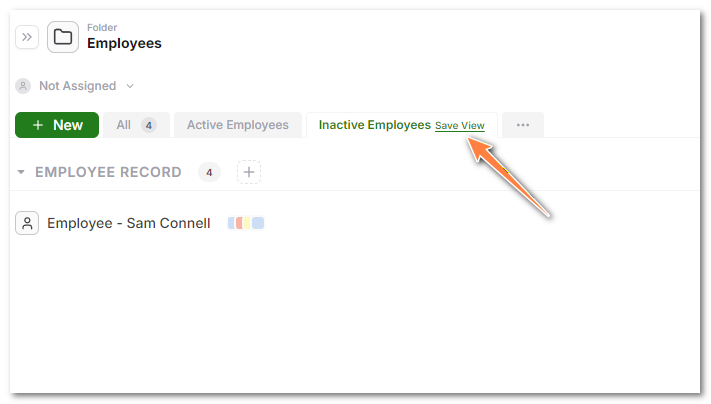
Saved Views are saved globally and available for all users who use the system. If you want to keep a view private, change filters but don't save it.
Create a Dynamic View
Dynamic Views use the logged-in user's context to show each user only the records that match them. They are useful for assigned work, guest sharing, and customer, vendor, or partner portals.
To create one:
- Open the views menu and select + Add Custom View.
- Enter a name for the view.
- Select Smart Search as the View type.
- Build the search query and insert a user variable, such as User ID or User Email.
- Click Save.
If a field name or value contains spaces, enclose it in double quotation marks (").
See Dynamic Views for the complete setup instructions, supported user variables, secure-sharing guidance, and examples.
Duplicating a View
Many times, you may want to create a new view based on an existing view but just change one thing. You can do this by duplicating the view.
To duplicate a view, click on the 'three dots icon' next to specific view you want and select 'Duplicate View'.
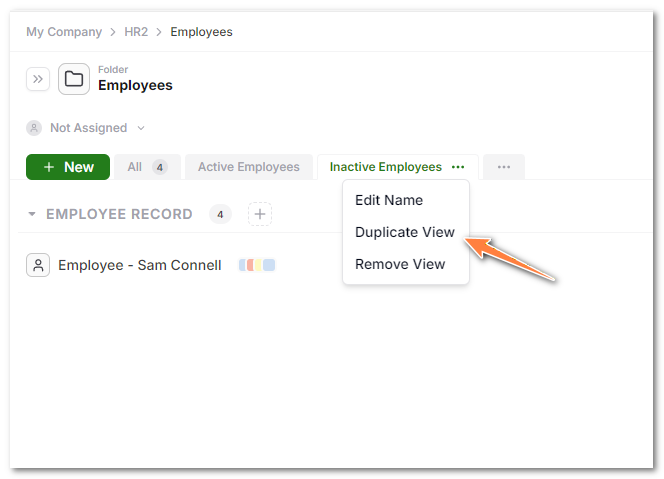
Then make the changes to filtering and sorting as needed and save the view again.
Editing the name of a View
To edit the name of a view, click on the 'three dots icon' next to the view name and select 'Edit Name'.

Deleting a View
To delete a view, click on the 'three dots icon' next to the view name and select 'Remove View'.

Exporting a View
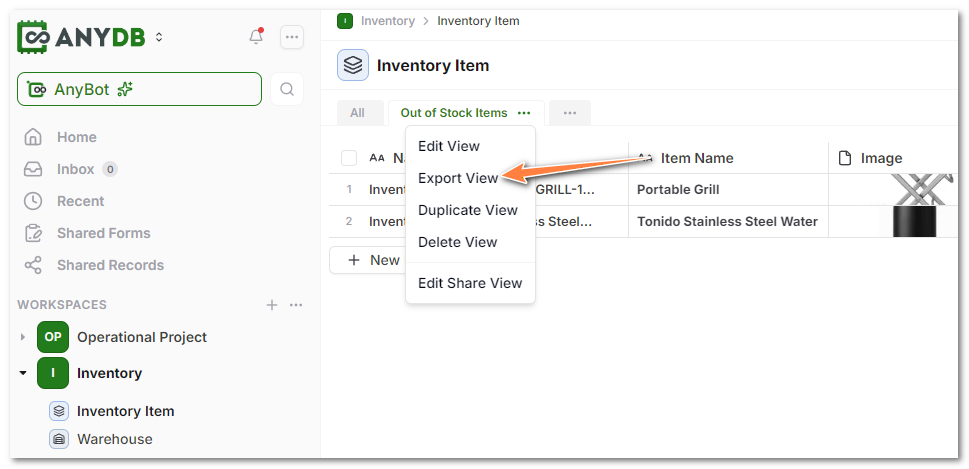
To export a view, click on the 'three dots icon' next to the view name and select 'Export View'.