Workflow Automation
Workflow Automation in AnyDB enables teams to design and run custom business workflows that automatically execute tasks based on changes in structured data.
Instead of relying on manual follow-ups, email reminders, or status tracking, you can configure event-driven workflows that keep your operations moving in real time.
By combining triggers (when something happens) with actions (what should happen next), AnyDB becomes not just a data storage platform, but an operational engine for your business processes. Automations also maintain authorization and run in the context of the Automation Workflow owner so there is no risk of data leak or authorization bypass.
Workflow Automation helps you:
- Eliminate repetitive manual work
- Enforce business rules automatically
- Keep teams aligned with real-time notifications
- Maintain consistent data states across records
- Reduce errors caused by missed updates
- Scale processes without increasing operational overhead
Just like any automation platform, AnyDB Workflows allows you to build logic directly on top of your structured data — but with native awareness of your records, templates, fields.
Typical business use cases include:
- Automatically assigning tasks when a new issue is created
- Sending notifications when a status changes
- Creating follow-up records for sales or support workflows
- Escalating high-priority records
- Updating related records to maintain consistency
- Triggering downstream business processes
Because automation runs directly inside AnyDB, it operates securely within your workspace and respects your data structure, permissions, and record hierarchy.
With Workflow Automation, AnyDB evolves from a system of record into a system of action — enabling your data to actively drive business outcomes.
Overview
Workflow automations consist of two main components:
Triggers: Events that initiate the workflow
| Trigger | Description |
|---|---|
| Manual | Fires when a user manually runs a workflow |
| When a Record is Created | Fires when a new record is created in your workspace |
| When a Record is Updated | Fires when an existing record is modified |
| Timer (Schedule) | Fires on a configured schedule/interval |
Actions: Tasks that are executed when the trigger conditions are met
| Action | Description |
|---|---|
| Create Record | Creates a new record in the selected folder using the provided data |
| Update Record | Updates an existing record with the specified field values |
| Send Email | Sends an email to specified recipients with custom subject and body |
| Copy Record | Copies a record under a target parent record |
| Move Record | Moves a record under a target parent record |
| Search Records | Finds records by template, filter condition, or query string |
| Generate Document | Exports a record using a formatted export template |
| Call Webhook | Calls a registered webhook with workflow context payload |
| Script Action | Runs custom JavaScript logic against records and workflow context |
Automation Workflow Limits
Automation Workflow limits depend on your AnyDB license plan.
There are two limits:
- Number of workflows
- Workflows monthly execution limit
You can find it in your Team Properties dialog
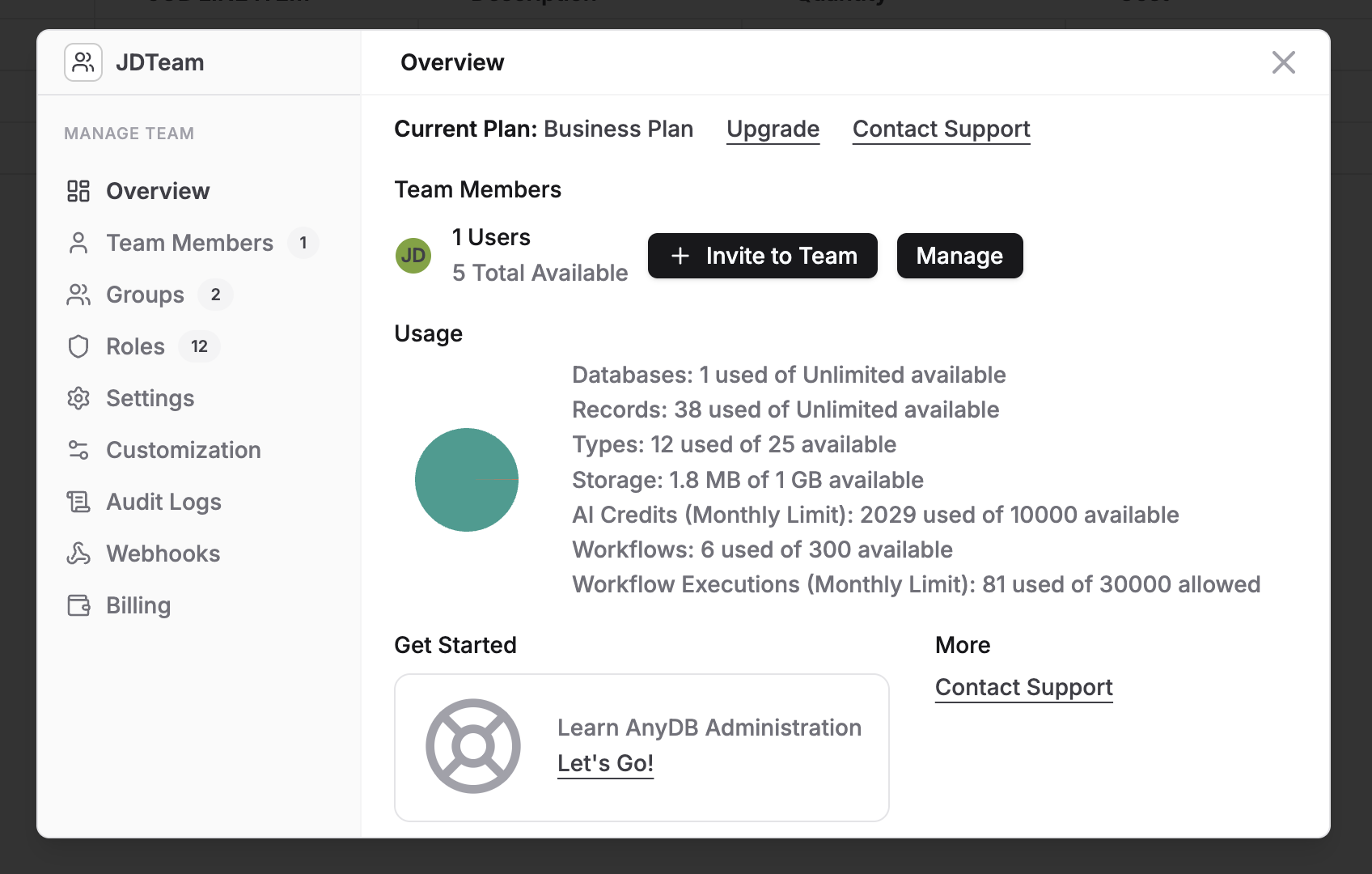
For exact values for your workspace, check your billing/subscription details or contact AnyDB support.
Supported Triggers
1. When a Record is Created
This trigger fires when a new record is created in your workspace.
Configuration Options:
| Field Name | Description | Example |
|---|---|---|
Type Name (type) | Trigger only if a record created matches a type name | "AnyDB Issue" |
Parent (parent) | Trigger only if a record is created under a specific parent record | 67a1... |
Conditions (filter) | Optional condition expression. Supports AND / OR / NOT and comparison operators (==, !=, <, <=, >, >=) | Status == "Open" AND Amount > 1000 |
Notes:
filterexpressions are validated before execution. Invalid expressions are skipped.- String comparisons in filter values are case-insensitive.
Use Cases:
- Automatically notify team members when new issues are created
- Create related records in other databases
- Trigger approval workflows for new submissions
Output Fields:
These fields are available to subsequent action in the workflow:
| Field Name | Type | Description |
|---|---|---|
| adoid | string | The id of the record |
| name | string | The name of the created record |
| url | string | The URL of the created record |
2. When a Record is Updated
This trigger fires when an existing record is modified.
Configuration Options:
| Field Name | Description | Example |
|---|---|---|
Type (typename) | Trigger only if the updated record matches a type | "AnyDB Issue" |
Parent (parent) | Trigger only if the updated record is under a specific parent | 67a1... |
Trigger Fields (cellids) | Trigger only when any listed fields are changed (comma-separated keys/positions) | STATUS,PRIORITY,A3 |
Conditions (filter) | Optional condition expression. Supports AND / OR / NOT and comparison operators (==, !=, <, <=, >, >=) | Status == "Closed" OR Amount > 1000 |
Notes:
cellidsaccepts a comma-separated list of field keys and/or positions.filterexpressions are validated before execution.- If you want to only trigger when a field is changed to a specfic value, set the condition and trigger field . For example, if you want to trigger only if
STATUSfield is updated toCLOSED, then setConditionsto"STATUS"=="CLOSED"andTrigger FieldstoSTATUS
Use Cases:
- Send notifications when record status changes
- Update related records automatically
- Trigger escalation workflows based on field updates
Output Fields:
These fields are available to subsequent action in the workflow:
| Field Name | Type | Description |
|---|---|---|
| adoid | string | The id of the record |
| name | string | The name of the record updated |
| changedCellsIds | string | Comma separated list of changed cell ids. If empty then all cells were changed |
| url | string | The URL of the updated record |
3. Timer (Schedule)
This trigger fires based on a configured schedule or interval.
Configuration Options:
| Field Name | Description | Example |
|---|---|---|
| Interval | Run at a recurring interval. Supports ms or duration units ( m, h, d, w, mo) | 15m, 1d, 1mo, 60000 |
| Start Time | Optional start boundary (HH:mm or absolute date/time) | 09:00, 2026-03-01T00:00:00Z |
| End Time | Optional end boundary (HH:mm or absolute date/time) | 18:00, 2026-12-31 |
| Specific Time | Optional specific daily time to run | 10:30 |
| Days of Week | Optional weekdays filter | Mon,Wed,Fri |
| Days of Month | Optional month-day filter | 1,15,30 |
Notes
- Note that the lowest resolution is greater than 1 minute
Start TimeandEnd Timeapply toInterval,Days of WeekandDays of Monthfields.
Use Cases:
- Daily reminders and follow-up generation
- Weekly reports and recurring exports
- Month-end rollups and notifications
Output Fields:
Timer trigger does not emit record-specific output fields. Downstream actions can still use static values and workflow context.
4. Manual
This trigger fires only when a user manually runs the workflow.
Configuration Options:
Manual trigger does not require configuration fields.
Notes:
- Use this trigger for on-demand workflows that should not run automatically on record events or schedules.
- It does not emit record-specific output fields by default.
Use Cases:
- Run one-off remediation or maintenance workflows
- Execute ad hoc data operations from workflow UI/API
- Trigger controlled internal workflows during testing or support operations
Output Fields:
Manual trigger does not emit output fields by default.
Supported Actions
1. Create Record
Creates a new record in the selected folder using the provided data.
Data Sources: Every action has access to multiple data.
- Trigger Record: This is the record that triggered the workflow. The fields of this record is available to all action
- Previous Action: This is the output of the previous action. For example, if previous action creates record, it may supply the newly created record id as output. This fields will be updated as need arises.
Configuration Options:
| Parameter Name | Description | Example |
|---|---|---|
| Name* | Name of the new record. | Follow-up for {{trigger.name}} |
| Parent | Parent record to attach the new record to. | Some Parent Rec... |
| Type | Type for the new record. IF not provided then it will be typeless (Spread sheet) | My New Type |
| typename | Template/type name for the new record. Used to resolve a template id when typeid is not provided. | Issue |
| Set Values | Comma-separated field updates using labels or positions. Examples: Status=Open,Priority=High or A2=300,B4=Closed. Unknown labels are ignored. | Sales Stage=Closed Won,Amount=10000 |
| Follow Up | Follow-up timestamp. Follow up will generate a notification to the owner of the record (Workflow creator in this case) | Jan 1, 2027 10:00:00 PM |
| Assignees | Comma-separated user ids to assign. | user1,user2 |
| Locked | Lock state for the new record. Accepts boolean values. | true |
| Source Record | Source record to copy from. Copies matching cells/children from the source tree into the newly created record tree. This will override the values set in Set Values input field | My source rec... |
| Transform Map | Optional type mapping used with copyFrom when child templates differ. Supports map-like values such as OldType=NewType (comma-separated for multiple mappings). | Task=Work Item,Subtask=Checklist Item |
Notes:
nameis required.Source Recordcan be used withoutSet Values; if both are provided, copy-based values can override overlappingcell_valueskeys.
Use Cases:
- Create follow-up tasks automatically
- Generate related documentation records
- Create audit trail records
Output Fields:
These fields can be used in subsequent actions:
| Field Name | Type | Description |
|---|---|---|
| adoid | string | The ID of the created record |
| name | string | The name of the created record |
| url | string | The URL of the created record |
2. Update Record
Updates an existing record with the specified field values.
Configuration Options:
| Field Name | Description | Example |
|---|---|---|
| Record* | Select which record to update | This can be dynamically picked or static value of record id can be provided |
| Set Values* | A comma-separated list of values to update using labels or positions e.g. 'Sales Stage=Closed,Amount=10000' or 'A9=Closed,B12=10000' | C2="CLOSED",A2=1000 |
| Follow Up | Set or follow-up date | "No Follow Up" |
| Assignees | Modify assigned users | "Not Assigned" |
| Locked | Change the lock status | "Unlocked" |
Use Cases:
- Auto-close related issues
- Update status fields across connected records
- Modify records based on business rules
Output Fields:
These fields can be used in subsequent actions:
| Field Name | Type | Description |
|---|---|---|
| adoid | string | The ID of the record to update |
| cell_update | string | Comma-separated list of updated fields (pos1=value1,key2=value2) |
| name | string | The name of the updated record |
| url | string | The URL of the updated record |
3. Send Email
Sends an email to specified recipients with custom subject and body.
Configuration Options:
| Field Name | Description | Example |
|---|---|---|
To* (to) | Recipient email address(es), comma-separated for multiple recipients | ops@company.com,owner@company.com |
Subject* (subject) | Email subject line | Record {{name}} was updated |
Body* (body) | Email message body | Status changed to Closed |
Attachments (attachments) | Optional attachments. | Previous action output file or Some File Record |
Attachment Notes:
- File-record ADO IDs are resolved automatically.
- Maximum attachment size is 5 MB per file.
Dynamic Values:
- Use record fields in subject and body (e.g., "Record Name", "TICKET STATE")
- Reference trigger record data dynamically
Use Cases:
- Notify stakeholders of status changes
- Send alerts when critical issues are created
- Deliver automated reports or summaries
Output Fields:
These fields can be used in subsequent actions:
| Field Name | Type | Description |
|---|---|---|
| to | string | The recipient email address |
| sentAt | string (date-time) | The timestamp when the email was sent |
4. Copy Record
Copies a source record under a destination parent record.
Configuration Options:
| Field Name | Description | Example |
|---|---|---|
| Record* | Source record ID to copy | adoid from trigger/previous action or Record that triggered the workflow |
| Destination Record* | Destination parent record | Folder/record |
Output Fields:
| Field Name | Type | Description |
|---|---|---|
| new_adoid | string | The ID of the newly copied record |
| name | string | The name of the copied record |
| url | string | The URL of the copied record |
5. Move Record
Moves a source record under a destination parent record.
Configuration Options:
| Field Name | Description | Example |
|---|---|---|
| Record* | Source record ID to move | adoid from trigger/previous action |
| Destination Record* | Destination parent record | Folder/record |
Output Fields:
| Field Name | Type | Description |
|---|---|---|
| adoid | string | The moved record ID |
| to_adoid | string | Destination parent record ID |
| name | string | The name of the moved record |
| url | string | The URL of the moved record |
6. Find Records
Finds records using template filter, condition expression, and/or free-text query.
Configuration Options:
| Field Name | Description | Example |
|---|---|---|
| Type Name | Optional template name filter | My Company Issue |
| Condition | Optional expression using AND/OR and operators (==, !=, <, <=, >, >=) | Status=="Open" AND Amount>1000 |
| Query String | Optional text query against record metadata and fields | critical payment |
At least one of Condition or Query String is required.
Output Fields:
| Field Name | Type | Description |
|---|---|---|
| refIds | string[] | Matching record IDs |
| refCount | number | Count of matching records |
| formattedRefDetails | string | HTML table representation of matches |
Notes
- The
formattedRefDetailswill be available in action such as sendEmail to send a HTML table of the records. This is a good way to generate filtered record reports such as Sending all overdue invoices for example. - Future updates will allove iterating over each of the records using
refIdsfield
7. Generate Document (Formatted Export)
Exports a record using a formatted export template. This requires Document Generation to be setup first. This requires sendEmail action to be used to send the generated document.
Configuration Options:
| Field Name | Description | Example |
|---|---|---|
| Formatted Export* | Formatted export template record ID | The template file used to export |
| Record to Export* | Record to export | Trigger record |
Output Fields:
| Field Name | Type | Description |
|---|---|---|
| exported_file | string | Path/reference to exported file |
Notes
- This can generate a document and with send email action, the generated document can be emailed. There is no other way to get the generated document.
8. Call Webhook
Calls a registered webhook endpoint and sends workflow context payload. This requires registering a webhook in Team Properties first. See Webhooks for setup details.
Important: Call Webhook is available only for teams on Business or Enterprise plans. If your team is on a lower plan, the step will fail with a license requirement message.
Configuration Options:
| Field Name | Description | Example |
|---|---|---|
| Webhook* | The registered webhook | webhook_abc123 |
| Payload Template | Optional payload object (supports context variables). If not provided, then a summary of the triggered record will be sent as payload | { "recordId": "{{context:meta.adoid}}" } |
| Headers | Optional custom HTTP headers | { "x-source": "workflow" } |
Output Fields:
| Field Name | Type | Description |
|---|---|---|
| success | boolean | Whether the webhook call succeeded |
| statusCode | number | HTTP status code from webhook response |
| response | object | Response payload from webhook |
| calledAt | string | Timestamp when webhook was called |
Notes
- If Payload Template is not provided, then a summary of the record with its field values will be sent.
Payload Template Mapping
Payload Template supports nested JSON objects, and string values can include dynamic tokens:
{{context:meta.<field>}}for record metadata from trigger context{{context:content.<fieldOrCellPos>}}for record cell values from trigger context
For context:content, you can reference either:
- A field key (example:
{{context:content.Status}}) - A cell position (example:
{{context:content.A1}})
When a mapped value is not found in context, it resolves to an empty string.
Example: Send Record Meta + Cell Fields
{
  "record": {
    "id": "{{context:meta.adoid}}",
    "name": "{{context:meta.name}}",
    "teamId": "{{context:meta.teamid}}",
    "dbId": "{{context:meta.adbid}}",
    "updatedAt": "{{context:meta.updated}}"
  },
  "cells": {
    "status": "{{context:content.Status}}",
    "priority": "{{context:content.Priority}}",
    "a1": "{{context:content.A1}}"
  },
  "event": "record_updated"
}
Default Payload Behavior (when Payload Template is empty or omitted)
If you do not set Payload Template, the action sends a default data object derived from the trigger record context, including:
teamid,adbid,adoidmeta(name,createdbyObject,updatedbyObject)cells(all composed cell key/value pairs)
9. Script Action
Runs custom JavaScript in a workflow runtime with built-in record helpers.
Important: Script Action is available only for teams on Business or Enterprise plans. If your team is on a lower plan, the Script Action step will fail with a license requirement message.
Configuration Options:
| Field Name | Description | Example |
|---|---|---|
Script* (script) | JavaScript code to execute (supports async/await) | const recs = await base.findRecords("overdue"); |
Ref IDs (refIds) | Optional array of record IDs passed into script input context | ["67f1...", "67f2..."] |
Timeout (timeoutMs) | Optional max execution time in milliseconds (default: 300000 = 5 minutes) | 300000 |
Supported Script Keywords (Globals):
| Keyword | Type | Description |
|---|---|---|
base | object | Data API for finding, creating, and updating records |
input | object | Action input payload (script, refIds, timeoutMs) |
output | object | Report/output helper (markdown, text, json, table, csv) |
yieldNow | function | Cooperative yield helper for long loops (await yieldNow()) |
fetch | function | HTTP client for external API calls |
console | object | Logging object (console.log(...)) |
log | function | Shortcut for console.log(...) |
Available Script APIs:
base.getRecordById(adoid)base.getRecordsByType(typeName)base.findRecords(queryOrParams)wherequeryOrParamscan be text or{ type, condition, querystring }base.createRecord({ name, parentid?, typeid?, typename?, cellValues? })base.updateRecord({ adoid, cellValues? })base.yield()(cooperative event-loop yield for long-running loops)output.markdown(text)output.text(text)output.json(value)output.table(data)output.csv(data)output.set(key, value)(custom outputs for downstream actions)fetch(url, options)yieldNow()console.log(...)andlog(...)
Record Data Access Model (Restricted):
Scripts do not get raw ADO objects. Each record returned by base.* APIs exposes only:
record.idrecord.namerecord.urlrecord.cellValues(field key/position values)record.metawith only these fields:parentassigneesnamecreatedcreatedbyupdatedupdatedby
No other metadata fields are exposed to script runtime.
How to Access Record Details:
const recs = await base.findRecords({
  type: "AnyDB Issue",
});

for (const record of recs) {
  await base.yield();

  // Basic record fields
  const recordId = record.id;
  const recordName = record.name;
  const recordUrl = record.url;

  // Cell values (by key or position)
  const title = record.cellValues["TITLE"];
  const ticketState = record.cellValues["TICKET STATE"];
  const posA1Value = record.cellValues["A1"];

  // Allowed meta fields
  const parents = record.meta.parent; // array of parent IDs
  const assignees = record.meta.assignees; // { users: [...], groups: [...] }
  const createdAt = record.meta.created;
  const createdBy = record.meta.createdby;
  const updatedAt = record.meta.updated;
  const updatedBy = record.meta.updatedby;

  log(
    `Record ${recordId} | name=${recordName} | state=${ticketState} | parentCount=${parents.length}`,
  );
}
Create + Update Example:
const invoice = await base.createRecord({
  name: "Invoice Follow-up",
  typename: "Invoice",
  cellValues: {
    Status: "Draft",
    Currency: "USD",
  },
});

await base.updateRecord({
  adoid: invoice.id,
  cellValues: {
    Status: "Ready",
  },
});

log(`Created and updated record: ${invoice.id}`);
Find + Update Loop Example:
const invoices = await base.findRecords({
  type: "Invoice",
  condition: 'Status=="Open"',
});

let updated = 0;
for (const invoice of invoices) {
  await base.yield();

  const amount = Number(invoice.cellValues["Amount"] || 0);
  const taxRate = Number(invoice.cellValues["Tax Rate"] || 0);
  const total = amount + amount * taxRate;

  await base.updateRecord({
    adoid: invoice.id,
    cellValues: {
      Total: total,
      Status: "Recalculated",
    },
  });

  updated += 1;
}

log(`Updated ${updated} invoices`);
API Fetch + Update Example:
const apiResponse = await fetch("https://currency.rate.com?base=USD");
if (!apiResponse.ok) {
  throw new Error(`Exchange API failed: ${apiResponse.status}`);
}

const data = await apiResponse.json();
const conversionRate = Number(data?.rates?.EUR || 0);
if (!conversionRate) {
  throw new Error("EUR conversion rate is missing from API response");
}

const invoices = await base.findRecords({
  type: "Invoice",
  condition: 'Currency=="USD" AND Status=="Open"',
});

for (const invoice of invoices) {
  await base.yield();

  const amountUSD = Number(invoice.cellValues["Amount"] || 0);
  const amountEUR = Number((amountUSD * conversionRate).toFixed(2));

  await base.updateRecord({
    adoid: invoice.id,
    cellValues: {
      "Amount EUR": amountEUR,
      "FX Rate EUR": conversionRate,
    },
  });
}

log(`Updated ${invoices.length} invoices with EUR conversion`);
CSV Example:
const recs = await base.findRecords({
  type: "Invoice",
  condition: 'Status=="Overdue"',
});

const rows = recs.map((record) => ({
  id: record.id,
  name: record.name,
  amount: record.cellValues["Amount"],
  dueDate: record.cellValues["Due Date"],
}));

output.csv(rows);
log(`Generated CSV rows: ${rows.length}`);
Custom Outputs + Downstream Mapping Example:
const overdue = await base.findRecords({
  type: "Invoice",
  condition: 'Status=="Overdue"',
});

output.set("overdueCount", overdue.length);
output.set(
  "overdueHtml",
  `<p>Overdue invoices: <strong>${overdue.length}</strong></p>`,
);
In downstream actions, reference custom outputs by key:
{{action_script-<artifactId>.overdueCount}}{{action_script-<artifactId>.overdueHtml}}
You can also access the grouped object:
{{action_script-<artifactId>.customOutputs}}
Notes:
output.set(key, value)keys must start with a letter/underscore and contain only letters, numbers, and underscores.- Avoid reserved keys:
scriptSummary,processedRefIds,updatedRefIds,logLines,exported_file,customOutputs.
Output Fields:
| Field Name | Type | Description |
|---|---|---|
| scriptSummary | string | Script execution summary (useful in Send Email or webhook payloads) |
| exported_file | string | Generated report path (.csv when output.csv(...) is used, otherwise .md) |
| processedRefIds | string[] | Record IDs processed during script execution |
| updatedRefIds | string[] | Record IDs updated by the script |
| logLines | string[] | Console log lines emitted by the script |
| customOutputs | object | Object containing values set via output.set(key, value) |
Notes
scriptSummaryis intended for downstream actions that need human-readable run output.- In simulation mode, create/update operations are not persisted.
Runtime Safety & Abuse Prevention
- Script execution runs with timeout protection. If script execution exceeds
timeoutMs, it is terminated. - Obvious tight infinite loops are blocked before execution (for example
while(true),while(1), andfor(;;)). - Loop statements (
for,while,do...while,for...of,for...in) must include at least oneawaitin the loop body. - For long-running loops, explicitly yield using
await base.yield()(orawait yieldNow()) to prevent event-loop starvation. - Security validation blocks restricted patterns such as
import,export,require(...),process, global/module internals, dynamic code execution (eval,Function), and constructor-escape patterns. - Only the supported runtime surface is available to scripts (
base,input,output,yieldNow,fetch,console,log). Filesystem and Node system-module access are not allowed.
Building a Workflow
- Navigate to Automation: Access the Automation section in your workspace
- Create New Automation: Click to create a new workflow
- Configure Trigger: Select and configure your trigger event
- Add Actions: Add one or more actions to execute
- Configure Actions: Set up each action with the required parameters
- Test: Test your automation to ensure it works as expected
- Save and Activate: Save your workflow to activate it
Multiple Actions
You can chain multiple actions together in a single workflow. Actions are executed in sequence:
- First action completes
- Second action completes
- And so on...
This allows you to create complex automation workflows such as:
- Create a record → Send an email notification
- Update a record → Create a follow-up task → Send email to assignee
Triggering a Workflow Manually (Run Now / Simulate)
In the Automation details properties tab, you can trigger a workflow manually using Run Now or Simulate even when the workflow trigger is different from Manual.
Run Now
- Executes the workflow immediately.
- Can run even if the workflow is currently disabled.
- For triggers that require a record context (such as When a record is created or When a record is updated), you may need to provide/select a record when running.
Simulate
- Runs a dry run of the workflow to help validate logic and flow during development.
- Does not persist any record changes.
- Does not perform side-effect operations such as sending emails or calling webhooks.
- Useful for checking how trigger data and action sequencing behave before enabling or executing for real.
Viewing Execution History
Each automation maintains a detailed execution history that allows you to monitor performance, debug issues, and verify that workflows are running as expected.
Accessing Execution History
To view the execution history for a workflow:
- Navigate to the Automation section in your workspace
- Locate the automation you want to review
- Click on the automation to view its execution history
Execution History Details
The execution history displays the last 10 executions for the selected automation. For each execution, you can view:
Execution Overview:
- Status: Whether the execution succeeded or failed (Success/Failed)
- Started At: The date and time when the automation was triggered
- Duration: How long the execution took to complete
- Trigger: Which trigger event fired (e.g., "When a record is created")
Action Details:
For each action in the workflow, the history shows:
- Status: Whether the action completed successfully (Success/Failed)
- Record Information: Links to records that were created or updated
- Cell Values: The specific field values that were set or modified
- Email Details: For Send Email actions, shows the recipient and email content
Using Execution History
The execution history is useful for:
- Monitoring: Verify that automations are running at expected frequency
- Debugging: Identify which action failed and why
- Auditing: Track what changes were made by automations
- Optimization: Review execution times and identify bottlenecks
- Validation: Confirm that the correct records and values were modified
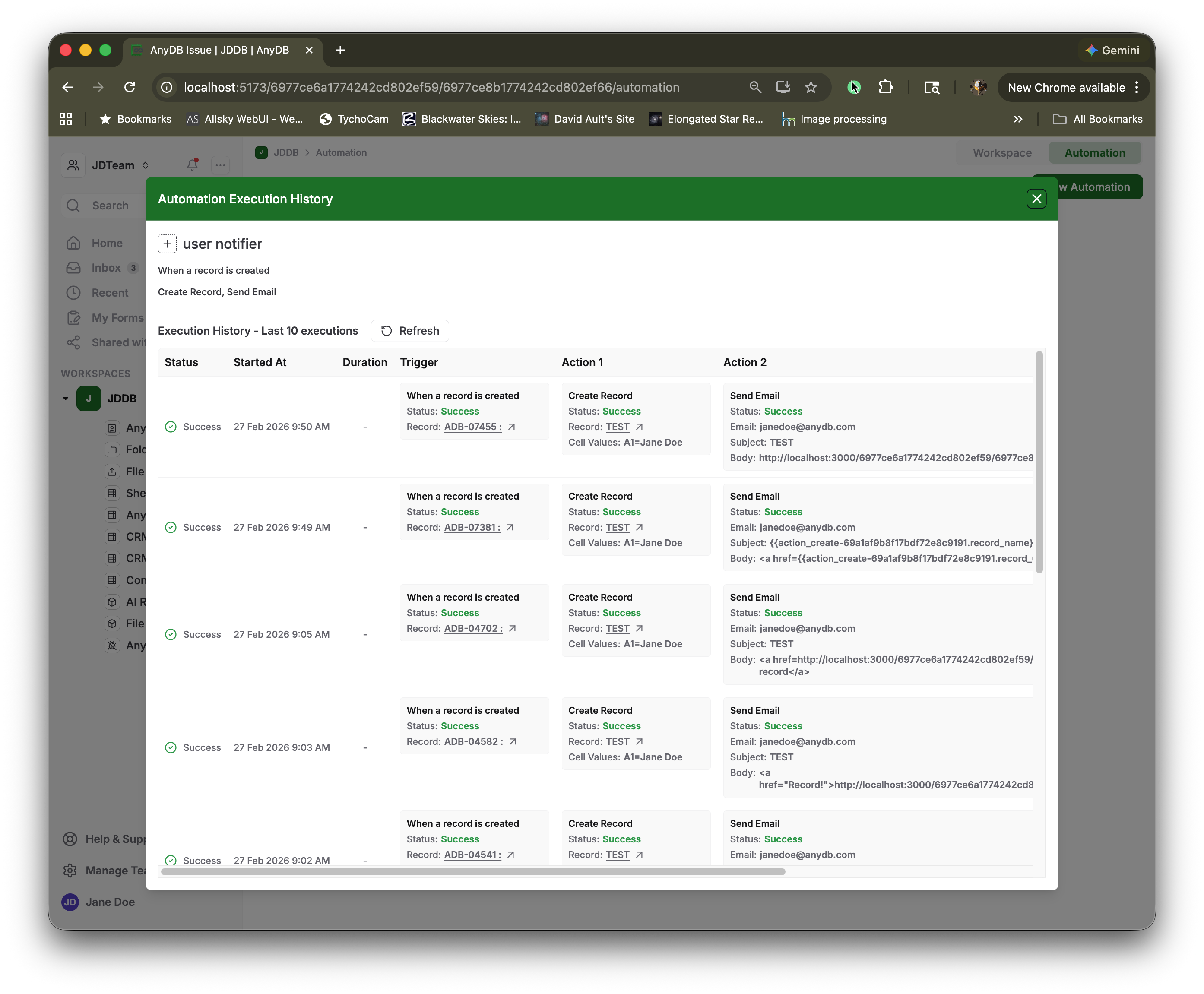
Refreshing History
Click the Refresh button to load the most recent execution data and see the latest automation runs.
Execution Retention
AnyDB displays the last 10 executions for each automation. For longer-term history or more detailed logs, contact AnyDB Support.
Coming Soon
AnyDB is continuously expanding workflow automation capabilities. Upcoming features include:
Upcoming Triggers
- Form Submission Triggers: Trigger workflows when forms are submitted
- Additional event-based triggers
Upcoming Actions
- AI Action Enhancements: Advanced AI processing and orchestration capabilities
- Additional integration actions
Best Practices
- Start Simple: Begin with simple workflows and add complexity as needed
- Use Conditions: Apply conditions to triggers to ensure workflows run only when appropriate
- Test Thoroughly: Test automations with sample data before deploying to production
- Document Workflows: Keep track of what each automation does and why it exists
- Monitor Performance: Regularly review automation logs to ensure they're working correctly
Requesting New Features
If you need additional triggers, actions, or automation capabilities that are not currently available:
Contact AnyDB Support to discuss your requirements. The AnyDB team can work with you to implement custom automation features tailored to your business needs.
Troubleshooting
Automation Not Triggering
- Verify that the automation is saved and activated
- Check that trigger conditions are properly configured
- Ensure the record type matches the trigger settings
Actions Not Executing
- Verify that all required fields are configured
- Check that you have permissions to perform the actions
- Review action settings for correct field mappings
Email Not Sending
- Verify recipient email addresses are correct
- Check that dynamic field references are valid
- Ensure email content meets formatting requirements
Additional Resources
For more information about workflow automation:
- Review use case examples in the Use Cases section
- Check integration guides for connecting with external systems
- Contact AnyDB Support for personalized assistance