Calendar View
Calendar View displays records across a monthly calendar based on a selected Date or Timeline field. It allows records to be understood in terms of time, making it easier to track schedules, deadlines, and events.
Each record appears on the calendar according to its date value. The layout is organized by month, with records placed on the corresponding day.
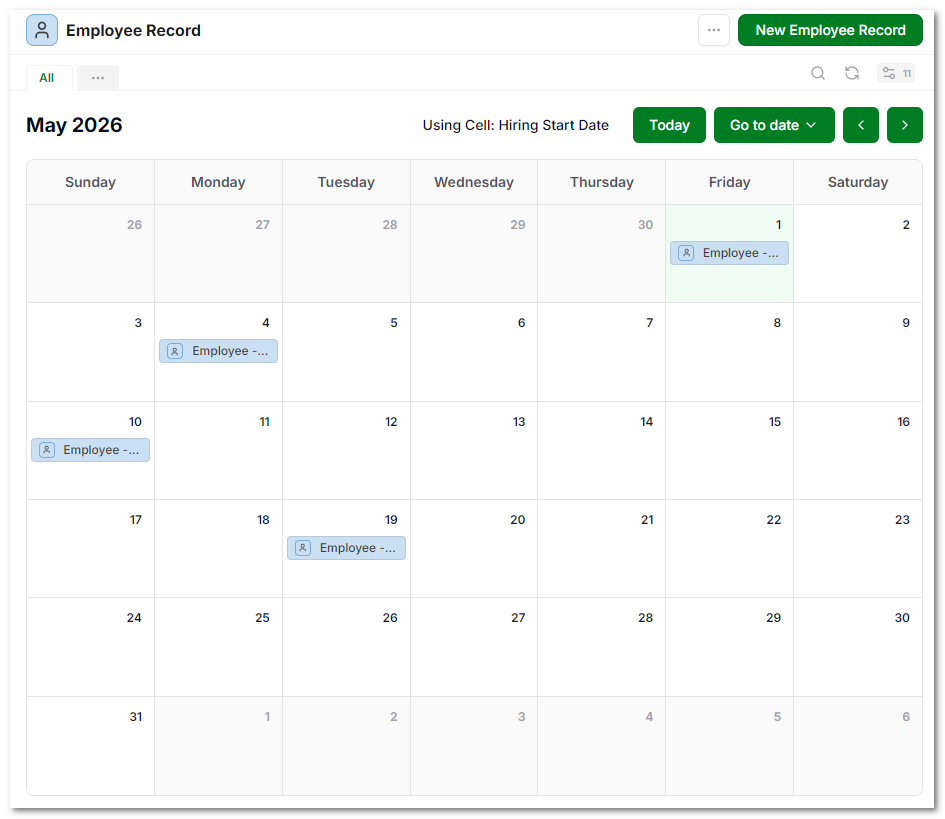
Records on the Calendar
Each entry on the calendar represents a record. The label shown is the primary field, which acts as the record’s identifier. Clicking a record opens it in a popup for further interaction.
Records are grouped by day, allowing multiple items to appear within the same date.
Date-Based Positioning
Calendar View is driven by a selected field:
- a Date field places the record on a single day
- a Timeline field can span across multiple days
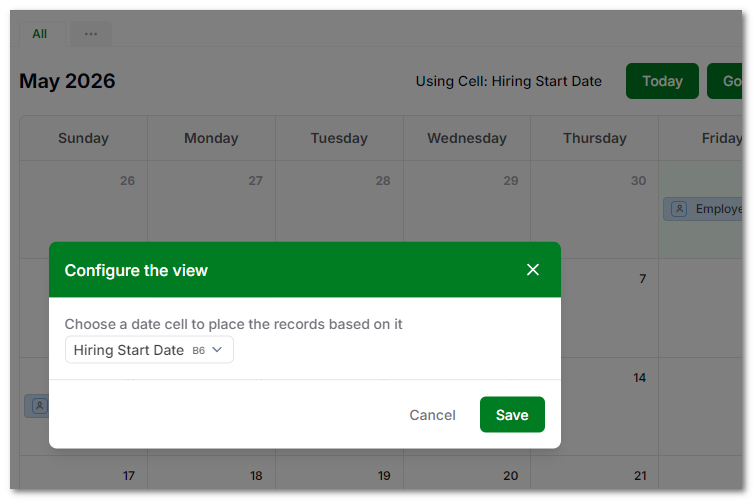
Only records with values in the selected field will appear on the calendar. The field used by the calendar can be changed at any time from the view settings. Selecting a different date or timeline cell will immediately update how records are positioned.
Interaction and Updates
Records can be moved directly on the calendar.
Dragging a record to another day updates its underlying date value. This allows quick adjustments without opening the record.
New records can also be added from the calendar. Click + on a date to create a record with the calendar's selected Date field prefilled with that date.
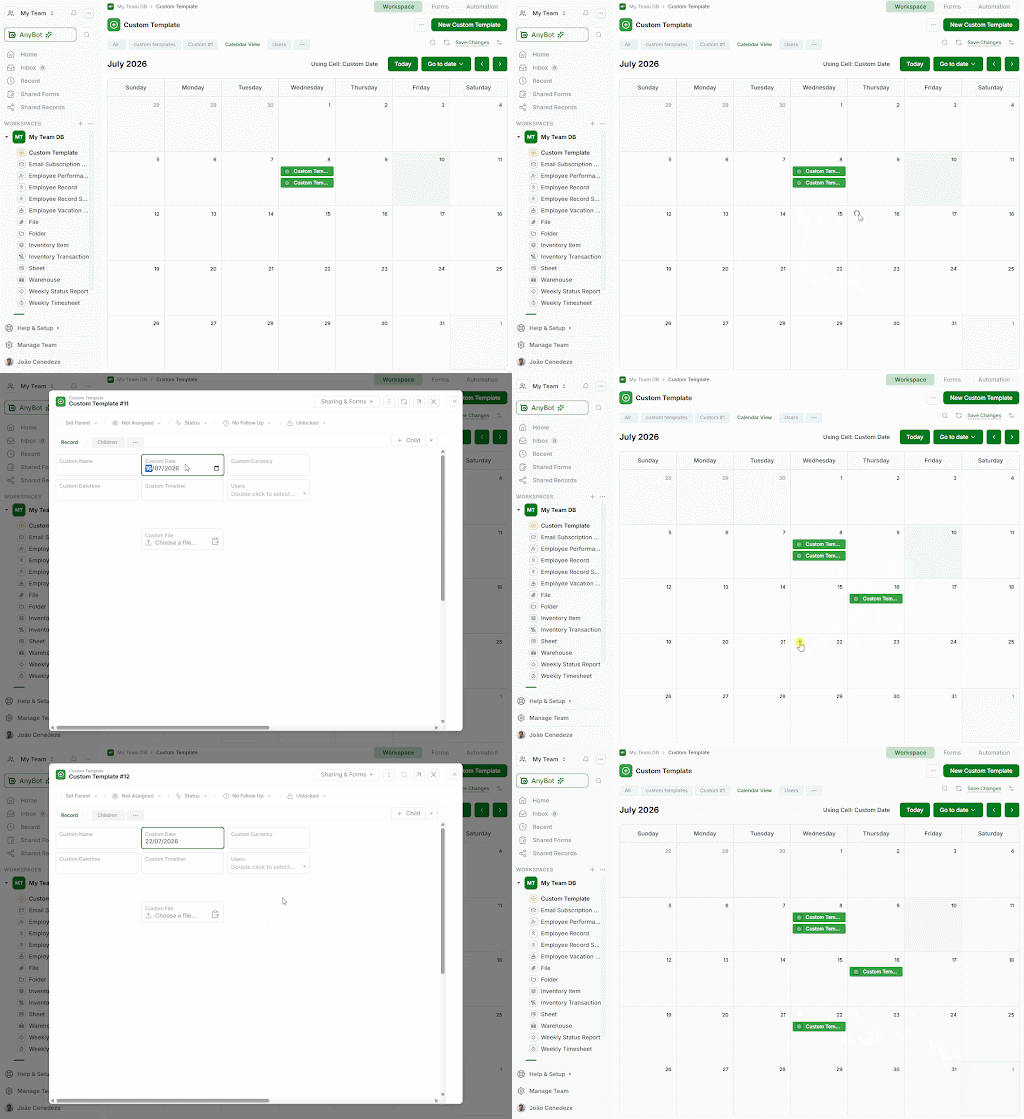
This interaction is focused on time-based changes rather than full record editing.
Navigation
The calendar is displayed in a monthly layout.
You can:
- move between months
- jump to the current date
- navigate to a specific date
This makes it easy to review past and upcoming records in context.
Views
Calendar View is controlled through views.
The default All view can be duplicated to create custom calendar views.
Views define:
- which records appear
- which date field is used
- filtering and ordering
This allows different time-based perspectives on the same data.
Limitations
Calendar View is designed for scheduling and timeline visibility.
- bulk actions are not available
- inline editing is limited to date changes through drag and drop and creating records from a selected date
- other field updates require opening the record
When Calendar View Fits
Calendar View works best when:
- records represent events, deadlines, or schedules
- timing is the primary way to understand the data
- you need to adjust dates quickly
- visualizing workload across time is important
It is not intended for bulk editing or detailed data management.