Table View
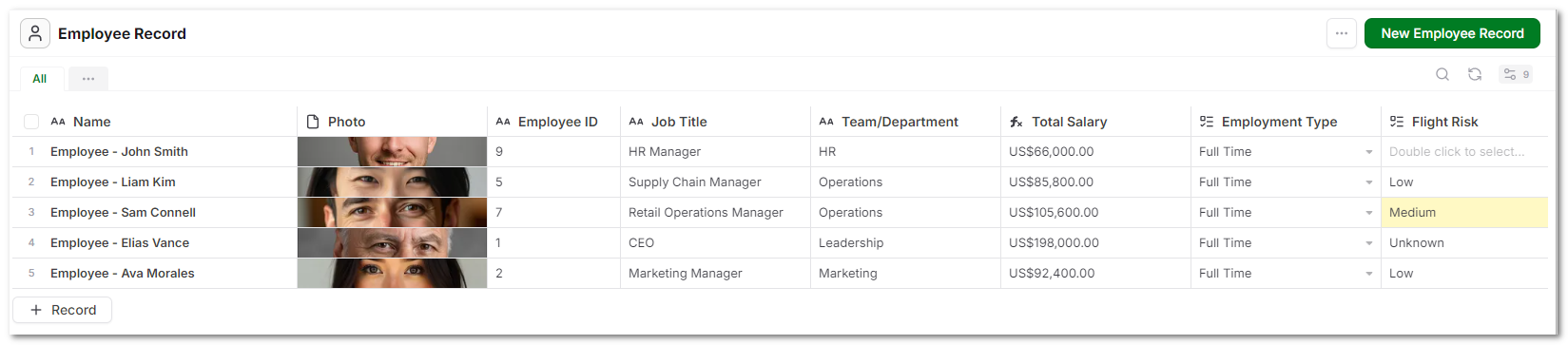
Table View is the default way to view and work with records in AnyDB. It presents data in a grid so you can scan, edit, and manage many records at once.
Each row represents a record. Each column represents a field. This layout makes it easy to understand and update data without opening every record individually.
Records in the Table
The first column shows the primary field for each record. This is the main identifier, such as a name or title. Clicking this value opens the record in a popup. When hovering, an expand option appears that allows opening the record in a full page view.
This is the entry point when you need to work with the full record, including related data and structure.
Fields and Columns
Each column represents a field defined in the type.
Common field types you will see include:
- text fields for names and labels
- numeric and currency fields for values
- status fields for structured selections
- file and image fields with inline previews
- formula fields, indicated with an
fxicon
The table allows you to scan across a row to understand the complete record at a glance.
Editing Data
Most fields can be edited directly in the table. Click a cell to update its value. Changes apply immediately. This allows fast updates across many records without leaving the view.
Some parts of a record are not editable from the table:
- child records (Children Records cells)
- structured or nested data
To work with those, open the full record.
Customizing the Table
Table configuration is handled through the view settings.
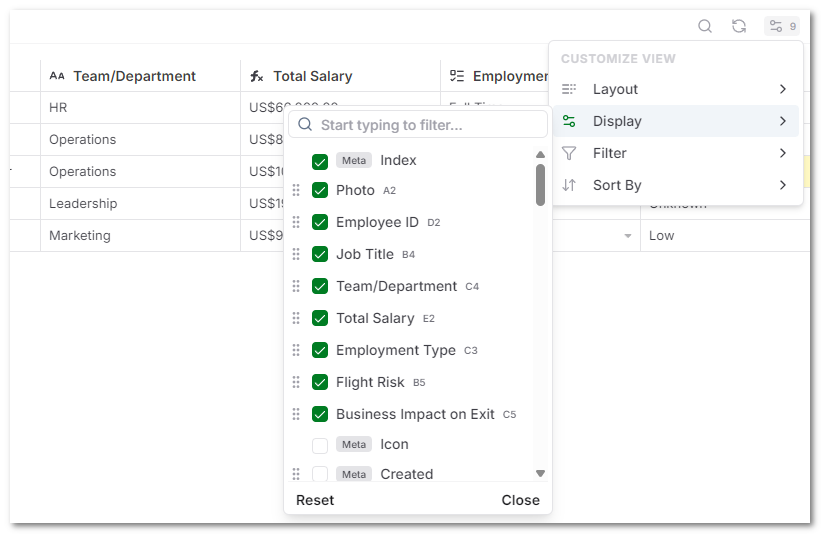
From there you can:
- show or hide fields
- reorder columns
- apply filters
- apply sorting
- change the type of view
Sorting is not done directly on column headers. It is controlled through the view configuration.
Resizing Columns
You can resize the columns by selecting the column divider and moving it. You can save the changes so the new column width is saved.
Selecting Records
Each row includes a selection checkbox.
Selecting one or more records allows bulk actions such as:
- deleting records
- moving records
This is useful when managing large sets of data.
Creating Records
New records can be added directly within the table.
The + Record option creates a new entry inline.
While editing, you can also use:
- Ctrl + Enter to quickly create and move to the next record
This makes it easy to enter multiple records in sequence.
Working with Files
File and image fields display previews directly in the table.
This allows quick visual identification without opening the record.
When Table View Fits
Table View works best when:
- reviewing large sets of records
- updating multiple fields quickly
- scanning structured data
- performing bulk actions
For more detailed or structured work, such as managing related records, use the full record view.