Cell Privacy & Locking
AnyDB Cells can be configured for various privacy and locking options to control visibility and editing permissions. This is useful for sensitive information or to prevent accidental changes.
Locking Cells
When a cell is locked, it cannot be edited or modified by users without the appropriate permissions.
- Locking is useful for:
- Protecting sensitive data
- Preventing accidental edits
- Ensuring data integrity
To lock a cell, select the cell and use the Cell Details panel to set the lock option in the Privacy section.

Cells with locked status will show a lock icon in the cell.

Locked cells are not editable, you will need to unlock it before making any changes.
Locked cells automatically get a gray background color to indicate that they are locked. To override this, you can set a custom background color in the cell styling options.
Lock cells for specific users
AnyDB supports granular permissions at the cell level. You can restrict who can edit a cell based on user groups. This is useful when some users should be able to view data but not modify it.
How it works
Cell-level locking is controlled by an expression in the cell’s advanced properties. The expression checks the user’s group membership and determines whether the cell is editable.
Setup steps
- Create user groups such as Sales, HR, or Finance.
- Add users to the appropriate groups.
- Open the cell’s properties panel.
- Click the fx icon to open advanced properties.
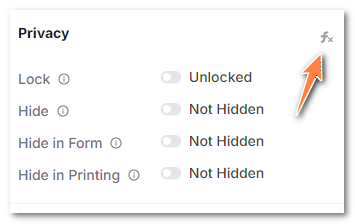
- Click on + Computed Property
- Set the Locked For expression to specify who should be blocked from editing.

Example
INGROUP('Support')
This expression locks the cell for all users in the Support group.
Everyone else can edit the cell normally.
Additional examples
Below are common cell-locking expressions and what they do:
| Expression | What it does | Description |
|---|---|---|
INGROUP('Sales') || INGROUP('Interns') | Lock for Sales or Interns | Blocks editing for users in either group. |
INGROUP('Sales') && INGROUP('Interns') | Lock for users in both groups | Only users who belong to both groups are blocked. |
NOTINGROUP('Sales') | Lock for everyone not in Sales | Useful when only one group should have edit rights. |
INGROUP('PUBLIC_USER') | Lock for all public link viewers | Prevents edits when the record is opened via a public link. |
INGROUP('GUEST_USER') | Lock for all private-share guest users | Blocks editing for anyone accessing through a private guest share. |
Note
Locked cells remain visible to all users unless you also configure visibility rules.
Cell-locking supports only a small subset of functions and operators. Not all AnyDB formula features are available in these expressions.
Hiding Cells
AnyDB allows you to hide cells for various reasons, such as:
- Keeping sensitive information private
- Simplifying the view for users
- Reducing clutter in forms
- Hiding cells can be done in two ways:
- Hidden Everywhere: Hide content from all viewers form or in normal views
- Form-Specific Hidden Fields: Hide certain cells only in forms
Hidden Everywhere
To hide a cell everywhere, select the cell and use the Cell Details panel to set the hide option in the Privacy section.

The cell will be hidden in all views, including forms and normal views. A hidden cell will indicate its status with a hidden icon in the cell.

Hide only in Forms
Sometimes it is useful to hide a cell only in forms, while keeping it visible in normal views. This is useful for fields that are not relevant for data entry but are important for reporting or analysis. For example, you may want to hide a cell that contains a formula or a calculated value in forms, but keep it visible in normal views for reference.
Or you might want to hide a cell that is used for admininistrative purposes, so that only users submit the forms they cannot see the internal workings of the system.
To hide a cell only in forms, select the cell and use the Cell Details panel to set the hide option in the Privacy section.

The cell will be hidden only in forms, but visible in normal views.
Hide cells for specific users
AnyDB supports granular permissions at the cell level. You can restrict who can view a cell based on user groups. This is useful when some users should be able to view data but not modify it.
How it works
Cell-level visibility is controlled by an expression in the cell’s advanced properties. The expression checks the user’s group membership and determines whether the cell is viewable.
Setup steps
- Create user groups such as Sales, HR, or Finance.
- Add users to the appropriate groups.
- Open the cell’s properties panel.
- Click the fx icon to open advanced properties.
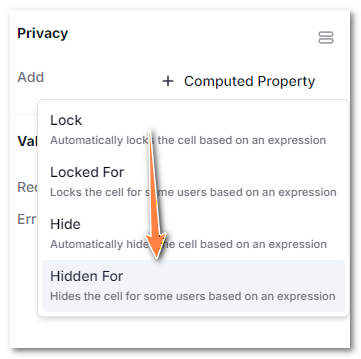
- Click on + Computed Property
- Set the Hidden For expression to specify who should be blocked from viewing the cell.
Example
INGROUP('Support')
This expression hides the cell for all users in the Support group.
Everyone else can view the cell normally.
Additional examples
Below are common cell-visibility expressions and what they do:
| Expression | What it does | Description |
|---|---|---|
INGROUP('Sales') || INGROUP('Interns') | Hide for Sales or Interns | Blocks viewing the cell for users in either group. |
INGROUP('Sales') && INGROUP('Interns') | Hide for users in both groups | Only users who belong to both groups are blocked from viewing the cell. |
NOTINGROUP('Sales') | Hidden for everyone not in Sales | Useful when only one group should have cell visibility |
INGROUP('PUBLIC_USER') | Hidden for all public link viewers | Prevents view when the record is opened via a public link. |
INGROUP('GUEST_USER') | Hidden for all private-share guest users | Blocks view for anyone accessing through a private guest share. |
Cell visibility supports only a small subset of functions and operators. Not all AnyDB formula features are available in these expressions.