How Access Control Works
AnyDB decides what you can see and do by asking three questions:
- Who are you? Your own user, plus any groups you belong to.
- What role do you hold? A role is a named bundle of permissions, such as Read Only or Database Owner.
- Where is it granted? On a team, a workspace (database) or a record.
If no role is found for you anywhere along the way, you have no access. Access is never open by default.
This page explains the model. For step-by-step instructions, see Managing access. For the full list of roles and what each one allows, see Permission reference.
The building blocks
Resources
Access is granted on a resource. The ones you will work with are:
| Resource | What it is |
|---|---|
| Team | The top of the tree. Holds members, groups and workspaces. |
| Workspace (database) | A collection of records inside a team. |
| Record | Any record. A record can sit under other records (its parents), and have records under it (its children). |
Every resource keeps its own access list. This list is the ACL (access control list): a set of entries saying this person or group holds these roles here.
Roles
A role is a fixed set of permissions. AnyDB ships these roles and they are the only roles available today; custom roles are not available yet.
| Role (as shown in the interface) | In short |
|---|---|
| Team Owner | Everything on the team, its workspaces and records. |
| Database Owner | Everything on one workspace and its records. |
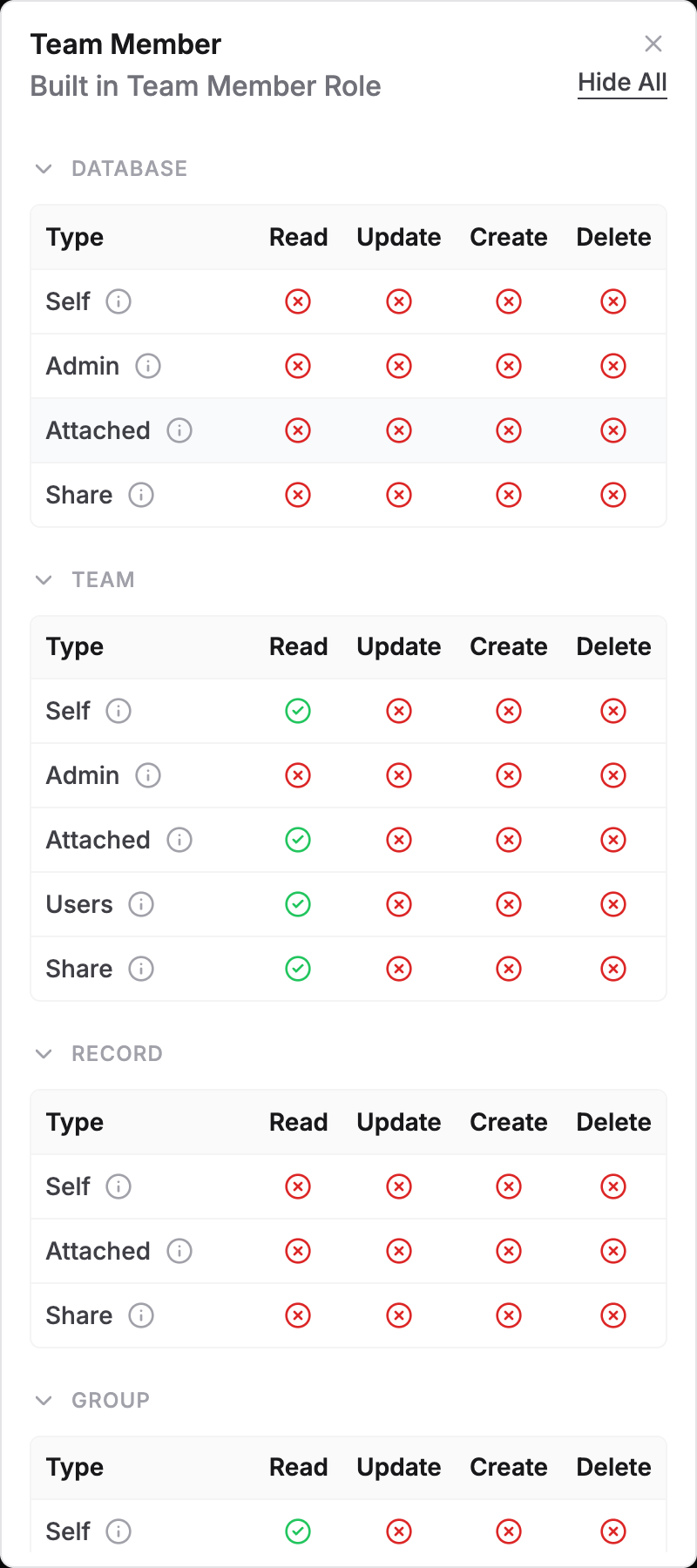
| Team Member | Can see the team, its members and groups. Has no access to workspaces or records until you grant it lower down. |
| Database Member | A member of one workspace: can work with all records in it. |
| Read Only | View only. |
| Read and Write | View, create and edit. Cannot delete. |
| Write Only | Create and edit but not view. See the note in the reference. |
| Record Viewer, Record Editor, Record Editor (no new records) | Used when you share a record with a guest or give access to a single record. |
| Denied access | Blocks everything. Use it to shut someone out explicitly. |
| User Owner, Group Owner | Control of a single user or group profile. |
A person can hold more than one role in the same place. Their permissions are combined, with one important exception: a deny always wins inside a single entry (see Deny).
Permission areas and levels
Inside a role, permissions are split into areas (for a record: Self, Attached and Share) and levels (Read, Update, Create, Delete). Self means the record itself, Attached means the records underneath it, and Share means sharing it. The reference has the full tables.
How AnyDB decides: searching up the chain
When you open or change a record, AnyDB does not look at one list. It looks for the first entry that settles the question, starting at the record and moving up through its parents.
- Start at the record. Look for an entry for you on this record.
- Does it settle the question?
- It grants the access you need: you are allowed. The search stops.
- It explicitly denies it: you are refused. The search stops.
- It says nothing about it, or you have no entry here: go to the next step.
- Move up to the parent record and repeat step 2. Keep going up through every parent, then the workspace, then the team.
- If nothing along the way settled it for you personally, AnyDB repeats the whole walk for each group you belong to.
- For records, public access is checked last.
- If nothing grants access, the answer is no.
So the entry closest to the record is the one that speaks first. A grant lower down does not need anything above it, and a grant above is only used when the lower levels are silent.
Ben is a Database Member of the workspace "Customer Projects". He has no entry on the record "Budget". AnyDB looks at "Budget" (nothing), then its parents, reaches the workspace, finds his Database Member role there, and allows him to work on the record.
This is why a Team Member can see the team but nothing inside it. That role denies the workspace and record areas at the team level, so a person with only that role is refused when the search reaches the team. Granting a role on a workspace or a record settles the question before the search gets that far.
Records with more than one parent
A record can be attached under several parents. AnyDB tries the parents in the order they are attached (the first parent listed is checked first) and stops at the first one that allows or denies the access. If a record has two parents and only one of them grants access, you get access through that one.
When two parents disagree, order decides. If the first parent denies you, you are refused and the second parent is never consulted. If the first parent grants you access, you are allowed even though the other parent would have denied it.
Deny
Most roles only grant. They do not block anything. A deny is different: it stops the search and refuses the access even if something higher up would have allowed it. The Denied access role is a deny on every area. Some roles also contain individual denies, for example Read and Write denies delete.
How denies combine (each of these is covered by an automated test):
- Inside one entry: if a person holds two roles on the same record and one of them denies, the deny wins.
- Your own entry versus a group: a deny on you beats an allow given to a group you are in. An allow given to you beats a deny given to a group.
- Between groups: a deny given to one group does not cancel an allow given to a different group you are in. The allow wins.
- Lower levels win: a deny on a workspace blocks every record below it, even if you are a team member.
- Higher denies do not remove lower grants: denying someone on the team does not remove access they were explicitly given on a workspace.
To shut a person out of one record and everything below it, give them the Denied access role on that record. To shut them out of a whole workspace, give it on the workspace.
Override Parent Permissions
Normally, if your entry on a record does not grant what you need, AnyDB keeps looking in the parents and may find the access there.
Ticking Override Parent Permissions on an entry says: use only what is granted on this record for this person. Do not look in the parents.
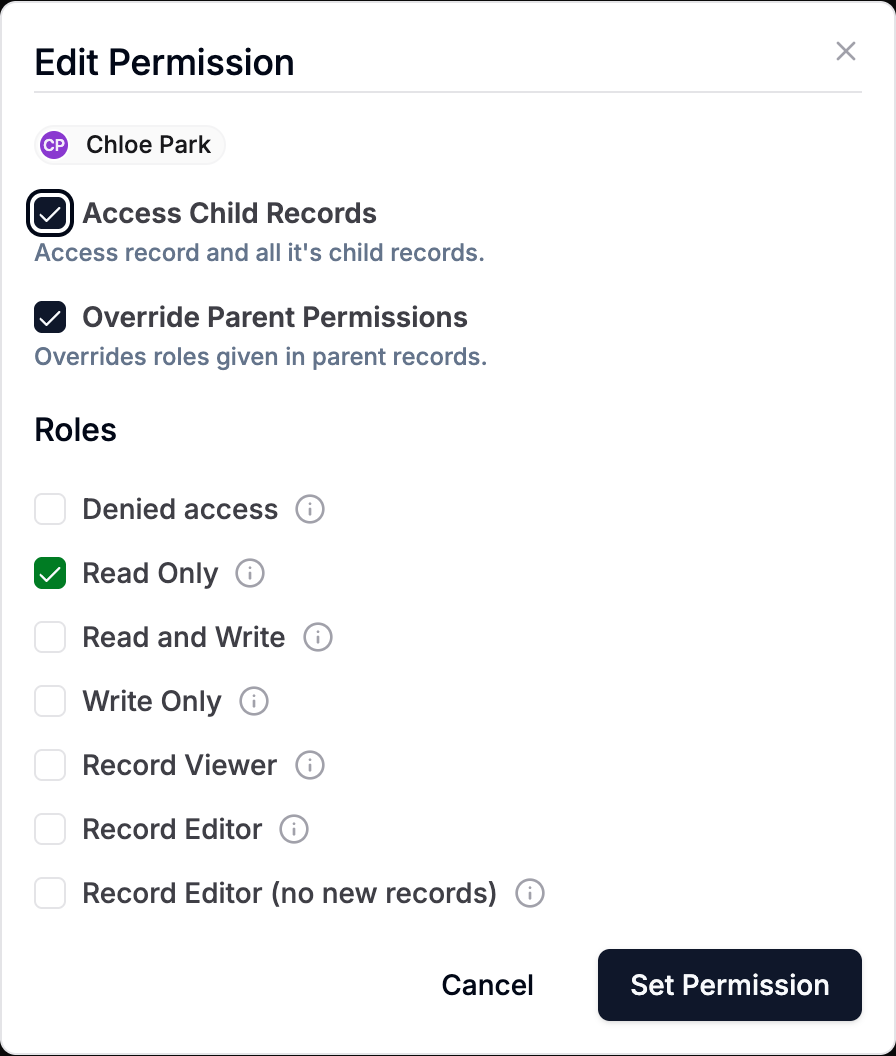
In the demo team, Chloe Park has Read and Write on the record "Project Phoenix". On its child record "Budget" she is given Read Only with Override Parent Permissions ticked. The result:
| Project Phoenix | Budget | |
|---|---|---|
| Read | Yes | Yes |
| Edit | Yes | No: the search stops at Budget and never reaches the grant on Phoenix |
Things to know:
- Override only matters when the entry does not grant the access being asked for. If the entry grants it, the person is simply allowed.
- It applies to that person or group on that record, and to the records below it.
- Without Override, a Read Only entry on Budget would not take away the edit access Chloe has on Project Phoenix. AnyDB would find the edit permission one level up.
Access Child Records
Each entry also has Access Child Records (shown in the interface as Access record and all its child records). It is ticked by default.
| Setting | Meaning |
|---|---|
| On | The role applies to this record and passes down to the records under it. |
| Off | The role applies to this record only. |
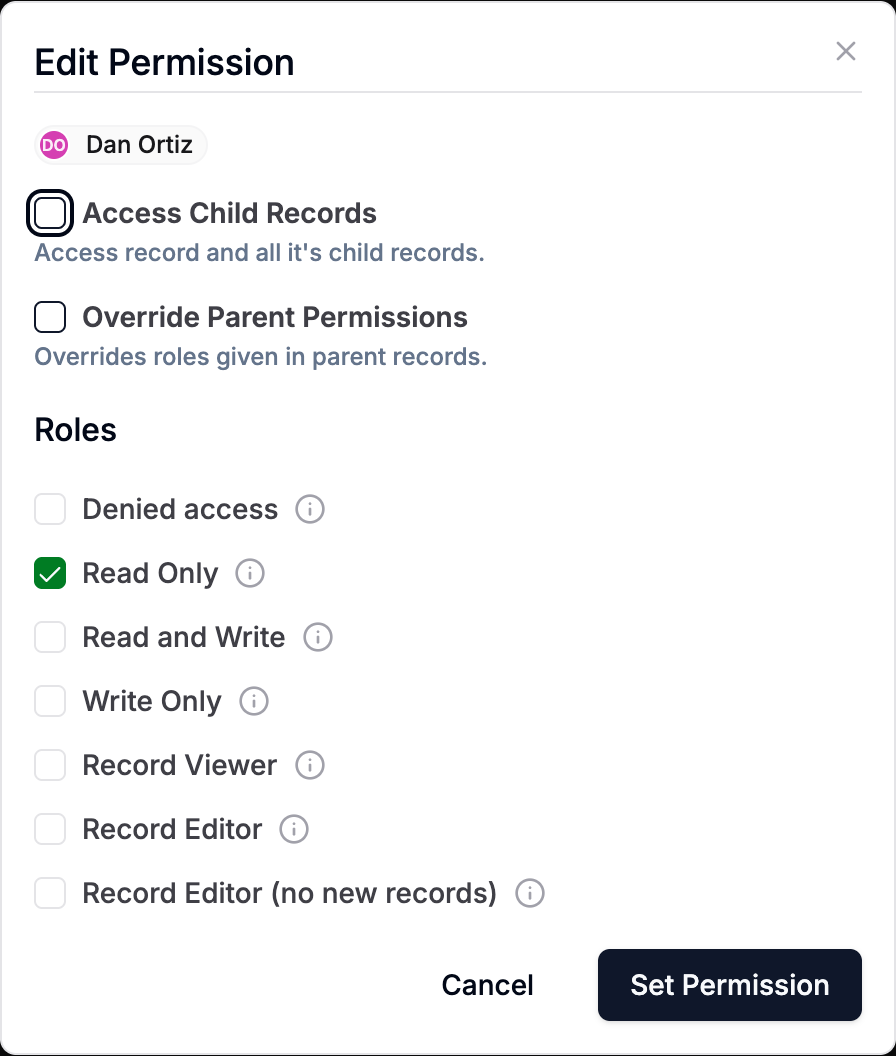
In the demo team, Dan Ortiz has Read Only on "Northwind Account" with Access Child Records off. He can open the account, but not "Project Phoenix" underneath it.
Access Child Records off blocks the search, it does not just skip the entry. When AnyDB walks up from a child record and reaches an entry for the same person with this setting off, it stops there and refuses. Access that the same person was given further up, for example on the workspace, is not consulted for those child records. Use it deliberately.
A test confirms this: Read and Write on the top record, then Read Only with Access Child Records off on a middle record. The person can read the middle record and cannot read the record below it.
Effective permissions
A person's effective permissions on a record are the result of everything above: their own entries, their groups, deny rules, override, child-record settings and public access, evaluated for that record right now.
You do not have to work it out yourself. The interface shows the outcome in several places:
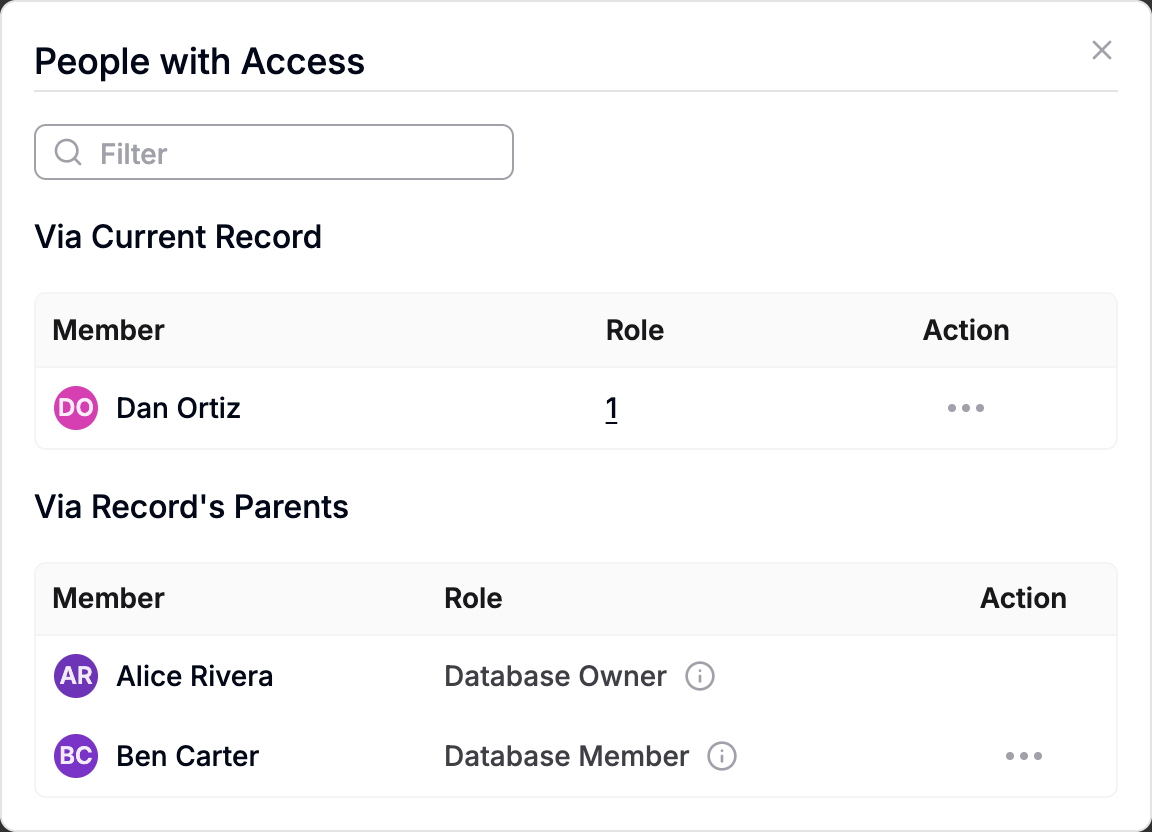
- People with Access on a record, split into Via Current Record and Via Record's Parents.
- The Roles count next to each person, which opens a list of the roles they hold.
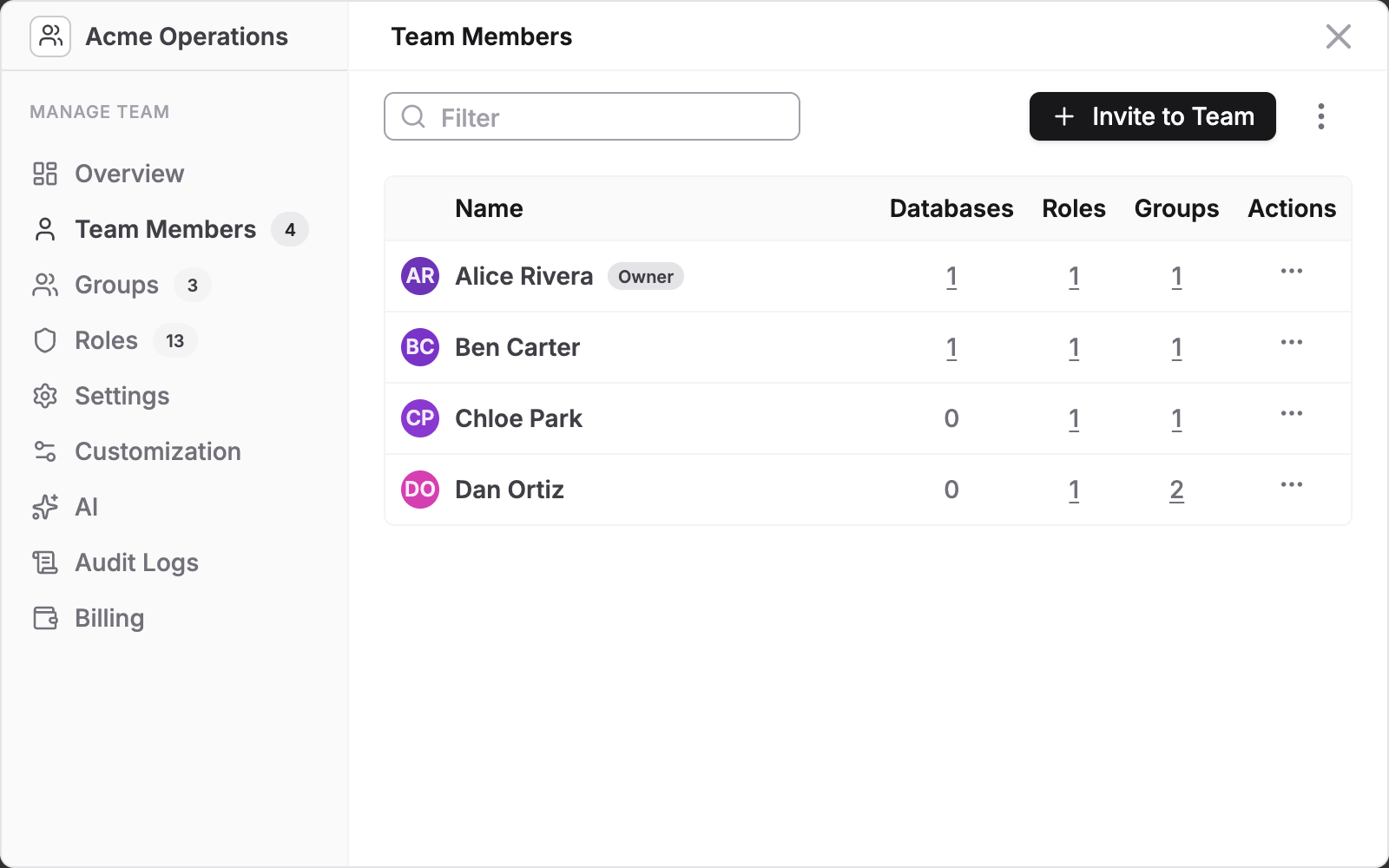
- Team Members in Manage Team, with the number of databases, roles and groups for each person.
- The Roles tab, where View shows what each role allows.
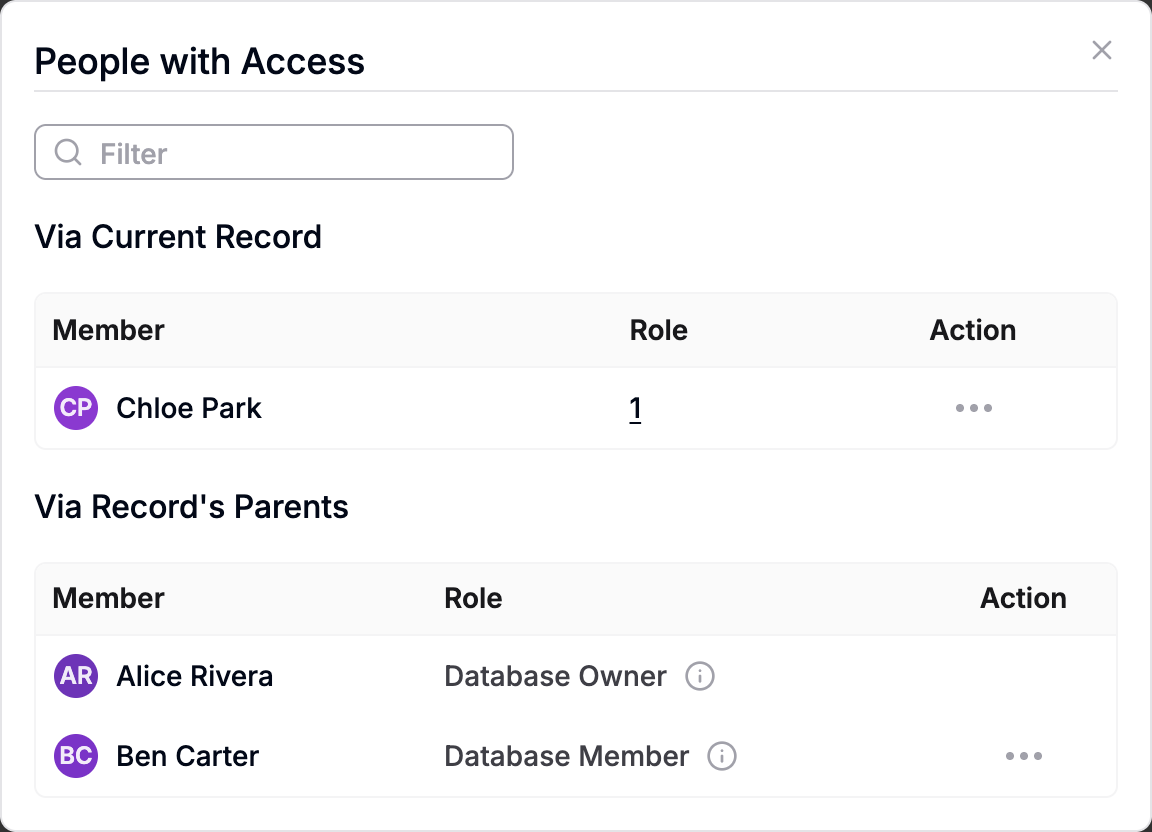
Via Current Record lists people who have an entry on this very record. These are the entries you can edit or remove here. Via Record's Parents lists people who reach the record through a parent. Someone who has no access to the record, for example because Access Child Records is off on a parent, is not listed there.
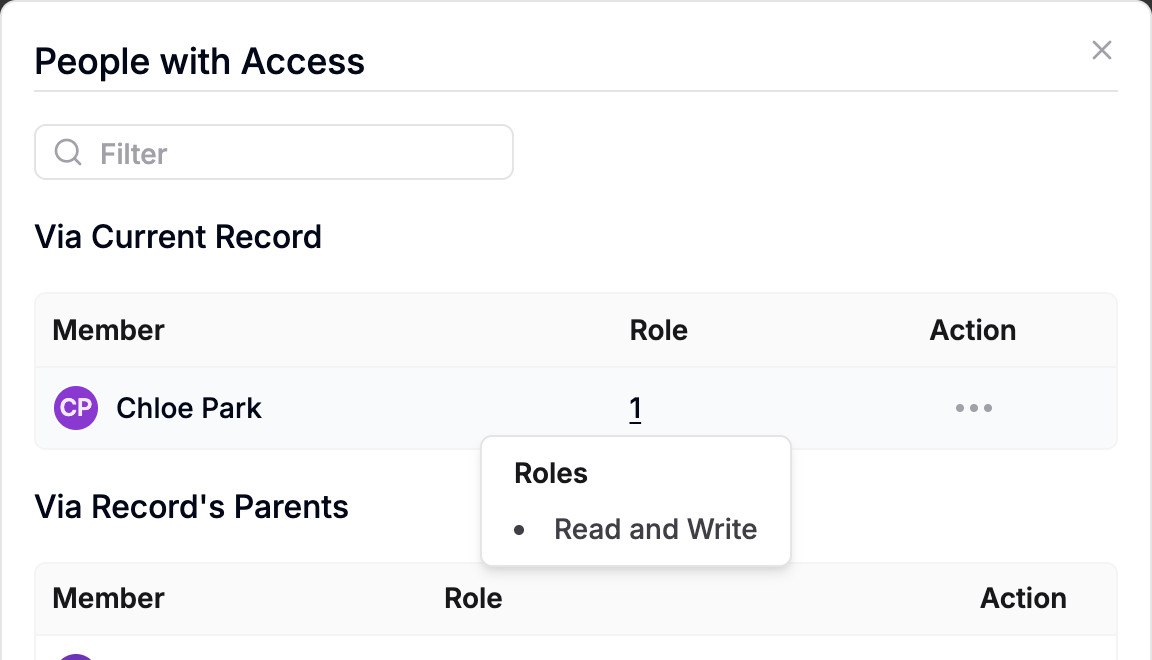
In a role's permission table, a red cross means not allowed. It does not say whether the permission is simply not granted or is explicitly denied.
Who can see and change access
- Seeing who has access: the Permissions option on a record (⋮ → More Options → Permissions) is shown only to people who can edit that record. Someone with Read Only access does not see it. The access list itself can be read by anyone who can read the record when it is requested through the API.
- Changing access: you need edit access on the record, workspace or team whose list you are changing. A person who can only read cannot change it.
- When you give access to a team or workspace, the interface offers team members. A team's last owner cannot be removed.
A worked example
The demo team Acme Operations has one workspace, Customer Projects, and this structure:
Northwind Account
└── Project Phoenix
    ├── Kickoff Notes
    └── Budget
Customer Handbook
| Person | What they were given | What it means |
|---|---|---|
| Alice Rivera | Team owner | Everything. |
| Ben Carter | Member of the workspace | Works with every record in the workspace. |
| Chloe Park | Read and Write on Project Phoenix, passing down. On Budget: Read Only with Override Parent Permissions | Edits Phoenix and Kickoff Notes. Can only read Budget. |
| Dan Ortiz | Read Only on Northwind Account with Access Child Records off. Member of the group Reviewers, which has Read Only on Customer Handbook | Reads the account, nothing beneath it. Reads the handbook through the group. |
Common questions
A person is a team member but sees nothing in a workspace. Being a team member only allows them to see the team. Add them to the workspace, or give them a role on the workspace or a record.
I gave a person Read Only on a child record but they can still edit it. They hold edit access higher up and the search found it. Tick Override Parent Permissions on the child entry, or give them Denied access there.
I gave a person Denied access on the team but they still see a workspace. A grant on the workspace is found first and the team-level deny is never reached. Give the Denied access role on the workspace itself.
A person has access through two groups that disagree. An allow from either group wins over a deny from the other.
Someone has access but is missing from People with Access. The list shows people whose access applies to this record. Look under Via Current Record as well as Via Record's Parents.