Roles
AnyDB Roles are a key part of the platform's fine-grained role-based permissions model, allowing precise and flexible management of user and group permissions across all system resources.
The permission model is designed to give teams detailed control over who can do what—at the level of individual Teams, Databases, Records, Users, and Groups. Permissions are assigned via roles, which can be combined and inherited through group membership, and explicitly restricted where necessary.
This design enables organizations to enforce strict access boundaries while still supporting collaborative workflows and scaling across teams.
Currently, all roles in AnyDB are built-in, but support for custom (user-defined) roles is planned in future releases.
Role-Based Permissions
Each role provides one or more of the following permission levels, depending on the resource:
- Read – View access to the resource.
- Write – Ability to modify the resource.
- Create – Ability to add new instances of the resource.
- Delete – Ability to remove the resource.
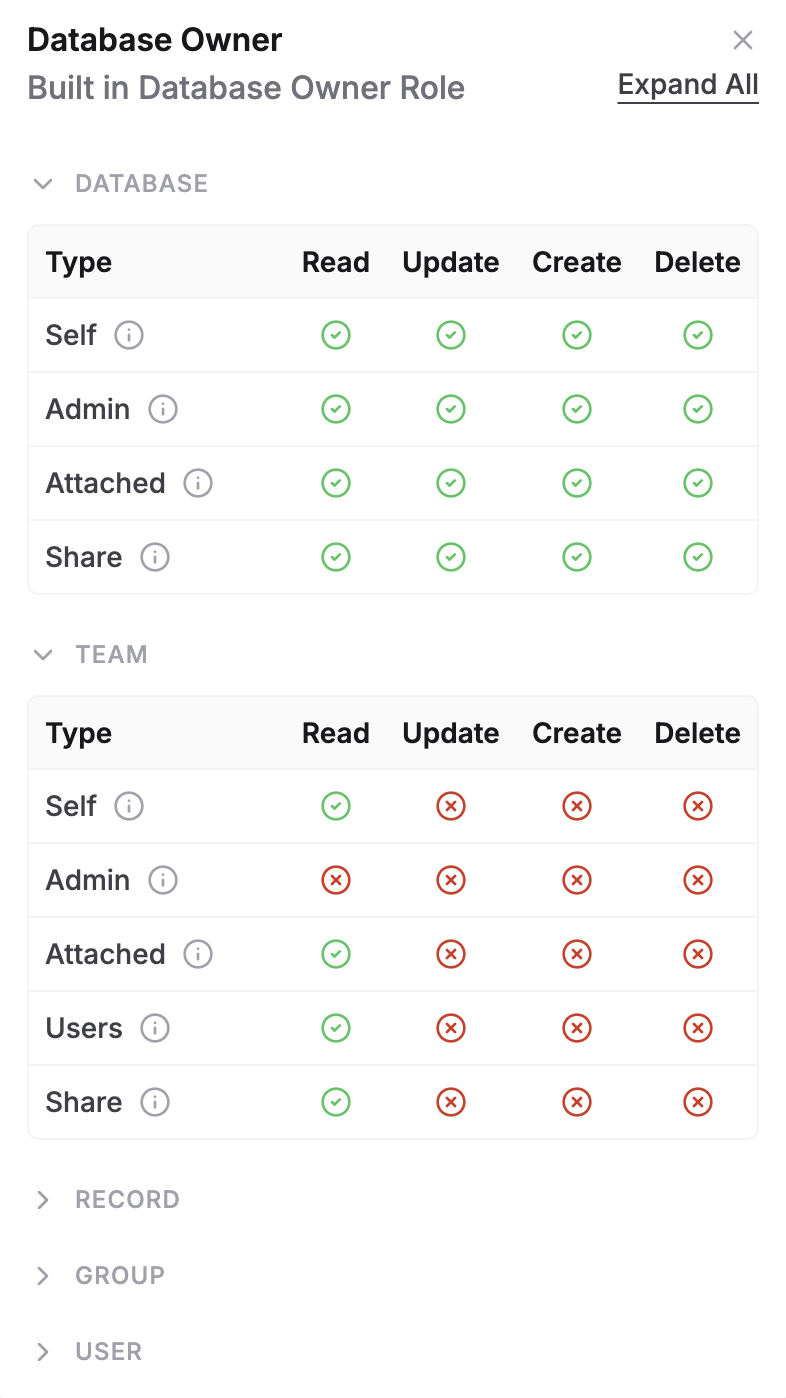
These permissions are assigned per resource type. For example, a role may grant write access to a Database but only read access to the Team it belongs to.
Assigning Roles
Roles can be assigned to:
- Individual users
- Groups (using AnyDB Groups )
If a user is part of multiple groups or has roles assigned directly, they may inherit multiple sets of permissions. The roles can be assigned to users or group from the Team Properties panel as shown below.
Permission Inheritance and Resolution
AnyDB works out what a person can do by searching up the chain: from the record, through its parent records, to the workspace and then the team, using the closest role that settles the question. Roles can be given to a person directly or to a group. The full explanation, with examples and screenshots, is in How Access Control Works.
Effective Permission Rules
- Roles combine. A person can hold several roles in the same place and gets what they allow together.
- A deny wins inside one entry. If one of a person's roles on a record denies an area and level, the answer is no, even if another role on the same record allows it.
- The closest entry wins. An entry on the record is found before an entry on its parent, the workspace or the team.
- Your own entry beats your groups. A deny on you beats an allow given to a group you are in, and an allow on you beats a deny given to a group. A deny given to one group does not cancel an allow given to a different group.
- Override and child access change the search. Override Parent Permissions stops AnyDB from looking in parent records. Access Child Records controls whether a role passes down.
Example
Consider a user with:
- The Team Member role, which grants:
- Read-only access to Team properties
- No access to Databases or records
- The Database Member role (via a group), which grants:
- Work access to every record in one workspace
Result:
- The user can view Team properties.
- The user can work with the records of that workspace through the Database Member role.
However, if that user is given the Denied access role on the workspace, they are blocked from the workspace and all its records, even though the group role is still there.
Viewing Effective Permissions
You can see who has access, and through which roles, in these places:
- Record: select the ⋮ menu, then More Options, then Permissions to open People with Access. This is shown to people who can edit the record.
- Team members: Manage Team → Team Members shows how many databases, roles and groups each person has.
- Roles: Manage Team → Roles → View shows exactly what a role allows.
See Managing access for the steps and screenshots.
Future Enhancements
- Support for user-defined roles, allowing teams to create custom permission sets tailored to their workflows.
Best Practices
To get the most out of AnyDB Roles, follow these recommended practices:
- Use roles consistently: Assign roles at the group level when possible to simplify user management.
- Avoid direct assignments unless necessary