Managing Access
This guide shows how to see and change who can use a team, a workspace or a record. If you have not read it yet, start with How Access Control Works: it explains why the results below are what they are.
You need edit access on a record to open its Permissions panel. Team owners and workspace owners can manage access for everything inside their team or workspace.
See who has access to a record
- Open the record.
- Select the ⋮ menu at the top right, then More Options, then Permissions.
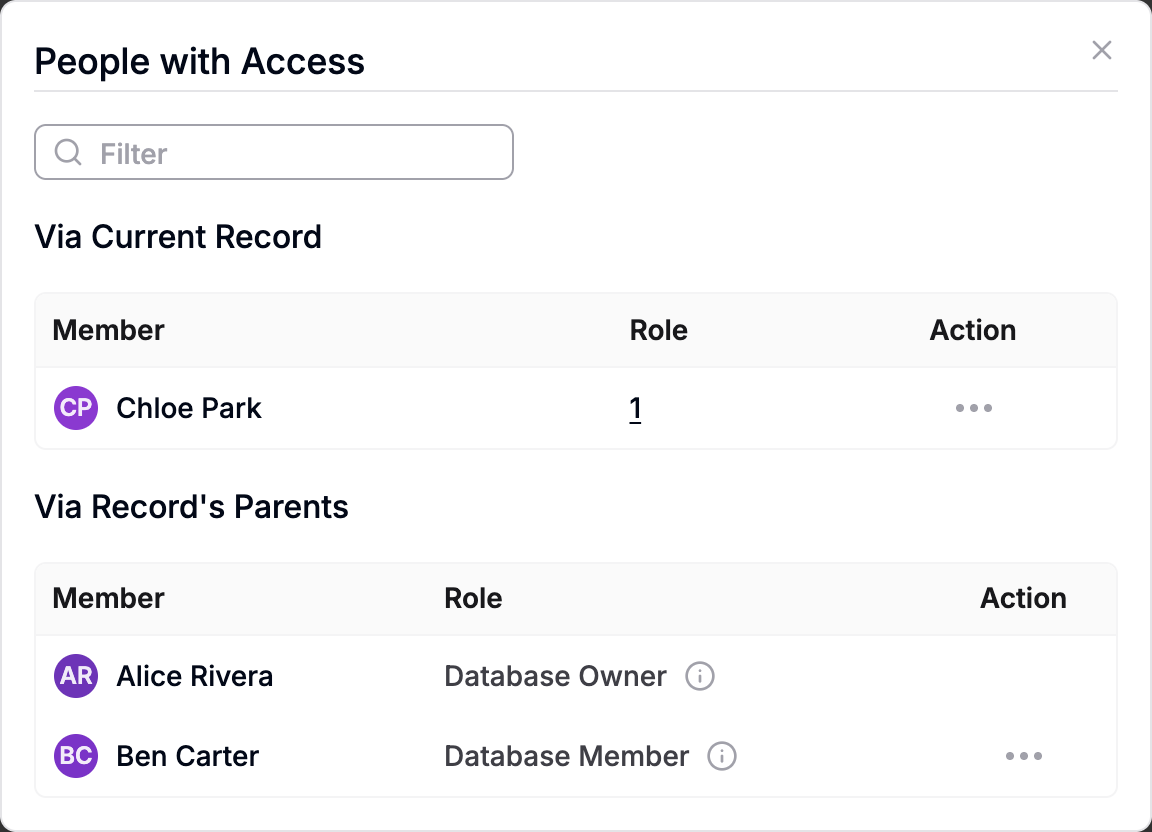
The People with Access dialog has two lists:
- Via Current Record: people who were given a role on this record. You can edit or remove these.
- Via Record's Parents: people who have access because of a role on a parent record, the workspace or the team.
Use Filter to find a person by name.
See which roles a person holds
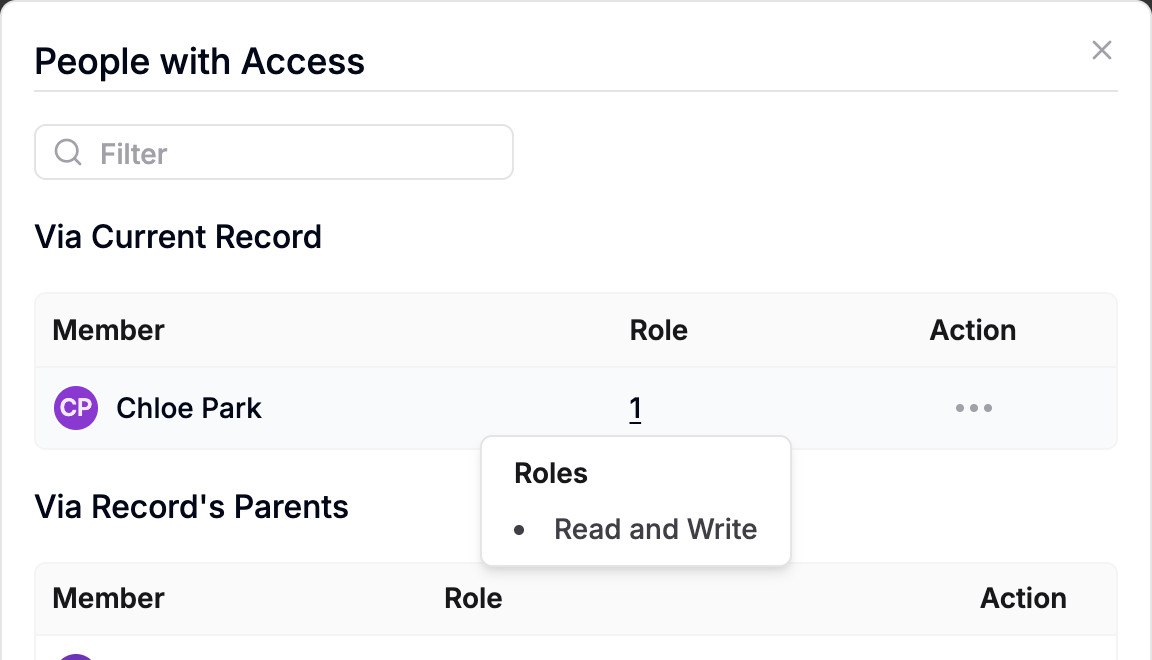
Select the number in the Role column. A small list shows every role that person holds here.
Change a person's role on a record
- In People with Access, select ⋯ at the end of the person's row.
- Select Edit Permission.
- Choose the Roles you want. You can choose more than one.
- Decide on the two switches (see below).
- Select Set Permission.
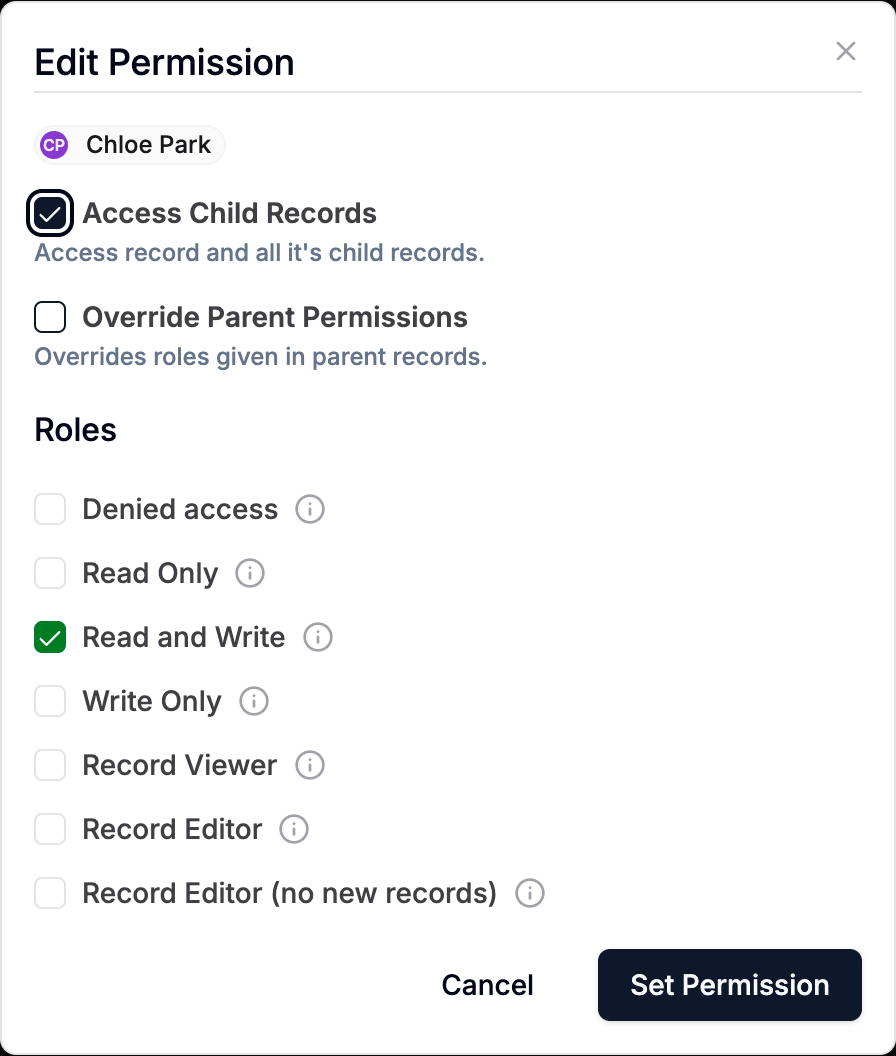
The roles you can pick for a team member on a record are Denied access, Read Only, Read and Write, Write Only, Record Viewer, Record Editor and Record Editor (no new records). Select the i next to a role to see what it allows. The full tables are in the Permission reference.
If the person is listed under Via Record's Parents, Edit Permission gives them their own entry on this record. The parent's entry is not changed.
Access Child Records
Ticked (the default): the roles apply to this record and the records under it. Unticked: the roles apply to this record only.
Unticking this also stops AnyDB from looking higher up for that person when it checks the records beneath. Someone who has access on the workspace can lose access to the child records. See Access Child Records.
Override Parent Permissions
Ticked: AnyDB uses only what you set on this record for this person and does not look in the parent records. Use it to give someone less access on one record than they have on the records above it.
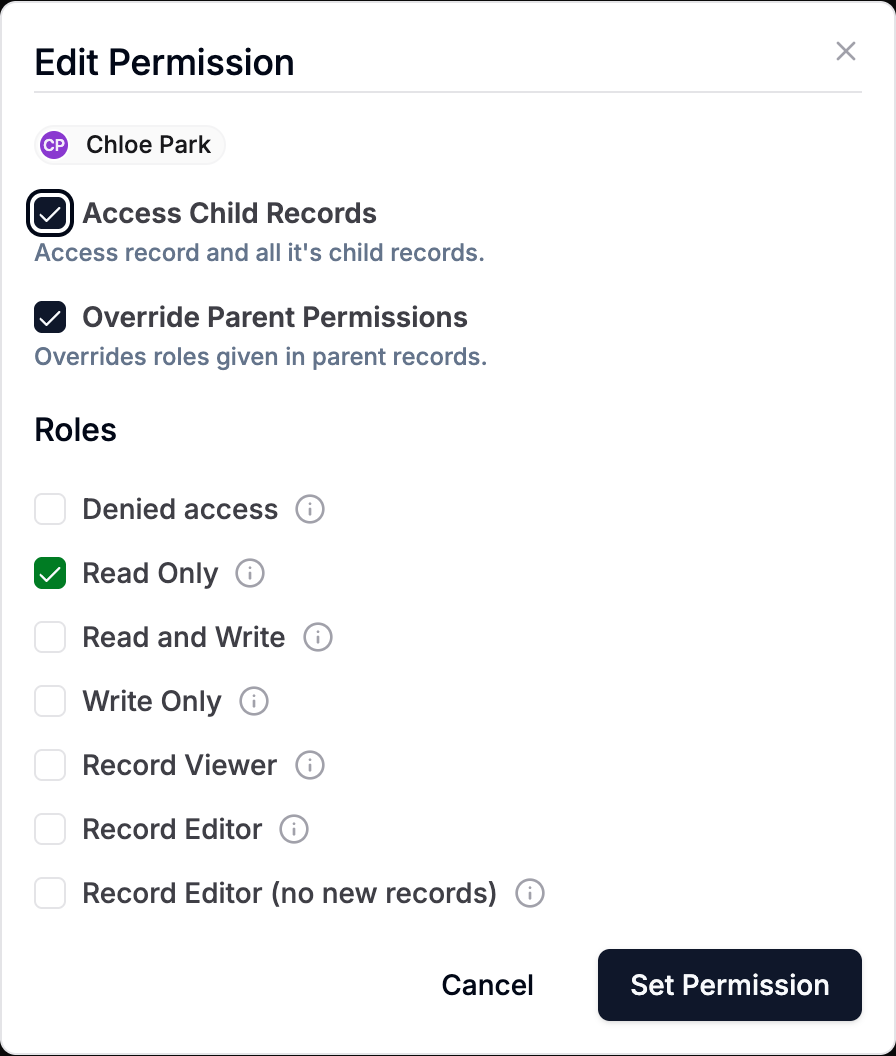
To make a record read-only for someone who can edit its parent: tick Override Parent Permissions and choose Read Only. See Override Parent Permissions.
Remove a person's access from a record
- In People with Access, find the person under Via Current Record.
- Select ⋯, then Remove Permission.
This removes their entry on this record. They may still have access through a parent, a group or the workspace. Check the list again afterwards.
You cannot remove your own entry here, and the last owner of a team or workspace cannot be removed.
Give someone access to a record
If the person already appears under Via Record's Parents, use Edit Permission as above. Their new entry applies to this record and its children; the entry on the parent is not changed. Note that a Read Only entry given this way does not remove edit access they already have on a parent. For that, tick Override Parent Permissions.
If they do not appear at all, they have no access yet. Use Share:
- Open the record, select Sharing & Forms, then Share.
- Under Guests With Access, type a team member's name or an email address and select them.
- Select Invite.
- Choose the Access Level, Viewer or Editor, and whether the access includes Access Child Records, then Send Invite.
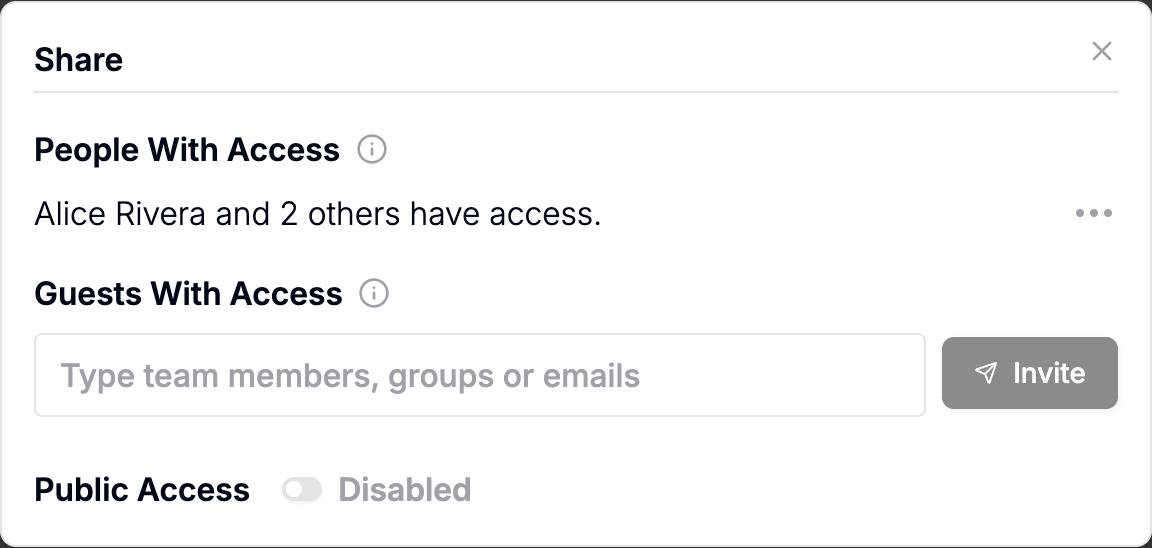
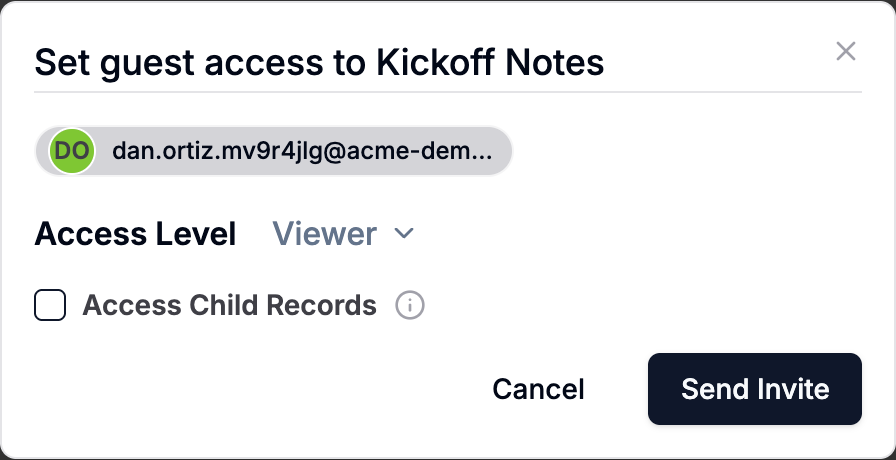
The access level becomes a role on the record: Viewer gives Record Viewer and Editor gives Record Editor. The person then appears under Guests With Access in the Share dialog and under Via Current Record in People with Access, and can open the record straight away.
Sharing is not available on the free plan.
See access across the whole team
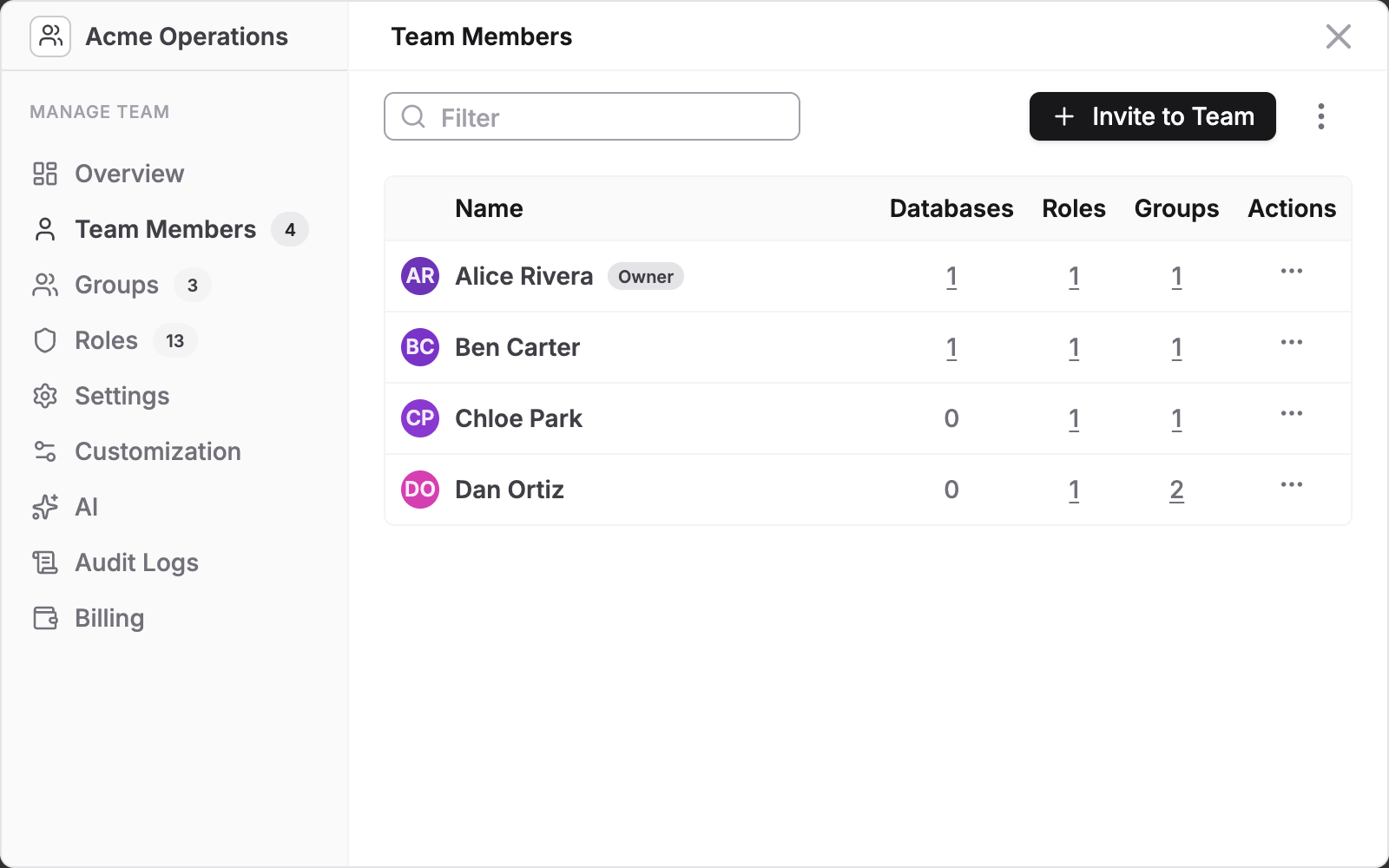
Open Manage Team from the lower left.
Team Members lists everyone with the number of Databases, Roles and Groups each person has. Hover or select a number to see the details.
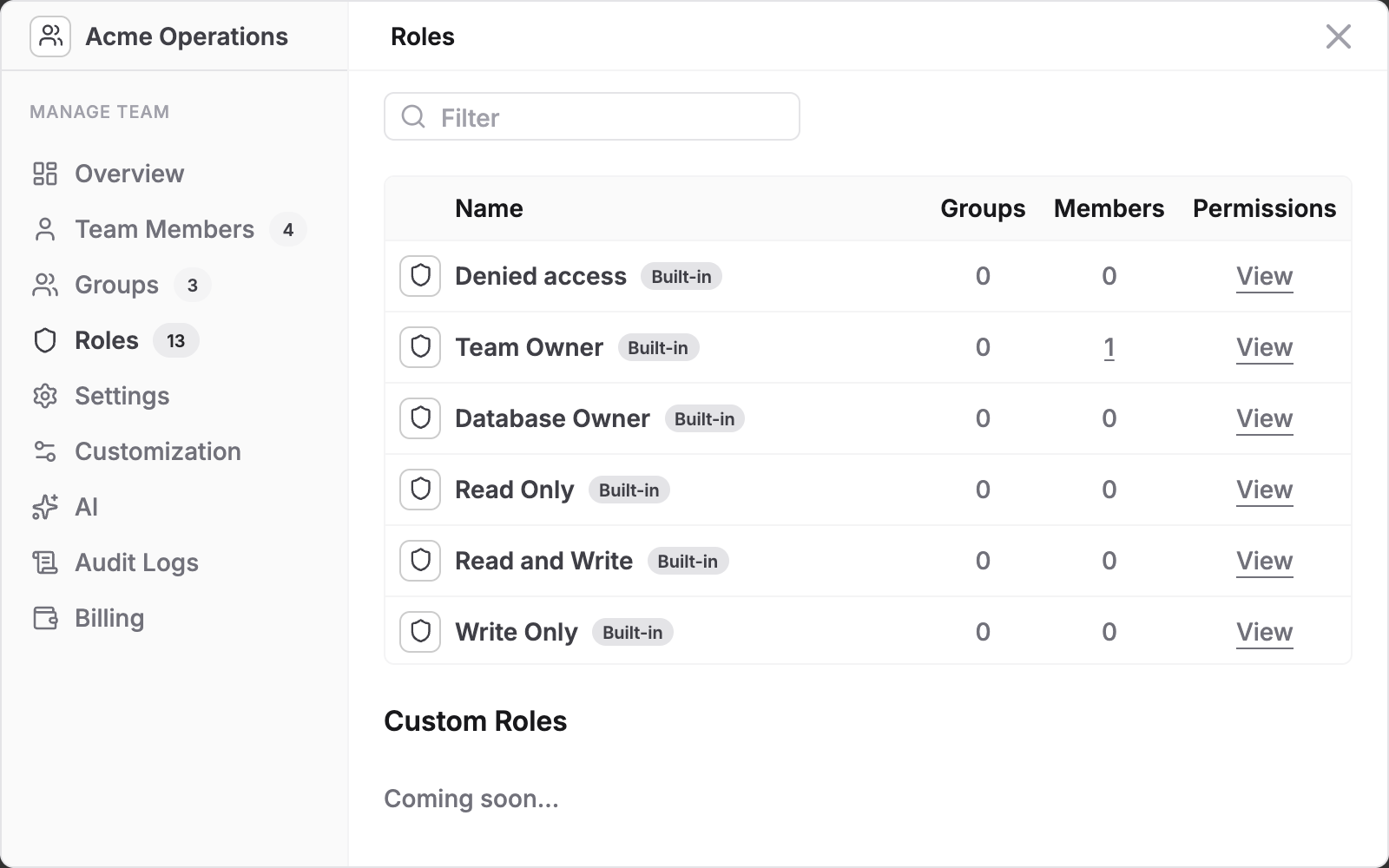
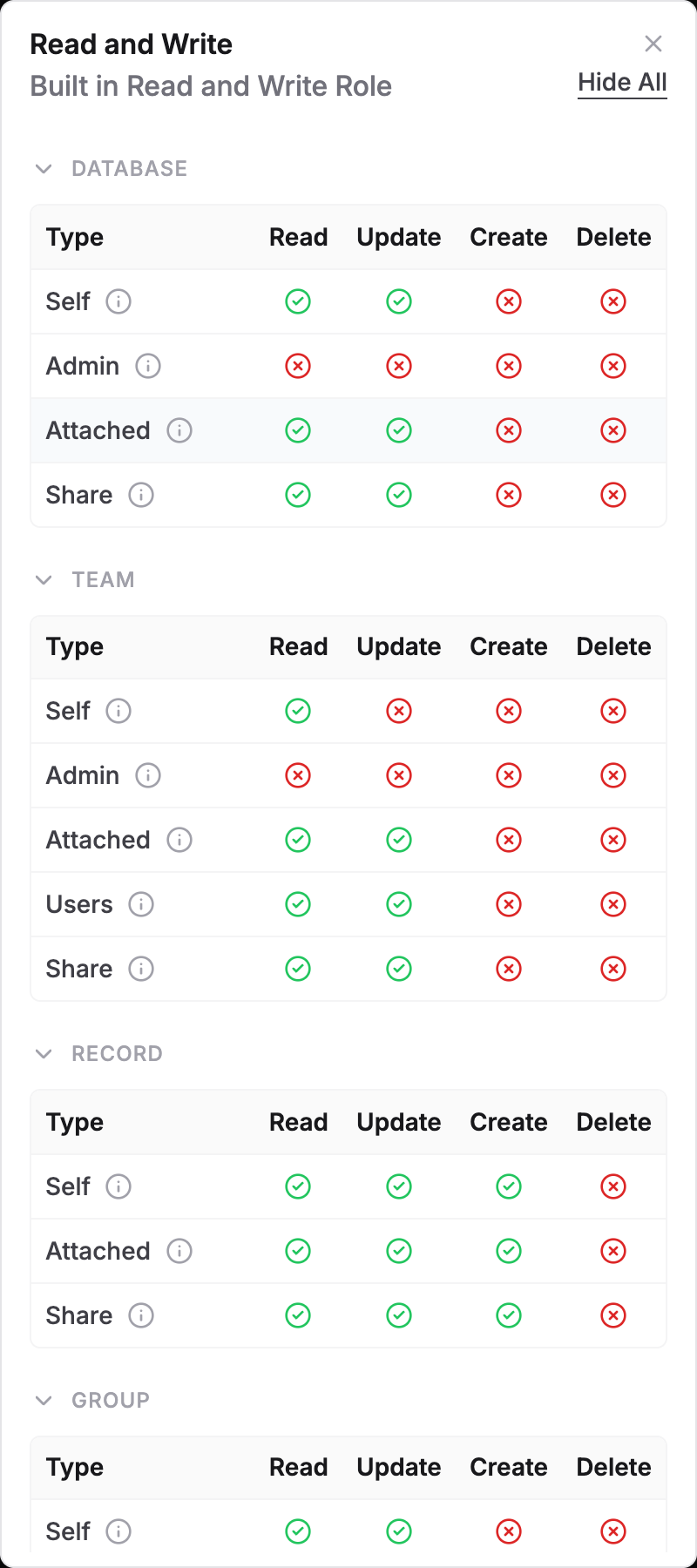
Roles lists every role with how many groups and members hold it. Select View to see exactly what a role allows. The role pages show every area (database, team, record, group, user) and each level (read, update, create, delete).
Why can't she see it? A checklist
Work from the record upwards:
- Open Permissions on the record. Is she under Via Current Record or Via Record's Parents? If she is missing from both, nothing grants her access here.
- Look at her roles (select the number under Role). Does she hold Denied access? That blocks everything below it.
- Check Override Parent Permissions on any entry she has on this record or its parents. An override stops AnyDB from using roles given higher up.
- Check Access Child Records. An entry with it unticked on a parent does not pass down to this record.
- Check her groups in Manage Team → Team Members. A group may grant access she is missing, or hold a role you did not expect.
- Open the workspace and the team. A Team Member role alone gives her no access to workspaces or records.
To confirm a change worked, sign in as that person or ask them to open the record. The People with Access list shows who should have access; opening the record is the proof.
Good habits
- Give roles to groups, not to individuals, so access follows team structure.
- Grant at the highest level that makes sense (workspace, then folder-like parent records) and use Override Parent Permissions only for exceptions.
- Use Denied access sparingly. A deny wins in most places and is hard to spot later. Prefer not granting.
- Review the list after every change. Open People with Access again and confirm the result.
- Remember that guests are different. For people outside the team, the interface offers only the record sharing roles (Record Viewer, Record Editor, Record Editor (no new records)) and Denied access.