Job and access
The job
A Teammate's job is set on its Job tab. Three fields work together:
| Field | Answers | Example |
|---|---|---|
| Role (required) | Who it is and what it is responsible for. | Release Verifier: checks that Resolved issues are deployed and working on Dev1. |
| Goal | The outcome it works towards. | No Resolved issue stays unverified for more than a day. |
| Standing instructions | The house rules for how to do the job, applied to every task. | Always check the deployed version first. Record a Verification on every issue. Never close an issue without a check. |
The role sets what is in scope. When someone asks for something outside its role, the Teammate says so and points them to AnyBot, or to the Teammate whose job it is. Teammates never build types, reports, views or workflows: that is AnyBot's job.
An admin can change the job in conversation: "From now on, also check the Forms workspace." The Teammate records the change: a new duty is added to its standing instructions, and a new role replaces the old one.
Workspaces
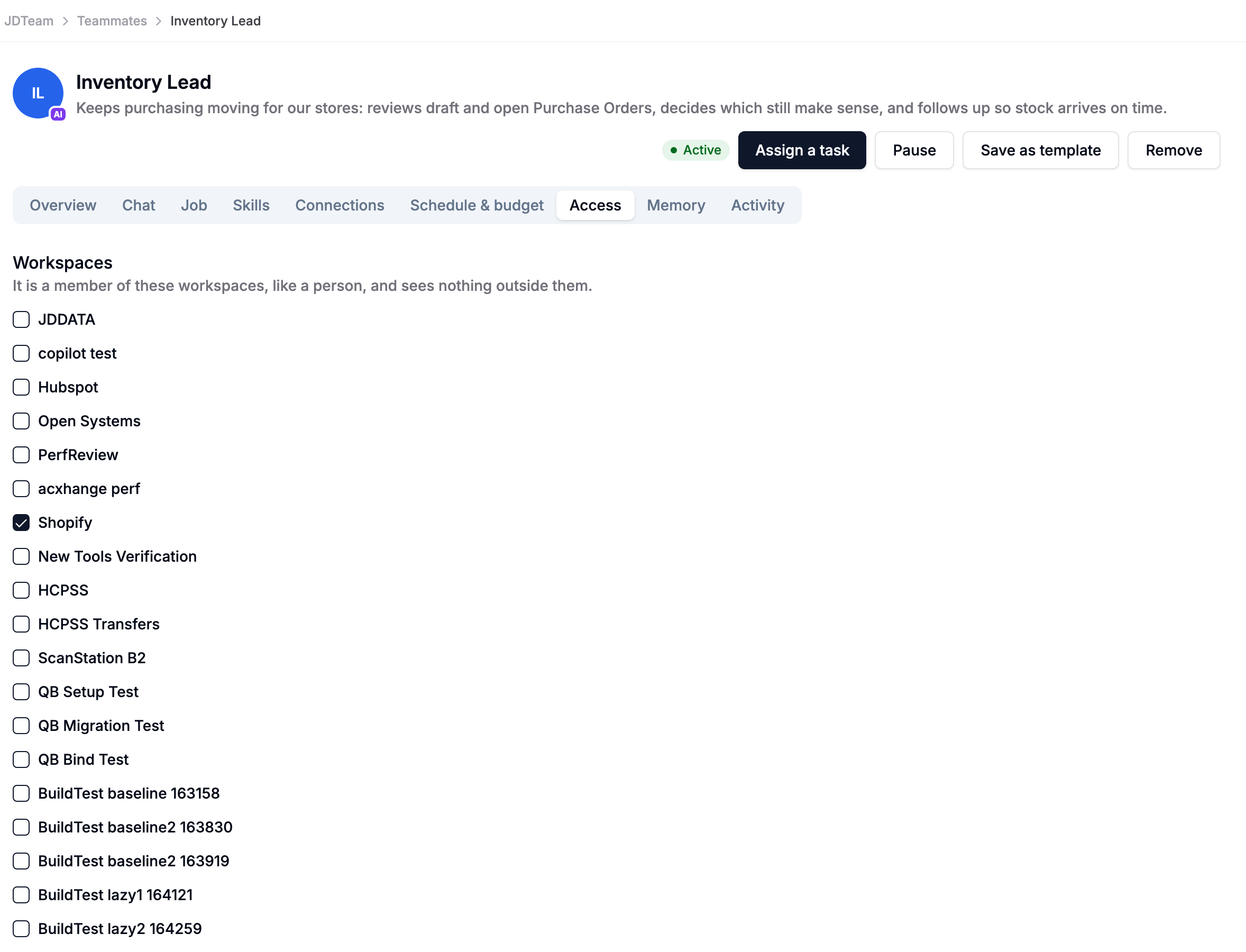
On the Access tab, Workspaces lists where the Teammate works. It is a member of these workspaces like a person, and it sees nothing outside them. Inside them, normal AnyDB permissions apply to it as to anyone else. Only team admins can change a Teammate's workspaces.
Who can see and change a Teammate
A Teammate's workspaces also decide who can see it, give it work and change it:
| Who | Sees it and gives it work | Changes its job, schedule, access, skills, connections and memory; pauses it; decides its approvals | Creates it, removes it, changes its workspaces |
|---|---|---|---|
| Team admins | Every Teammate | Yes | Yes |
| Admins of every workspace the Teammate works in | Yes | Yes | No |
| Members of a workspace it works in | Yes | No | No |
| Anyone else in the team | No | No | No |
- A workspace admin manages a Teammate only if they are an admin of every workspace it works in. A Teammate that works in Sales and Support can only be changed by someone who runs both, or by a team admin, so nobody changes how it behaves in a workspace they don't run.
- Members see a Teammate read-only: its profile and its activity. They can Assign a task, chat with it, and answer the tasks they gave it.
- A Teammate in no workspace is visible only to team admins.
- The team's Library (connectors, skills and templates), publishing a Teammate to outside agents, and Save as template stay with team admins. A workspace admin can grant a Teammate any connection or skill the team already has.
- Someone who can't see a Teammate still sees the tasks they gave it.
These rules are checked by AnyDB itself, in the app and through the API and MCP alike.
What it may do on its own
Also on the Access tab, each kind of action has a setting:
- Does it: the Teammate does it without asking.
- Asks first: it stops and asks for approval.
- Never: it is refused.
Reading and searching is always allowed.
| Action | Default |
|---|---|
| Update records | Does it |
| Create records | Does it |
| Post comments | Does it |
| Hand work to Teammates | Does it |
| Use connections | Asks first |
| Send email | Asks first |
| Post in chat spaces | Asks first |
| Change or remove | Asks first |
| Reach outside AnyDB | Asks first |
| Build new things | Asks first |
These settings are enforced by AnyDB, not left to the AI: an action set to Never cannot run, whatever the Teammate is asked.
Approvals
When an action is set to Asks first, the task stops with Waiting for your approval and shows exactly what it wants to do. The person who gave the task, or anyone who manages the Teammate (a team admin, or an admin of every workspace it works in), can:
- Approve: the action runs once and the task continues.
- Decline: the Teammate is told not to do it and continues without it.
- Always allow: changes the setting for that kind of action to Does it.
Approvals also appear under Needs you on the dashboard, and the person is notified.
Who it may email
Under Who it may email, choose Members of this team, and list Outside addresses and domains, one per line (for example partner@example.com or @example.com). Anyone else is refused, even if someone approves the email. Send email decides only whether the Teammate asks first.
Replies to a Teammate's email go to the person who gave the task, or to the admin who created the Teammate.
Tools
What it can do on the Access tab lists every tool the Teammate can use, grouped like the policy above. Switch a tool off to take it away completely, whatever the policy says.
Model
On Schedule & budget, AI model chooses the model the Teammate thinks with. Team's model uses the model set in Manage Team > AI Model.