Connections
Connections let a Teammate use services outside AnyDB. A team admin adds them once for the team. Anyone who manages a Teammate (a team admin, or an admin of every workspace it works in) can then grant them to it. Calls through a connection ask first by default: see Use connections on the Access tab.
Credentials are stored encrypted. They are never shown again after you save them, and Teammates never see them.
Add a connection
On a Teammate's Connections tab, or in Teammates > Library > Connectors:
- Browse catalog to add a ready-made connector. The catalog includes GitHub, Gmail, HubSpot, Jira and Confluence, LinkedIn, MailerLite, Stripe and X. Some sign in with your account; others take an API key or your own OAuth app.
- Custom connection to add your own:
- MCP server: an external MCP server your Teammates can use. Enter the Server URL and, if it needs one, a Credential header and Credential. To give Teammates web search, add a search MCP server.
- Another agent (A2A): an agent that speaks the A2A protocol. Enter its Agent card URL. A Teammate you grant it to can hand it work and read its answer.
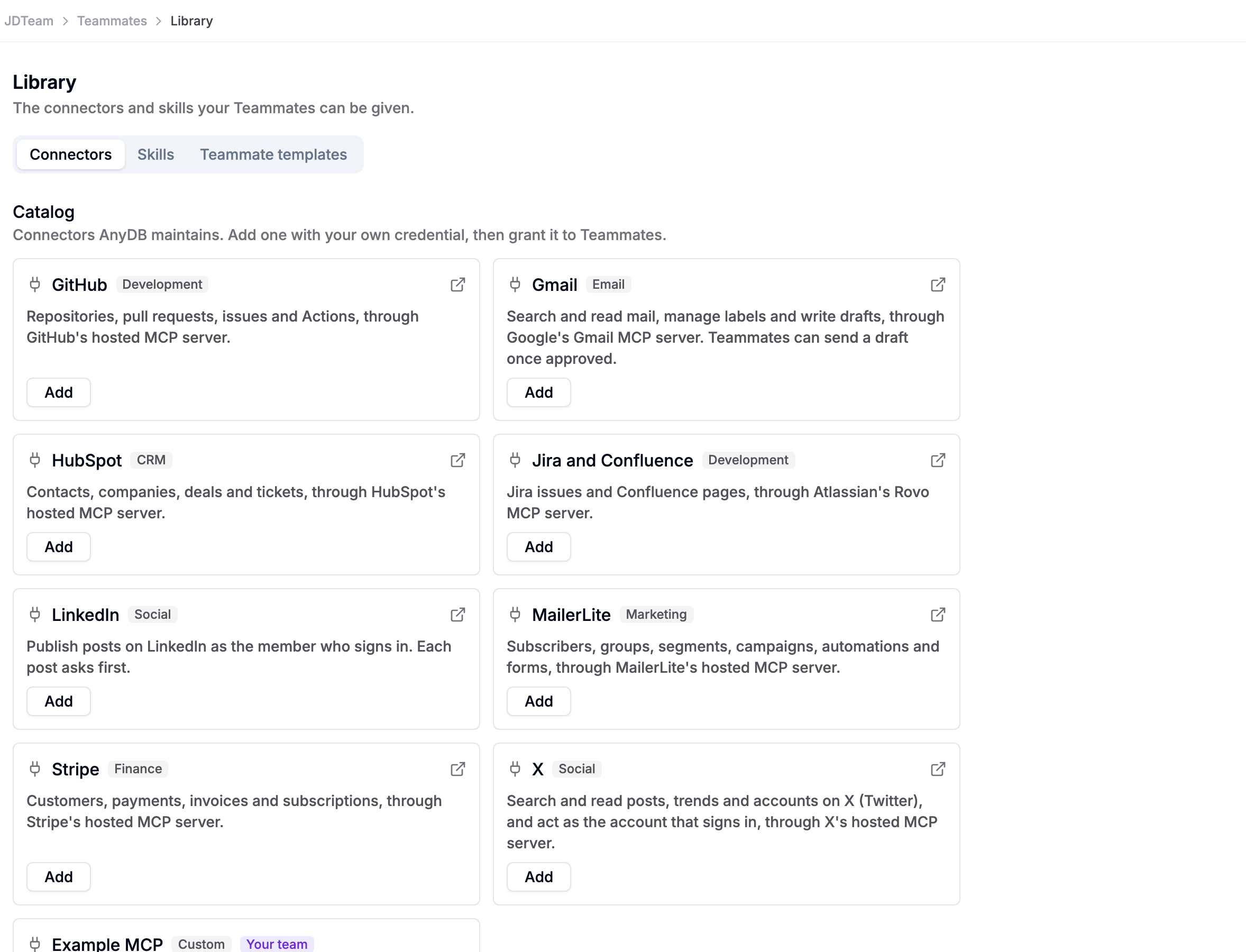
Then grant the connection to a Teammate on its Connections tab. Leave Allowed tools empty for all tools, or list some (for example search_prs, get_pr).
Connections must point at public internet addresses. AnyDB refuses private and internal addresses, and always connects to the address it checked.
X (Twitter)
The X connector uses X's own hosted MCP server. Teammates can search and read posts, trends and accounts, and act as the X account that signs in. You need your own X developer app, and X bills API use to your developer account.
- In the X Developer Console, create an app and turn on OAuth 2.0 as a Web App (a confidential client).
- In Library > Connectors, choose Add on X. Copy the redirect URL AnyDB shows into the app's OAuth settings.
- Paste the app's Client ID and Client secret, then choose Sign in with the X account the Teammates should act as.
- Grant the connection to a Teammate on its Connections tab.
Calls through a connection ask first by default, so a Teammate asks before it does anything on X. Keep Use connections on Asks first for an account that posts publicly.
Google Chat
People can @mention a Teammate in a Google Chat space, or message it directly, and it answers in the thread. Only members of the Teammate's AnyDB team can give it work. The Teammate can also post to a space it has been added to, for example a daily summary.
To connect a Teammate to Google Chat:
- In Google Cloud, enable the Google Chat API and configure a Chat app with the Teammate's name and avatar.
- Set the app's connection to an HTTP endpoint, and its authentication audience to the project number.
- Create a service account key for the app.
- On the Teammate's Connections tab, choose Connect Google Chat, and paste the Project number and the Service account key (JSON).
- Copy the Endpoint URL AnyDB shows and paste it back into the Chat app's configuration.
- In Google Chat, add the app to the spaces where it should work.
The card on the Connections tab shows which project it posts as and which spaces it is in. Disconnect removes it.
Posts to a space use Markdown: headings and bold become Chat bold, italic stays italic, and - list items become bullets. For tidy summaries, ask for it in the Teammate's standing instructions, for example: "Format every Chat post with a bold title, a bold label per section, and one bullet per item on its own line."
Work for other agents (A2A)
You can publish a Teammate so that agents outside AnyDB can send it tasks using the A2A protocol.
- On its Connections tab, under Work for other agents (A2A), choose Publish as an agent.
- Copy the A2A key. It is shown only once. Rotate key replaces it.
- Give the outside agent the Agent card URL and the key.
A published Teammate works under its own access and policy, exactly as it does for your team, and only admins see the tasks outside agents send it. Stop publishing turns it off.