Built-in Views
Built-in Views let you add custom view tabs directly to a Type. These views are bundled with the Type, so every record created from that Type displays the configured tabs whenever the record is opened.
This is useful when related information should always be available from the record itself. For example, an Employee record could include separate tabs for connected records, records that reference the employee, assigned work, or other filtered results.
How Built-in View Tabs Work
A Built-in View is defined once in the Type Designer. AnyDB then creates the tab from that configuration whenever a record of the Type is opened.
- The view configuration is shared by every record using the Type.
- The records shown in the tab are evaluated in the context of the currently open record.
- You can add multiple tabs and configure each one for a different relationship or query.
- Connected To and Referenced By are usually configured as separate tabs because they represent different relationship directions.
Add a Custom View Tab to a Type
- Open a record created from the Type you want to update.
- In the Record tab, select Edit Type to open the Type Designer.
- In the tabs area, add a new view.
- Enter a descriptive View name. This name appears on the tab when a record is opened.
- Select the required View type.
- Configure the relationship or search options for the selected view.
- Save the view, and then save the Type.
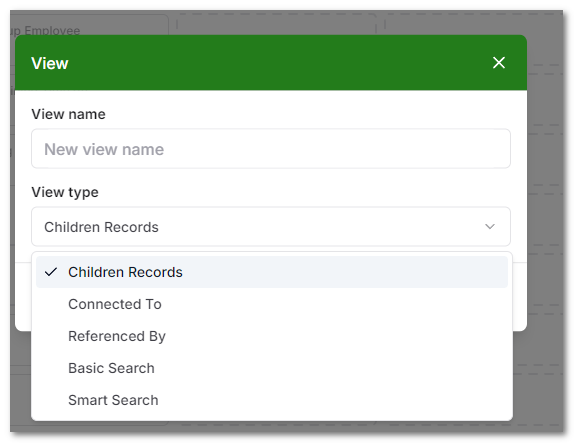
Open any record created from the Type to verify that the new tab appears and returns the expected records.
Supported View Types
| View type | What the tab displays | Example use |
|---|---|---|
| Children Records | Child records attached to the currently open record | Show tasks, files, notes, or other records belonging to a parent record |
| Connected To | Records that the current record connects to | Show customers, employees, assets, or other records selected from the current record |
| Referenced By | Records that connect back to or reference the current record | Show work orders, invoices, or tasks that reference the current record |
| Basic Search | Records matching a configured search query | Show a consistent filtered set of records |
| Smart Search | Records matching a query that can use dynamic context | Show records personalized for the logged-in user |
Children Records
Use Children Records when the tab should show records attached beneath the current record in a parent-child relationship.
For example, a Project Type could include a Project Tasks tab that displays the task records created as children of each project.
Connected To
Use Connected To to show records that the currently open record connects to.
For example, an Employee record could include an Assigned Assets tab for asset records connected from that employee.
Referenced By
Use Referenced By to show records that reference the currently open record.
For example, an Employee record could include a Referenced By or Work Orders tab that displays work orders whose employee reference points to that employee.
Because Connected To and Referenced By follow relationships in opposite directions, configure them as separate tabs when users need to see both.
Basic Search
Use Basic Search when the tab should display records matching the same configured search criteria for every record.
See Search in AnyDB for the supported query syntax and operators.
Smart Search
Use Smart Search when the query needs dynamic context, such as the identity of the logged-in user. This can create personalized tabs for assigned work, guest users, or portals.
See Dynamic Views for setup instructions, supported user variables, and secure-sharing guidance.
If a search field name or value contains spaces, enclose it in double quotation marks (").
Examples
An Employee Type might include:
- Direct Reports using Referenced By
- Assigned Assets using Connected To
- Documents using Children Records
- My Open Work Orders using Smart Search
A Customer Type might include:
- Contacts using Children Records
- Orders using Referenced By
- Account Manager using Connected To
- Open Support Requests using Basic Search
Best Practices
- Give each tab a clear name that describes the records it displays.
- Keep Connected To and Referenced By in separate tabs.
- Add only the tabs users need when working with that Type.
- Test the Type with multiple records to confirm that each tab uses the current record's context.
- Use User ID or User Email for Smart Search tabs that securely separate records between users.