Managing AnyDB Types
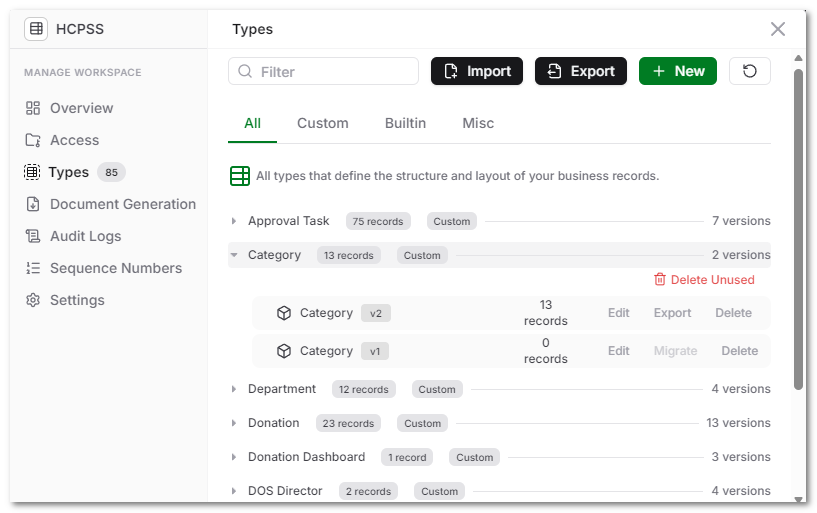
The Type Management screen provides a centralized place to view, create, edit, import, and maintain all types within a database. It lists every built-in and custom type, along with version history and the number of records using each.
Overview
Manage Types allows you to
- View all types used in the database (Custom, Built-in, Misc)
- Track version history (v1, v2, etc.)
- Check record counts per type
- Edit or delete types
- Browse records created from a specific type
- Create or import new types
This unified view gives admins a clear understanding of how their business objects evolve across their workspace.
Viewing Existing Types
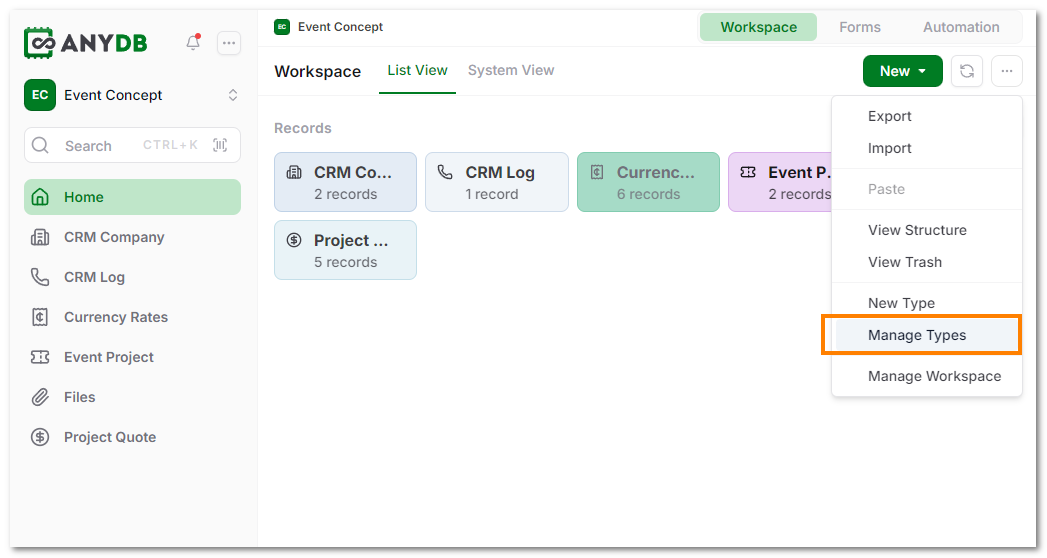
- Navigate to the Workspace Home screen.
- Click on the more options menu (three dots) on the top right corner and select Manage Types.
Viewing Records for a Type
You can see all records using a specific type directly from this view.
- In the Types tab, click the record count beside the type name.
- A popup opens showing every record that uses that type.
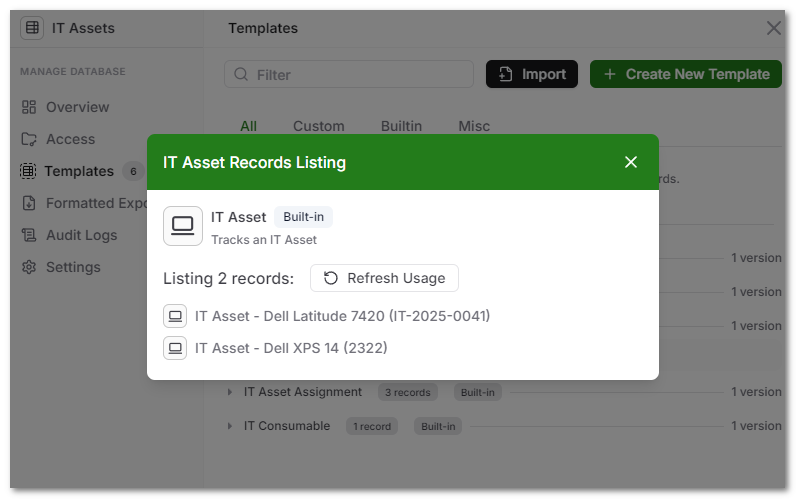
- Within this listing, you can:
- View or open individual records
- Refresh the record usage
- Confirm which types are currently in use
Tip: Review this list before editing or deleting types to understand the scope of impact.
Editing an Existing Type
- Open Manage Types Dialog.
- Find the type you want to modify.
- Click Edit beside the type version.
- The type opens in the Type Designer, where you can add or rearrange fields, change formulas, or modify layout.
- When saving, AnyDB may prompt you to migrate existing records if structural changes are detected.
Deleting a Type
If a type is no longer needed, it can be deleted from the database.
- Open Manage Types Dialog.
- Locate the type you want to delete.
- Click Delete beside the version or main entry.
- Confirm deletion in the warning dialog.
Warning: Deleting a type also deletes all records created from that type. This action is permanent and cannot be undone.
Export your records first if you may need them later.
Managing Type Versions
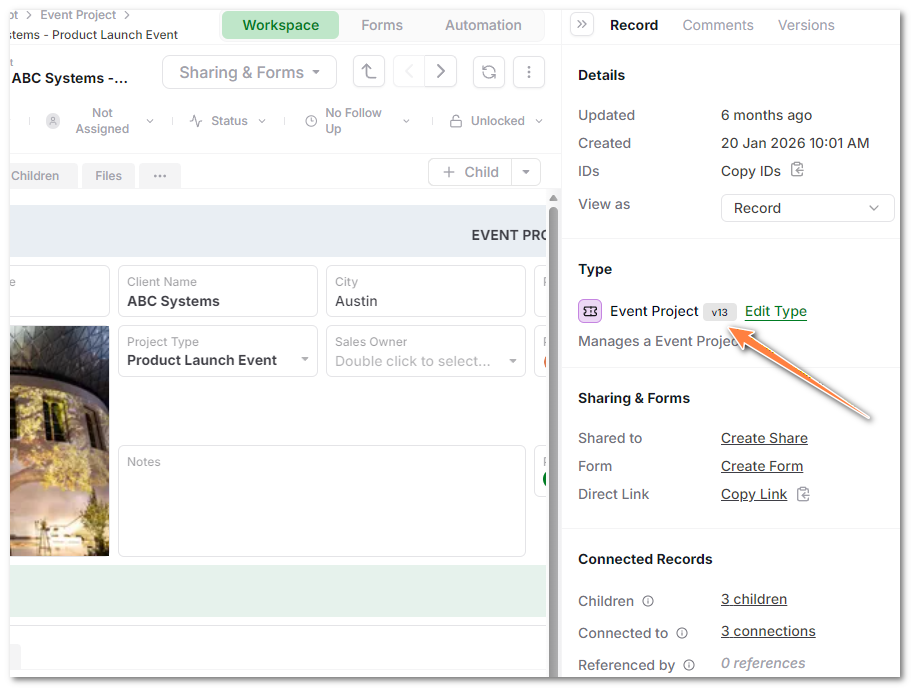
AnyDB automatically tracks type versions each time you save changes. This makes it easy to see how a structure has evolved and which version current records belong to.
Every type entry shows its version history. You can expand a type to see all versions.
You can also see the version of each record in the record details.
Tip: Keep earlier versions if you need to preserve historical layouts or compare configuration changes between releases.
Creating a New Type
You can create a new Record Type in many ways. See Creating a Type for more details.
- From the Manage Types Dialog.
- Click + New button at the top right.
- The Type Designer opens automatically for field creation and layout design.
- Once saved, the type becomes available to all users in the database.
Tip: Use clear naming conventions for types, such as Customer Invoice, Asset Log, or Work Order, to make them easier to find later.
Importing and Exporting Types
You can reuse types from other workspaces or import predefined layouts.
See more information about importing types in the Importing & Exporting Types documentation.