Order Management & Fulfillment with AnyDB
Manage customer records, sales orders, order items, product data, shipment orders, and shipment journals in one connected operational model. AnyDB helps sales, warehouse, and shipping teams work from the same source of truth instead of coordinating through spreadsheets and disconnected tools.
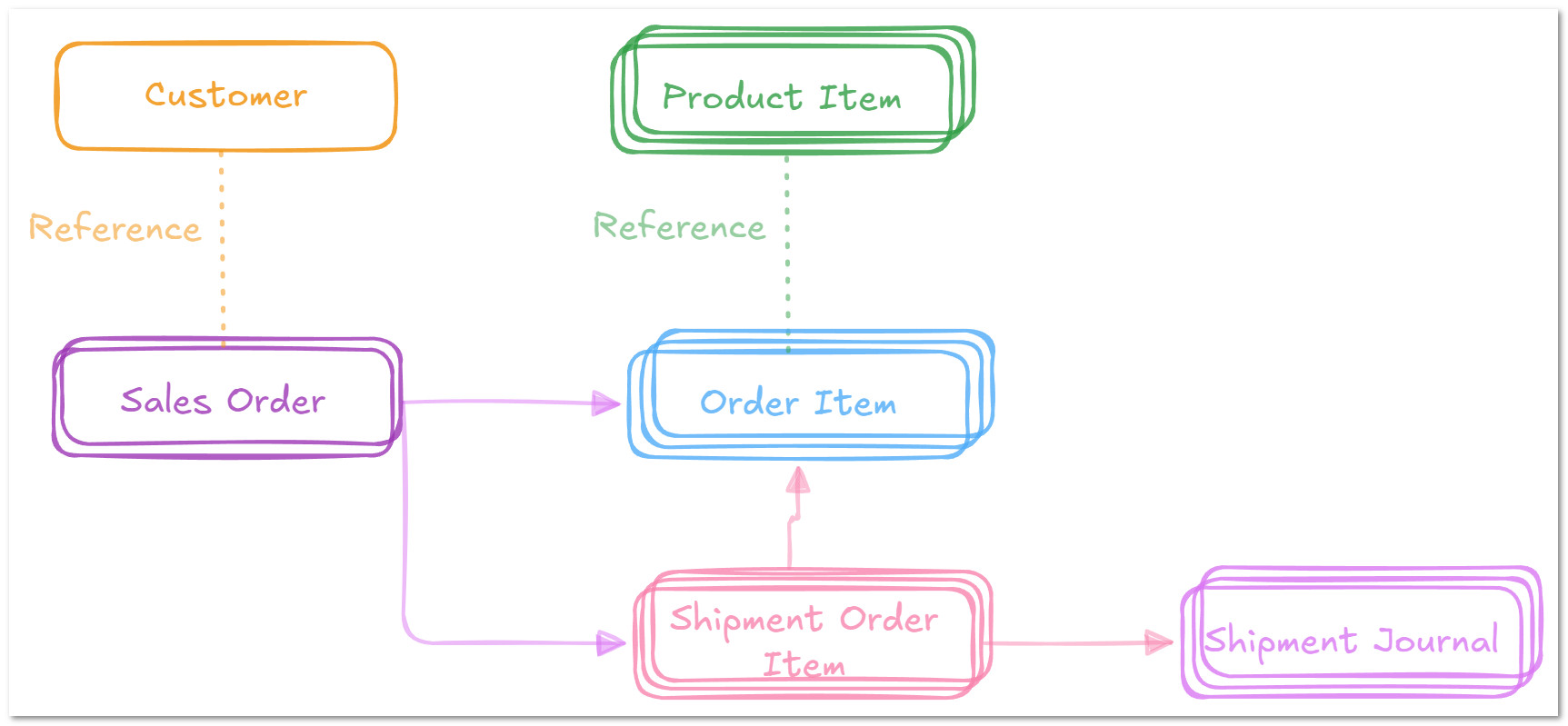
The connected object model behind customers, orders, products, and shipment tracking.
Sales, warehouse, and shipping stay aligned
Reduce coordination errors by keeping customer, order, and shipment records connected in one place.
Fulfillment context stays visible
Track line items, freight details, destinations, and shipment journals without rebuilding the workflow across tools.
Operational structure without rigid software
Adapt the solution to your own order and fulfillment process while keeping the data model clear.
Why order operations break down when teams work from separate tools
When sales, shipping, and warehousing teams do not work from the same system, order accuracy and delivery reliability suffer. The result is misleading data, longer lead times, and poor customer experience.
Business problem
Sales orders are often managed in spreadsheets while shipping teams rely on partial data and warehouse teams work from different status signals. That disconnect leads to wrong shipments, unclear progress, missed details, and dissatisfied customers.
Solution summary
- +Customise the Order Management & Fulfillment database to suit your operational needs.
- +Link customers to their respective sales orders and shipping journal statuses.
- +Track progress on the sales order steps.
- +Segment sales orders by customer, date, freight, destination, and other operational dimensions.
- +Assign tasks and review updates in real time.
Definition: A reference is an independent object rather than an attachment. Note: Different colours indicate distinct objects.
A clean order-to-fulfillment model to start with
Start with six record types that reflect the actual movement of work from customer account to shipment event.
Customer and Sales Order
Use customer records as reusable accounts and connect them directly to sales orders with status and priority context.
Order Item and Product Item
Use product records as independent catalog objects and connect order items to them through references.
Shipment Order and Journal
Track freight, destination, attached order items, and shipment status events inside the fulfillment workflow.
How to set up the order management workflow
Follow the setup sequence below to load the solution, create customers, orders, products, and shipments, and keep the media-rich walkthrough intact.
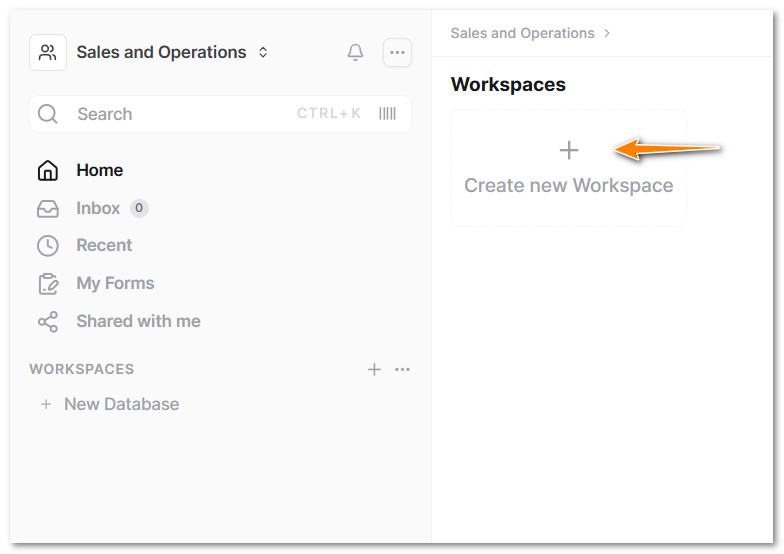
- Click on + Create new Workspace.
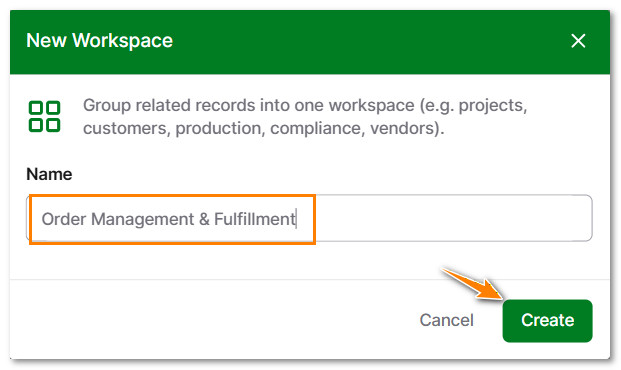
- Type a name for the New Workspace and click on Create.
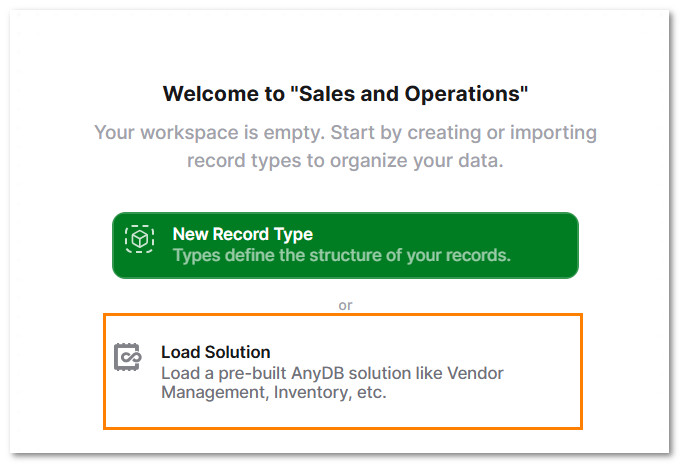
- Click on Load Solution.
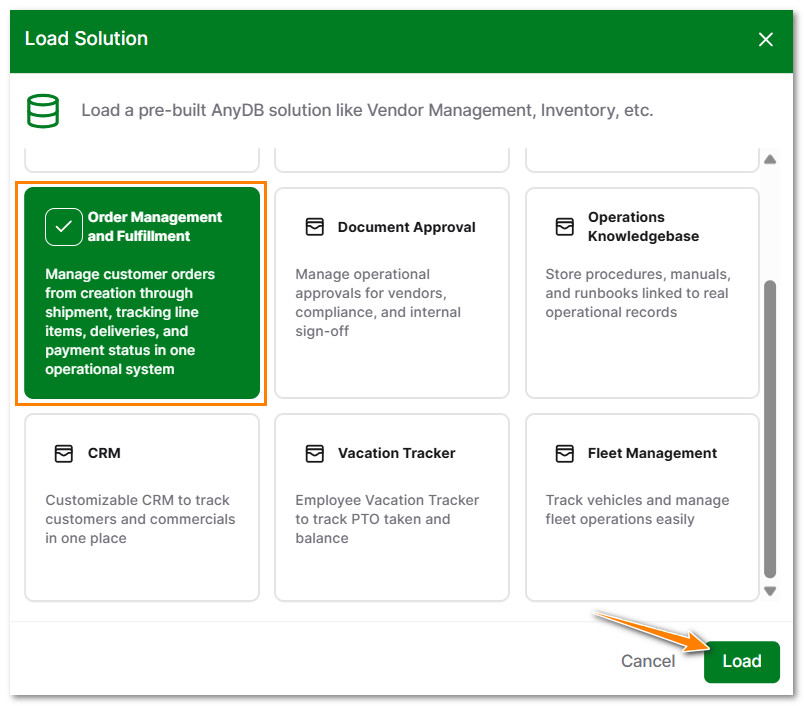
- Select Order Management and Fulfillment and click on Load.
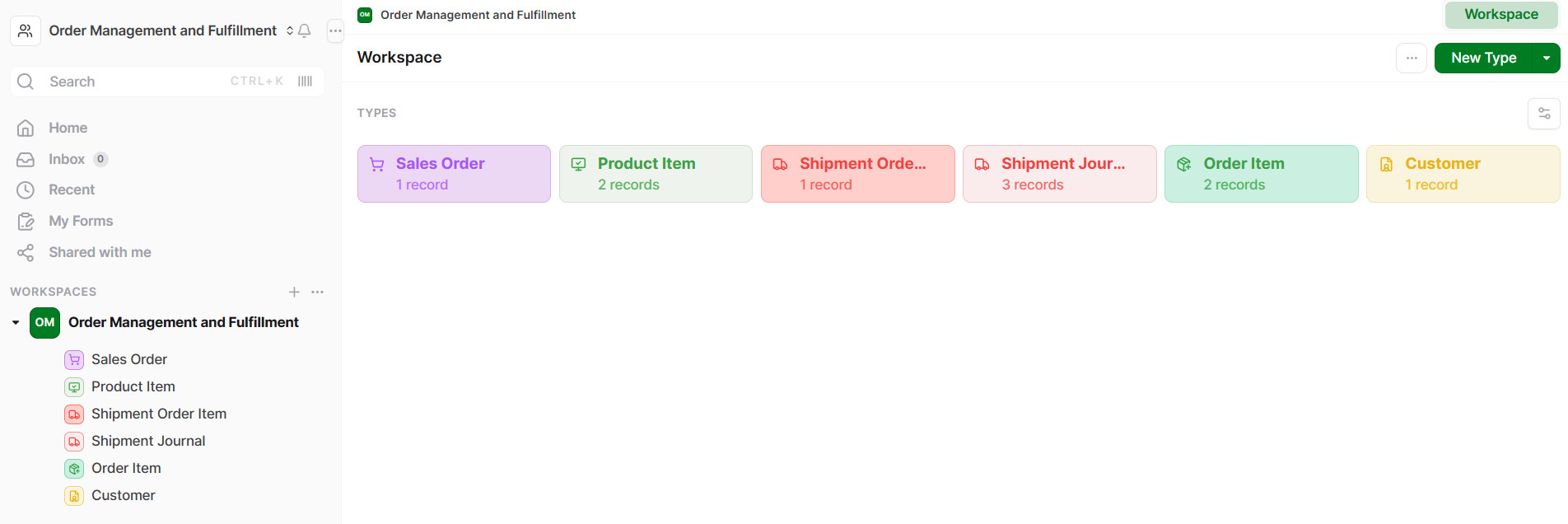
The database includes six primary record types: Customer, Sales Order, Order Item, Product Item, Shipment Order Item and Shipment Journal.
- In the Workspace, click on Customer.

- Click on New Customer.

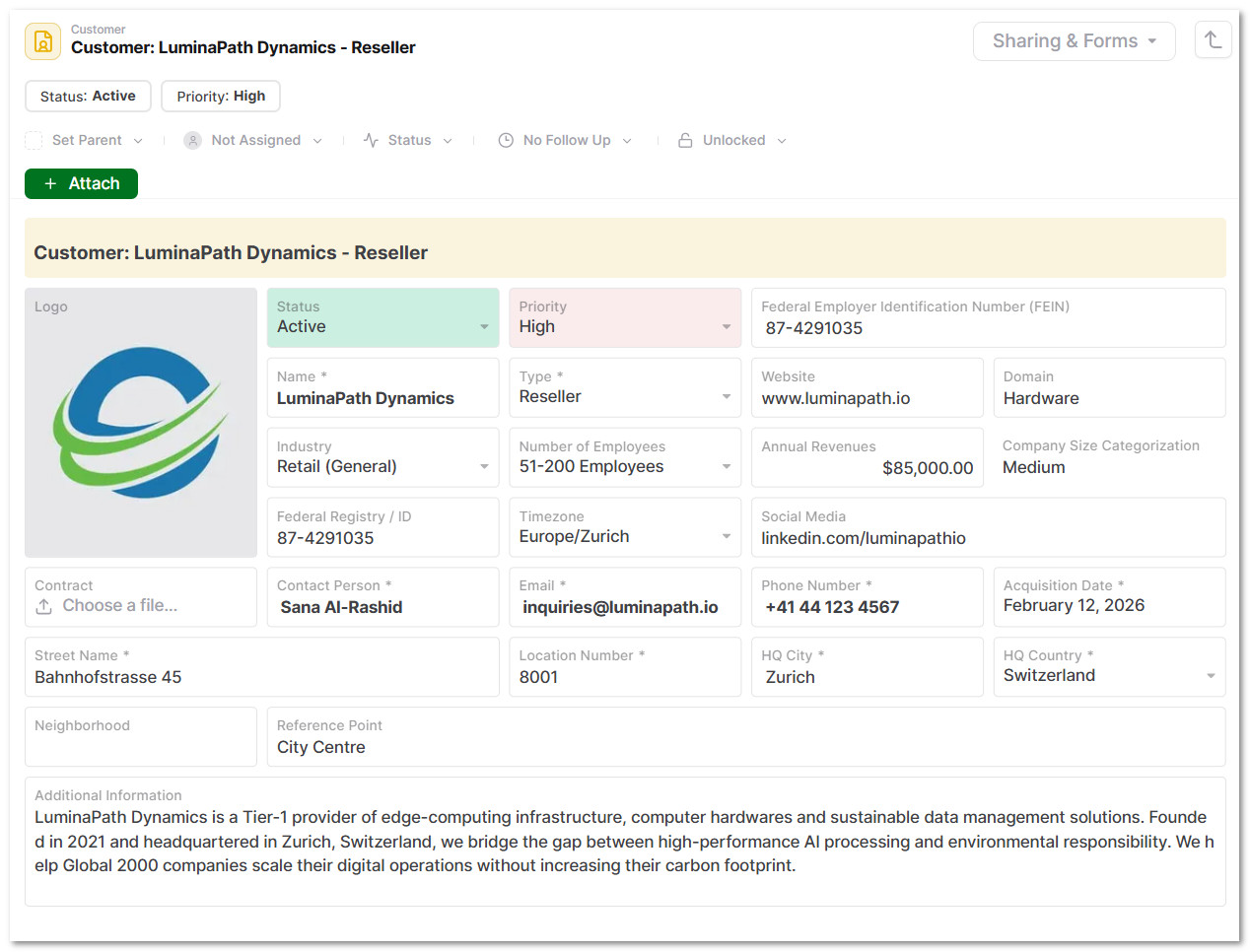
- Fill out all the relevant fields related to the customer.
Key fields include Status, Priority, Name, Logo, Domain, Number of Employees, Tax ID, Address and Website, along with other organisational and contact details.
- Return to the Workspace.
- Click on Sales Order.

- Click on New Sales Order.

- In Customer Section, Select the respective Customer Record.
This is a reference cell used to link specific customer data to the sales order automatically. A document, such as an invoice and contract, can be attached to the record.
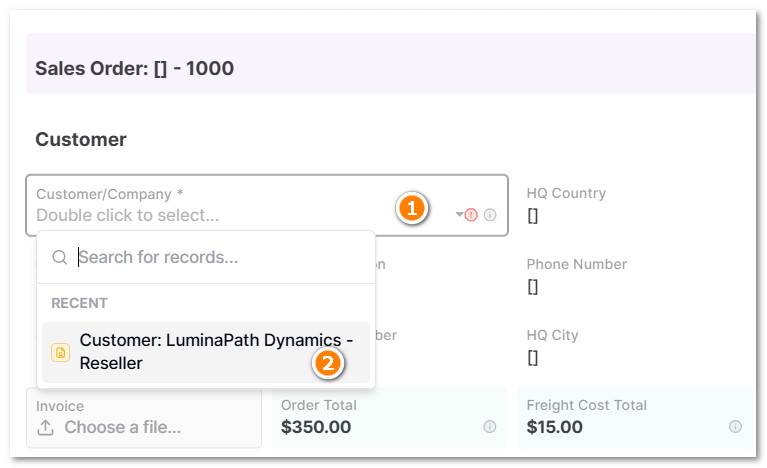
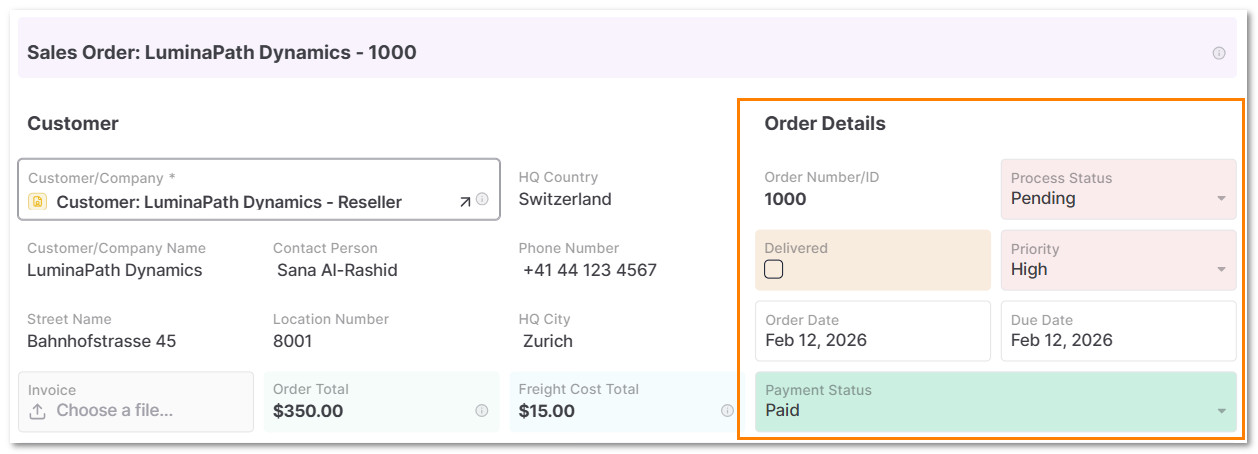
- In Order Details, select the Priority, Order Date and Current Status.
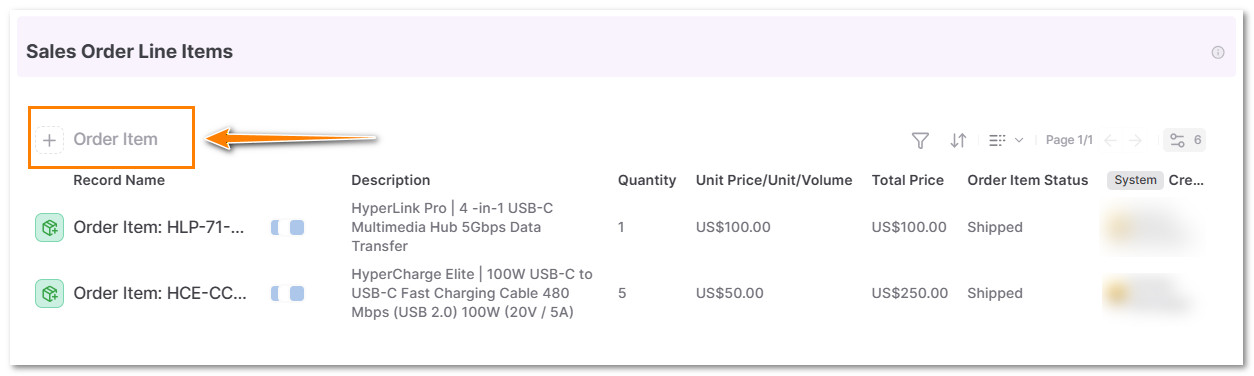
- In the Sales Order Line Items section, click on + Order Item.
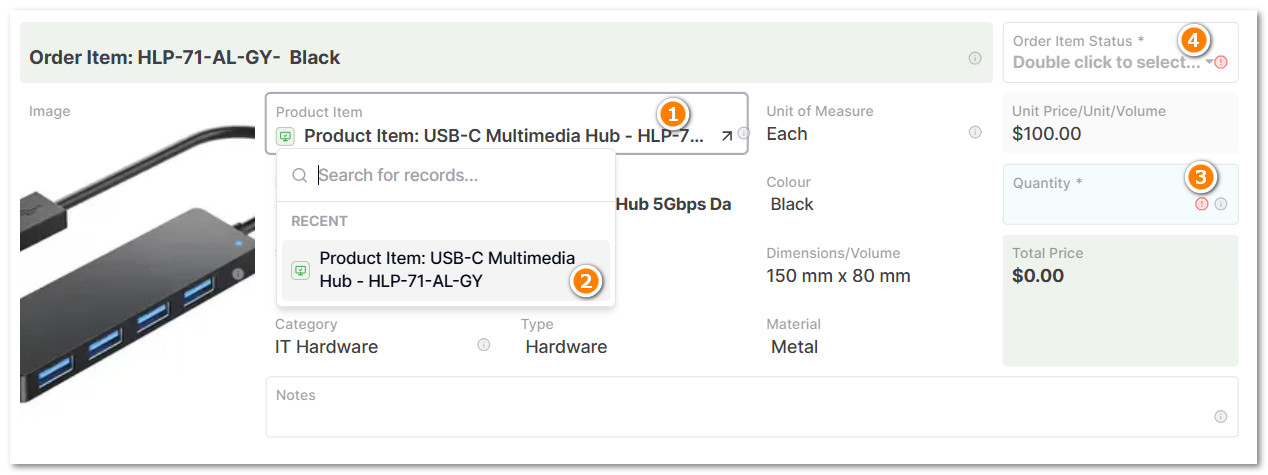
- Click in the Reference Cell and Select the Product Item from the Product Item Database.
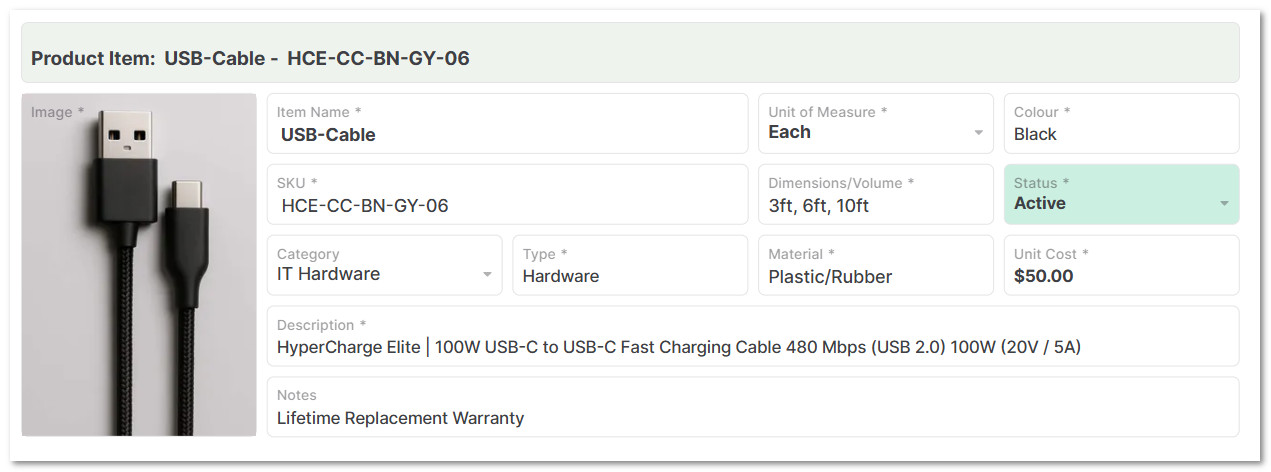
Type a quantity and set the current status of the order item. The Product Item Database is a set of independent objects that describe each product's characteristics, unit price, SKU, category, dimensions, material, unit of measure, and description.
- Return to the Sales Order.
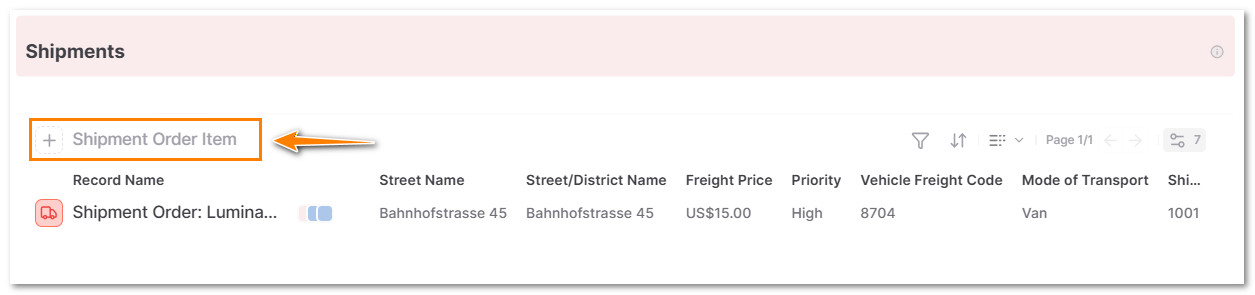
- In the Shipments section, click on + Shipment Order Item.
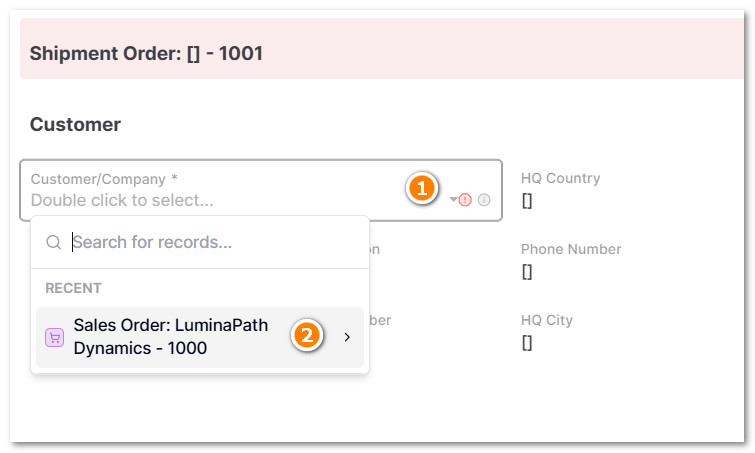
- In Customer Section, Select the respective Sales Order.
This is a reference cell used to link specific customer data from the current sales order to the shipment order automatically.
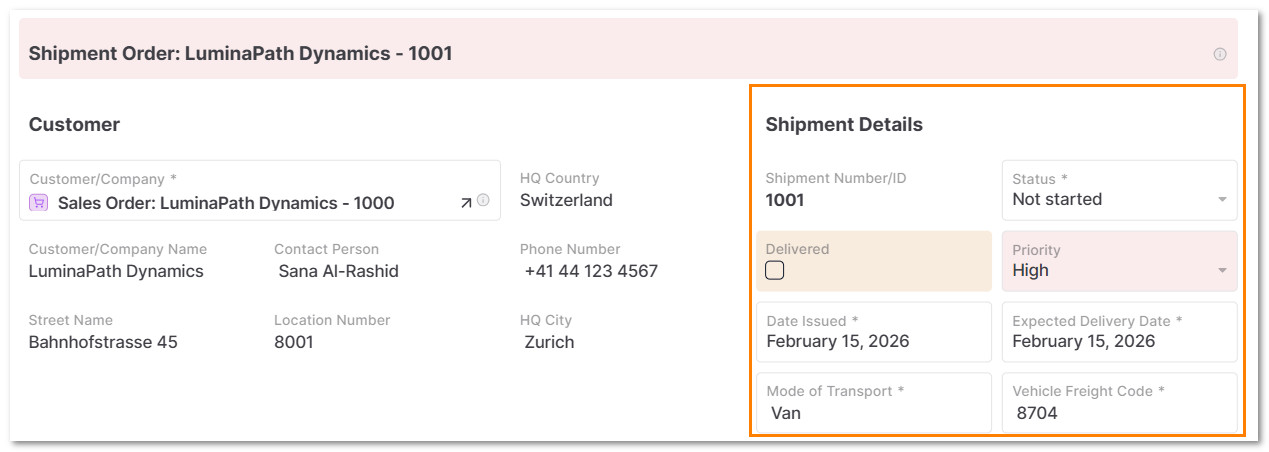
- In Shipment Details, select the Priority, Order Date, Mode of Transport, Freight Code and Current Status.
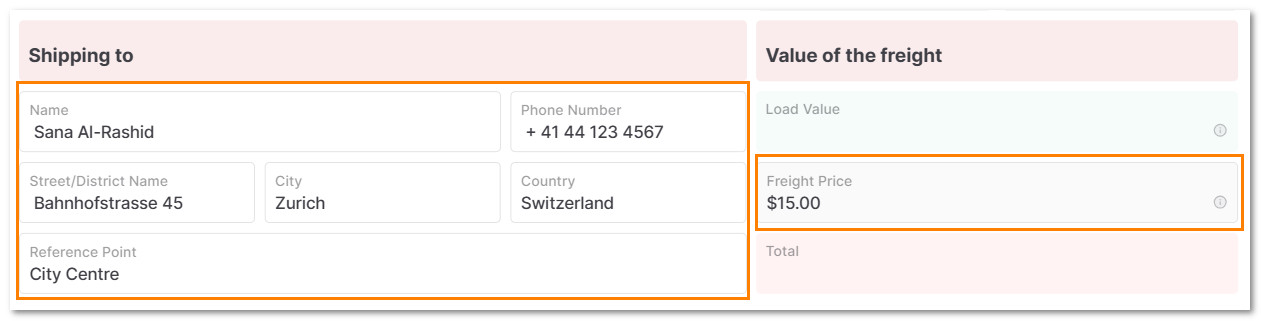
- In Shipping to add the destination details and the price of the freight.
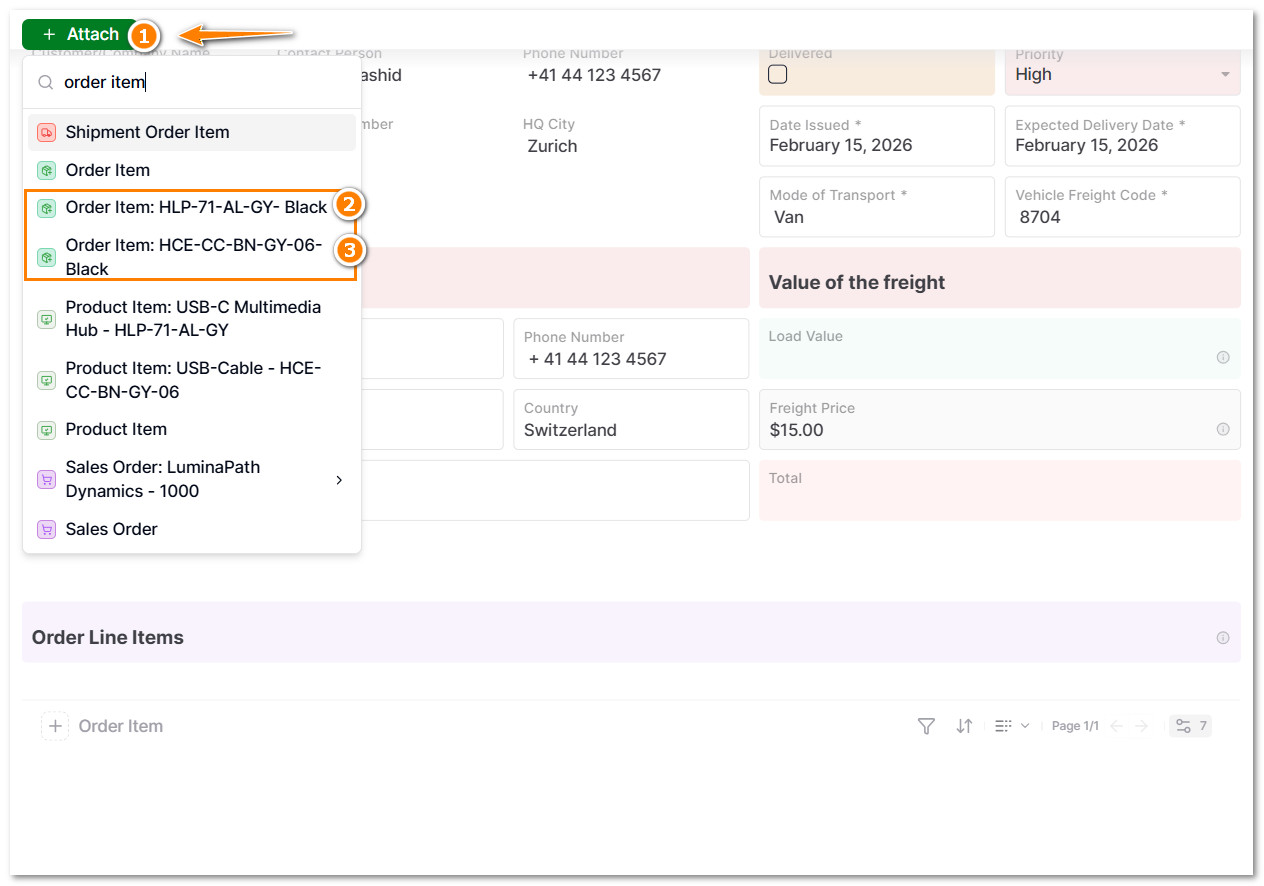
- Click on + Attach and select the same Order Items from the respective Sales Order.
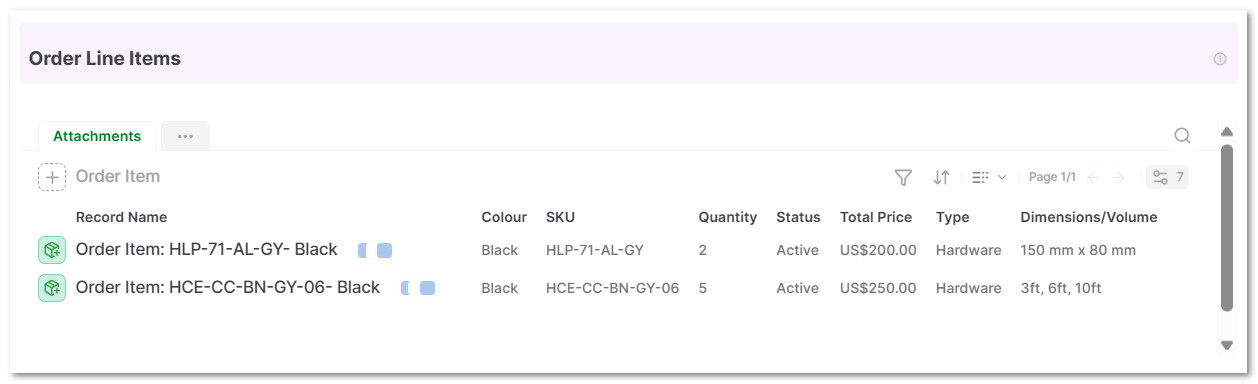
The shipping lead or team can view all order item details for this particular sales order.
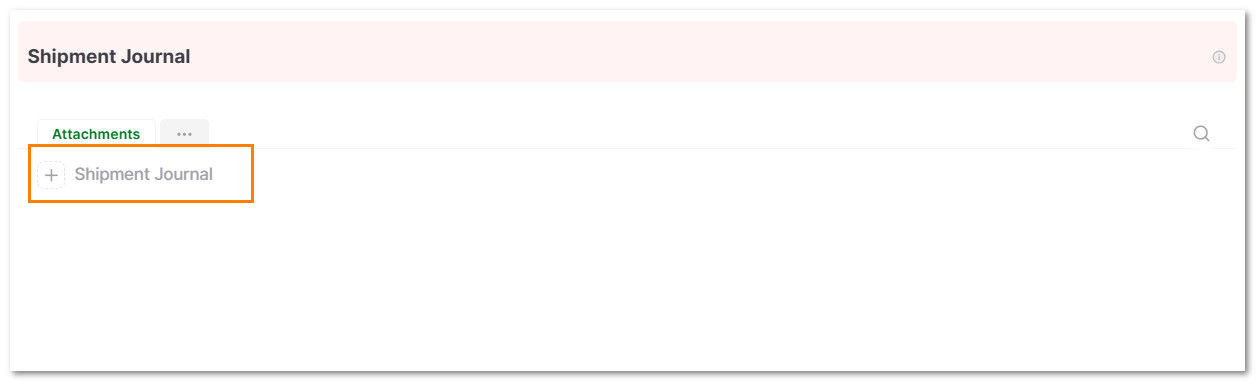
- In the Shipment Journal Section, click on + Shipment Journal.
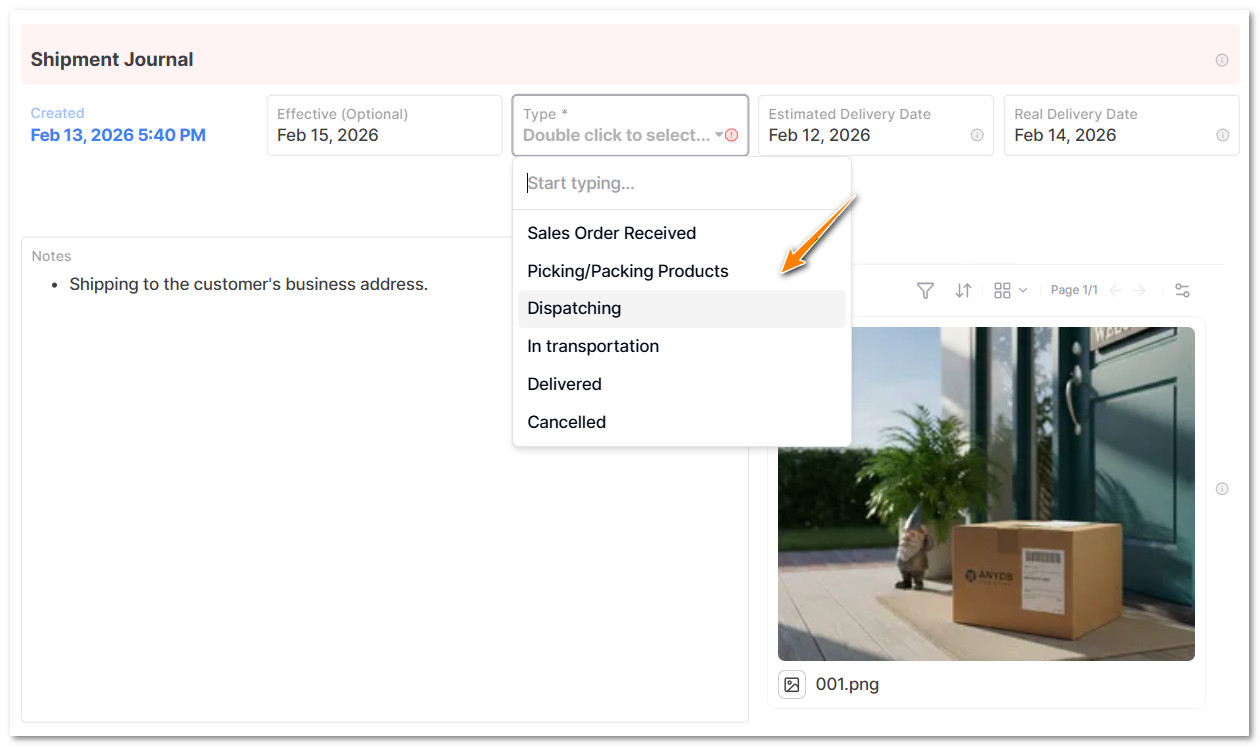
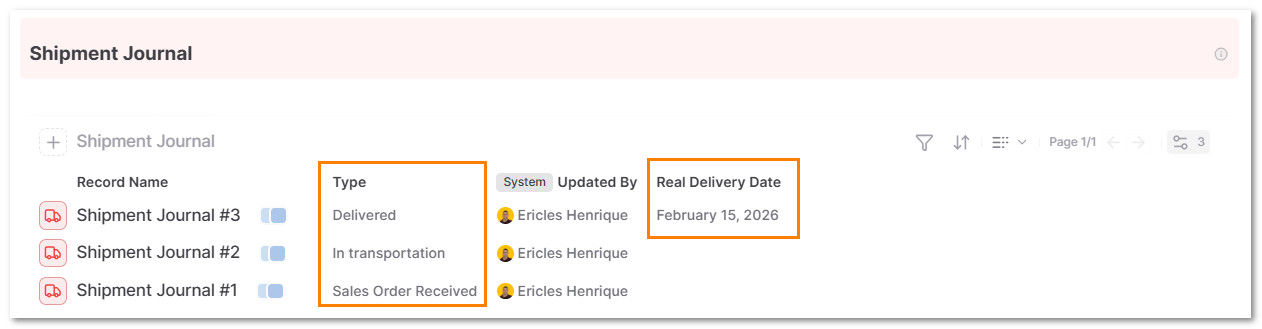
- Select the Date, the current Status such as "In Transportation" or "Delivered", Estimated Delivery Date, Real Delivery Date, add notes and a picture of the current event.
Returning to the Shipment Order Item, you can view and monitor all shipment events in the Journal Section.
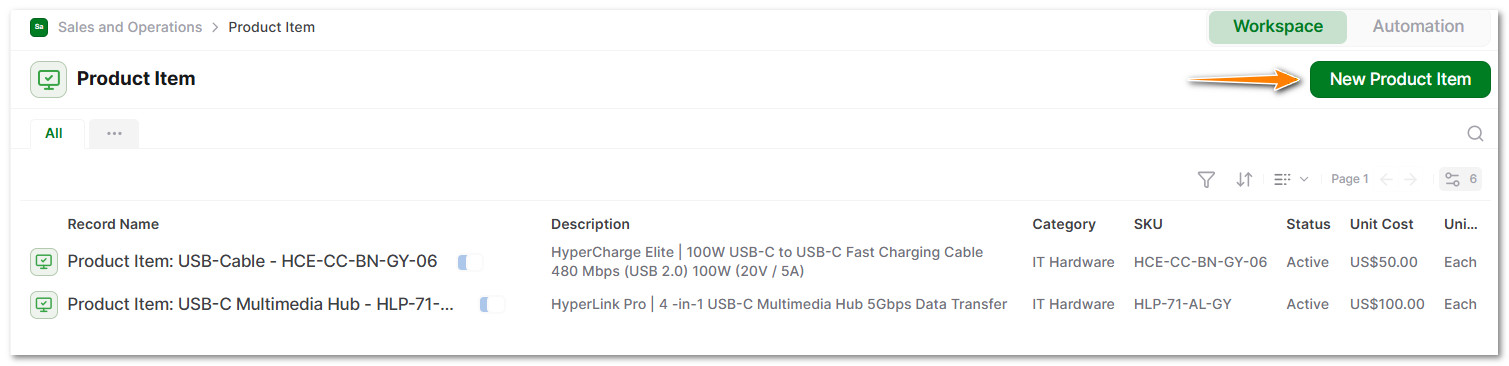
- In the Product Item Record, click on New Product Item.
- Add all product details, such as: SKU, description, unit of measure, color, category, volume/dimensions, unit cost, inventory status, product image, and notes.
Data model reference
| Field | Description |
|---|---|
| Customer | Track and manage a customer profile |
| Sales Order | Trigger the warehouse to pick and pack the goods |
| Order Item | Add a product to the order item |
| Product Item | Add details of a product |
| Shipment Order Item | Dispatch goods to customers |
| Shipment Journal | Signal the events related to the shipment |
Reporting and views
- +Sales Orders and Shipment Order Items by owner, time period, customer, value, status, location, freight, and more.
- +Securely share saved views with customers, internal team, and partners.
- +Example: Sales Orders from Customer A with a third-party company.
Sharing and collaboration
- +Assign records to individuals or teams.
- +Track progress collaboratively with comment threads.
- +Use status indicators.
- +Link updates to weekly reports or team check-ins.
- +Share views with leadership for transparency.
Tips and best practices
- +Set a follow-up date to avoid missing any steps.
- +Update progress regularly, not just at the end.
- +Use logistics techniques such as Milk Run and Just-in-Time (JIT) to deliver goods efficiently.
Pro Tip: Integrate the Order Management & Fulfillment database with the Inventory Management database.
Who this solution is for
- +Leadership Teams for operational visibility and fulfillment alignment.
- +People Managers for team-level coordination and accountability.
- +Individual Contributors to manage day-to-day order and shipment execution.
- +Chiefs of Staff / Ops to monitor progress and remove blockers.
Why use AnyDB for order management
| Benefit | How AnyDB Supports It |
|---|---|
| Relational "Object" Structure | In AnyDB, an order is not just a record; it is a connected object. |
| Workflow Automation (No-Code) | You can automate actions without hiring a developer. |
| Transparent Progress | Live status, confidence levels, and update history. |
| Custom Views | Filters by team, time, or status. |
| Review-Ready | Use in weekly or quarterly review cycles. |
| Seamless Collaboration | Unlimited Guest Access for external vendors or shipping partners. |
Related guides that strengthen this solution
These guides help connect order operations to inventory, data modeling, and shared workflow practices.
Inventory Management
Connect sales and shipping workflows to stock, warehouse, and replenishment visibility.
Connecting Objects
Understand how customers, products, orders, and shipments relate in the AnyDB object model.
Search
Quickly filter sales orders, shipment items, and journals by customer, status, or freight details.
Sharing
Share saved operational views with internal teams, customers, and fulfillment partners.
Files
Attach invoices, contracts, shipment photos, and supporting documents directly to operational records.
Sheets
Give spreadsheet-oriented teams a familiar layer for browsing and updating order data.