Shopify Integration
Using Shopify with AnyDB
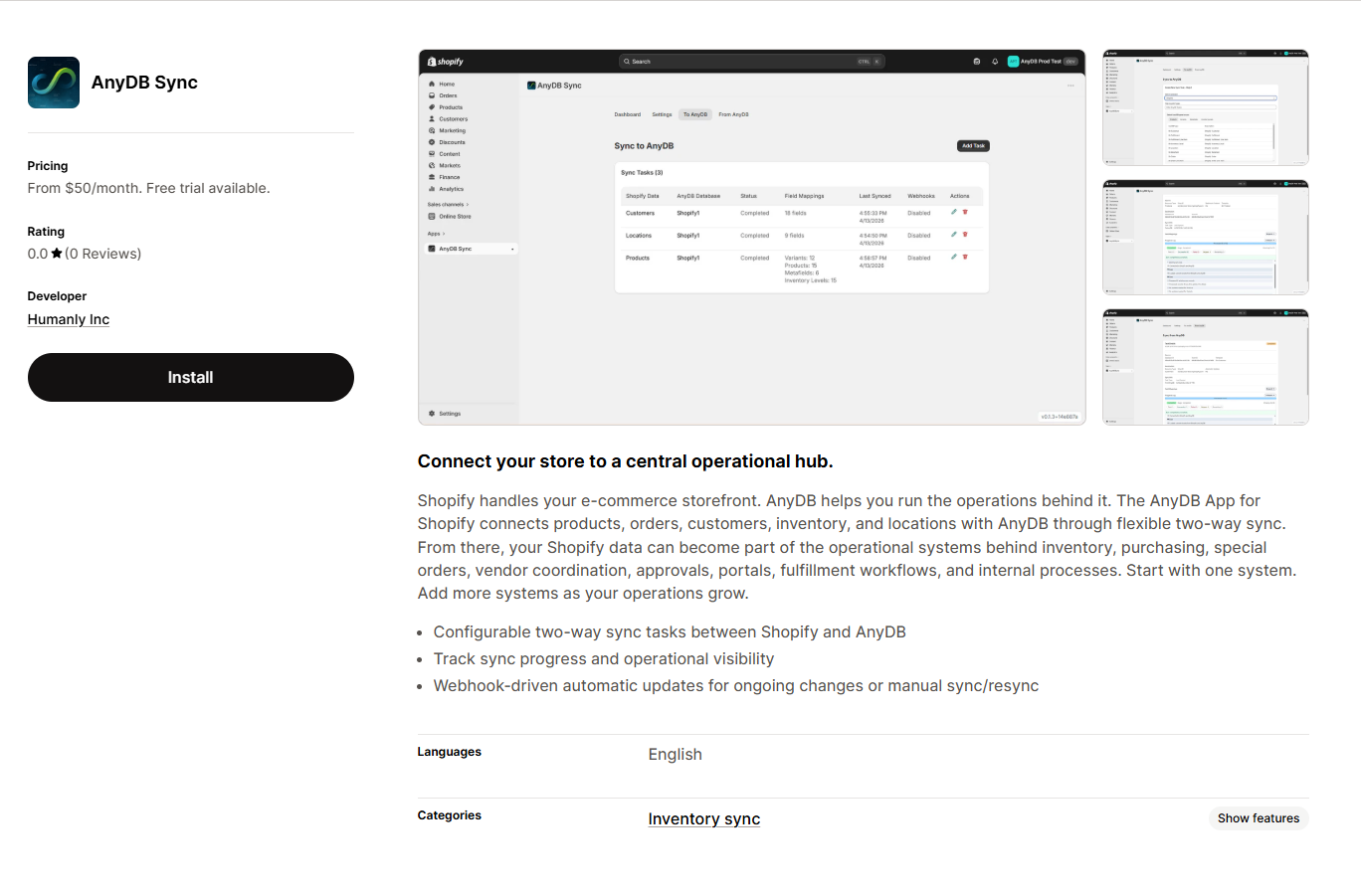
The AnyDB Sync App for Shopify allows you to sync data bi-directionally between your Shopify store and AnyDB. This integration enables you to easily manage product data, inventory, and other Shopify resources within your AnyDB workspaces. This app can be found here.
Supported data
The AnyDB Shopify app currently supports synchronization for several key Shopify resources. If you need other resources added to the app, please send us a support request.
| Data Type | Sync Direction | Description |
|---|---|---|
| Customers | Both (To & From AnyDB) | Sync customer profiles, contact info, and statuses. |
| Locations | Both (To & From AnyDB) | Sync store locations. |
| Products | Both (To & From AnyDB) | Sync product listings, including variants, metadata and basic inventory details. |
| Orders | Both (To & From AnyDB) | Export order records for analytics or tracking purposes. |
App Installation & Authentication
To get started, you need to install the AnyDB sync app on your Shopify store and connect it to your AnyDB account.
Note: Installing the app in a Shopify development store incurs no subscription charges. However, installing on a production store requires an active subscription.How to get AnyDB API Key to use with Shopify?
In order to allow the AnyDB Shopify app to interact with your AnyDB account, the AnyDB Team owner or any Team member with appropriate permissions can get the API key for the team. Learn about AnyDB Teams and Workspaces here
The integration key is accessed from the user Profile dialog. This API integration key will allow access to your AnyDB account based on the user's permissions.
Connecting the App
Once the app is installed in your Shopify admin:
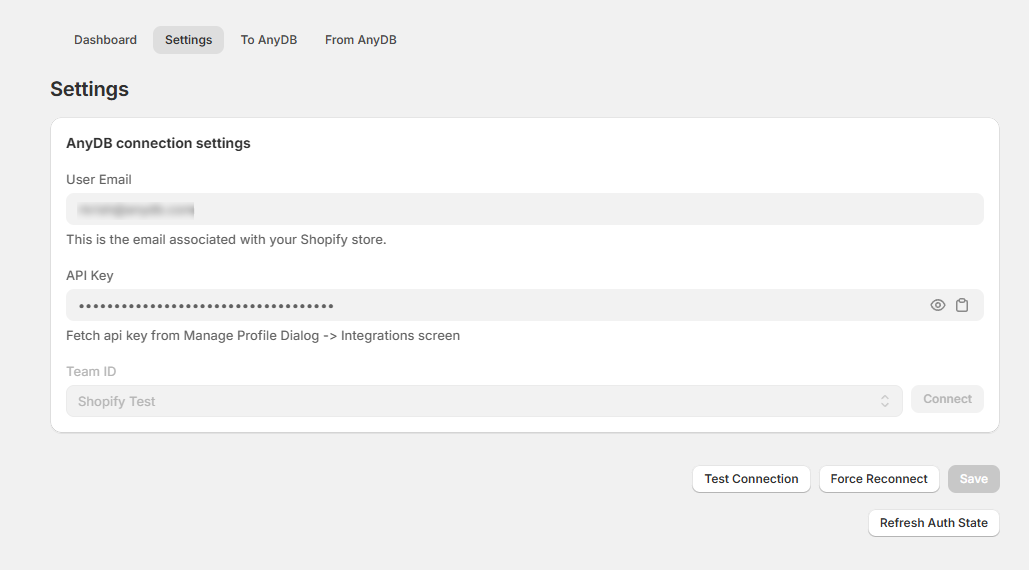
- Open the AnyDB sync app and navigate to Settings.
- Enter your valid User Email and the API Key for your AnyDB account.
- Click Connect to load the available teams.
- Select the appropriate Team from the list.
- Click Save.
Preparing AnyDB For Shopify
Before syncing data, you should prepare your AnyDB team to receive and send Shopify data.
- Create a dedicated workspace for Shopify in your chosen AnyDB team.
- Import all the necessary Shopify templates into this workspace.
Exporting Data to AnyDB (To AnyDB Sync)
To export data from Shopify into AnyDB, you will use the "To AnyDB" task creation wizard.
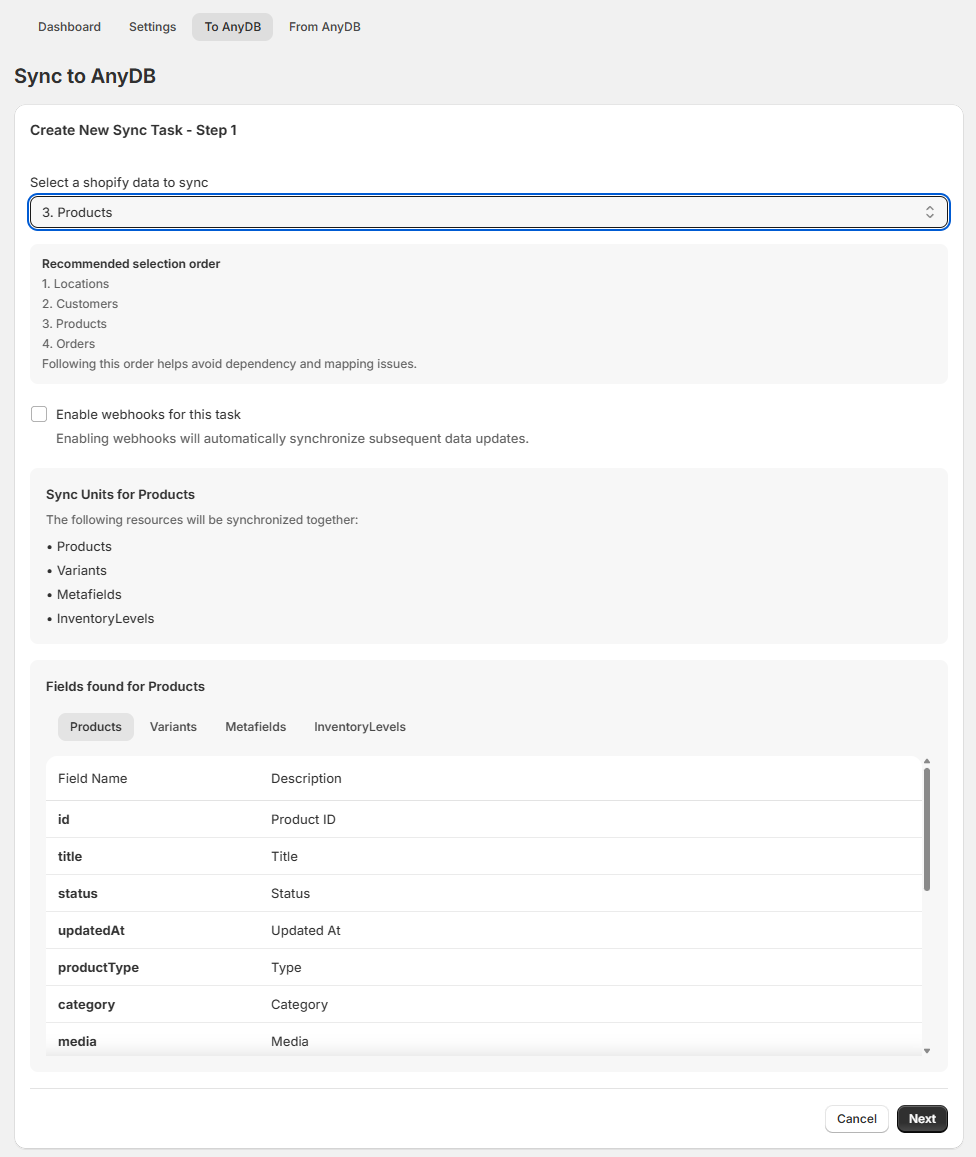
- Go to the To AnyDB tab and click Add Task.
- Step 1: Select the Shopify data type you want to export (e.g., Products). Note: You can optionally select "Webhook" to automatically get data updates pushed to AnyDB. Click Next.
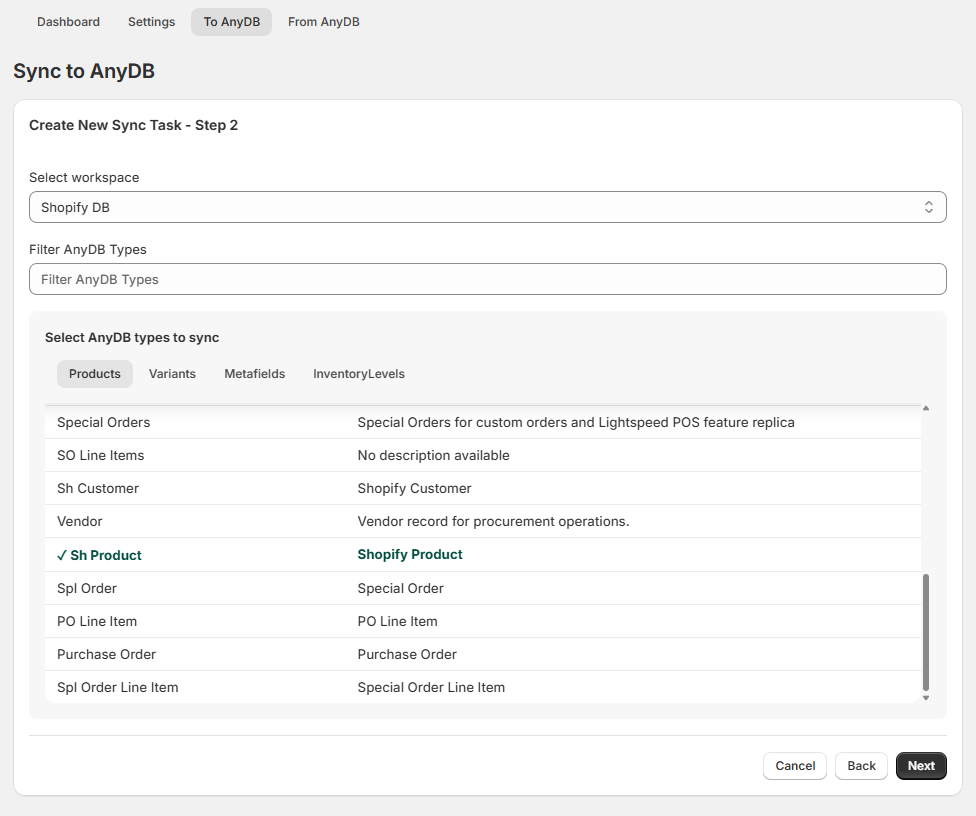
- Step 2: Choose the AnyDB database and select the AnyDB template(s). The templates for Shopify resources should be automatically selected for you. Click Next.
- Step 3: Review and adjust the field mappings between the Shopify fields and AnyDB fields. When using official Shopify templates, the correct field mappings should be automatically selected. Click Next.
- Step 4: Review the summary and click Save to create the sync task.
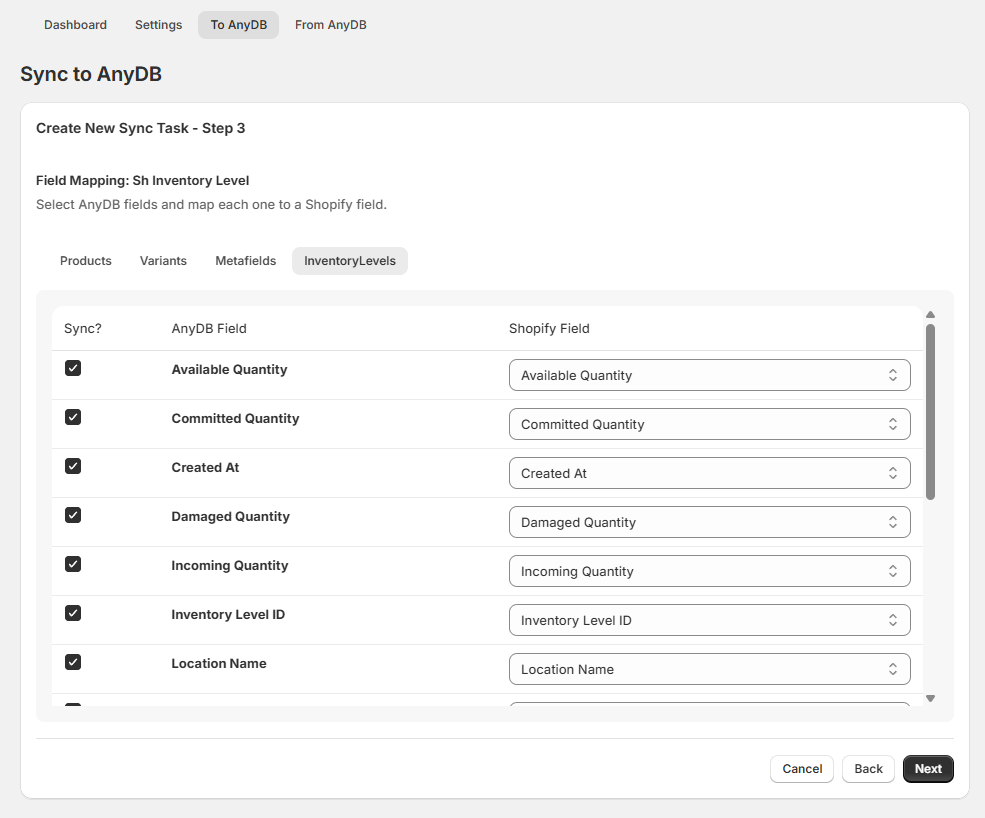
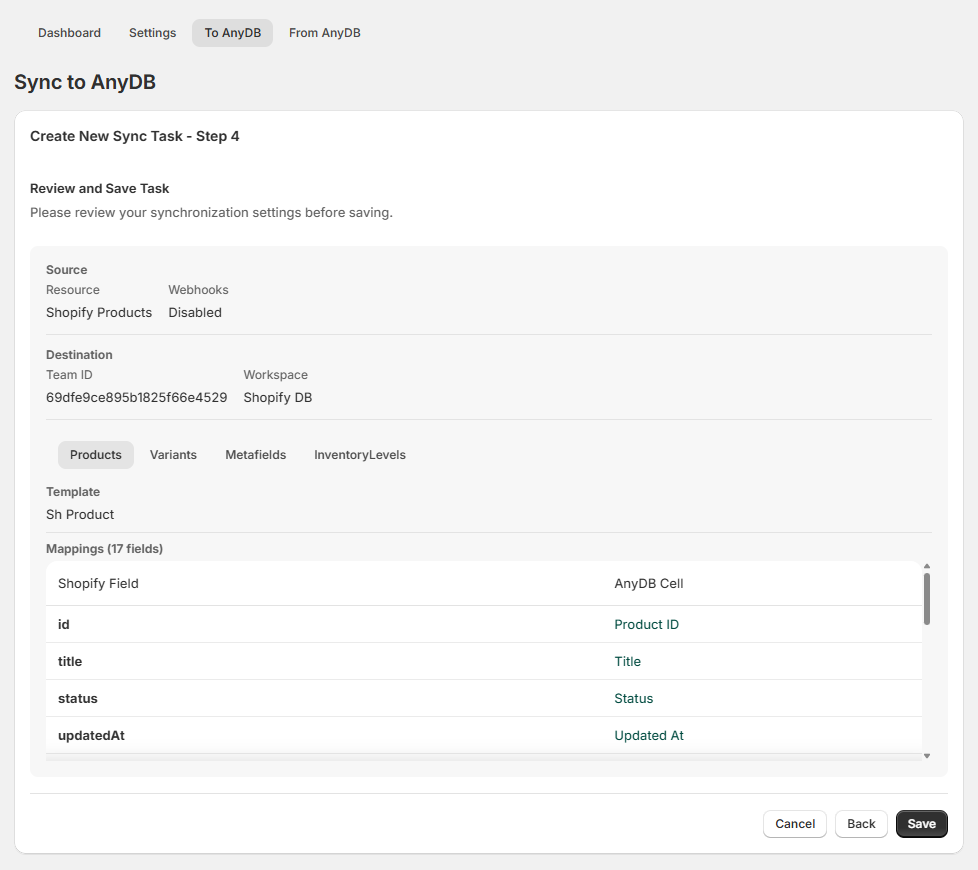
Executing the Task:
- Open the newly created task.
- Click Sync (or Resync) to start the synchronization process.
- Review the progress and logs in the task details view.
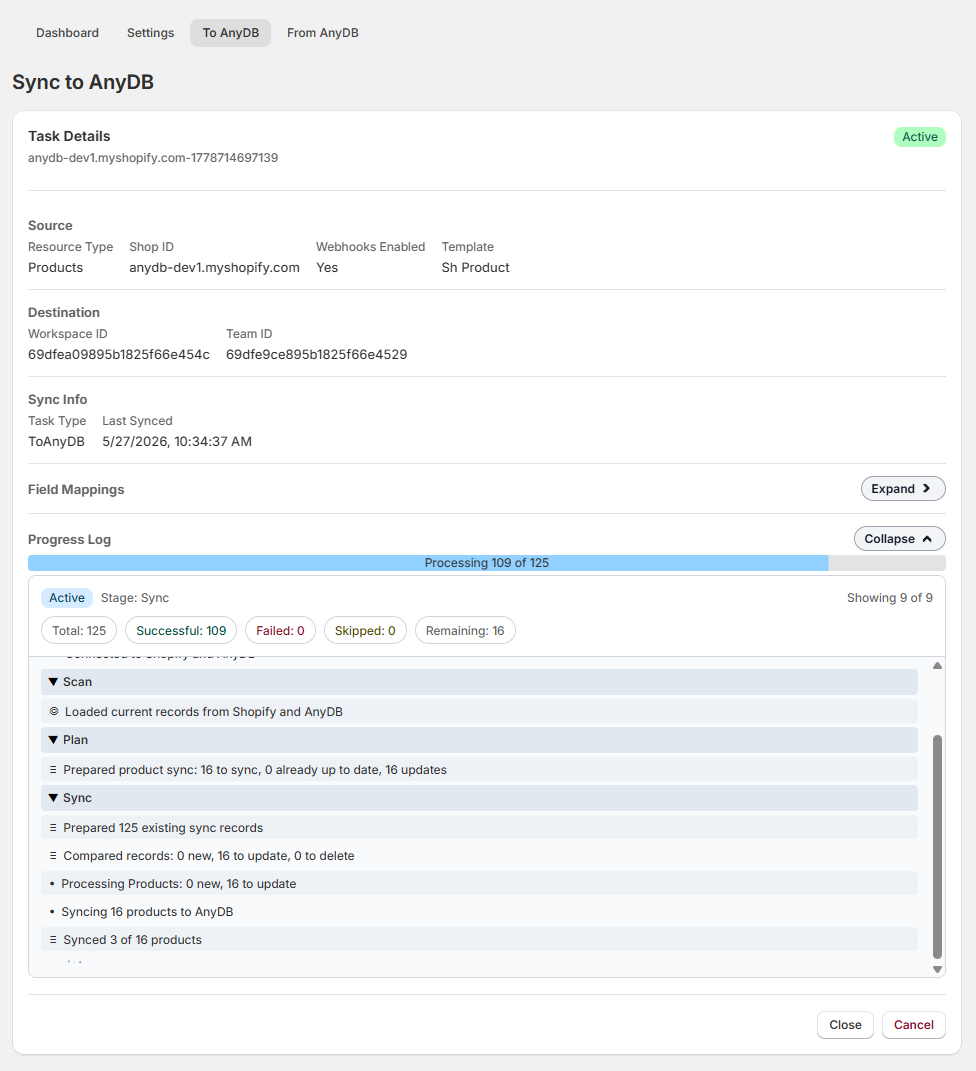
Viewing Synced Data in AnyDB
Once the sync task has completed successfully:
- Login to https://app.anydb.com with your AnyDB user credentials.
- Navigate to the Shopify workspace you created earlier.
- Open the various objects to see the newly synced data (e.g., your imported Product data).
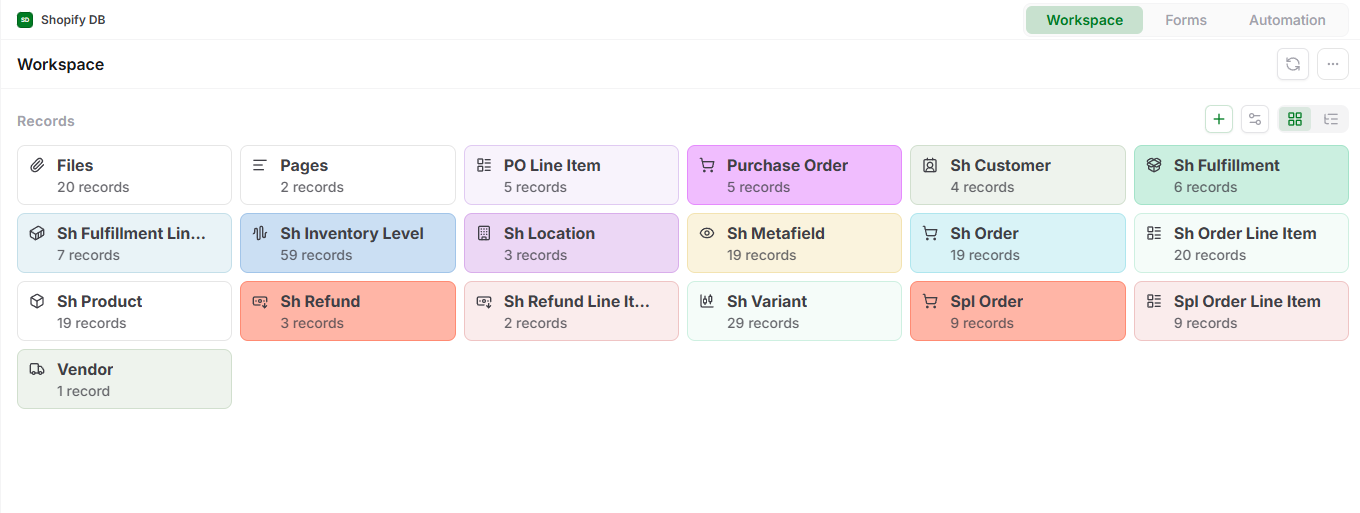
Importing Data to Shopify (From AnyDB Sync)
You can also sync data from AnyDB back into Shopify using a very similar flow via the "From AnyDB" tab.
- Go to the From AnyDB tab and click Add Task.
- Step 1: Select the AnyDB database and template/table you want to sync from. Note: You can optionally select "Webhook" to automatically send data updates to Shopify. Click Next.
- Step 2: Select the target Shopify data type (e.g., Products). Click Next.
- Step 3: Review and adjust the field mappings from AnyDB to Shopify. Click Next.
- Step 4: Review the summary and click Save to create the sync task.
Executing the Task:
- Open the task and click Sync.
- Monitor the logs for the task completion.
- Finally, check your Shopify Admin portal to verify that the AnyDB data has been successfully imported or updated.