Upload Files to Google Drive from AnyDB with Zapier
Upload files to Google Drive from AnyDB with Zapier
This Zap copies every file uploaded to AnyDB into a Google Drive folder, once per file, after the upload has finished. It has three steps:
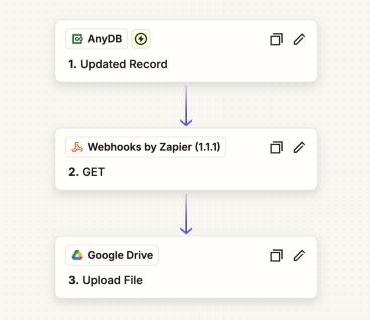
| Step | App and event | What it does |
|---|---|---|
| 1 | AnyDB → Updated Record | fires when a File record's file cell A1 is written with the finished upload |
| 2 | Webhooks by Zapier → GET | asks AnyDB for a short-lived download link to that file |
| 3 | Google Drive → Upload File | downloads the file from the link and saves it to Drive |
You need AnyDB Zapier app 1.2.1 or later for the Record Type and optional Record ID fields, and your AnyDB API key from the Profile dialog. The screenshots below were taken against a test server (dev1.anydb.com); use https://app.anydb.com, or your own AnyDB server address, everywhere they show it. IDs, the API key and the email are blacked out.
Step 1: Trigger, AnyDB → Updated Record
- Create a Zap and choose AnyDB as the trigger app, with the event Updated Record.
- Connect your AnyDB account: AnyDB URL
https://app.anydb.com, your email, and your API key. - On Configure, fill in:
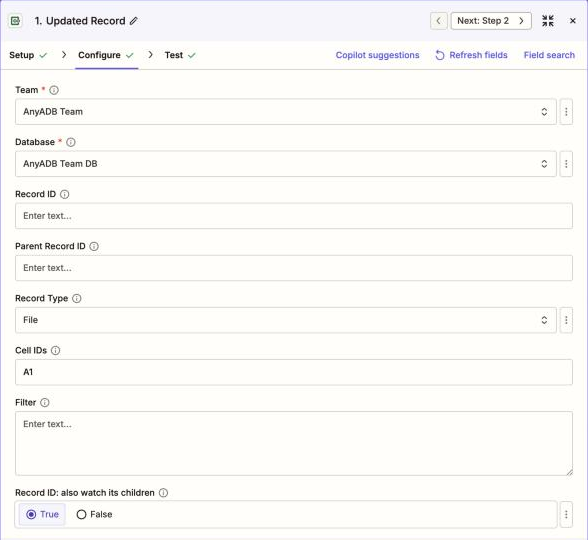
| Field | Value | Why |
|---|---|---|
| Team | your team | |
| Database | your database | |
| Record ID | (empty) | not watching one particular record |
| Parent Record ID | (empty), or a folder's record ID | empty watches every file in the database. A folder's ID watches only files uploaded directly into that folder |
| Record Type | File | only File records, the records AnyDB creates for uploaded files |
| Cell IDs | A1 | A1 is a File record's file cell, written once the upload completes |
| Filter | (empty), or a condition | for example '{{context:meta.name}}' ENDSWITH '.pdf'. See Filter syntax |
| Record ID: also watch its children | either | ignored when Record ID is empty |
- On Test, pick a record and continue. When the Zap runs, step 1 hands on the uploaded file's record. These are the values the next steps use:
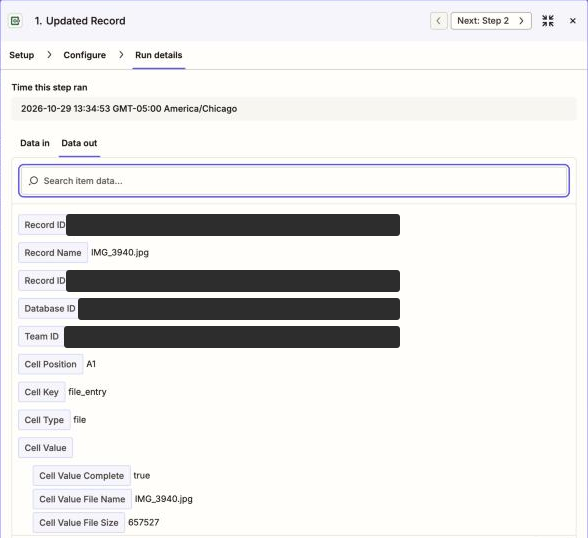
| Field in Zapier | Key | Used for |
|---|---|---|
| Team ID | teamid | the download request |
| Database ID | adbid | the download request |
| Record ID | adoid | the download request |
| Record Name | name | the file name in Drive. For a file it is the name with its extension, e.g. IMG_3940.jpg |
Step 2: Action, Webhooks by Zapier → GET
- Add an action: Webhooks by Zapier, event GET.
- On Configure, fill in:
| Field | Value |
|---|---|
| URL | https://app.anydb.com/api/integrations/ext/download |
| Query String Params | teamid → step 1 Team ID; adbid → step 1 Database ID; cellpos → A1; adoid → step 1 Record ID |
| Send As JSON | No |
| Unflatten | Yes (the default) |
| Headers | X-ANYDB-API-KEY → your AnyDB API key; X-ANYDB-EMAIL → your AnyDB email |
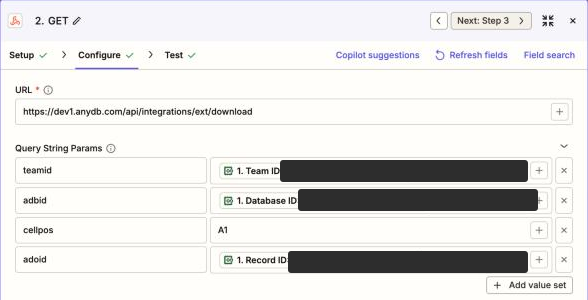

The request this sends looks like this:
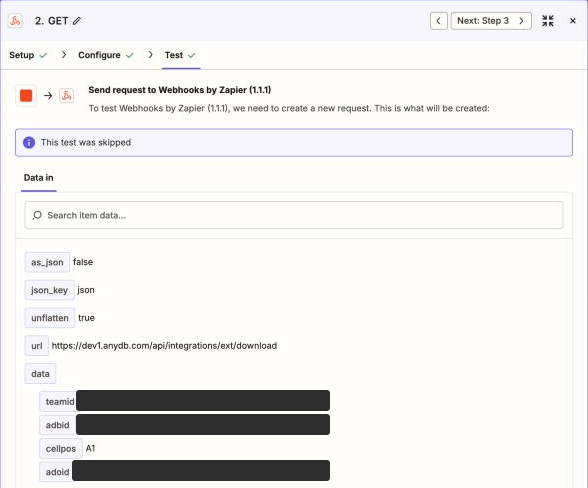
- AnyDB answers with
StatussuccessandData, a short-lived link to the file (hidden below). Step 3 uses Data.
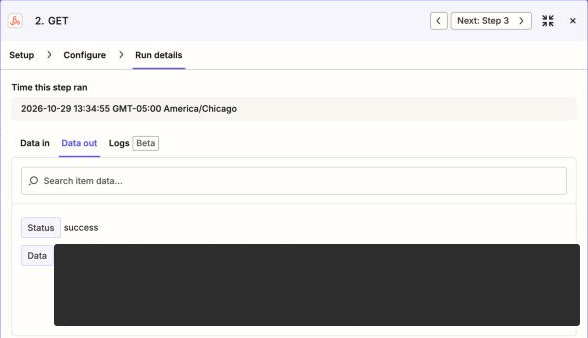
The raw response is:
{ "status": "success", "data": "https://<storage-host>/<path>?X-Amz-Signature=..." }
Step 3: Action, Google Drive → Upload File
- Add an action: Google Drive, event Upload File, and connect your Google account.
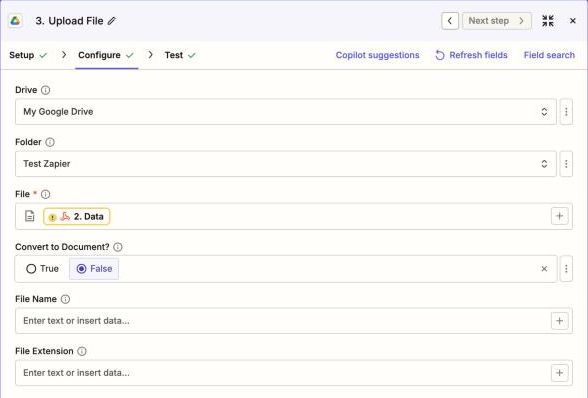
- On Configure, fill in:
| Field | Value |
|---|---|
| Drive | My Google Drive, or a shared drive |
| Folder | the folder for the copies |
| File | step 2 Data. Zapier downloads the file from the link |
| Convert to Document? | False |
| File Name | (optional) step 1 Record Name. Empty keeps the name from the link |
| File Extension | (empty) |
Turn it on and test
Publish the Zap, then upload a file to AnyDB, into the folder if you set a Parent Record ID. Within a few seconds Zap History shows one successful run (2 tasks), and the file appears in Drive.
If it does not work
| Symptom | Fix |
|---|---|
| No run | Record Type must be File and Cell IDs A1. The AnyDB user must be able to read the file. |
| Two runs per upload | Your AnyDB server predates the fix that ignores the upload's placeholder write. Ask your AnyDB administrator to update it. |
| Step 2 returns 401 or 403 | Check the X-ANYDB-EMAIL and X-ANYDB-API-KEY headers, and that the user can read the record. |
| Turning the Zap on fails with A record, a parent record, a type or a filter is required | Set Record Type, or a Parent Record ID. |
The same flow in Make is in Upload files to Google Drive from AnyDB with Make.