Incoming Webhooks
Incoming webhooks turn submissions from another system into new AnyDB records. For example, a website contact form can create a Lead under your Website leads record.
Use this page to receive data in AnyDB. To send data from an AnyDB workflow to another service, see outbound webhooks.
Choose who sends the submissions
When you create a webhook, use Who sends the submissions to choose the system you are connecting:
| Choose | Use it for | Expected data |
|---|---|---|
| Another system (signed JSON) | Your own server or an integration that can send signed requests. | A fields object containing field names and values, plus an optional name string. See signed JSON for the required structure and signature. |
| Framer form | A form on your Framer website. | Framer sends the form input names and values and signs each submission. See the Framer example. |
For either choice, use Field mapping to choose which cells receive the submitted values. AnyDB matches names automatically where possible and converts values to the selected cells' formats when creating records.
Start with Create records straight away off to inspect a test submission before creating records. A Captured result confirms receipt; values are checked when you switch on record creation or replay the submission.
License and access requirements
- Your AnyDB team needs a Business or Enterprise plan. The requirement applies when creating an endpoint, enabling it, replaying a delivery, and receiving submissions.
- You need permission to create records under the destination record, and an existing record type in the same workspace.
- The endpoint creator and team owners can manage the endpoint and view its deliveries. A creator who leaves the team loses management access.
- New records are created using the endpoint creator's permissions. Keep that person's access to the destination and record type in place.
If the team drops below Business, signed submissions receive 403 and are not stored. Existing endpoints and retained delivery history remain; receiving can resume after the team upgrades. You can still turn an endpoint off.
1. Create an endpoint
First create a record type with named fields for the data you want to collect. The screenshots use a type called FramerType, with Name, Email, and Location fields, under a Framer Forms record. You can use your own type and destination names.
- Open the record that should contain new submissions, such as Framer Forms.
- Open its … menu and select Receive from webhook.
- Select New webhook if the dialog already lists endpoints.
- Enter a name, choose Record type for new records, and select an option under Who sends the submissions:
- Framer form for a Framer website form.
- Another system (signed JSON) for your own server or integration.
- Optionally set Name for new records, such as
{Name} - {Email}. Tokens refer to the incoming field names;{date}inserts a UTC date and time. Without a pattern, AnyDB uses the sender's optional name or a timestamped submission name. - Leave Create records straight away off while you test. Select Create.
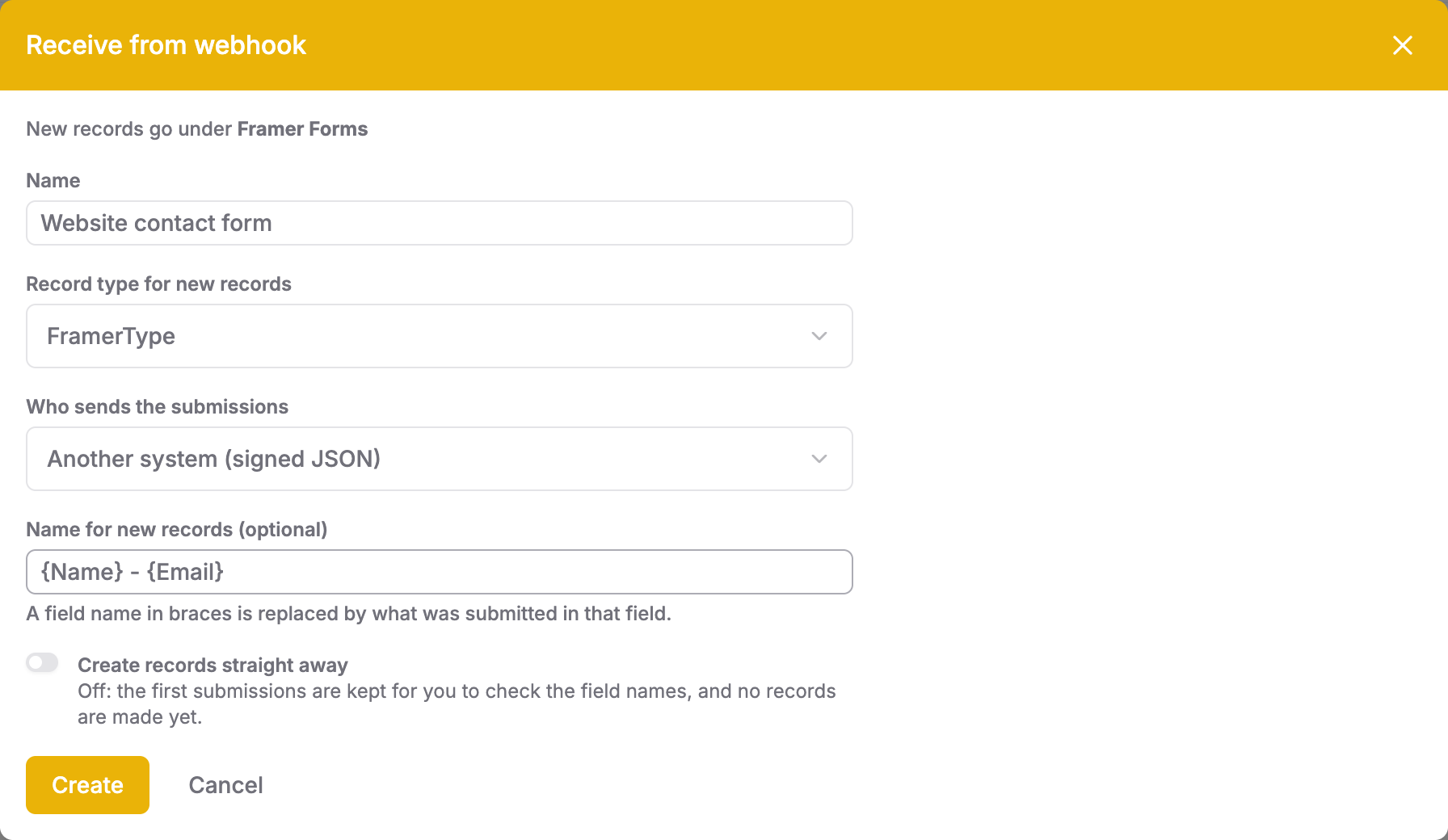
The endpoint starts in Capturing (no records yet). Submissions are stored for inspection without creating records.
2. Connect the sender
In Setup, copy the Webhook URL and Secret into your sending system. Use the URL shown by AnyDB; it identifies this endpoint.
The secret is shown only when you create or rotate it. Store it securely on the sending server. Do not put it in browser JavaScript, a public repository, or a screenshot. If you lose it, use Create a new secret and update the sender immediately: the old secret stops working as soon as it is rotated.
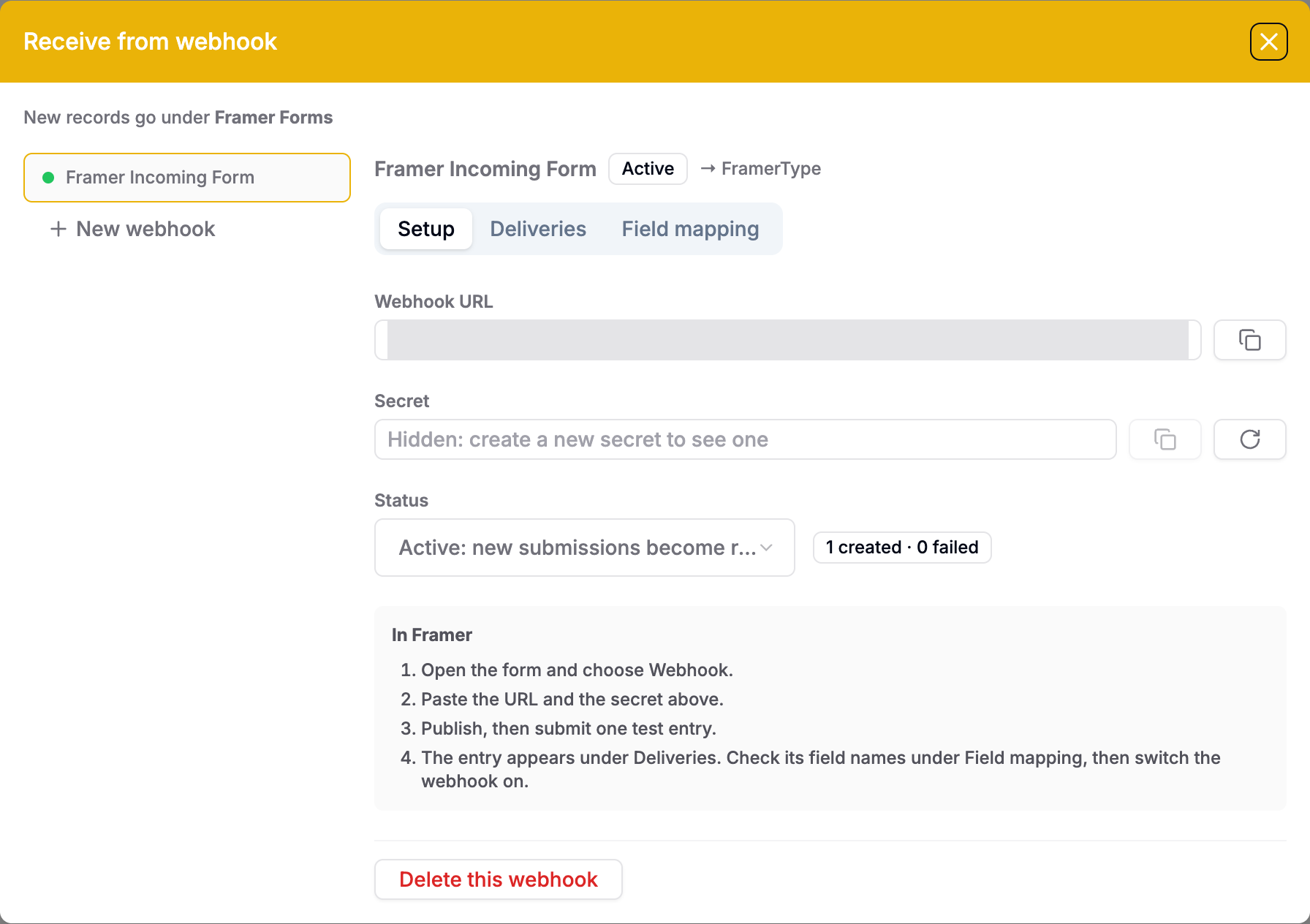
Another system: signed JSON
Select Another system (signed JSON) under Who sends the submissions. Your sending system must send an HTTP POST to the webhook URL with Content-Type: application/json and a body containing a fields object. The optional name is used when no record-name pattern produces a name.
{
  "name": "Website enquiry",
  "fields": {
    "Name": "Alex Morgan",
    "Email": "alex@example.com",
    "Location": "Barcelona"
  }
}
Each key inside fields is an incoming field name that you can match in Field mapping. Put the values you want to map directly inside this object. Nested objects are not expanded into separate fields: {"fields":{"contact":{"Email":"alex@example.com"}}} does not fill an Email cell; send {"fields":{"Email":"alex@example.com"}} instead. Field mapping selects field names, not paths within nested JSON.
Services such as Stripe, Typeform, or GitHub send their own request formats and signatures, so their standard webhooks cannot connect directly using this option. To connect one, your integration must transform its data into the structure above and sign the request as described below.
Include these headers:
| Header | Value |
|---|---|
Idempotency-Key | A stable, unique identifier for this submission. Reuse it when retrying that submission. |
X-AnyDB-Signature | t=<unix-seconds>,v1=<hex-hmac> |
Calculate hex-hmac with HMAC-SHA256, using the secret as the UTF-8 key and signing this exact string:
<unix-seconds>.<Idempotency-Key>.<raw-JSON-body>
Sign and send the same serialized body, including whitespace. Timestamps must be within five minutes of the server's clock by default. An idempotency key is optional, but recommended: without one, use an empty string in its position, and duplicate detection depends on the timestamp and signature instead.
This Node.js example uses the built-in fetch and node:crypto. Set WEBHOOK_URL and WEBHOOK_SECRET in your server environment, and save the example as send-webhook.mjs. Pass a stable submission ID, for example node send-webhook.mjs website-enquiry-1042.
import { createHmac } from "node:crypto";

const url = process.env.WEBHOOK_URL;
const secret = process.env.WEBHOOK_SECRET;
const submissionId = process.argv[2];
if (!url || !secret || !submissionId) {
  throw new Error("Set WEBHOOK_URL and WEBHOOK_SECRET, and pass a submission ID");
}

const body = JSON.stringify({
  name: "Website enquiry",
  fields: {
    "Name": "Alex Morgan",
    "Email": "alex@example.com",
    Location: "Barcelona"
  }
});
const timestamp = Math.floor(Date.now() / 1000).toString();
const signature = createHmac("sha256", secret)
  .update(`${timestamp}.${submissionId}.${body}`)
  .digest("hex");

const response = await fetch(url, {
  method: "POST",
  headers: {
    "Content-Type": "application/json",
    "Idempotency-Key": submissionId,
    "X-AnyDB-Signature": `t=${timestamp},v1=${signature}`
  },
  body
});
console.log(response.status, await response.text());
if (!response.ok) process.exitCode = 1;
Generate a fresh timestamp and signature for a later retry, keeping the submission ID and body unchanged. Never reuse a submission ID for a different submission.
Example: Framer
Select Framer form under Who sends the submissions. Framer sends the form input names and values as a flat JSON object, for example:
{
  "Name": "Alex Morgan",
  "Email": "alex@example.com",
  "Location": "barcelona"
}
Use Field mapping to match these input names to your record type's cells, just as you would for Another system (signed JSON).
- In Framer, select the form on the canvas.
- Beside Send To, choose Add… → Webhook.
- Paste the AnyDB webhook URL and set the webhook destination's secret to the secret from AnyDB.
- Publish your site and submit a test entry.
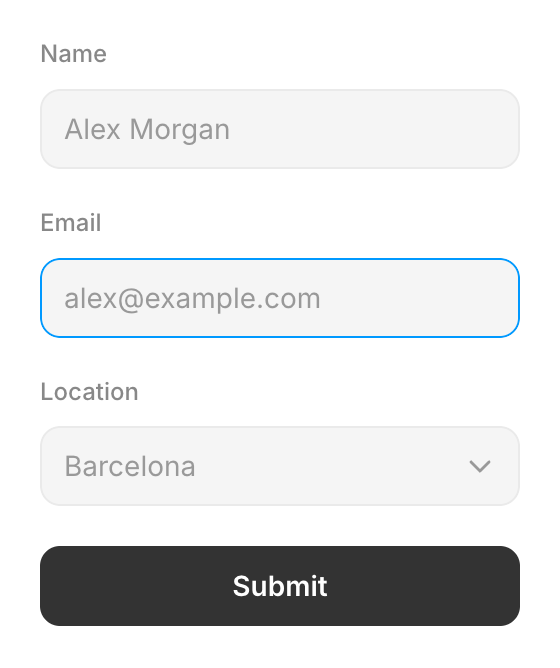
Framer sends the form input names and values as JSON and signs each submission. Use a public HTTPS endpoint. See Framer's webhook setup guide for its current configuration steps.
3. Check field mapping and switch on
After a test submission, open Deliveries to confirm it is Captured, then open Field mapping.
AnyDB matches incoming field names to named, writable cells, ignoring case, spaces, and punctuation. For example, E-mail matches Email. These rules apply to both sender options.
Where names differ, choose the destination cell in Fills cell. For example, in the Your name row, select Name. Sample values come from the latest submission. In the screenshots, Name, Email, and Location already match automatically.
Your saved choices apply to new submissions and to deliveries you replay. You do not need to edit JSON or write mapping rules in the dialog.
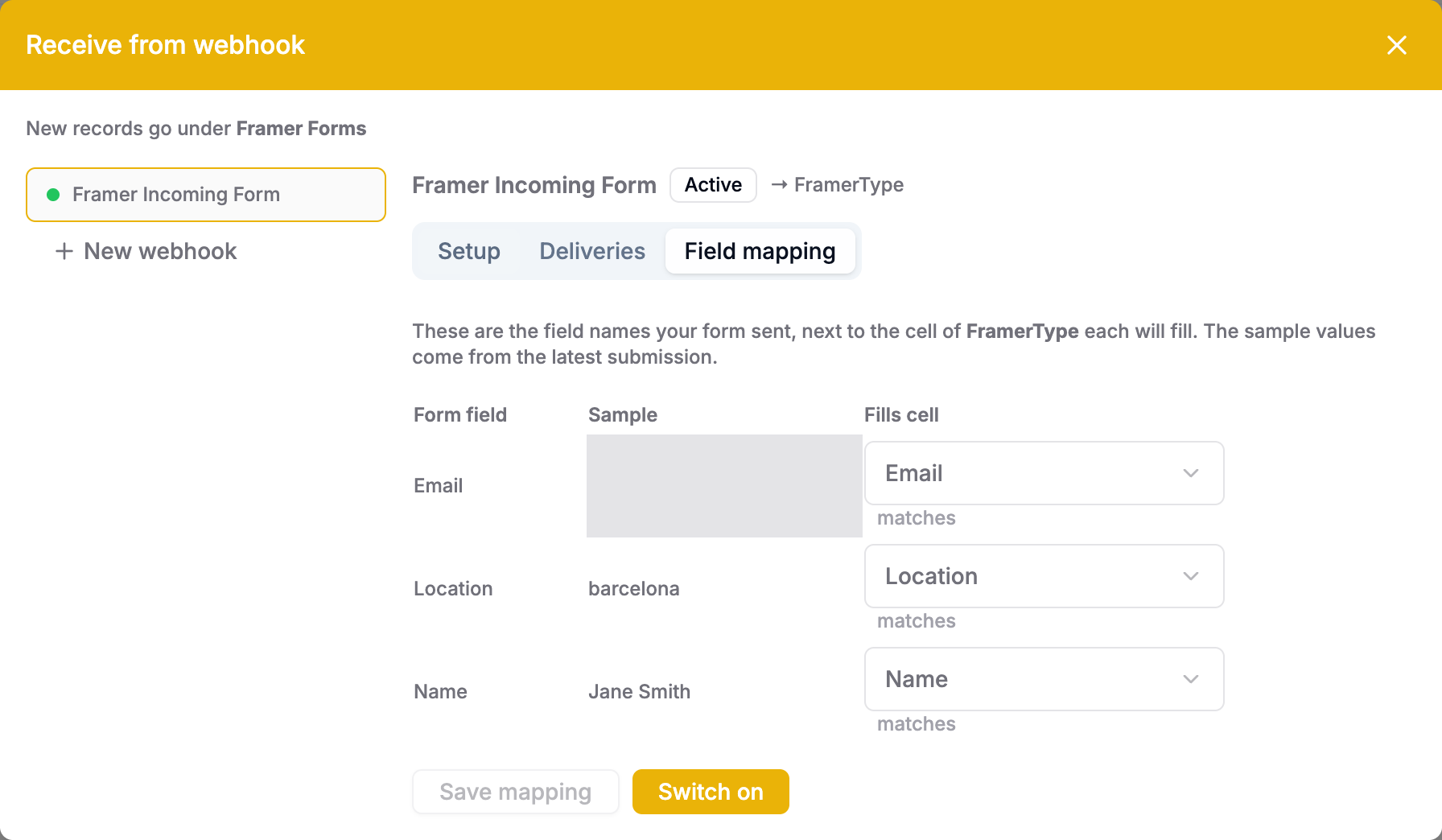
Choose Save mapping to save changes without activating the endpoint. When ready, select Switch on and create records for the … captured. This saves pending mapping changes, activates the endpoint, and attempts to create records from the captured deliveries currently loaded in the dialog. Check Deliveries for the results and replay any remaining captured deliveries individually.
Switching to Active: new submissions become records from the Setup tab enables future submissions; it does not itself replay earlier captures.
Accepted field values
| Target field | What to send |
|---|---|
| Text or rich text | A text value. |
| Number or currency | A number or numeric text, such as 5000 or "$5,000". Use a dot for decimal fractions; "1,5" is rejected. |
| Percentage | A percentage such as 25 or "25%" (stored as 0.25). |
| Checkbox | A boolean, or text such as yes/no, true/false, or on/off. |
| Date or datetime | An ISO date or datetime, such as 2026-09-30 or 2026-09-30T14:30:00Z. Values without an offset are interpreted as UTC. |
| Time | A time such as 14:30, interpreted on the current UTC date. |
| Select | An existing option's value or label. |
| Multi-select | An array of existing options, or comma-separated options. |
| User or users | A team member or guest email address for User. Users accepts multiple addresses as an array or comma-separated text. |
| Record reference | A record ID. |
Empty values are skipped. Unmatched fields, formula cells, and unsupported field types are not written; ignored field names appear under Not used in delivery details. A matched field with an invalid value fails validation with 422. Use defined select options for this integration; incoming webhooks do not evaluate formulas that generate select options.
Deliveries, retries, and replay
The Deliveries tab lists recent submissions and their outcomes. Expand a row to inspect field names, ignored fields, and validation errors.
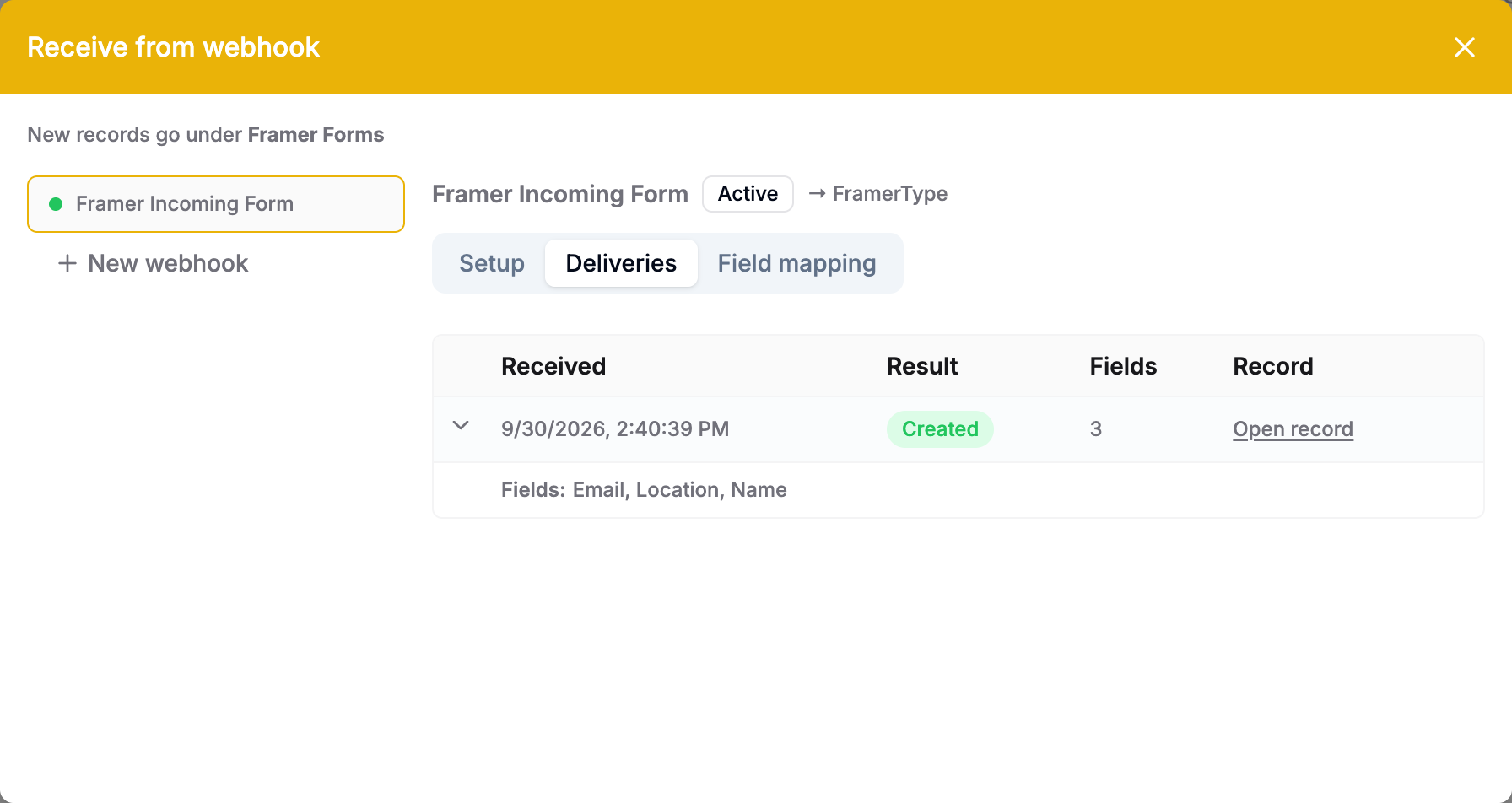
| Result | Meaning |
|---|---|
| Captured | Stored for inspection; no record created yet. |
| Created | Record created. Select Open record to inspect it. |
| Failed | Processing failed. Read the error, correct the mapping, type, or permissions, and use Replay where appropriate. |
| Processing | The delivery has not finished processing. |
Replay processes the stored payload using the current endpoint configuration. It is available for captured and failed deliveries, requires the qualifying plan, and is disabled while the endpoint is capturing. A replay cannot edit a bad submitted value: send a corrected submission with a new ID when the payload itself needs fixing.
Repeated delivery IDs return the recorded outcome without creating another record while that delivery remains retained. Previously created deliveries also include duplicate: true; captured and failed deliveries return their recorded response without that flag. Framer supplies a submission ID; signed JSON senders should supply Idempotency-Key. Retrying a completed failure with the same ID returns that failure; use Replay after fixing configuration. If an earlier attempt already created a record before failing to save its values, replay attempts to complete that record.
Limits and retention
Default service limits are:
| Limit | Default |
|---|---|
| Request body | 256 KB |
| New authenticated deliveries per endpoint | 30 per minute; 2,000 per UTC day |
| New authenticated deliveries per team | 10,000 per UTC day |
| Requests before signature verification | 120 per endpoint per minute |
| Stored delivery history and payloads | 30 days |
Deployment settings can override these defaults. Capture mode counts toward delivery limits; manual replay does not. Daily endpoint exhaustion pauses the endpoint. Wait until the quota resets, then use Resume in Setup. Resuming does not reset the day's count. Team or minute limits temporarily reject new submissions without pausing the endpoint.
Delivery payloads contain submitted values. Treat history as temporary troubleshooting data, not a permanent archive. Duplicate detection also depends on retained delivery history; avoid resending old submissions after retention expires.
Troubleshooting HTTP responses
| Status | Check |
|---|---|
200 | Accepted: captured, created, or a previously recorded successful result. Read the response body. |
400 | Malformed JSON or an invalid payload shape. Generic submissions need a fields object. |
401 | Wrong or missing signature, changed body, old secret, or an expired signed JSON timestamp. Rejected signatures do not appear as stored deliveries. |
403 | Team plan no longer qualifies, or the creator no longer has permission to create the record. |
404 | Incorrect endpoint URL, deleted endpoint, or endpoint switched off. |
413 | Request body exceeds the size limit. |
422 | Invalid field value or unavailable record type. Inspect the delivery's errors. |
429 | Rate or daily limit exceeded. Honor Retry-After when present. |
500 / 503 | Inspect the response: processing may be incomplete, the endpoint may be paused, or the service may have failed. Honor Retry-After when present and check delivery history before replaying. |
Turn off or remove an endpoint
In Setup, select Off to stop receiving submissions; new requests receive 404. Select an active or capturing status to enable it again, subject to the team's plan.
Delete this webhook removes the endpoint and its stored submissions. Records already created remain in the workspace.