Upload Files to Google Drive from AnyDB with Make
Upload files to Google Drive from AnyDB with Make
This scenario copies every file uploaded to AnyDB into Google Drive, once per file, after the upload has finished. It has four modules, numbered as Make numbers them:
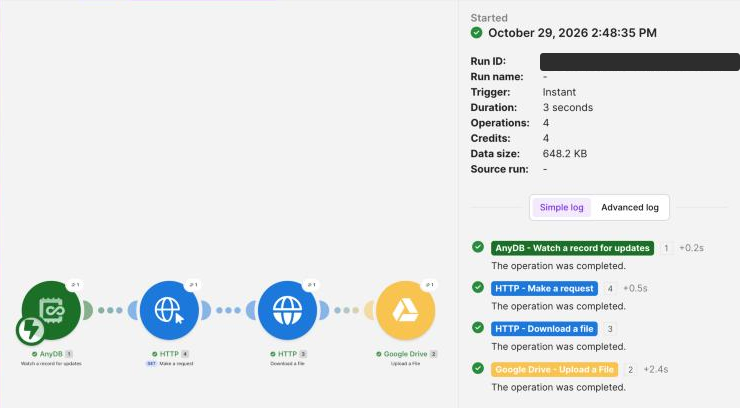
| Module | App and module | What it does |
|---|---|---|
| 1 | AnyDB → Watch a record for updates | fires when a File record's file cell A1 is written with the finished upload |
| 4 | HTTP → Make a request | asks AnyDB, with your API key, for a short-lived download link |
| 3 | HTTP → Download a file | downloads the file from that link, with no credentials |
| 2 | Google Drive → Upload a File | saves the file to Drive |
Why two HTTP modules? The request to AnyDB uses an API key connection that is only allowed to send your key to AnyDB. AnyDB's file link points at a different host (storage), so Make will not follow a redirect there under that connection. Allowing the storage host would send your AnyDB key to it. So module 4 gets the link as JSON, and module 3 fetches it without credentials.
The screenshots below were taken against a test server (dev1.anydb.com); use https://app.anydb.com, or your own AnyDB server address, everywhere they show it. IDs, the email and the download link are blacked out. In Make, {{1.teamid}} means "the teamid output of module 1". You can type it, or pick 1. Team ID from the mapping panel.
Module 1: AnyDB → Watch a record for updates
- Create a scenario and add AnyDB → Watch a record for updates.
- Click Add next to Webhook, choose or create your AnyDB connection (your email and API key), and fill in the webhook:
| Field | Value | Why |
|---|---|---|
| AnyDB Team / AnyDB Database | your team and database | |
| Record ID | (empty) | not watching one particular record |
| Record ID: also watch its children | No | ignored when Record ID is empty |
| Parent Record ID | (empty), or a folder's record ID | empty watches every file in the database. A folder's ID watches only files uploaded directly into that folder |
| Record Type | File | only File records, the records AnyDB creates for uploaded files |
| Cell IDs | A1 | A1 is a File record's file cell, written once the upload completes |
- Save. When the scenario runs, module 1 outputs the uploaded file's record:
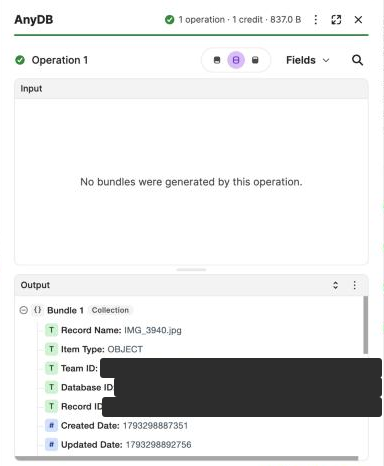
| Output in Make | Expression | Used for |
|---|---|---|
| Team ID | {{1.teamid}} | module 4 URL |
| Database ID | {{1.adbid}} | module 4 URL |
| Record ID | {{1.adoid}} | module 4 URL |
| Record Name | {{1.name}} | the file name in Drive, e.g. IMG_3940.jpg |
Module 4: HTTP → Make a request
- Add HTTP → Make a request after module 1.
- Authentication type:
API key. Under Connection, click Add and create an API key connection:
| Connection field | Value |
|---|---|
| API Key | your AnyDB API key |
| API key placement | In the header |
| API key parameter name | X-ANYDB-API-KEY |
| Restrict requests to service URLs | Yes |
| Allowed service origins | https://app.anydb.com |
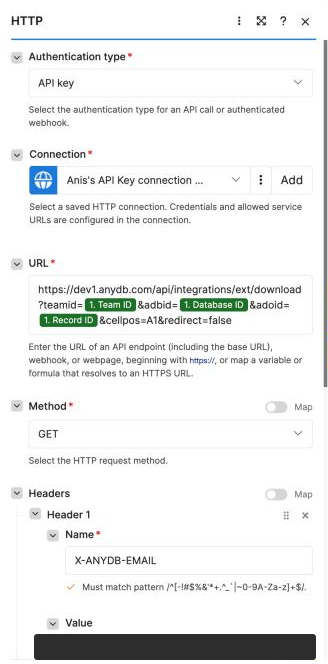
- Fill in the module:
| Field | Value |
|---|---|
| URL | https://app.anydb.com/api/integrations/ext/download?teamid={{1.teamid}}&adbid={{1.adbid}}&adoid={{1.adoid}}&cellpos=A1&redirect=false |
| Method | GET |
| Headers | Name X-ANYDB-EMAIL, Value your AnyDB email |
| Parse response | Yes |
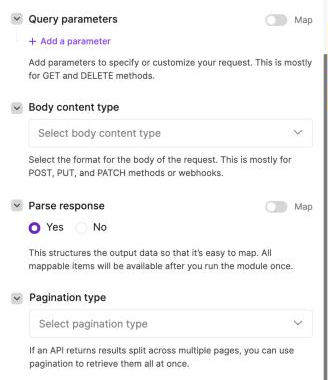
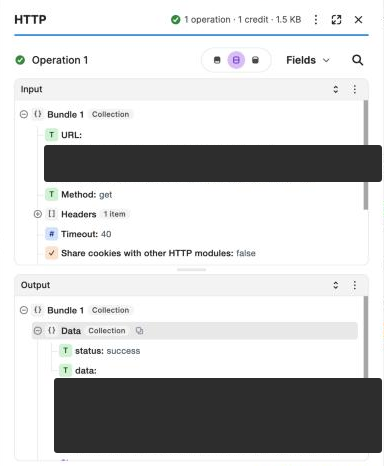
- Module 4 outputs Data with
statussuccessanddata, the short-lived file link (hidden below). Module 3 uses{{4.data.data}}.
Module 3: HTTP → Download a file
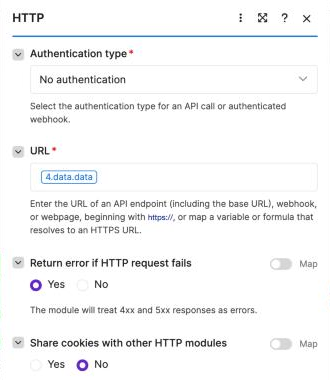
- Add HTTP → Download a file after module 4.
- Fill in:
| Field | Value |
|---|---|
| Authentication type | No authentication |
| URL | {{4.data.data}} |
| Headers | none |
Module 2: Google Drive → Upload a File
- Add Google Drive → Upload a File after module 3 and connect your Google account.
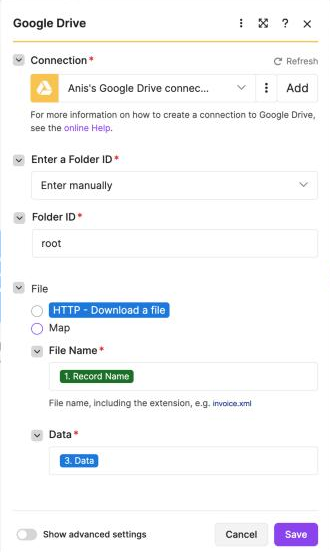
- Fill in:
| Field | Value |
|---|---|
| Enter a Folder ID | Enter manually |
| Folder ID | root (the top of My Drive), or a folder ID, see the note below |
| File | leave Map off. File Name = {{1.name}} (1. Record Name); Data = {{3.data}} (3. Data) |
Make's built-in Google Drive connection may only reach files and folders Make created. Uploading into a folder you created in Drive fails with [403] Request had insufficient authentication scopes, and the folder picker shows Failed to load data. Use root, use a folder created by a Google Drive module in Make, or create the Google Drive connection with your own Google Cloud OAuth client so that it can request full Drive access.
Turn it on and test
Save the scenario and switch it to Active. Upload a file to AnyDB, into the folder if you set a Parent Record ID. The scenario's History shows one successful run with 4 operations, and the file appears in Drive.
If it does not work
| Symptom | Fix |
|---|---|
| No run | Record Type must be File and Cell IDs A1. The AnyDB user must be able to read the file. |
| Two runs per upload | Your AnyDB server predates the fix that ignores the upload's placeholder write. Ask your AnyDB administrator to update it. |
| The initial URL is allowed, but the redirect destination is not allowed by this connection | Use redirect=false and the separate Download a file module shown above. |
[403] Request had insufficient authentication scopes at Google Drive | See the Google Drive folders note above. |
| Make deactivated the scenario after an error | Fix the error, switch the scenario back to Active, and choose Process old data to replay the queued upload. |
The same flow in Zapier is in Upload files to Google Drive from AnyDB with Zapier.