Data Access and Erasure Requests
Under GDPR and similar laws, a person can ask what data you hold about them (an access request) and ask you to delete it (an erasure request). Find a person's data searches every workspace of the team for one person, so you can answer both.
- Only team admins can use it. AI Teammates cannot.
- It is available on every plan.
- Every search, download and erasure is recorded in the audit log. The erased values themselves are not logged.
Finding a person's data
- Open Manage Team → Compliance, and scroll to Find a person's data.
- Enter the person's Email, Name or Phone, or more than one. Each needs at least three characters.
- Select Search.
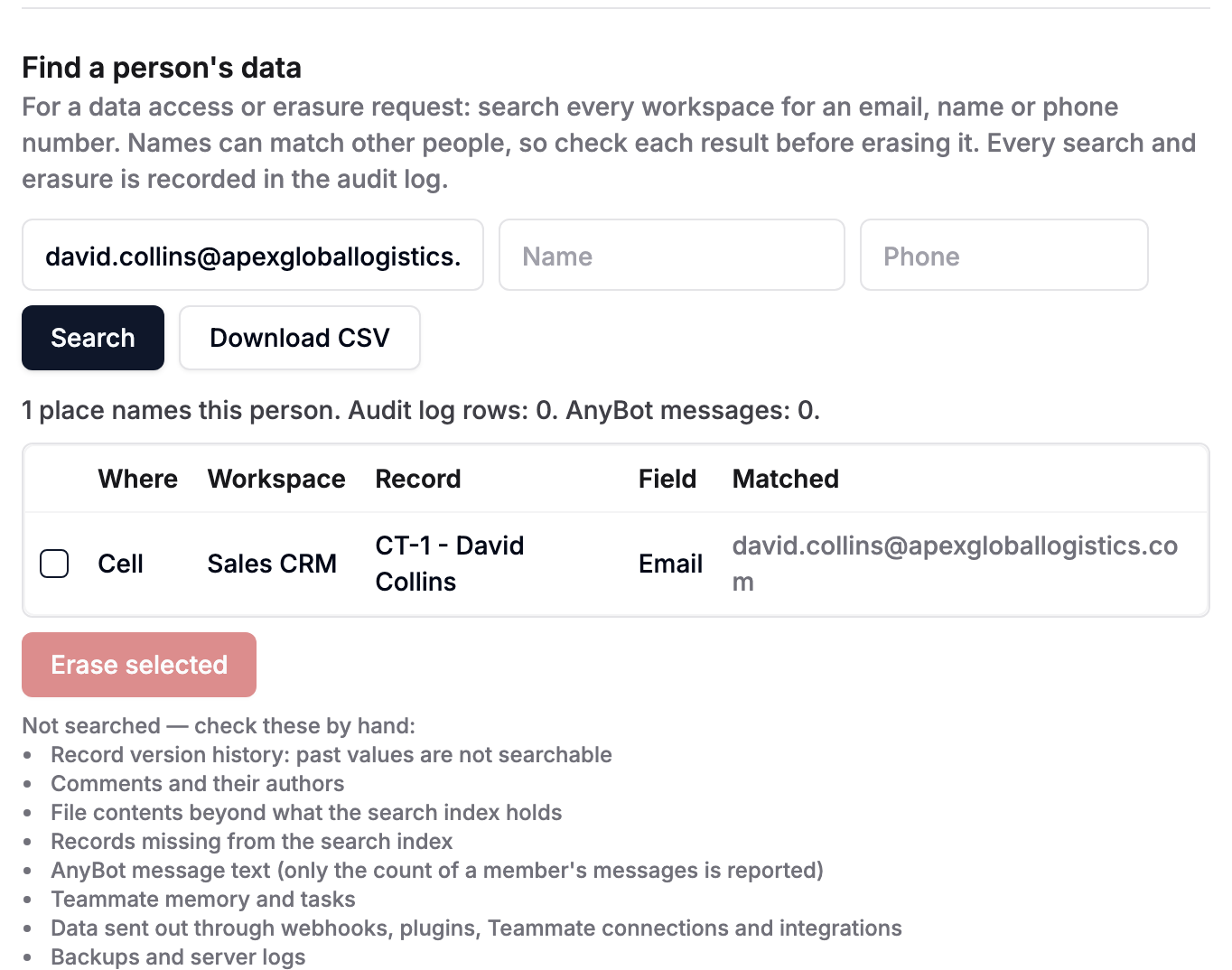
The summary says how many places name the person, how many audit log rows and AnyBot messages belong to their account, and the table lists each place:
| Column | What it shows |
|---|---|
| Where | Cell: a cell holds the value, or a person cell names them. Record: they created it, last changed it or are assigned to it, or it is named after them. Share: a record or form is shared with them. |
| Workspace | The workspace that holds it |
| Record | The record |
| Field | The cell, or what links them to the record |
| Matched | The value that matched, or This person's account when it matched their AnyDB account |
Search by email when you can. A name is matched as a phrase and can match other people with the same name, so check each result before you act on it.
At most 500 places are shown. If the search finds more, narrow it.
Answering an access request
Select Download CSV to save the results, with the audit and AnyBot counts and the list of what was not searched. Use it to collect the person's data and send it to them.
What is not searched
The search uses the search index, so the results list what it does not cover. Check these by hand:
- record version history (past values are not searchable);
- comments and their authors;
- file contents beyond what the search index holds;
- records missing from the search index;
- AnyBot message text (only the number of a member's messages is reported);
- AI Teammate memory and tasks;
- data sent out through webhooks, plugins, Teammate connections and integrations;
- backups and server logs.
Erasing a person's data
- Search for the person as above.
- Tick the cells to erase. Only Cell results can be erased.
- Select Erase selected, read the confirmation and select Erase.
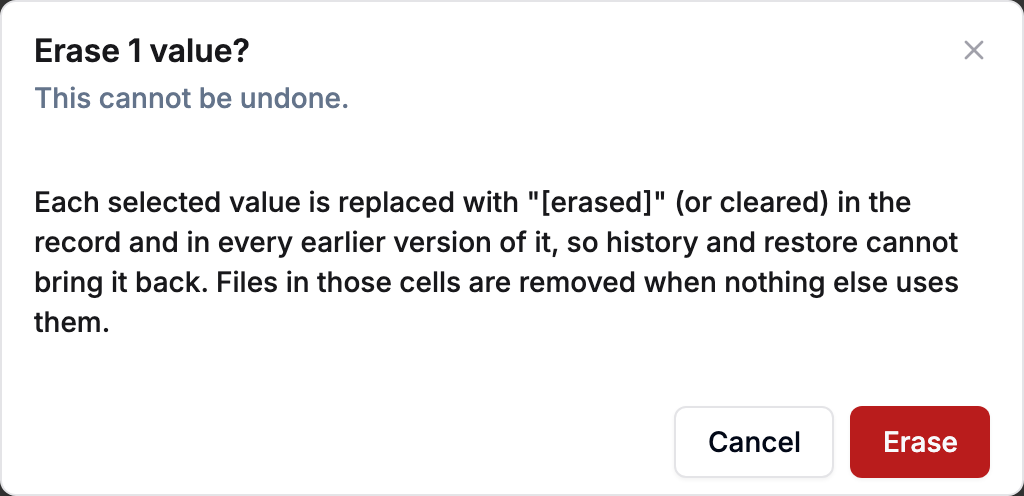
For each selected cell:
- text becomes
[erased], and person, file, number and date cells are cleared; - the value is erased in the record and in every earlier version of it, so version history and restore cannot bring it back;
- files in the cell are removed when nothing else uses them.
Your record permissions and locks apply, and a new record version records the erasure. A cell computed by a formula cannot be erased: erase the cells it is computed from. A cell that could not be erased is reported with the reason.
Erasing cannot be undone. Confirm the exact cells before you select Erase.
Showing a former member as "Former member"
When the person was a member of your team, AnyDB also keeps copies of their name and picture: who created or last changed each record, who wrote each comment, and record history.
- Remove them from the team in Team Members first. A current member cannot be erased this way.
- Search for them. When the results include their account, Show as Former member appears.
- Select Show as Former member and confirm.
Everywhere this team stored their name and picture, including record history and search, they now read Former member. Their AnyDB account is not deleted, because it may belong to other teams. Person cells still point to their account, so also erase those cells with Erase selected.
This also cannot be undone.
From an AI assistant
Team admins can do the same from an AI assistant connected through the AnyDB MCP connector, with anydb_find_person_data, anydb_erase_person_data and anydb_forget_former_member. See AI Teammates and MCP.