Compliance Profiles
A compliance profile is a named set of rules, for example "SOC 2 access controls" or "GDPR". A team can hold several profiles at once, for example a GDPR profile for the workspaces holding customer data and an internal policy for the whole team.
Only team admins can manage profiles, and profiles need the Business plan or above.
Adding a profile
-
Open Manage Team → Compliance.
-
Choose a template under Start from a template.
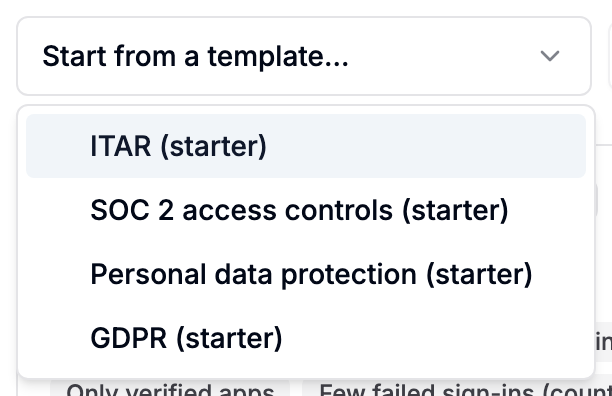
-
Select Add profile.
The profile appears with its rules listed under its name. What each template checks is described in Starter templates.
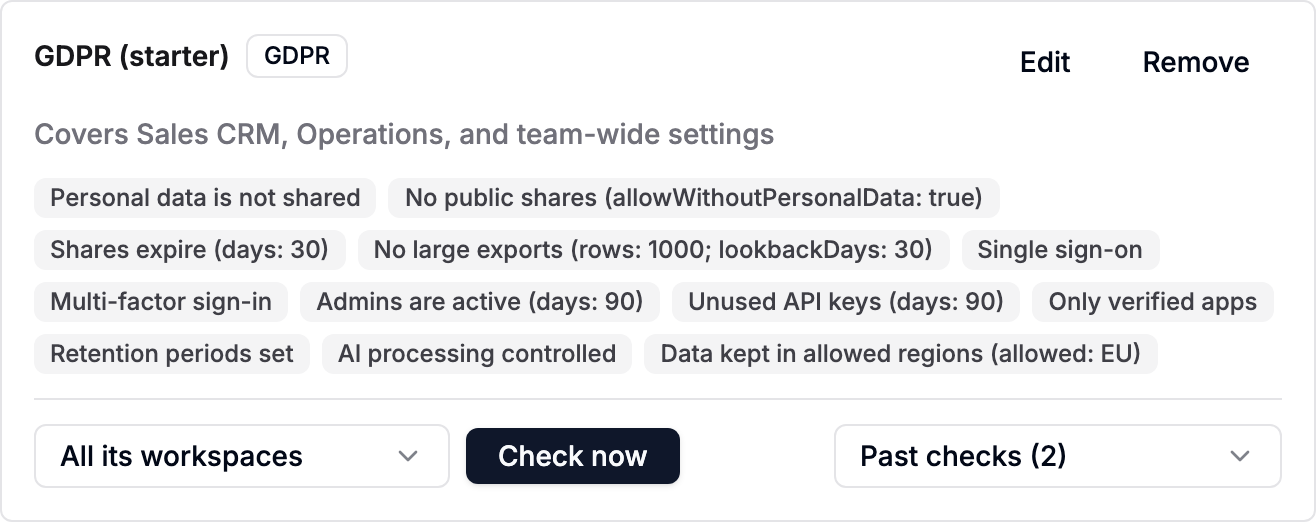
Each profile card shows:
- its name, and its basis (for example GDPR) as a badge;
- which workspaces it covers;
- its rules, with the values each one uses;
- Check now, and Past checks once it has been checked. See Running checks.
Editing a profile
Select Edit on the profile. You can:
- rename it, and change its basis;
- choose the workspaces it covers (see below);
- change the values of its rules, for example the number of days a share may stay open;
- select Remove rule to drop a rule;
- choose a rule under Add a rule, then select Add rule. Every rule is described in the Rules reference.
Select Save when you are done.
Each rule shows what it checks. A rule that AnyDB cannot check yet says so in its description, and is always reported as Cannot check.
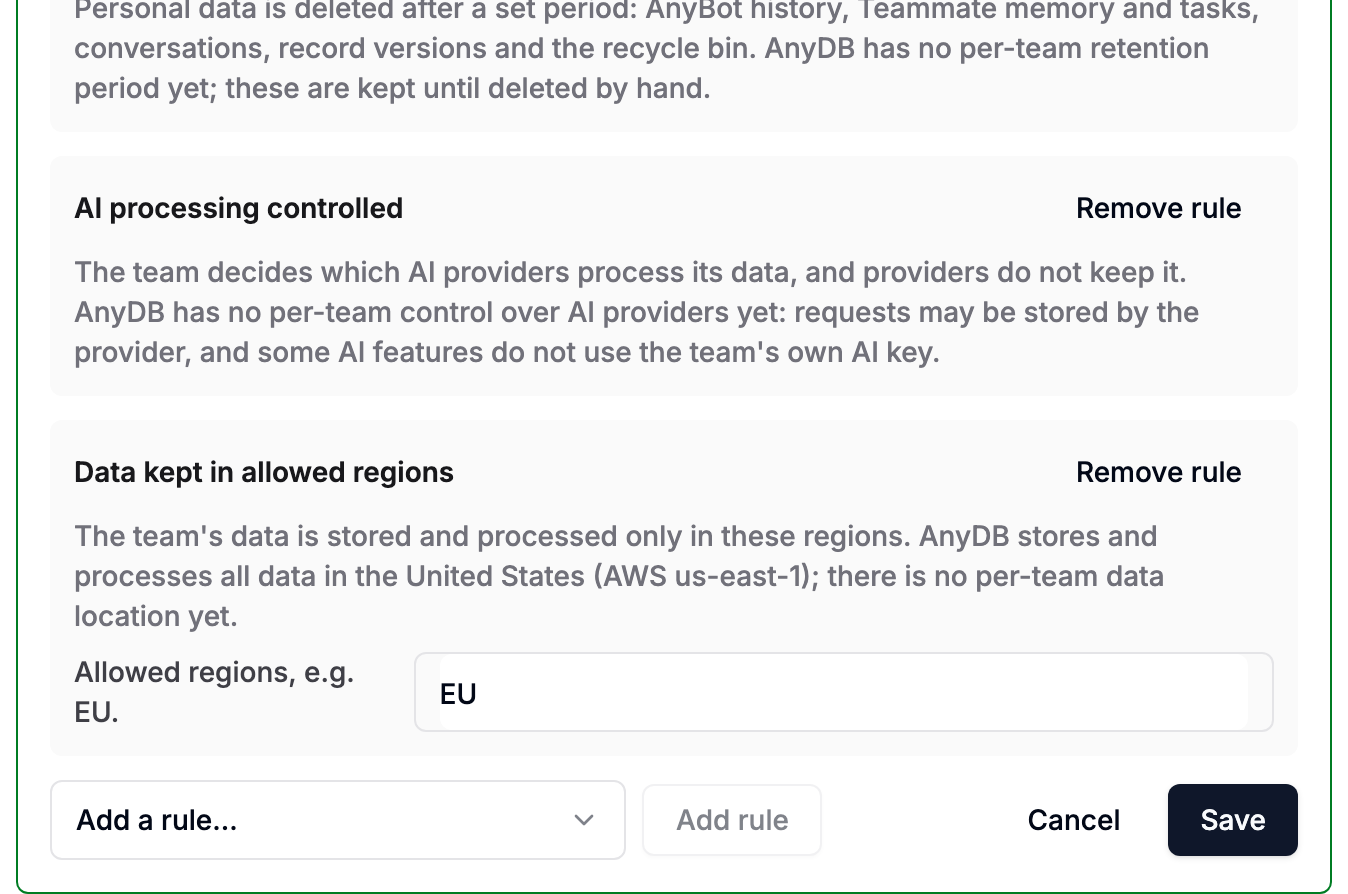
Choosing which workspaces a profile covers
By default a profile covers the whole team. To limit it, tick the workspaces it covers under Workspaces when you edit it, for example only the workspaces holding customer or export-controlled data.
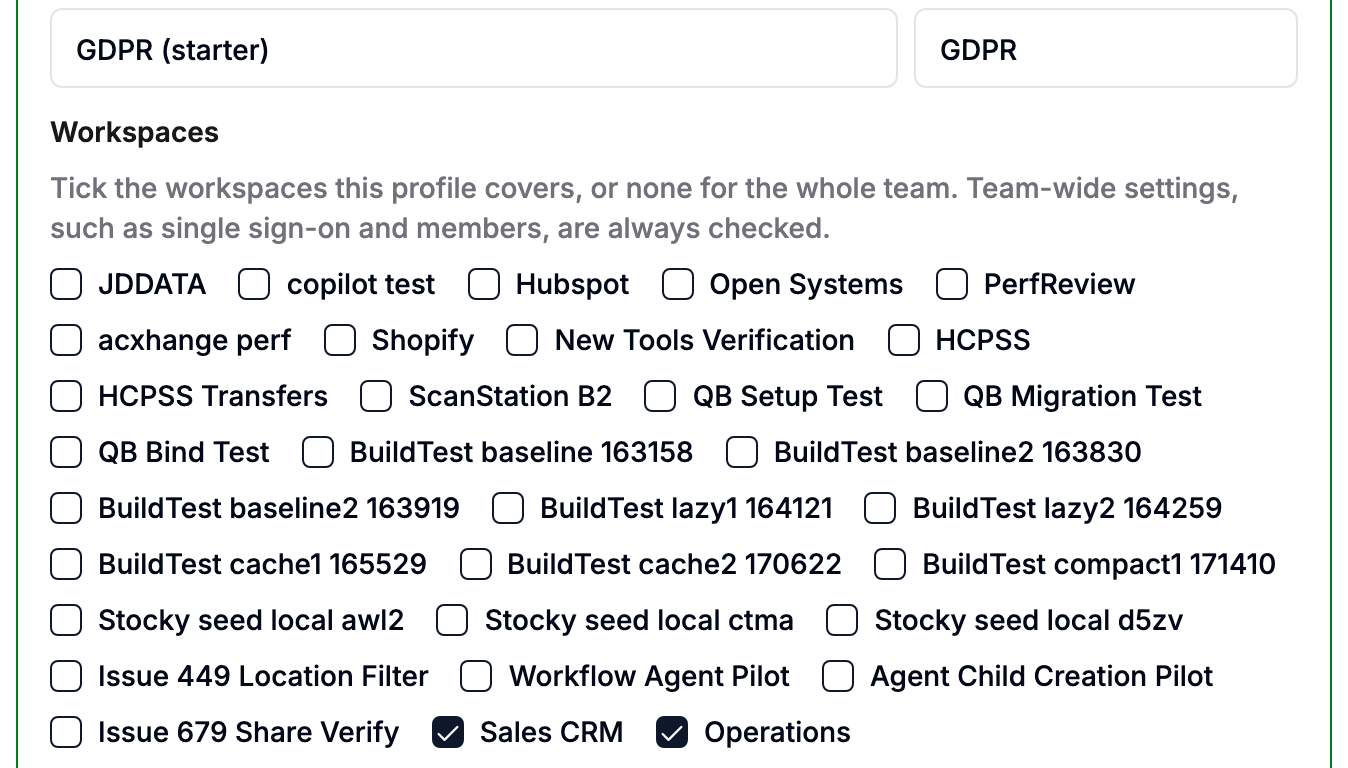
Findings from other workspaces are then left out. Team-wide settings, such as single sign-on, members, API keys and connected apps, are always checked, because they apply to every workspace.
Profiles proposed by an AI Teammate
An AI Teammate never changes what is enforced on its own:
- When a Teammate creates a profile, for example when you ask it to "enforce GDPR", the profile shows Proposed until a team admin selects Approve.
- When a Teammate changes an existing profile, the profile shows Change proposed. The approved rules stay in force until a team admin selects Approve.
See AI Teammates and MCP.
Removing a profile
Select Remove on the profile and confirm. Removing a profile changes nothing it checked.