Running Checks
A check compares every rule of a profile with the team as it is now. It is read-only: it changes nothing, and you can run it as often as you like.
Checking a profile
- Open Manage Team → Compliance.
- On the profile, choose what to check in the list next to Check now:
- All its workspaces (or The whole team, for a profile that covers the whole team), or
- one workspace. You can only pick from the profile's own workspaces.
- Select Check now.
The results open in their own window.
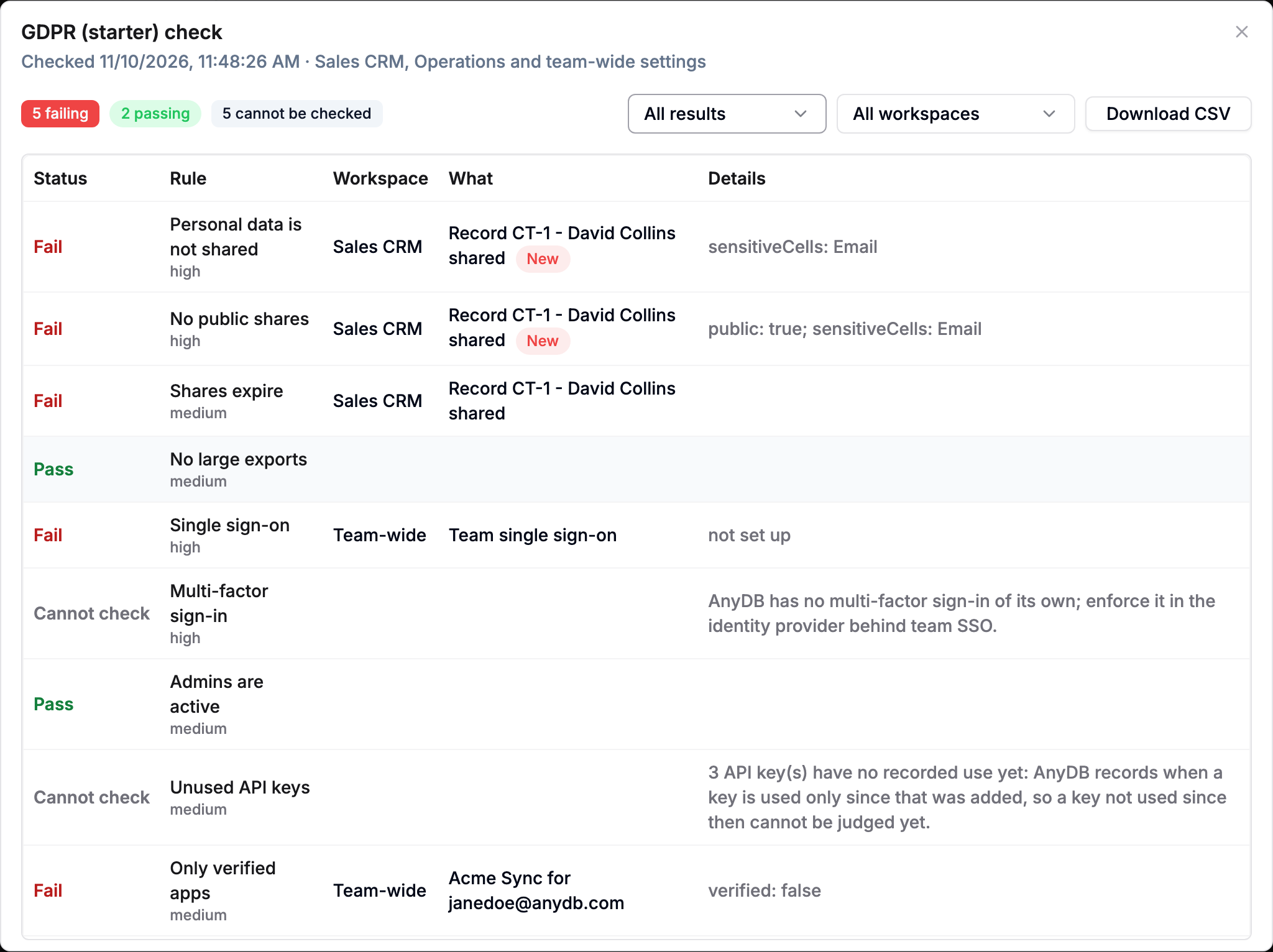
At the top are when the check ran, what it covered, and how many rules are failing, passing and cannot be checked. Below is one row per finding:
| Column | What it shows |
|---|---|
| Status | Pass, Fail or Cannot check |
| Rule | The rule, and its severity |
| Workspace | Where to act, or Team-wide |
| What | What is at fault, for example the record that is shared |
| Details | What AnyDB found, for example public: true; sensitiveCells: Email, or why a rule could not be checked |
A rule that fails for several things gets one row for each. A failure that the previous check of the profile did not find is marked New.
Filtering the results
Use the two lists at the top to narrow the results:
- Status: show only Fail, Pass or Cannot check.
- Workspace: show only the failures in one workspace, or only the Team-wide ones.
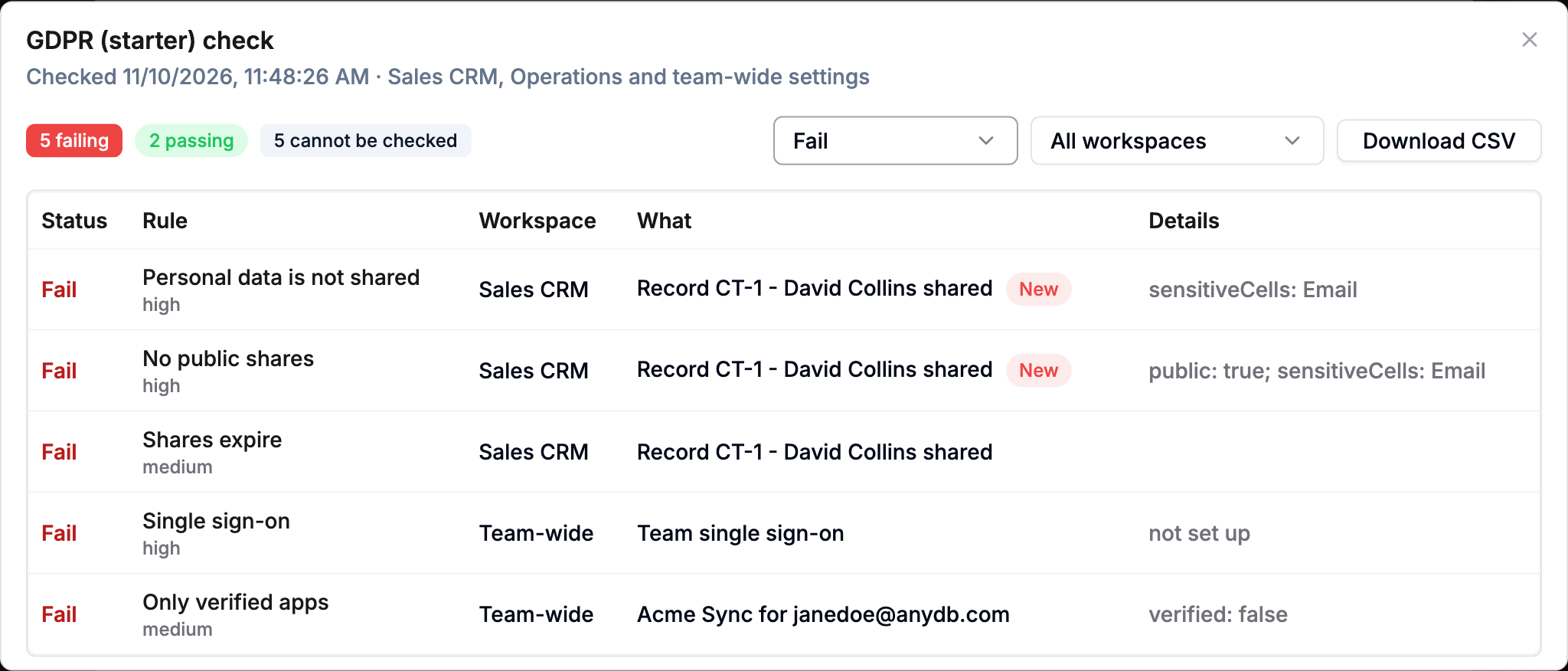
Failures are listed under the workspace to act in. For example, a public share is listed under the workspace that holds the shared record. Findings about the whole team, such as single sign-on, members, API keys, connected apps and sign-in countries, are listed as Team-wide.
Why a rule says Cannot check
Cannot check means AnyDB could not verify the rule, so it is not reported as passing. The Details column gives the reason. Common reasons:
- The control does not exist in AnyDB. Multi-factor sign-in, retention periods, AI processing and data region are always Cannot check. See Starter templates.
- Sign-ins with no country. The country of a sign-in comes from your network's CDN (Cloudflare or CloudFront). A sign-in that arrived without it cannot be placed in a country.
- API keys with no recorded use. AnyDB records when an API key was last used. A key that has not been used since that recording started cannot be judged yet.
Past checks
Every check is kept, the last 50 for each profile. To open an earlier one, choose its date under Past checks on the profile. Each entry shows when it ran and how many rules failed.
Downloading a check as CSV
Select Download CSV in a check's results to save that check as a spreadsheet, one row per finding:
| Column | What it holds |
|---|---|
| Checked at | When the check ran |
| Profile | The profile's name |
| Rule | The rule's name |
| Severity | high, medium or low |
| Status | pass, fail or cannot_check |
| Workspace, Workspace ID | Where to act, or Team-wide |
| Type, ID, What | What is at fault, for example a share and the record it shares |
| Observed | What AnyDB found |
| New | Whether the previous check found it |
| Reason | Why a rule could not be checked, or how many failures were not listed |
Use the CSV to assign and track the fixes, or as evidence for an auditor.
Fixing what fails
Checks only report. Fix what they find where you normally would, for example:
- revoke a share, or give it an expiry, from the record's Sharing & Forms menu;
- turn off public sharing in team settings;
- set up single sign-on;
- remove a guest or an inactive admin from Team Members;
- disconnect an app under Connected apps.
Then run the check again. A fixed failure is gone from the new check, and the earlier check still shows it.