Scan Station
Scan Station turns any barcode scanner into an inventory terminal for AnyDB. Scan a code to see the item, then check stock in or out. The count changes in your workspace right away.
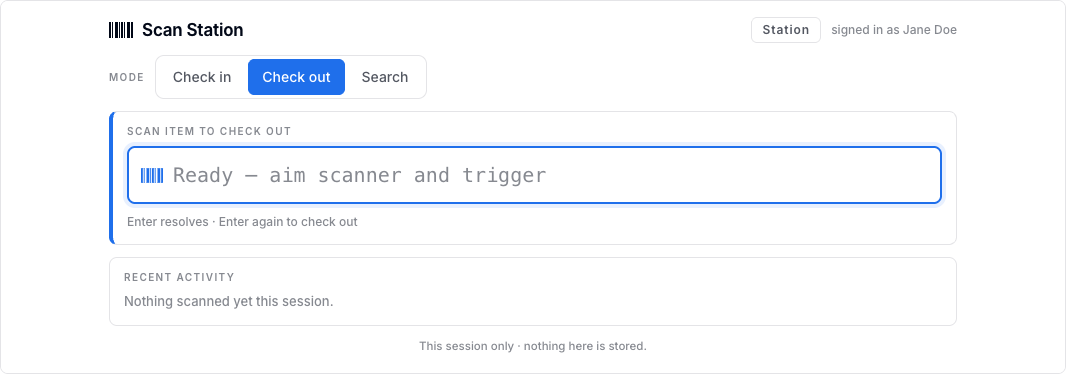
How it works
- Scan Station works with two of AnyDB's standard types: Item, which holds the SKU you scan, and Inventory Item, which holds the stock of that item.
- A scan finds the Item whose SKU matches the code exactly, then the Inventory Item that references it in the workspace.
- Checking stock in or out changes Quantity On Hand on that Inventory Item. Its Quantity Available and Status are formulas, so they update themselves.
- Scan Station never creates or deletes records, and never changes anything else.
- It works with any USB or Bluetooth scanner that acts as a keyboard, which most do. You can also type a code and press Enter.
Before you start
The workspace needs the Item and Inventory Item types. If they aren't there yet:
- In the workspace, select New, then Record Type.
- Under Inventory, select Item and Inventory Item, then Import.
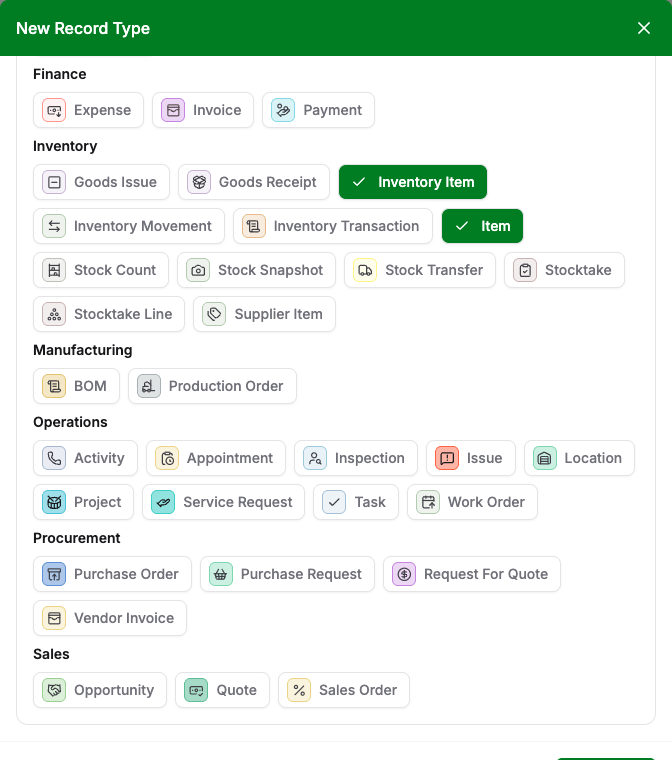
Then, for each product you want to scan:
- create an Item with its barcode in SKU, and
- create one Inventory Item whose Item Reference points at that Item, with the current count in Quantity On Hand.
Install and connect
A team owner installs Scan Station from Manage Team → Apps → Browse and binds the workspace to its Station connection. See Managing Apps for the full steps.
Scan Station can have more than one connection. Use Add connection to give each warehouse or store its own station, each bound to its own workspace.
Scan
Open Scan Station from the workspace's Apps tab. For a shared terminal, use Copy direct link on the same card and bookmark the link on that device. Each person signs in with their own AnyDB account, and every change is recorded under their name.
- Choose a Mode:
- Check out (the default) removes stock.
- Check in adds stock.
- Search looks items up without changing anything.
- Click in the scan box, or check the cursor is already there, and scan the barcode.
- Scan Station finds the item and shows it with its stock. Press Enter again to check it in or out.
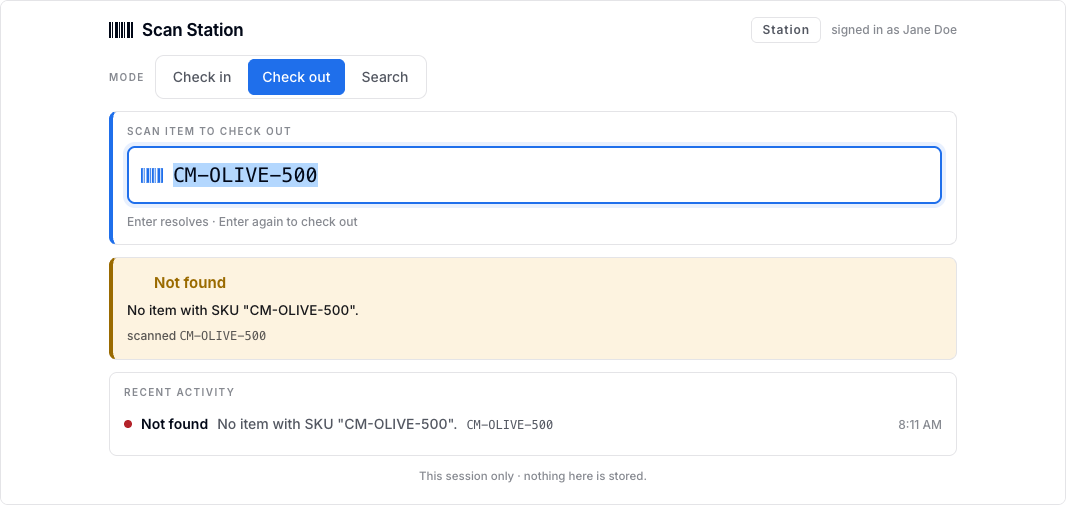
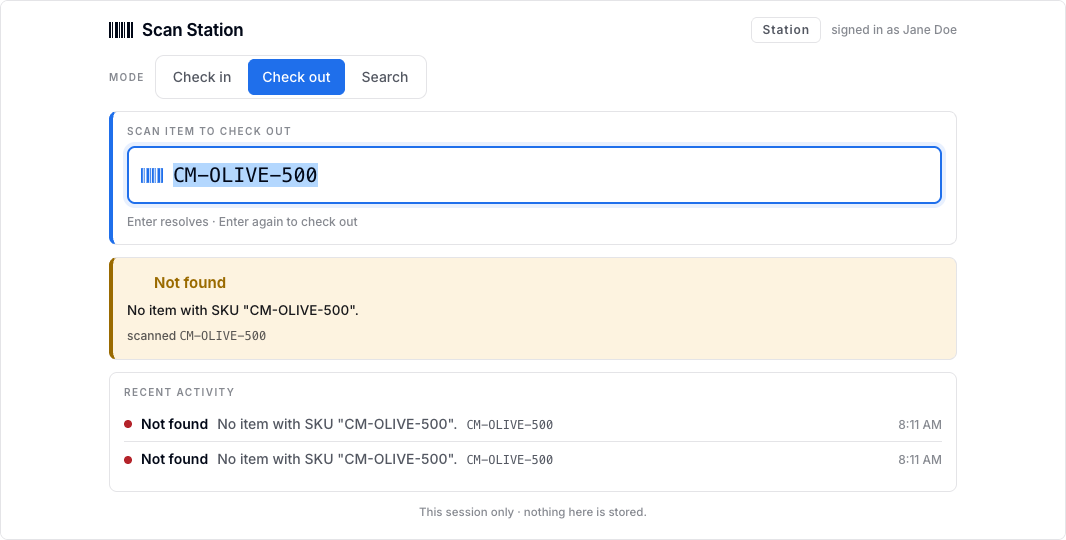
Recent activity lists what was scanned in this session, so you can check your work. It is not saved; the change itself is saved on the Inventory Item.
Search by part of a SKU
In Search mode, type part of a SKU (any part, upper or lower case) and choose the item from the list. Search only looks items up; switch back to Check in or Check out to move stock.
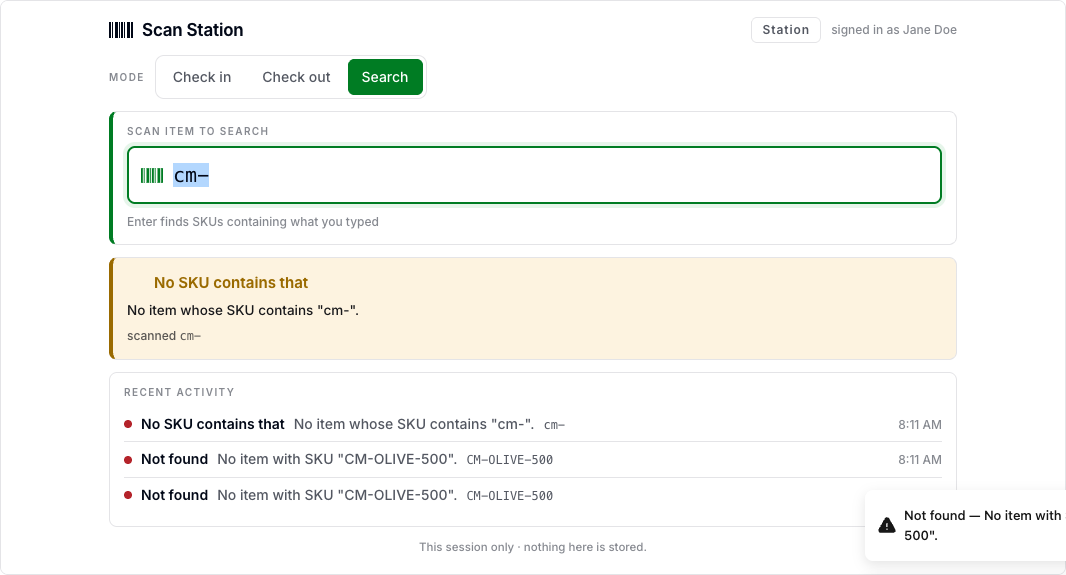
When a scan is refused
Scan Station doesn't guess. A scan changes nothing when:
- No Item has that SKU. Check the code, or add the SKU to the Item.
- More than one Inventory Item matches. Keep one Inventory Item per Item in the workspace, or split locations into separate workspaces, each with its own station.
- The workspace is no longer bound, or you no longer have access to it. Ask a team owner to check the app's Connections.