Inventory
Inventory is an AnyDB App for running the stock behind a Shopify store. It works on the products, variants, locations and orders that the AnyDB Sync App for Shopify brings into your workspace, and adds what a buyer needs day to day:
- stock levels per location, with reorder points and minimums,
- vendors and suppliers, with each supplier's items and costs,
- purchase orders, from draft to received,
- stock adjustments, transfers between locations, and stocktakes,
- replenishment suggestions based on your sales, and
- inventory reports.
Everything Inventory records is saved as ordinary records in your workspace, so you can also use them in views, reports and automations.
Before you start
Inventory works in a workspace that the Shopify sync has filled: its Sh Product, Sh Variant, Sh Location, Sh Inventory Level and Sh Order types, along with the vendor and purchase-order types that come with them. Set up the Shopify sync first.
Then a team owner installs Inventory from Manage Team → Apps → Browse and binds the workspace to its Inventory workspace connection. See Managing Apps for the steps.
Set up the types
The first time you open Inventory, it checks the workspace for the types and fields it needs. If some are missing, a banner says so.
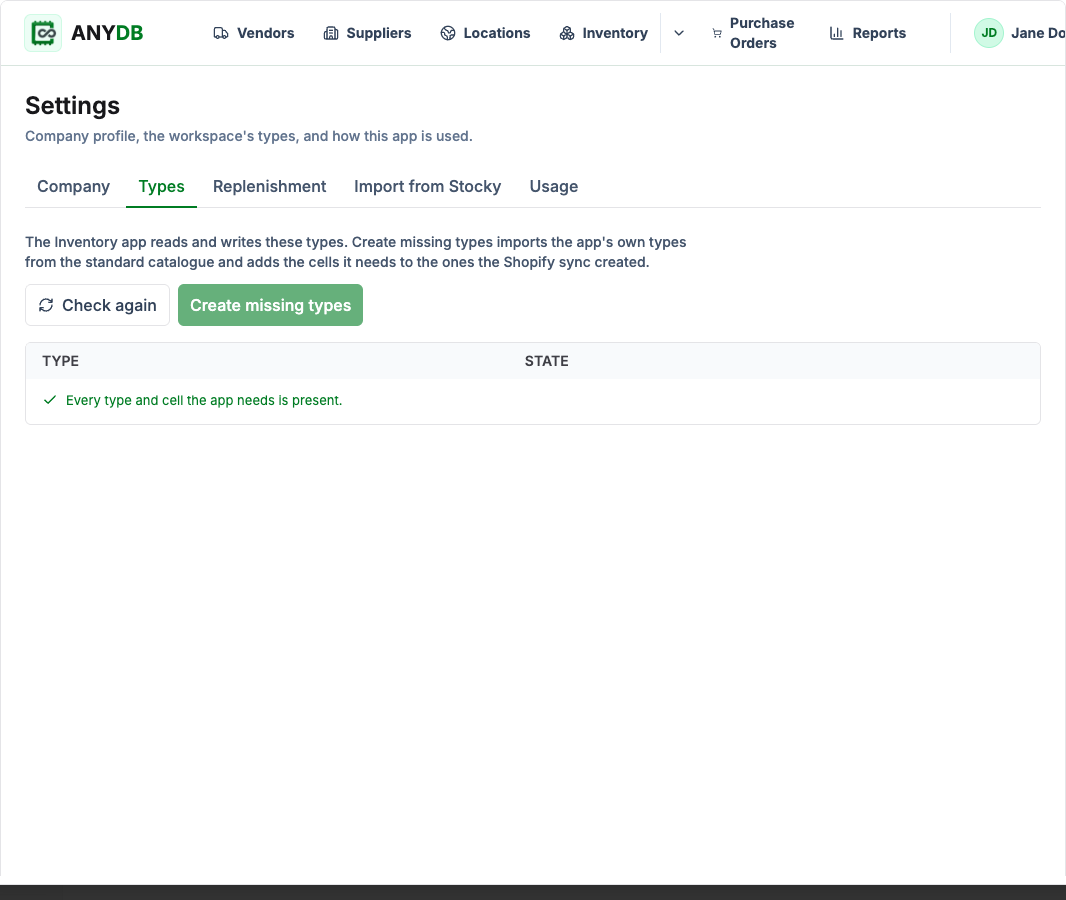
- Select Create them in Settings on the banner, or open Settings → Types from the menu under your name at the top right.
- Select Create missing types.
Inventory adds its own types (Inventory Movement, Supplier Item, Stocktake, Stocktake Line and Stock Snapshot) and adds the fields it needs to the types the Shopify sync created, such as reorder points on inventory levels and payment terms on suppliers. It lists what it created. Existing records and fields are not changed.
Find your way around
The bar at the top leads to each area. The arrow beside Inventory opens Adjustment, Transfer, Replenishment and Stocktakes. Select the logo to return to the home screen.
| Screen | Use it to |
|---|---|
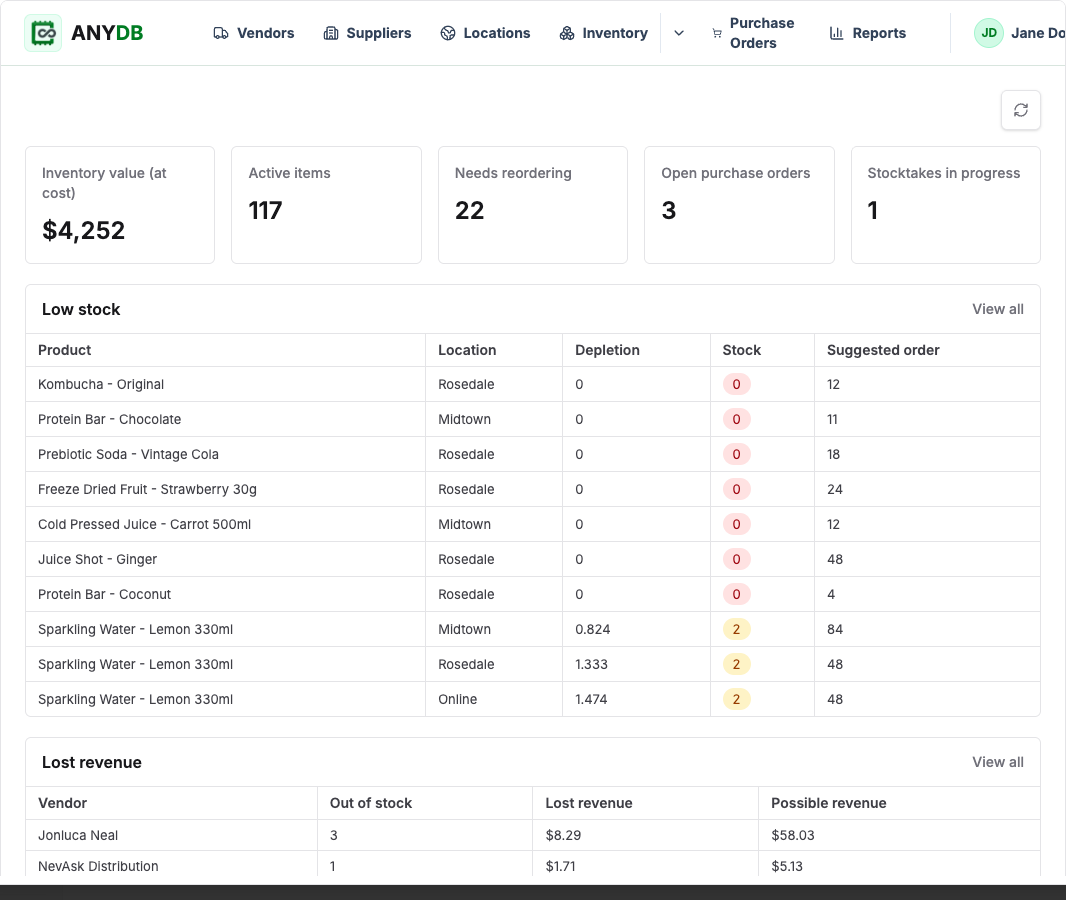
| Home | See inventory value, items that need reordering, open purchase orders, stocktakes in progress, lost revenue and best sellers. |
| Vendors | Keep the brands you sell and how to reach them. |
| Suppliers | Keep who you buy from, with lead times, minimum order values, payment terms and each supplier's item list and costs. |
| Locations | See each store or warehouse and where it receives stock. |
| Inventory | See stock on hand per variant and location, filter by location or vendor, and set reorder points and minimums. |
| Purchase Orders | Draft, send, receive and close purchase orders. |
| Adjustment | Correct stock at a location and record why. |
| Transfer | Move stock from one location to another. |
| Replenishment | See what is out of stock or will run out, and turn it into purchase orders. |
| Stocktakes | Count stock and post the differences. |
| Reports | See stock value, stock over time, ABC grades, best sellers, movements and purchase-order status. |
Stock levels
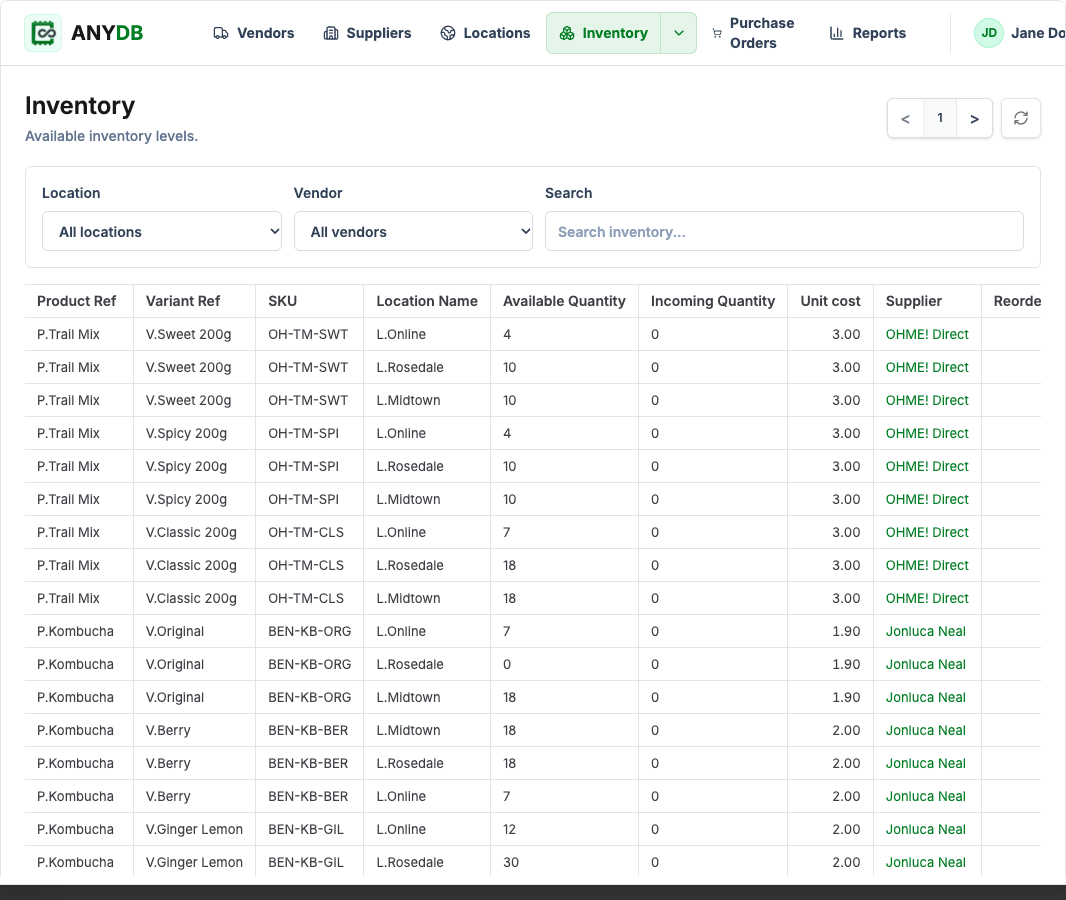
Inventory lists every variant at every location, with its available and incoming quantities, unit cost and supplier. Open a row to see its history and set its Reorder Point, Minimum Stock and Maximum Stock. Replenishment uses these.
Every change Inventory makes to stock is also written as an Inventory Movement, so you can see what changed, when, why and by whom.
Purchase orders
Purchase Orders lists every order by status: Draft, Ordered, Partially received, Received, Closed, Cancelled and Archived.
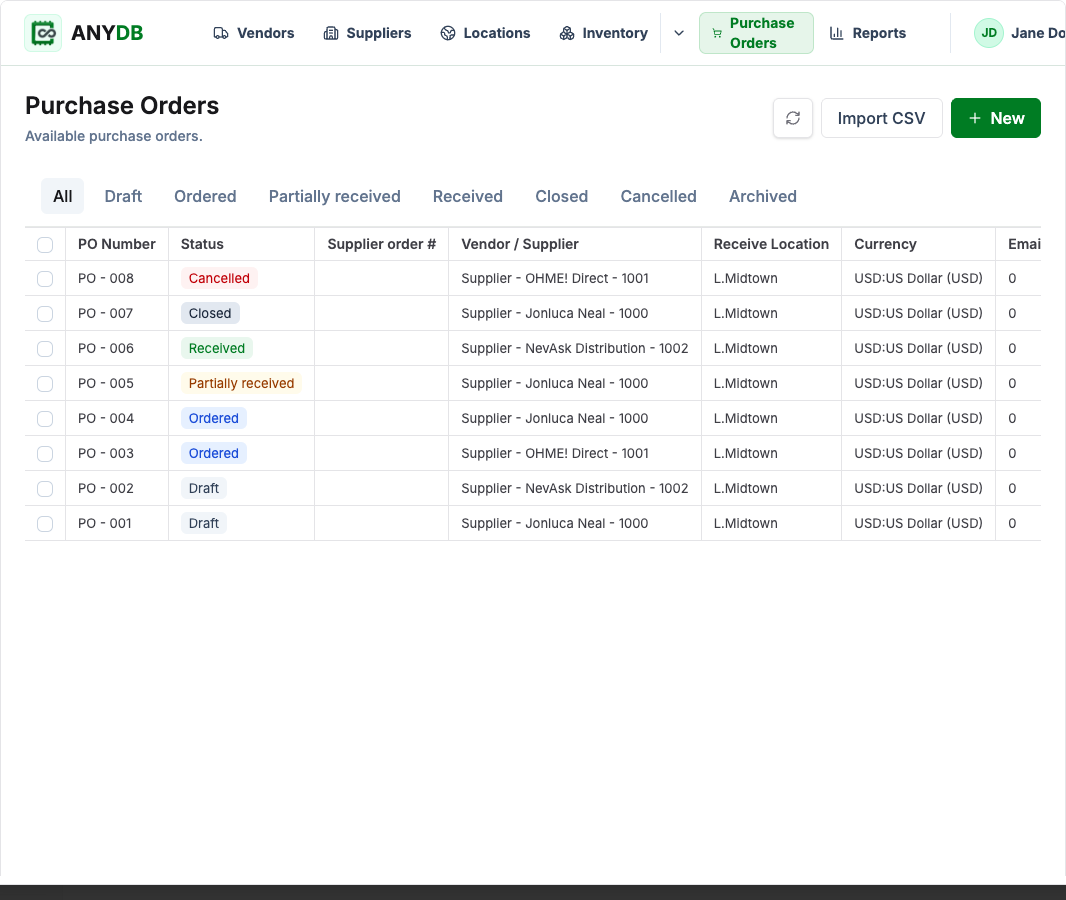
- Select New to start an order for a supplier and location, or Import CSV to load orders from a file.
- A draft's Regenerate fills its lines from the replenishment suggestions for that supplier.
- Mark as ordered when you place the order. Email it to the supplier, if email is set up for Inventory, or use Download PDF.
- When stock arrives, select Receive... and enter what arrived, or scan each item's SKU. You can receive part of an order and the rest later, and record rejected or extra units with a note. Received units are added to the location's stock.
- Duplicate starts a new order from an existing one.
Adjustments and transfers
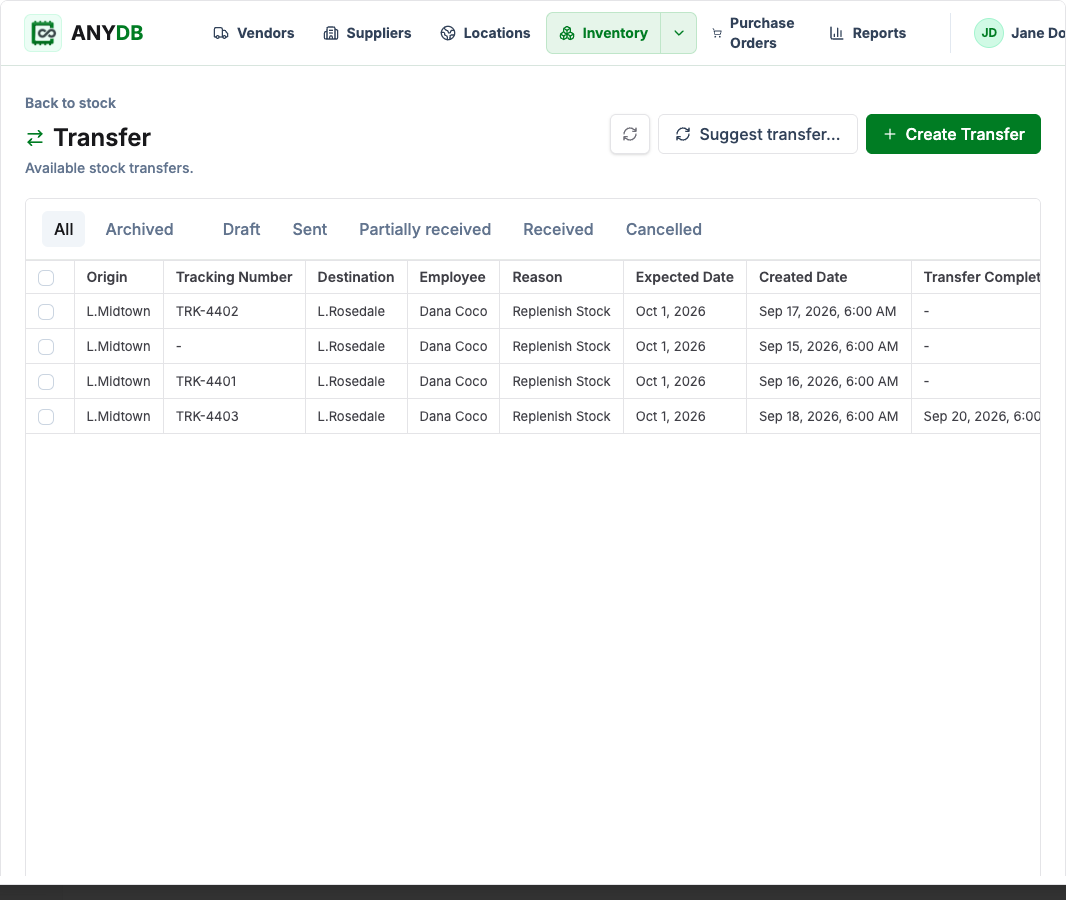
An Adjustment changes stock at one location and records why. A Transfer moves stock between two locations: sending takes it out of the origin, and receiving adds it at the destination, in full or in part. Suggest transfer... proposes moves from a location with spare stock to one that has run out.
Replenishment
Replenishment shows what needs ordering:
- Low stock lists items that are out, will run out before a new order could arrive, or are below their reorder point.
- Forecast projects demand from your sales over the window you choose.
Filter by location, supplier or vendor, and choose how far back to look at sales. Select rows, then Create POs to draft one purchase order per supplier and location, or Export CSV to work on the list elsewhere.
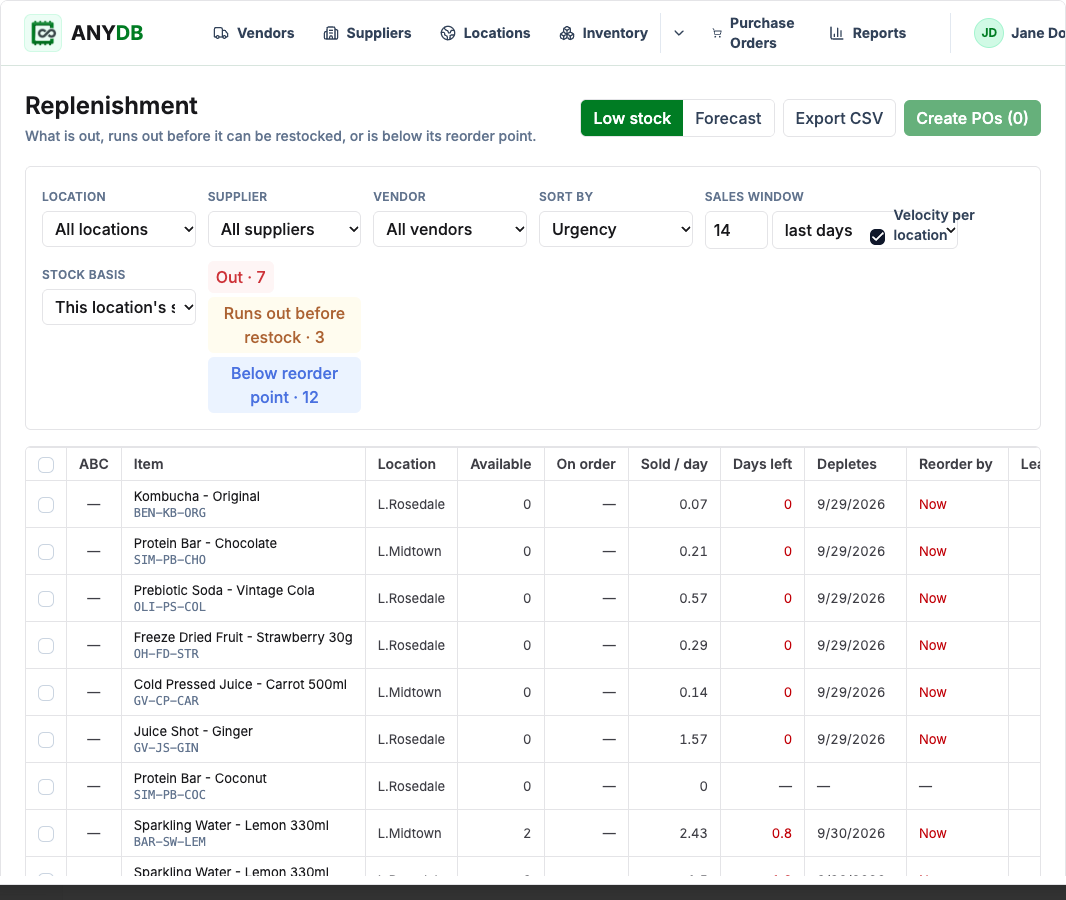
Suggestions take each item's sales rate, the supplier's lead time and minimum order, pack sizes, and the item's reorder point and minimum into account.
Stocktakes
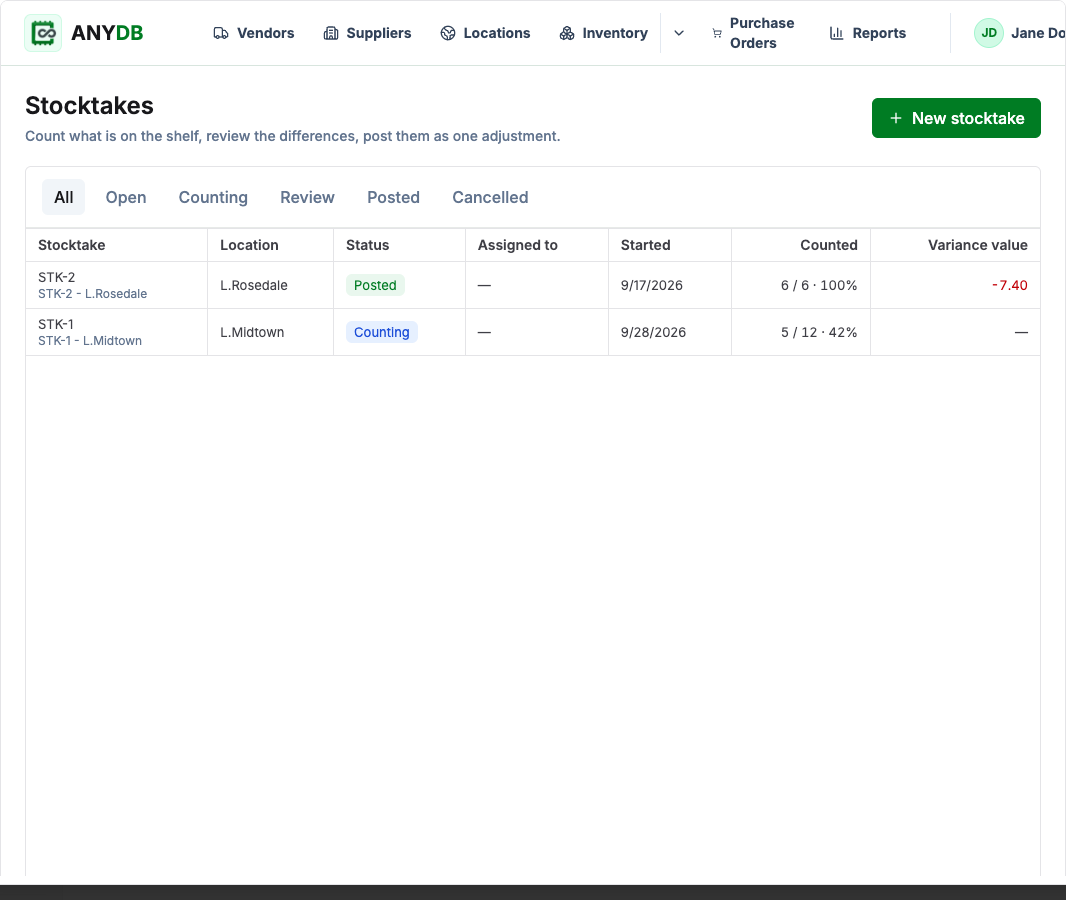
A Stocktake counts part or all of your stock at one location. Choose what to count, enter the counts on the count sheet, review the differences, then post them. Posting applies all the differences at once as a single adjustment.
Reports
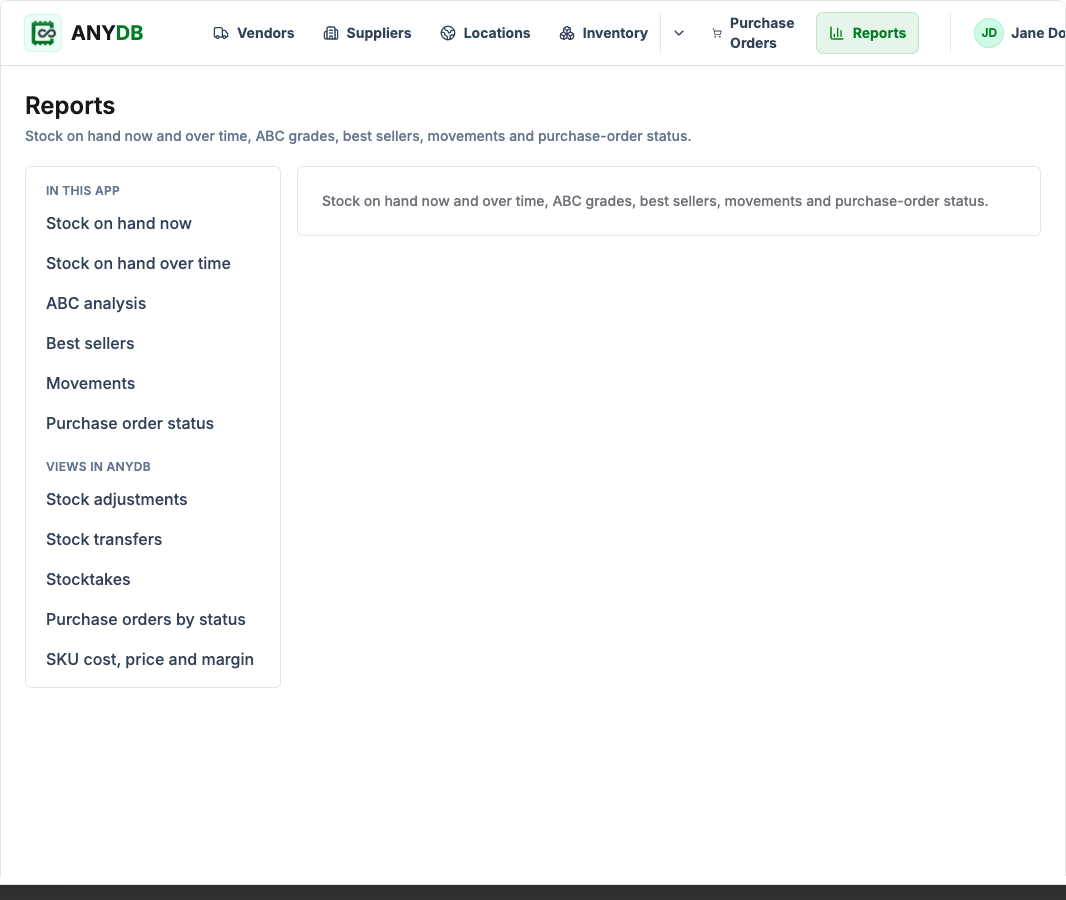
Reports shows stock on hand now and over time, ABC analysis, best sellers, stock movements and purchase-order status. Each report can be filtered and exported as CSV. Under Views in AnyDB, the same screen links to views Inventory adds to your workspace, such as stock adjustments, transfers and SKU cost, price and margin.
Stock over time and ABC grades are updated once a night. A new workspace shows them from the day after it is set up.
Settings
Open Settings from the menu under your name at the top right.
| Tab | Use it to |
|---|---|
| Company | Keep your company profile, which Inventory uses on purchase orders. |
| Types | Check the types Inventory needs and create any that are missing. |
| Replenishment | Set replenishment defaults, and set up a scheduled low-stock digest using an automation. |
| Import from Stocky | Bring supplier cost lists, purchase orders and stocktake history over from Stocky's CSV exports. Rows are matched to your variants by SKU, and importing a file again updates rather than duplicates. |
| Usage | See how much the app has been used over the last 30 days. |