AnyDB Mobile App
The AnyDB Mobile App brings the full power of AnyDB to your smartphone and tablet. Whether you’re using an Android phone, Android tablet, iPhone, or iPad, you can securely access your databases, manage records, collaborate with your team, and upload files directly from your mobile device.
AnyDB is available on both Android and iOS, giving you a fast, native mobile app experience on Google Play Store and Apple App Store.
Download AnyDB Mobile App
Download for iPhone & iPad (iOS)
Get the AnyDB iOS App for iPhone and iPad from the Apple App Store.
➡ Apple App Store:
https://apps.apple.com/us/app/anydb/id6755151635
- Compatible with iOS and iPadOS 15.1+
- Supports Apple, Google, and Microsoft sign-in
Download for Android
Get the AnyDB Android App on Google Play for Android phones and Android tablets.
➡ Google Play Store:
https://play.google.com/store/apps/details?id=com.anydbmobile
- Compatible with Android 8.0+
- Supports Apple, Google, and Microsoft sign-in
Overview
The AnyDB Mobile App for Android and iOS is the official mobile application for AnyDB users. It allows you to securely access, manage, and collaborate on your team’s databases and records from anywhere.
The AnyDB mobile app is designed for:
- Fast mobile data access
- Easy record creation and editing
- Seamless file and photo attachments
- Optimized layouts for both phones and tablets
Whether you are using an Android app on a Samsung Galaxy, Google Pixel, OnePlus, or the iOS app on iPhone and iPad, AnyDB gives you a consistent and powerful mobile database experience.
Why Use AnyDB on Mobile?
- Work from anywhere using your Android or iOS device
- Replace spreadsheets with structured mobile databases
- Collect field data, photos, and files in real time
- Collaborate with your team directly from your phone
- Secure, permission-based access control
Key Features on Android & iOS
- Secure signup and sign-in (Password, Google, Microsoft, Android)
- Team-based database access
- Inbox, recent, forms, and sharing workflows
- Mobile-friendly and template-based record views
- View, search, and filter records across databases
- Create and edit records (permission-based)
- Attach files and photos to records or individual cells
- Assign users to records
- Lock and unlock records
- In-app file previewing (images, videos, PDFs, office docs)
- Create databases and teams (permission / license dependent)
iOS and Android Feature Parity
The AnyDB mobile app provides the same core functionality on both iOS and Android:
| Feature | Android | iOS |
|---|---|---|
| Login & OAuth | ✅ | ✅ |
| Team & Database Access | ✅ | ✅ |
| Record Creation & Editing | ✅ | ✅ |
| Attachments & Photos | ✅ | ✅ |
| File Preview | ✅ | ✅ |
| Record Assignment & Locking | ✅ | ✅ |
| Database & Team Creation | ✅ | ✅ |
Who Is This App For?
The AnyDB Mobile App is ideal for:
- Field teams collecting on-site data
- Operations and inventory teams
- Sales and CRM users
- Project managers tracking tasks and assets
- Anyone replacing spreadsheets with mobile databases
Getting Started
Account Management
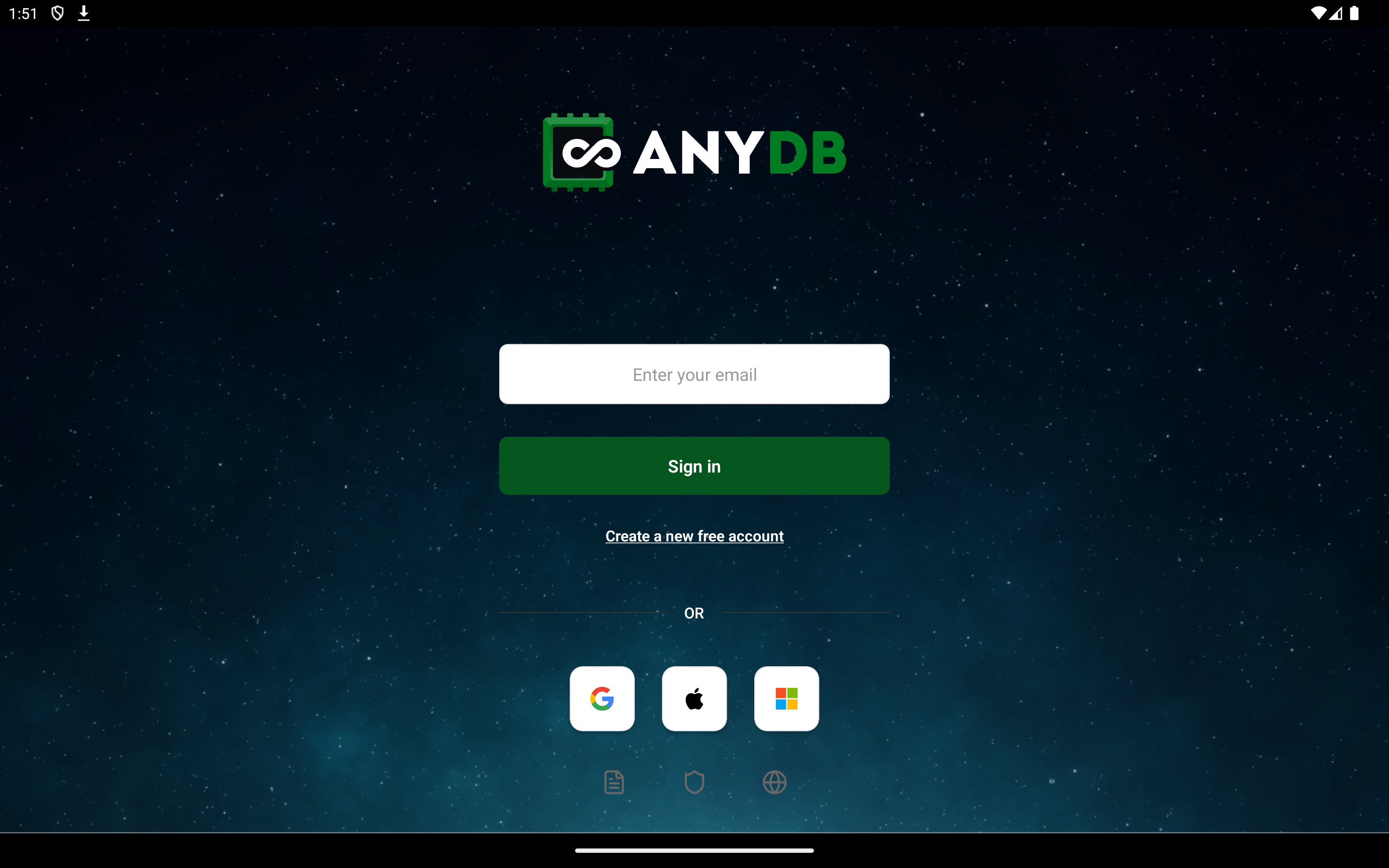
Sign Up
New users can create an account directly from the app.
Supported signup methods:
- Email and password
- Google OAuth2
- Microsoft OAuth2
Sign In
Existing users can sign in using:
- Email and password
- Microsoft
Teams and Databases
Accessing Teams
Once logged in, you can:
- View all teams you are a member of
- Switch between teams
- Access team-specific databases
Accessing Databases
Each team may have multiple databases. You can:
- Browse available databases
- Open a database to view its records
- Quickly switch between databases
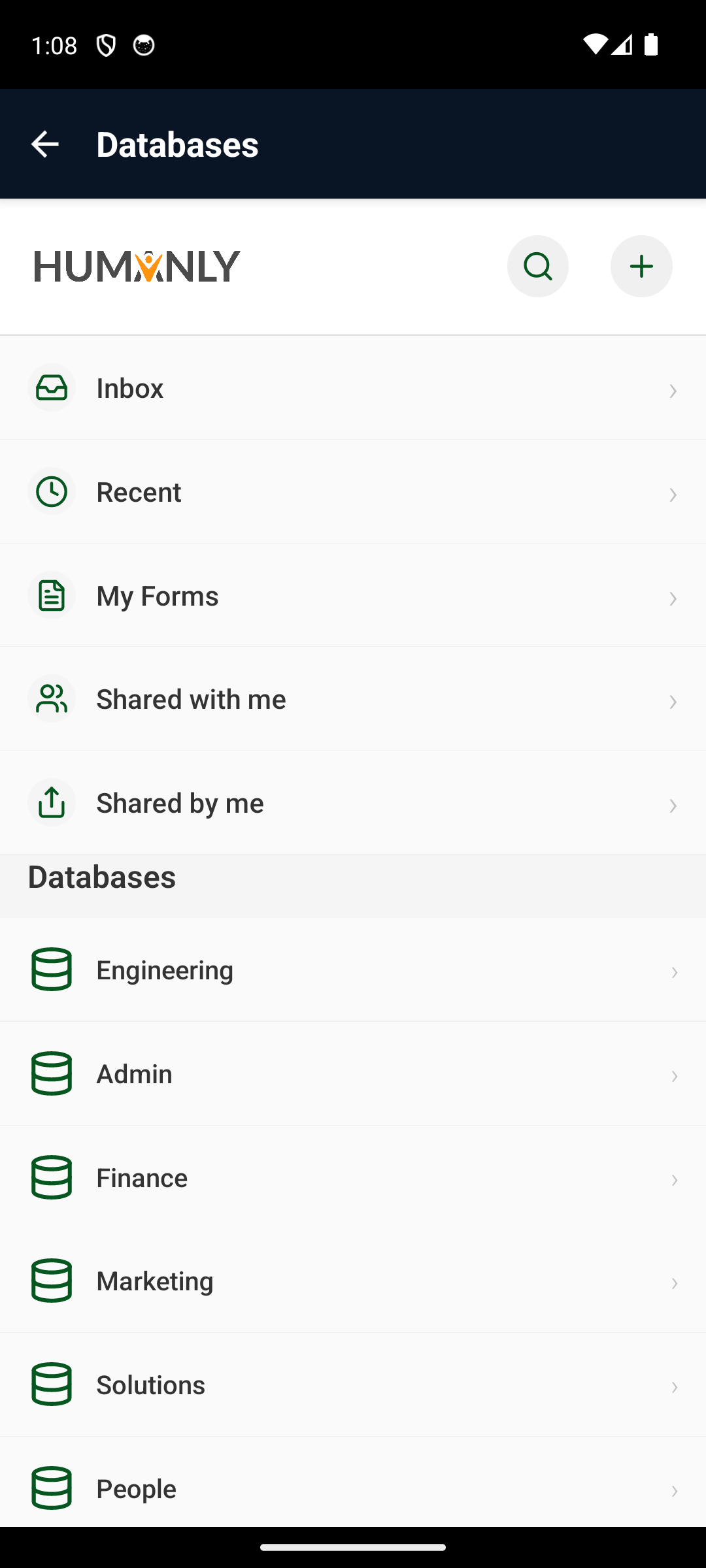
Navigation Sections
The app provides quick access to common record lists:
| Section | Description |
|---|---|
| Inbox | Access records assigned to you |
| Recent | See a list of recently accessed records |
| My Forms | Forms shared with you |
| Shared with Me | Records shared with you |
| Shared by Me | Records you shared with others |
Searching Records
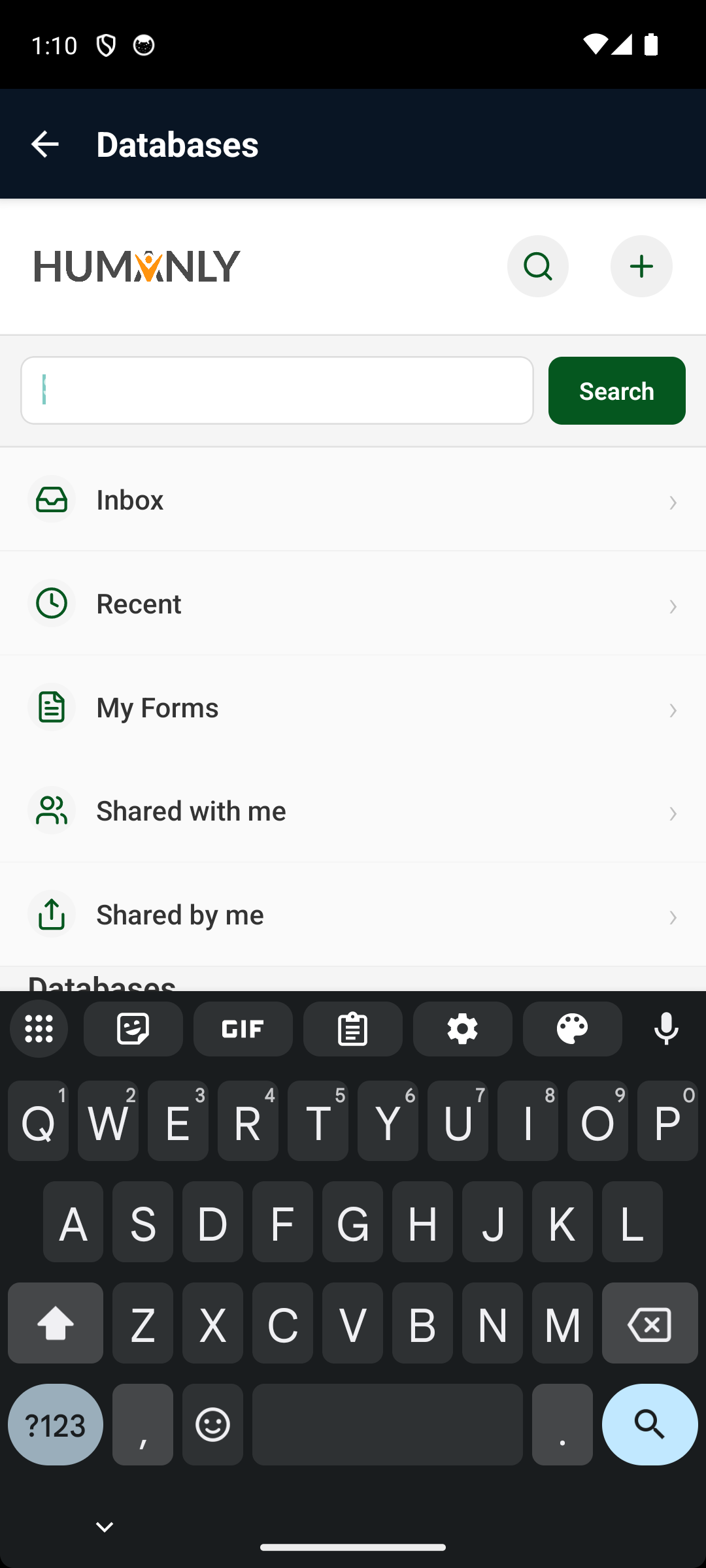
The app allows searching for records (including their content).
Steps:
- Open the databases view.
- Tap the search icon on the top bar.
- Enter your search term to search across records and their content.
Listing & Filtering Records
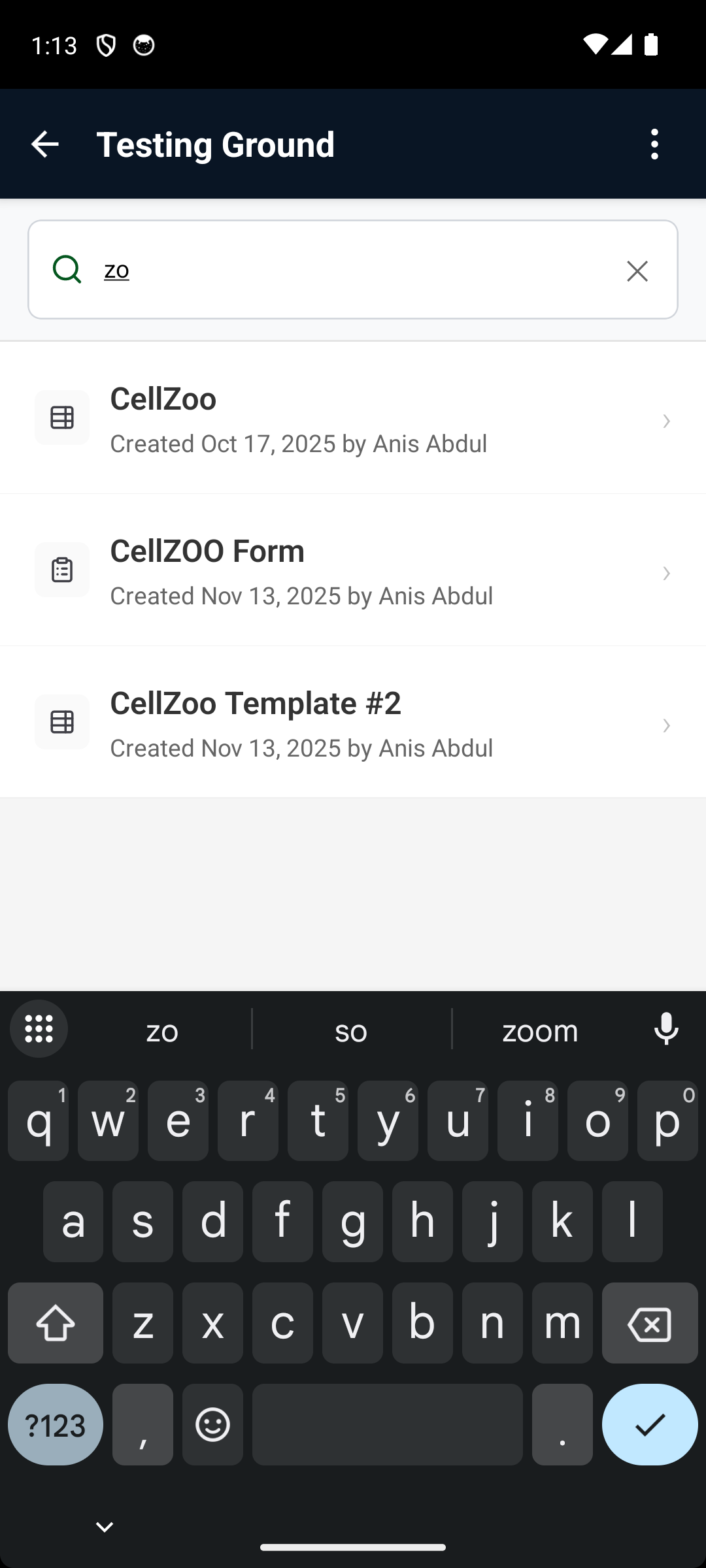
Progressive Loading
Records are progressively loaded as you scroll down the list.
Filter by Record Name
A filter option is available to filter the list of records using record name:
- Tap the top header “Tap to show filter” on top of the list.
- Enter text to filter the record list.
Badges
Badges are displayed on records:
- In phone mode, only the badge colors are shown in the list.
- The badge names/labels are shown when the record is opened.
Working with Records
Viewing Records
Records can be displayed in multiple layouts depending on device type:
- Phone: Record is shown in a vertical (mobile-friendly) layout by default.
- Tablet: Record is shown using the template layout by default.
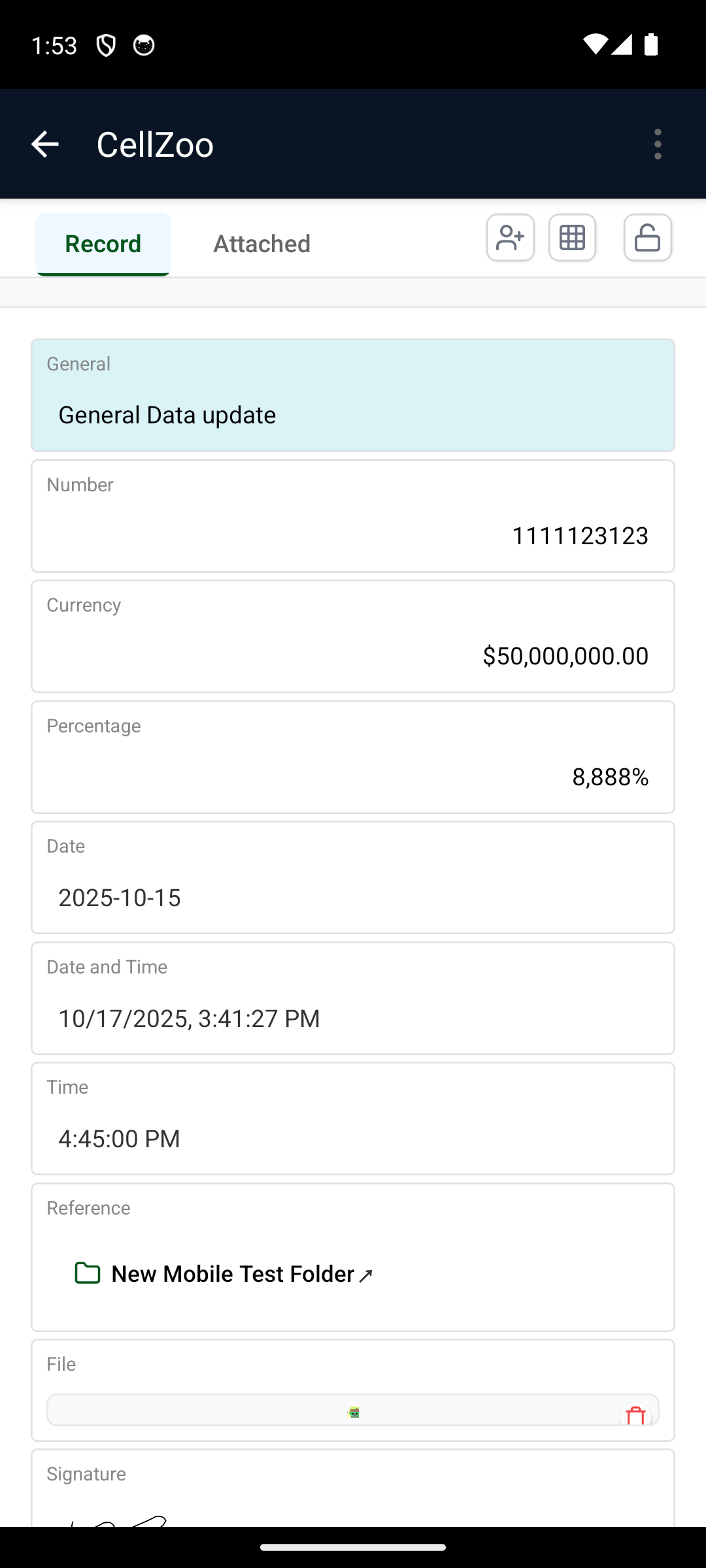
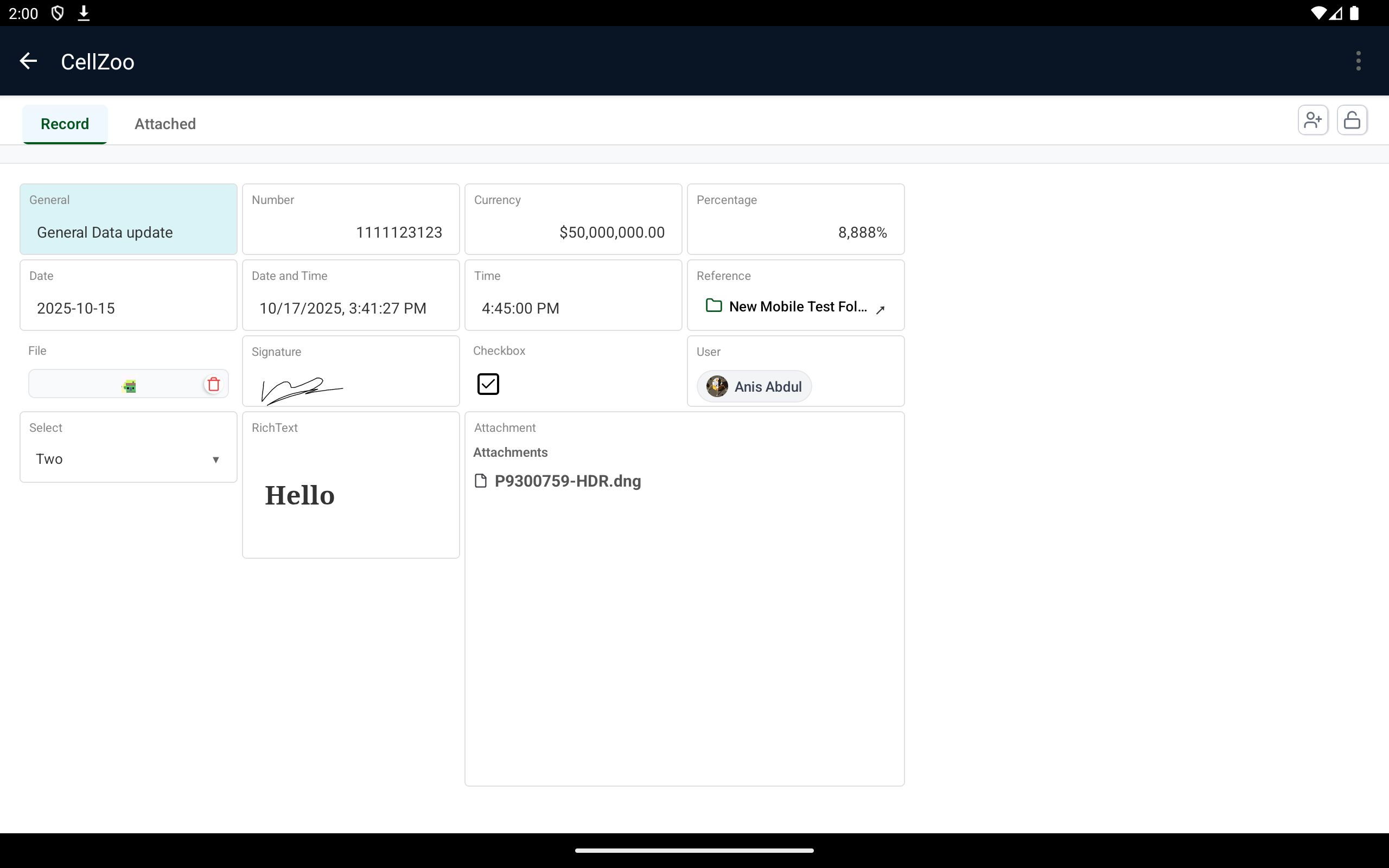
You can toggle the view using the Grid icon on the record view to switch between mobile layout and template layout (phone).
Creating Records
To create a new record:
- Open a database.
- Tap the Add (+) button.
- Fill in the required fields.
- Save the record.
Editing Records
To edit a record (if you have permission):
- Open the record.
- Tap Edit.
- Modify fields.
- Save changes.
Record Actions
Assigning a Record
Records can be assigned to users using the User icon on the top right of the record view.
Lock / Unlock
A record can be locked or unlocked using the Lock icon. Once a record is locked, the record cannot be changed unless it is unlocked.

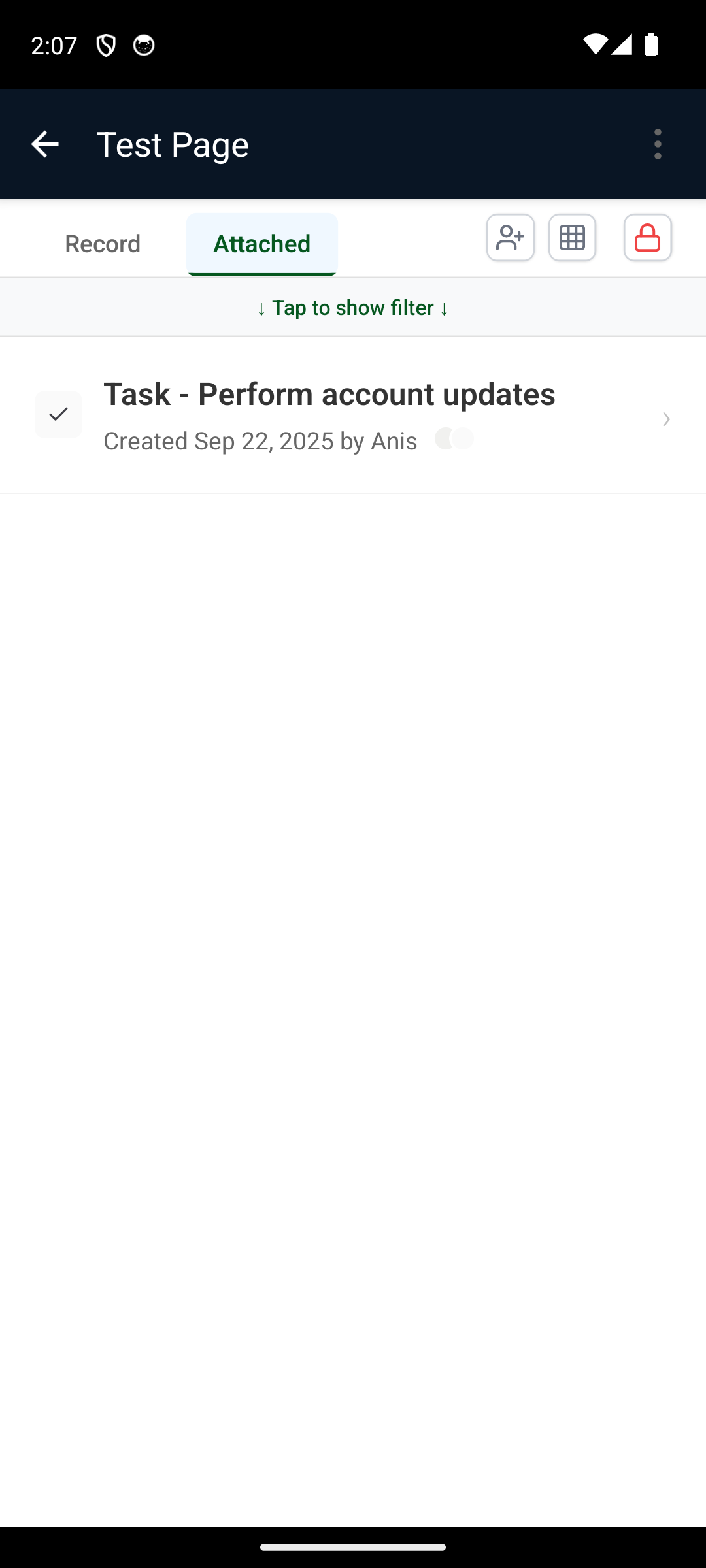
Attachments Tab
The Attachments tab shows all files attached to the current record.
Deleting Records
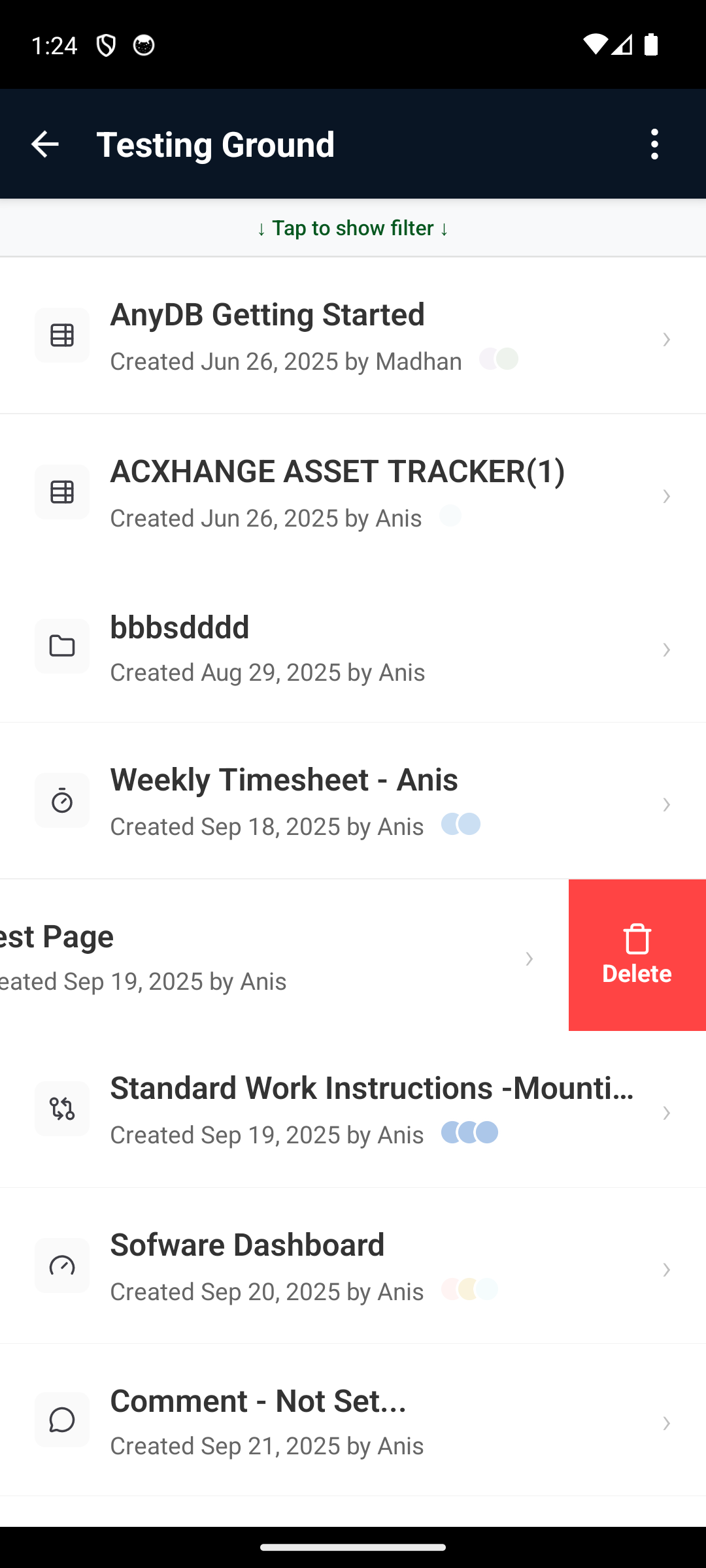
Records can be deleted from the list view by swiping left to reveal the Delete button.
- Swipe left on a record row
- Tap Delete
- Confirm deletion (if prompted)
Deleting is only available if the user has permission.
Attachments
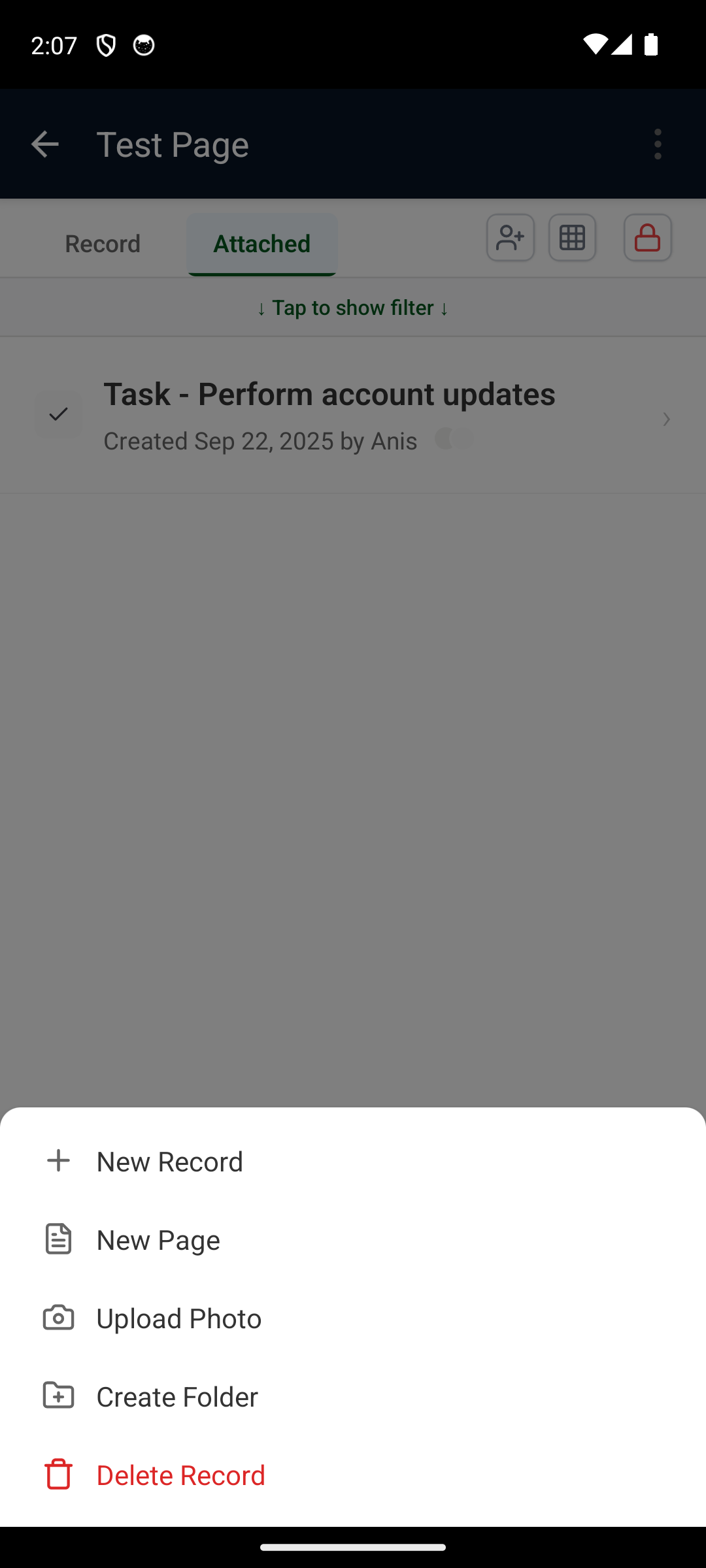
Add Files and Photos
You can attach files directly to:
- Entire records
- Individual cells (fields)
Supported sources:
- Device storage
- Camera (take photos instantly)
- Gallery
Typical flow:
- Open a record (or a specific cell, if supported).
- Tap the attachment option.
- Choose File or Photo.
- Select or capture your content.
- Save.
File Viewing
Files will be previewed in-app when supported. Examples include:
- Image files
- Video files
- PDFs
- Office documents
Files can also be downloaded or opened in other mobile apps using the app’s share/open actions.
Creating Databases
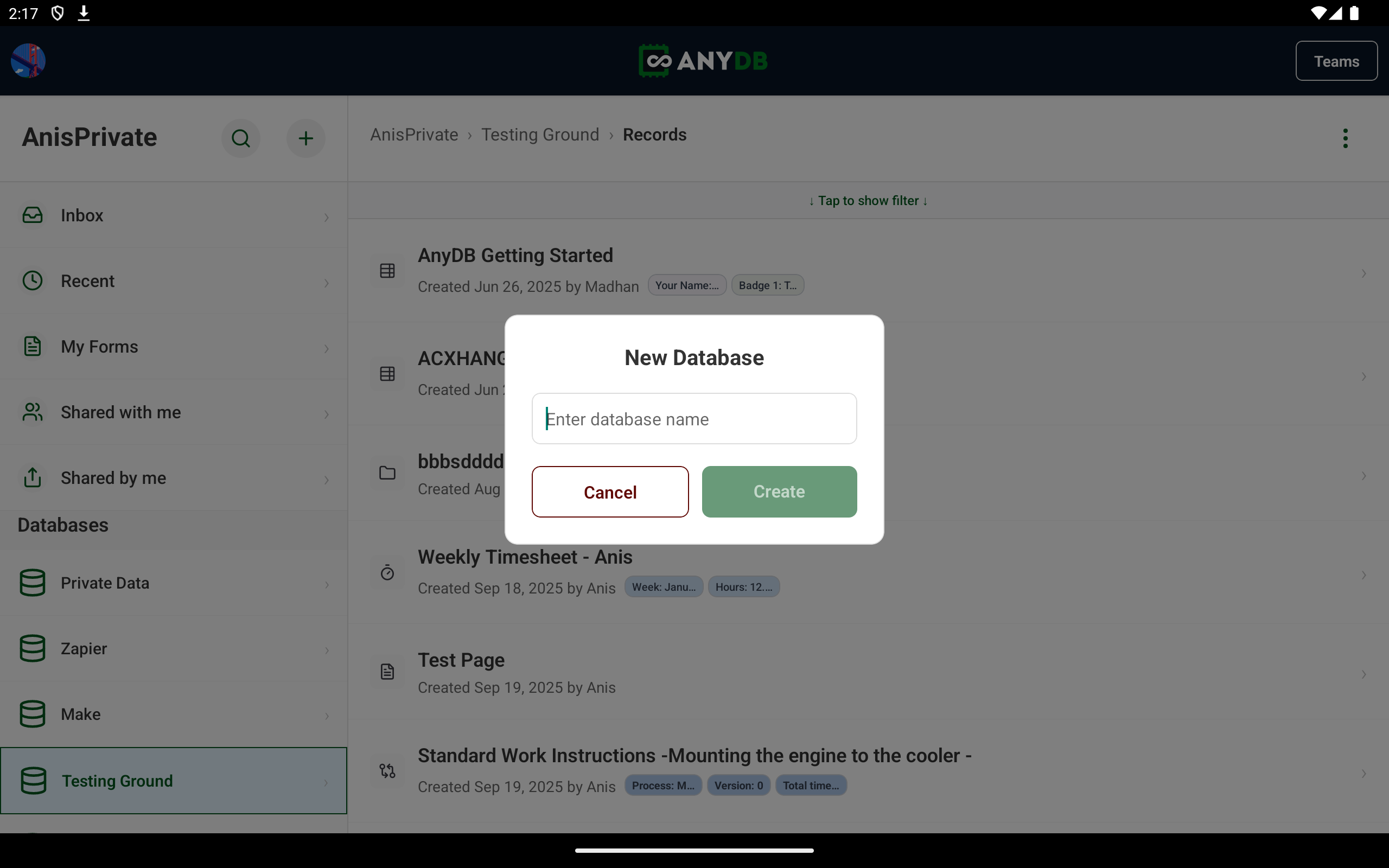
In the Databases view, tap the top-right + icon to create a new database.
The user must have permission to create databases.
Creating Teams
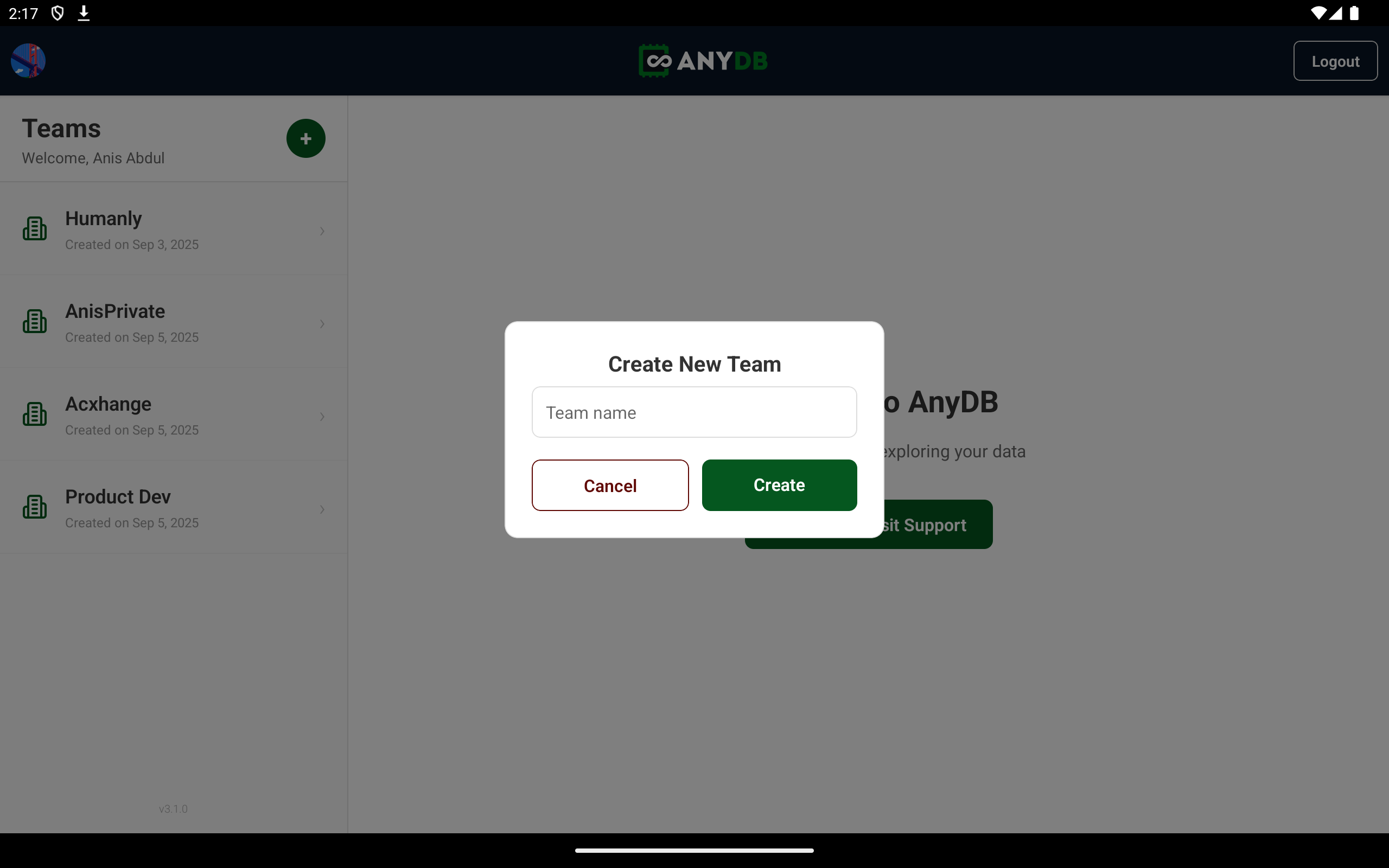
In the Teams view, tap the top-right + icon to create a new team.
The user must have the required license to create a team.
Logging Out
Use the logout button/icon on the top-right of the Teams view to log out and return to the login screen.
Permissions & Security
- Access is controlled by team and database permissions.
- Record-level actions (edit/delete/assign/lock) require the appropriate permissions.
- OAuth2 supports secure third-party authentication.
Use Cases
- Field data collection
- Team collaboration
- Asset management
- CRM on the go
- Inventory and project tracking
Frequently Asked Questions
Is AnyDB available on iPhone and iPad?
Yes, AnyDB is fully supported on iOS and iPadOS via the Apple App Store.
Is there an Android version of AnyDB?
Yes, AnyDB is available on Google Play for Android phones and tablets.
Can I upload photos and files from my phone?
Yes, you can attach files and photos directly to records and fields.
Can I manage databases on mobile?
Yes, users with permission can create and manage databases directly from the mobile app.