Managing Apps
AnyDB Apps add screens and tools that work directly on the records in your workspaces. Inventory and Scan Station are two examples. An app runs inside AnyDB, reads and writes only the record types you allow, and acts as the person using it.
Using an app takes three steps:
- A team owner installs the app and chooses what it may access.
- The owner binds one or more workspaces to the app's connection.
- Members open the app from a bound workspace's Apps tab.
This page walks through each step using Inventory as the example. The same steps apply to every app.
Only a team owner can install, bind, update, pause or uninstall an app. Any member who can open a bound workspace can open its apps. What they can read or change through an app is still limited by their own access to that workspace.
Find the Apps page
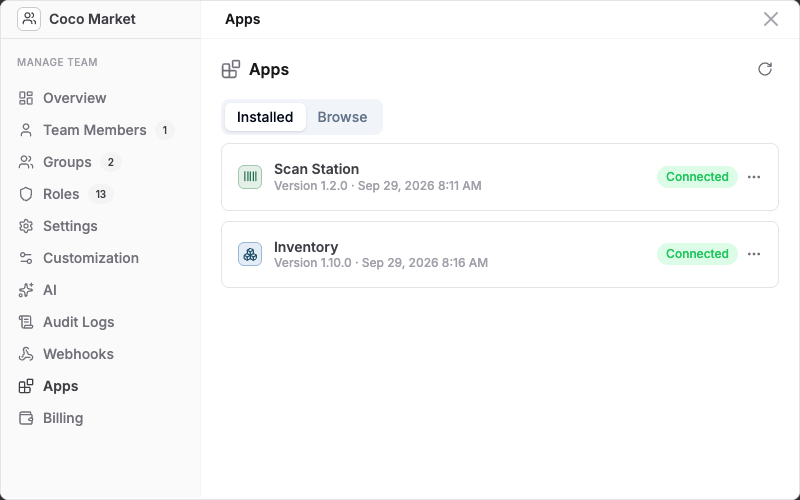
Open Manage Team at the bottom of the sidebar and choose Apps. The Installed tab lists the apps on your team, each with its version and status. The Browse tab lists the apps you can add.
Install an app
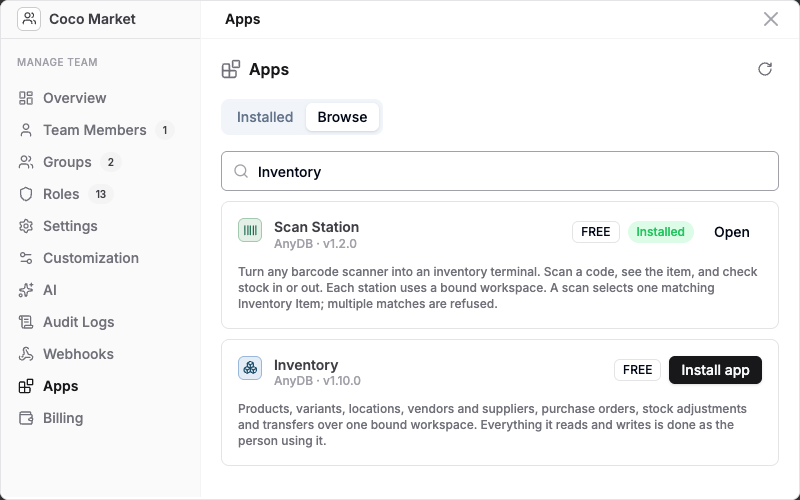
- On Browse, find the app. Type part of its name in the search box to narrow the list.
- Select Install app beside it. Apps already on your team show Installed instead.
-
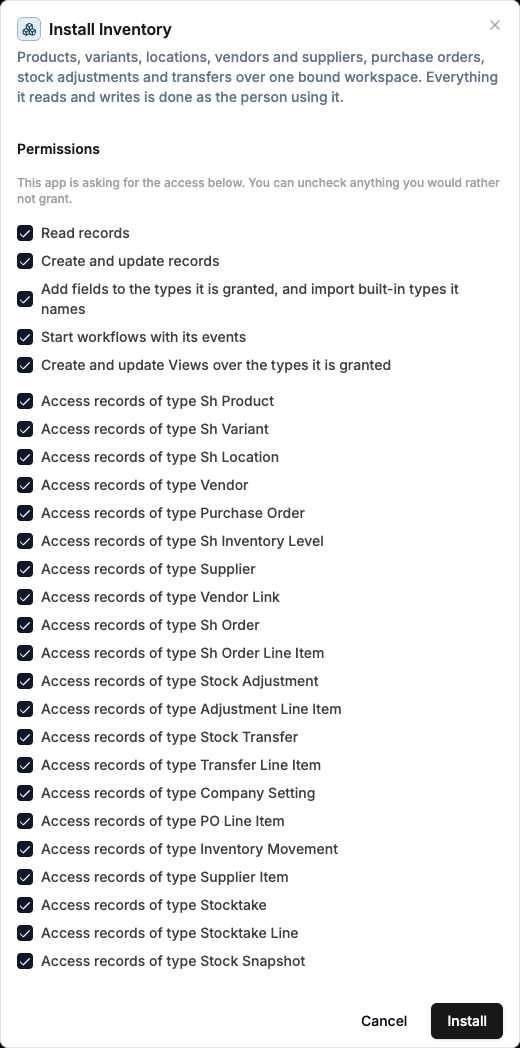
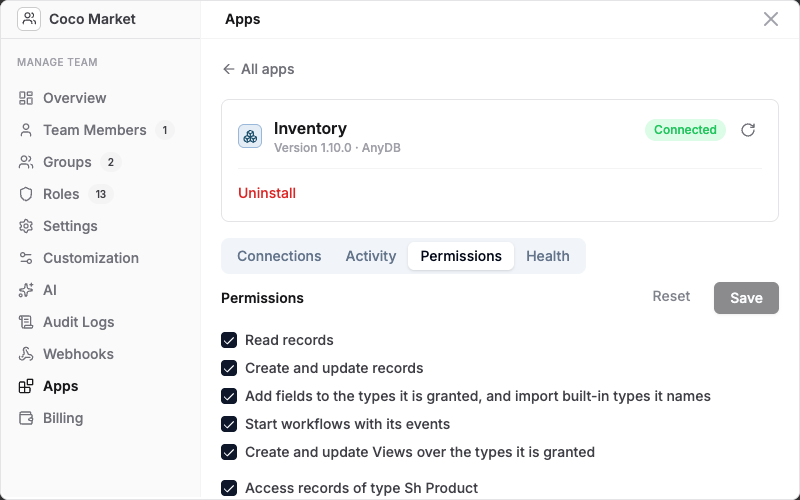
Review the Permissions the app asks for. Each line is one thing the app will be allowed to do:
- Read records and Create and update records cover the records of the types listed below them.
- Access records of type … lists each type the app works with. The app can't see any other type.
- Some apps also ask to Add fields to the types it is granted, and import built-in types it names. Inventory uses this to set up its own types for you.
- Start workflows with its events lets the app's events trigger your automations.
- Create and update Views over the types it is granted lets the app add ready-made views, such as Inventory's report views.
You can uncheck anything you would rather not grant, but the app may not work fully without it.
-
Select Install.
Some apps are only available on certain plans. If an app shows Not available on your plan, upgrade the team to install it. Inventory and Scan Station are available on every plan.
Connect a workspace
A new install shows Finish setup until at least one workspace is bound to it. Binding tells the app which workspace it works in.
- On the Installed tab, select the app to open its details.
- On the Connections tab, find the app's connection. Inventory's is called Inventory workspace, and Scan Station's is called Station.
- Select Bind workspaces and tick the workspace that holds your data. The change is saved as soon as you tick it.
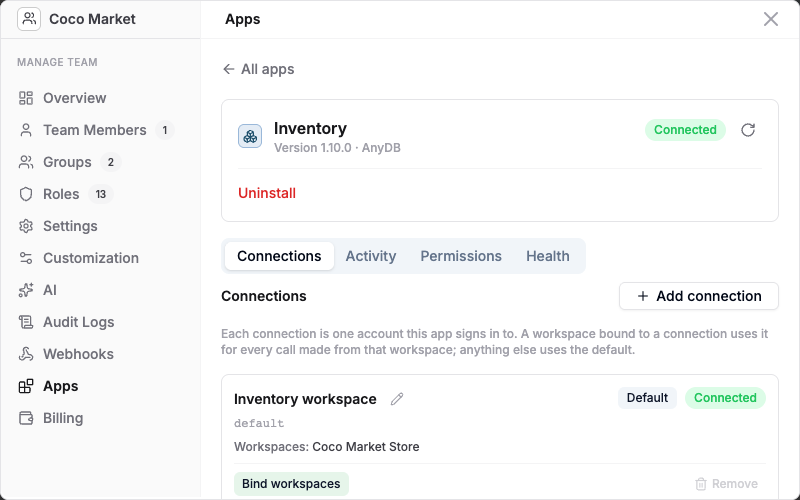
The connection shows Setup incomplete until a workspace is bound and the app has confirmed it, then Connected. Needs attention means the app has reported a problem; open the app, or its Health tab, to see what it is.
Apps confirm their setup the first time they are used. If the app or its connection still says Finish setup or Setup incomplete after you bind a workspace, open the app once from that workspace.
A workspace can belong to only one connection of an app. Apps that support more than one connection, such as Scan Station, show Add connection. Use it when different workspaces need to work separately, for example one station per warehouse.
Open an app
Every workspace has an Apps tab at the top right, beside Workspace, Forms and Automation. It lists the apps bound to that workspace.
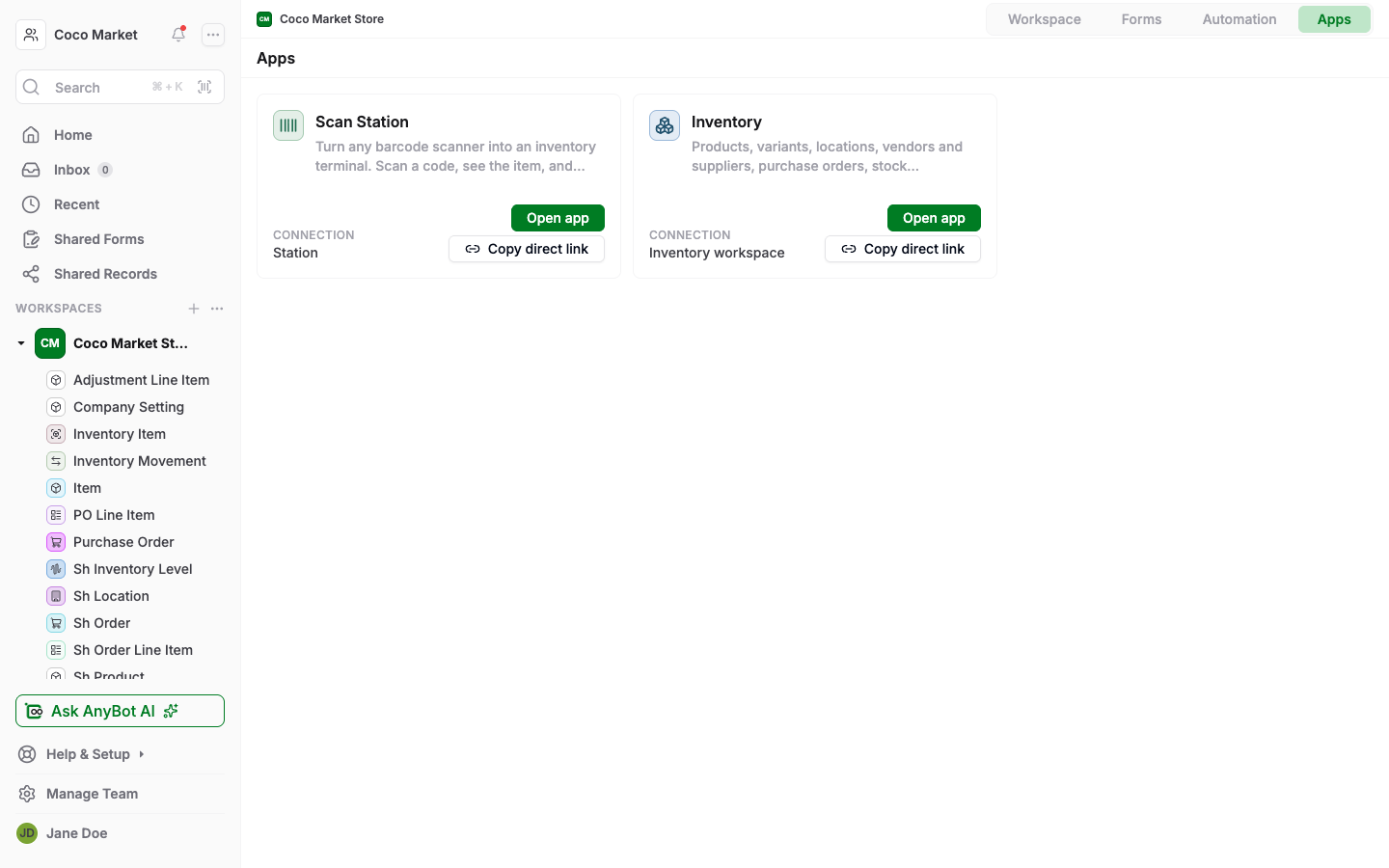
- Open app opens the app inside AnyDB, working in this workspace.
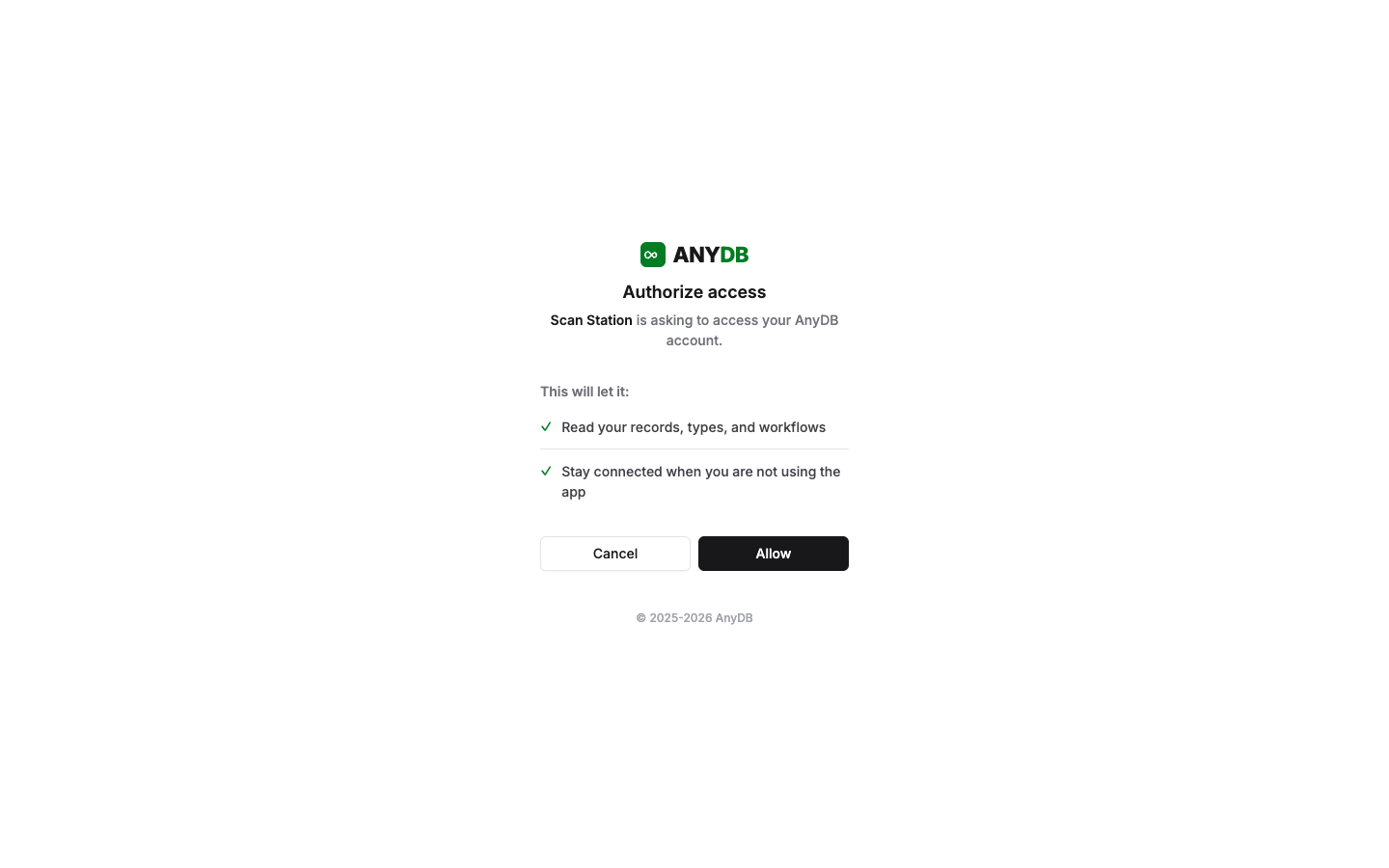
- Copy direct link copies a link that opens the app on its own, in a full browser window. Use it to bookmark the app or to set up a shared device such as a warehouse terminal. Whoever opens the link signs in with their own AnyDB account and approves the app once.
Review an app
Select an installed app on the Installed tab to see its details:
| Tab | What it shows |
|---|---|
| Connections | The app's connections, their status, and the workspaces bound to each. |
| Activity | What the app has done recently on your team. |
| Permissions | What the app may access. The owner can change it here after installing. |
| Health | Whether AnyDB can reach the app, when it was last checked, and the last error. Use Check now to test it again. |
| Settings | Shown only for apps that have their own settings screen. |
Update, pause or uninstall
Open the ⋯ menu on an app's row on the Installed tab.
- Update: when a newer version is available, the row shows Update available. Updating shows any New permissions the new version asks for before you confirm. Nothing changes until you do.
- Pause switches the app off without removing it: it can't be opened, and it can't read or change records. Resume turns it back on.
- Uninstall revokes the app's access and removes its settings. Records the app created or changed stay in your workspaces.
Apps in automations
Apps can also take part in your automations:
- The App event trigger starts a workflow when an app reports something, such as Inventory's low-stock digest being sent.
- The Call an app action asks an app to do something as a workflow step.
- Some apps add actions to a record's menu, under Apps.
Which of these an app offers depends on the app.