Integrating Okta OIDC with AnyDB
This guide connects your AnyDB team to Okta over OpenID Connect (OIDC). When you finish, people in your organization can select Sign in with your team SSO on the AnyDB login page, sign in with Okta, and land in your team.
You work in two places: the Okta Admin Console, to create the app, and your team's SSO settings in AnyDB, to connect it. Keep both open.
You can keep your existing SAML apps. In Okta, SAML or OIDC is chosen per app, so AnyDB gets its own OIDC app. It uses the same users, groups, sign-on policies and MFA as your other apps.
Before you start
- Your AnyDB team is on a Business or Enterprise plan, and AnyDB has enabled SSO for it with your email domains approved. If not, see the SSO requirements.
- You are an owner of the AnyDB team and an administrator in Okta who can create app integrations.
- The people who will sign in have an Okta account whose email address is in one of your approved domains.
1. Copy the redirect URI from AnyDB
- In AnyDB, open Manage Team at the bottom of the sidebar, then select SSO.
- Find Redirect URI and select its copy button. You will paste it into Okta in the next step.
If there is no SSO page, SSO has not been enabled for your team yet. Contact AnyDB support.
2. Create the app in Okta
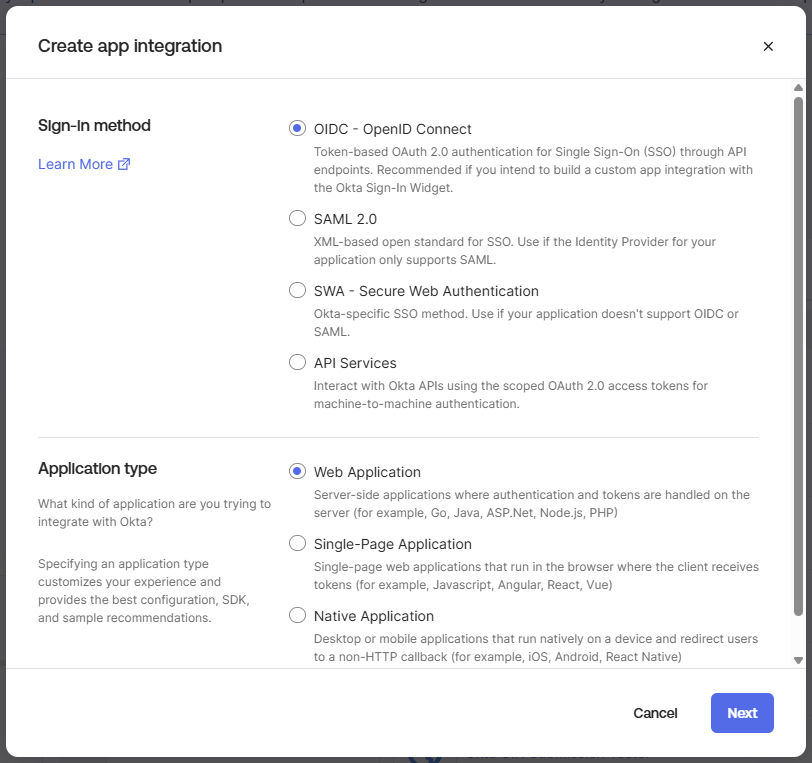
- In the Okta Admin Console, go to Applications and Resources → Applications (called Applications → Applications in some Okta versions) and select Create App Integration.
- Under Sign-in method, select OIDC - OpenID Connect.
- Under Application type, select Web Application, then select Next.
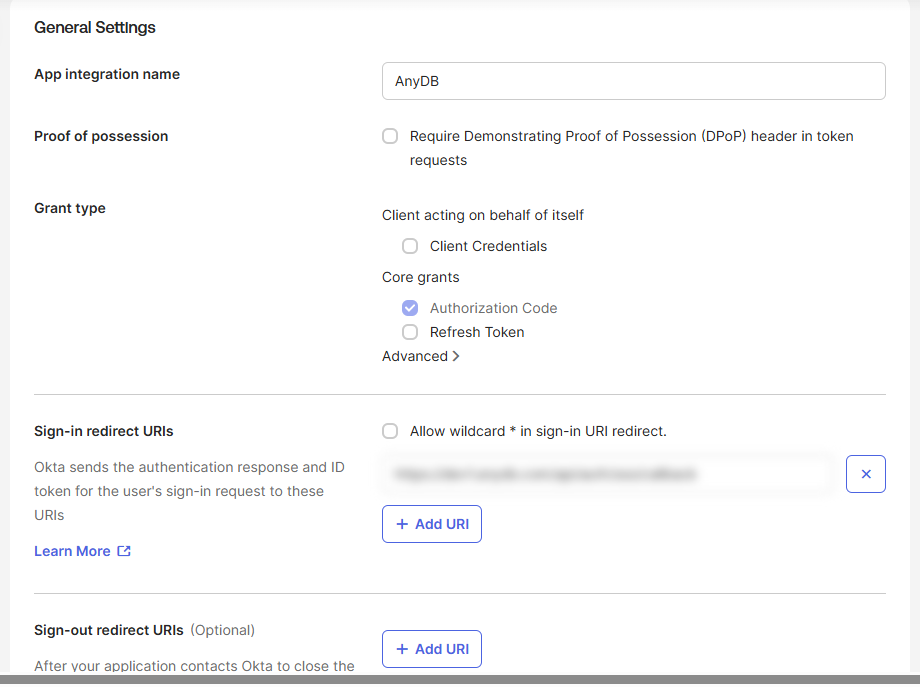
- Under General Settings:
- App integration name: a name your people will recognize, such as
AnyDB. - Grant type: keep Authorization Code, which is selected by default. AnyDB needs nothing else, so leave Client Credentials and Refresh Token cleared.
- Sign-in redirect URIs: replace the example with the Redirect URI you copied from AnyDB. It must match exactly.
- Sign-out redirect URIs: remove the example URI. AnyDB does not use one.
- App integration name: a name your people will recognize, such as
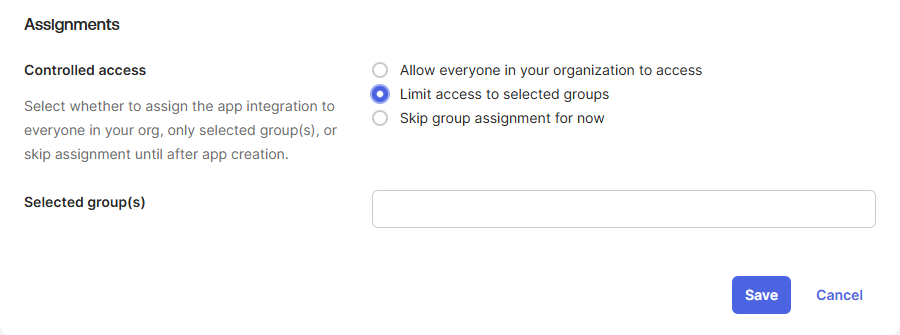
- Under Assignments, choose who can use the app. Limit access to selected groups is recommended: pick the group or groups whose members should sign in to AnyDB. You can also assign individual people after the app is created, on its Assignments tab.
- Select Save.
If you choose Allow everyone in your organization to access, Okta may also offer Federation Broker Mode. It only hides the app from your users' Okta dashboards, and AnyDB sign-in does not start from there, so either setting works.
3. Copy the app's credentials
Okta opens the new app on its General tab.
- Under Client Credentials, copy the Client ID.
- Check that Client authentication is set to Client secret. This is the default.
- Under Client Secrets, use the copy button next to the secret. Use the copy button rather than selecting the text, so no spaces are added.
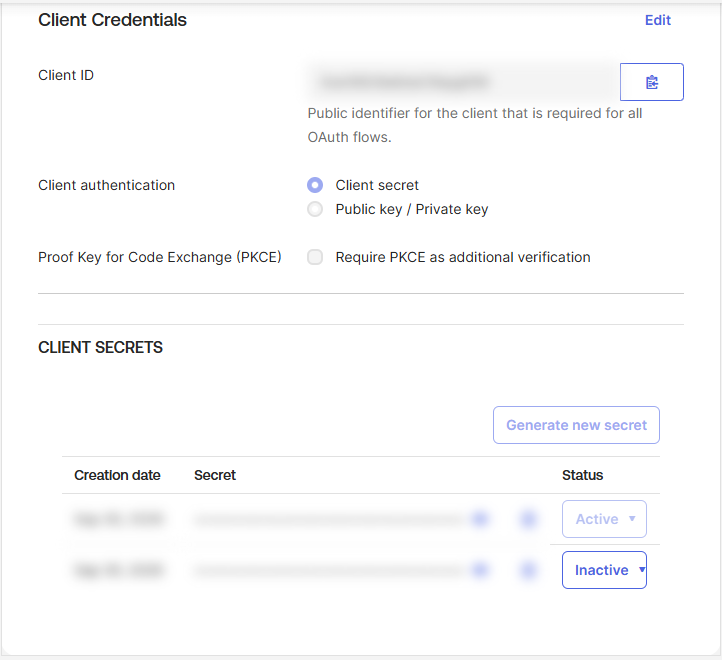
The client secret works like a password for the app. Paste it only into AnyDB's Client secret field. Don't send it by email or chat, or include it in a screenshot or support ticket. If it is exposed, generate a new one; see Rotate the client secret.
You also need your Okta issuer URL. This is your Okta organization's address, for example https://yourcompany.okta.com.
The Okta Admin Console runs at an address ending in -admin.okta.com, for example https://yourcompany-admin.okta.com. The issuer is the same address without -admin: https://yourcompany.okta.com. If your organization uses a custom Okta domain, use that domain.
Use the organization issuer shown above. Only use a custom authorization server issuer, such as https://yourcompany.okta.com/oauth2/default, if your Okta subscription includes custom authorization servers and your Okta administrator wants AnyDB to use one.
4. Connect Okta in AnyDB
Back on your team's SSO page in AnyDB:
- Turn on Enable SSO.
- Issuer URL: your Okta issuer, for example
https://yourcompany.okta.com. - Client ID: the Client ID from Okta.
- Client secret: the client secret from Okta.
- Allowed email domains: the domains whose people may sign in, separated by commas, for example
yourcompany.com. Each must be one of the domains AnyDB approved for your team. The approved domains are listed under the field. - New users: choose what happens when someone signs in who isn't in the team yet:
- Join as members: they are added as a member.
- Join as guests: they are added as a guest.
- Need an owner's approval: an owner decides first. See Approve access requests.
- Select Save.
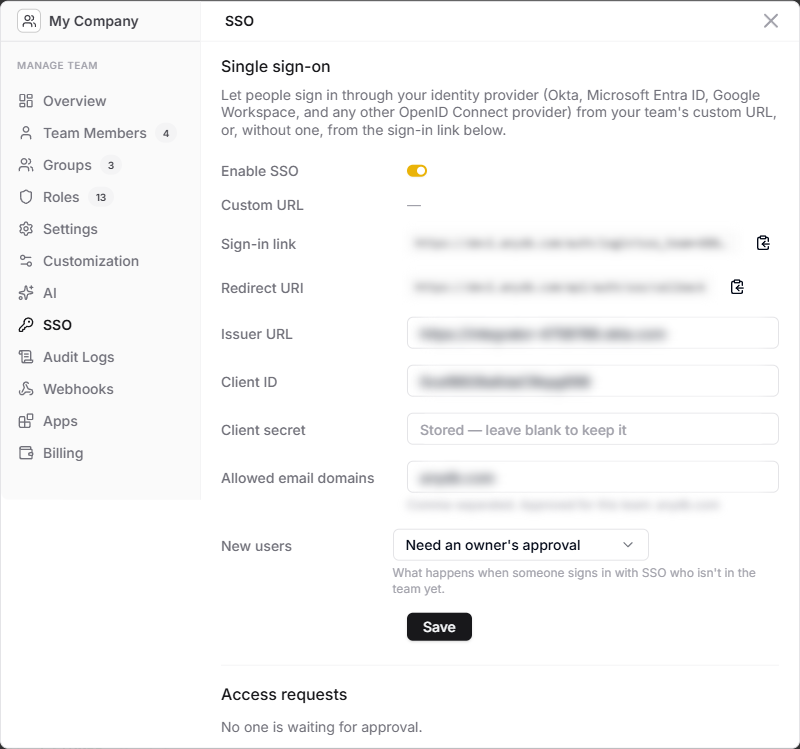
AnyDB checks your issuer as you save. If the save is refused, the message tells you why:
| Message | What to do |
|---|---|
| Could not read the issuer's OpenID configuration | The Issuer URL is wrong or unreachable. Check it against step 3, especially the -admin part. |
| The issuer must use https | Use the https:// address. |
| These domains are not approved for this team: … | Remove the listed domains, or ask AnyDB support to approve them. |
| A client secret is required | Paste the client secret. After the first save, leave the field blank to keep the stored secret. |
The client secret is stored securely and is never shown again. The field shows Stored — leave blank to keep it.
5. Sign in with Okta
How your people reach the SSO button depends on whether your team has a custom URL:
- With a custom URL: the login page on your custom URL shows the button.
- Without a custom URL: share your team's Sign-in link. Copy it from the SSO page with its copy button.
On the login page, select Sign in with your team SSO. AnyDB sends them to Okta, and after signing in they land in your team.
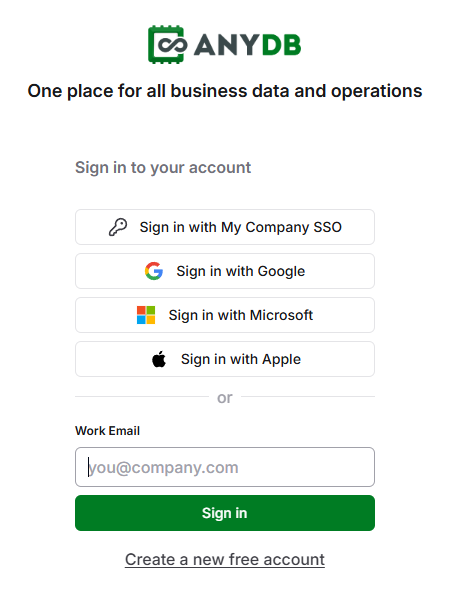
Test it yourself first, in a private browser window so your current AnyDB session doesn't interfere.
Approve access requests
When New users is set to Need an owner's approval, someone who isn't in the team yet can still sign in with Okta, but AnyDB does not let them in straight away:
- They return to the login page with a notice that their request was sent.
- Every team owner gets a notification and an email.
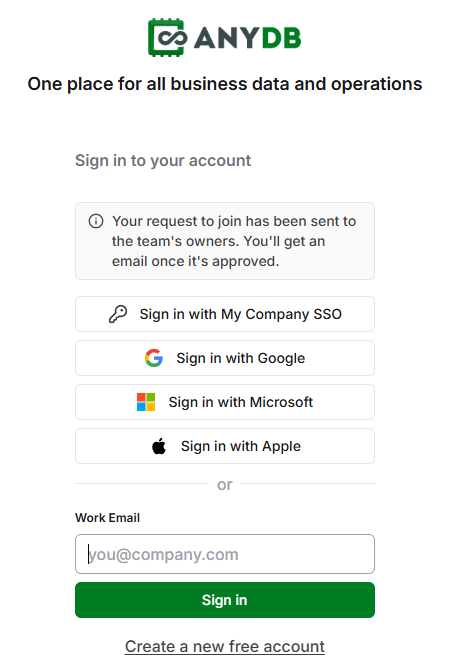
To decide, open Manage Team → SSO. Under Access requests, choose Approve as member, Approve as guest, or Decline.
- An approved person gets an email with a link to sign in. Their next Okta sign-in takes them into the team.
- A declined person is not notified. If they sign in again, they see that their request was declined. You can still approve a declined request later.
Rotate the client secret
To replace the client secret, for example on a schedule or after it has been exposed:
- In Okta, open the app's General tab. Under Client Secrets, select Generate new secret, then copy the new secret.
- In AnyDB, open Manage Team → SSO, paste the new secret into Client secret, and select Save.
- In Okta, set the old secret's status to Inactive once sign-in works with the new one.
Okta keeps both secrets active until you deactivate the old one, so sign-in keeps working while you switch.
Troubleshooting
If a sign-in doesn't complete, the AnyDB login page shows why:
| Notice on the AnyDB login page | Likely cause and fix |
|---|---|
| Your email address isn't one this team accepts for SSO… | The person's Okta email is outside your Allowed email domains. Check their email in Okta, or add the domain; AnyDB must have approved it. |
| Your identity provider didn't share a verified email address… | Okta didn't send an email address for the person. Check that their Okta profile has an email address. |
| Single sign-on didn't complete… | Most often the Client secret saved in AnyDB doesn't match Okta's. Copy it again with Okta's copy button and save it in AnyDB, or rotate it. Also check that the Okta app is Active. |
| Single sign-on isn't available for this team right now. | SSO is turned off for the team, or the team's plan or SSO enablement has changed. Check Enable SSO, or contact AnyDB support. |
| Your request to join has been sent… | Not an error: New users is set to Need an owner's approval. An owner needs to approve the request. |
| Your request to join this team was declined… | An owner declined the request. They can still approve it under Access requests. |
Some problems are reported by Okta before the person gets back to AnyDB:
- User is not assigned to the client application: the person isn't assigned to the AnyDB app in Okta. Assign them, or one of their groups, on the app's Assignments tab.
- An Okta error about the redirect URI: the Sign-in redirect URI in Okta doesn't exactly match the Redirect URI on AnyDB's SSO page. Copy it again from AnyDB.
Removing access
Deactivating or unassigning someone in Okta stops their next SSO sign-in, but it doesn't remove them from your AnyDB team. They may also still be able to sign in another way. When someone leaves, remove them from the AnyDB team as well, from Manage Team → Team Members.
See Current limitations for what SSO doesn't cover yet.