Connecting WhatsApp to AnyDB
This guide connects a WhatsApp Business phone number to your AnyDB team through the Meta WhatsApp Cloud API. When you finish, messages your customers send to that number arrive in AnyDB as Conversation and Message records, and your team can reply from AnyDB.
You work in two places: Meta's App Dashboard and Business Settings, to get the app's IDs and credentials, and your team's Communications page in AnyDB, to add the channel. Keep both open.
AnyDB doesn't create the Meta app or its credentials for you. You create them in your Meta business account, and Meta bills that account directly for any messages that cost money.
Before you start
- AnyDB has enabled Communications for your team, and you are an owner of the AnyDB team. If there is no Communications page under Manage Team, see the Communications requirements.
- You have a Meta business portfolio (Meta Business Manager) and admin access to it.
- You can sign in to Meta for Developers with the Facebook account that administers your business portfolio. Step 1 creates the app.
- You have a phone number for WhatsApp: either Meta's free test number, or your own number added in the use case's Production setup step. A number that's already used in the WhatsApp or WhatsApp Business app on a phone must be moved to the API first; see Meta's phone number guide.
Meta's test number is free and works right away. You can use it to try the whole setup. It can only send messages to up to five phone numbers that you verify in Meta. When you're ready, add your own number and add a second channel for it in AnyDB.
1. Create a Meta app with the WhatsApp use case
This is the step people most often miss. A Meta app only gets WhatsApp pages, such as the Phone Number ID and the webhook settings, if it was created with the WhatsApp use case. An app created for something else, such as Facebook Login, has no WhatsApp setup to open, and the rest of this guide won't find anything. If that's what you have, create a new app as described here.
- Open Meta for Developers and select Create App.
- On App details, enter an App name and an App contact email, then select Next.
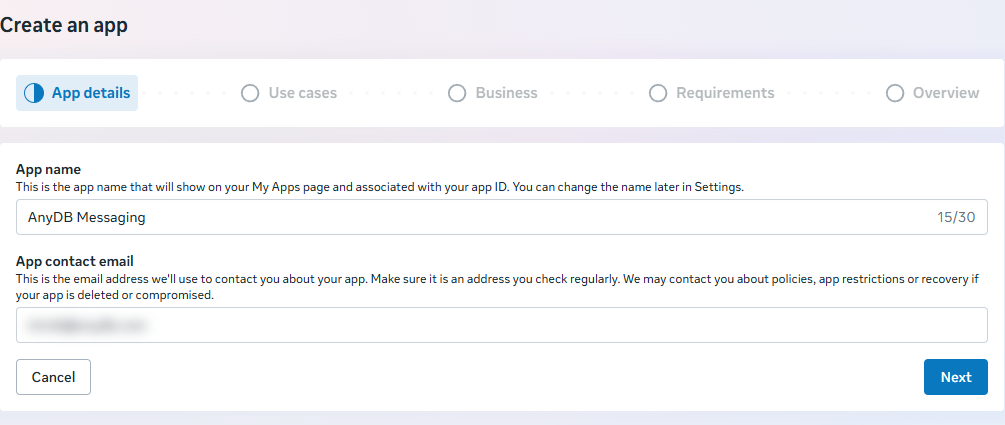
Meta rejects names that include its brand terms, such as WhatsApp, with the message Certain terms like "whatsapp" are not allowed. Use your company or team name instead, for example Acme Messaging. You can change the name later in the app's settings.
- On Use cases, select Connect with customers through WhatsApp. It's under Featured, or choose the Business messaging filter. Then select Next.
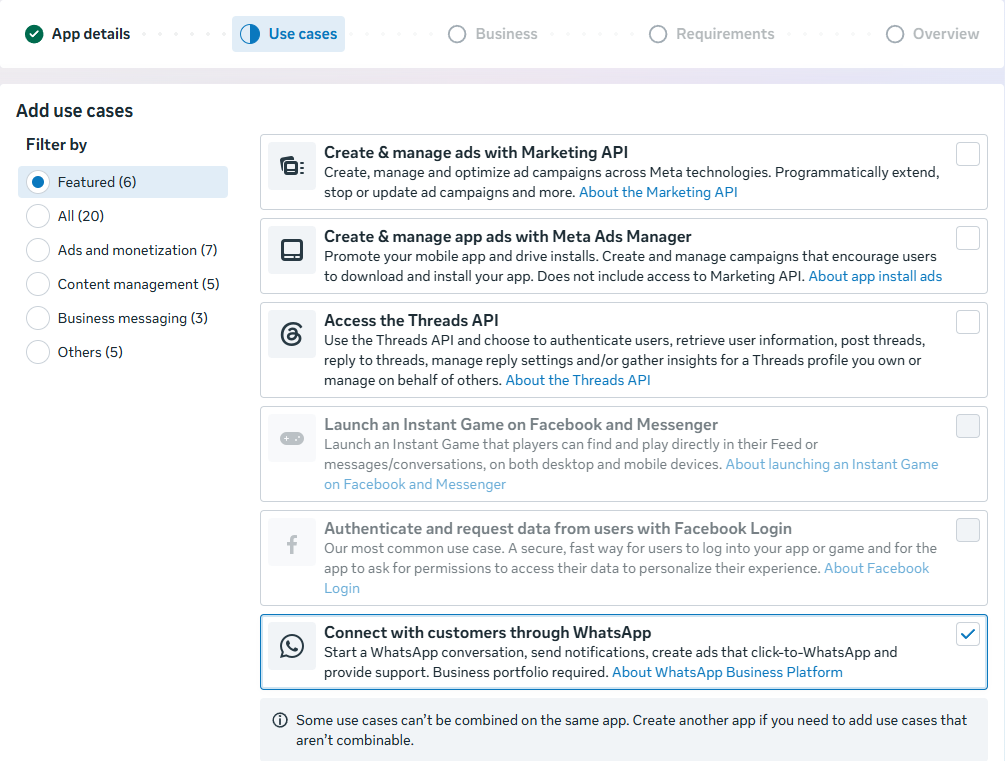
Meta greys out the use cases that can't be combined with WhatsApp. If you also need one of those, create a second app for it.
- On Business, choose the business portfolio to connect to the app, then select Next. WhatsApp needs a business portfolio. If you don't have one, select Create a business portfolio. The portfolio doesn't have to be verified to follow this guide, but Meta requires verification before you can message customers who haven't contacted you.
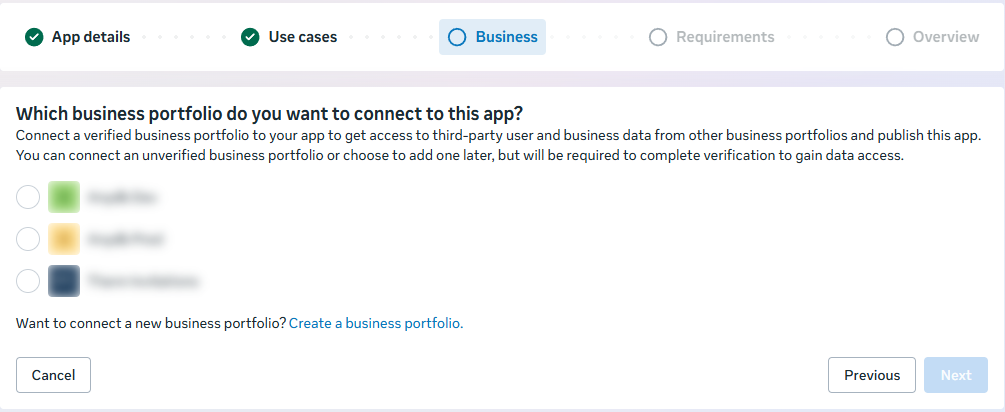
- Work through the remaining Requirements and Overview steps, then create the app.
Meta opens the new app on its Dashboard. Under App customization and requirements, the first item is Customize the Connect with customers through WhatsApp use case.
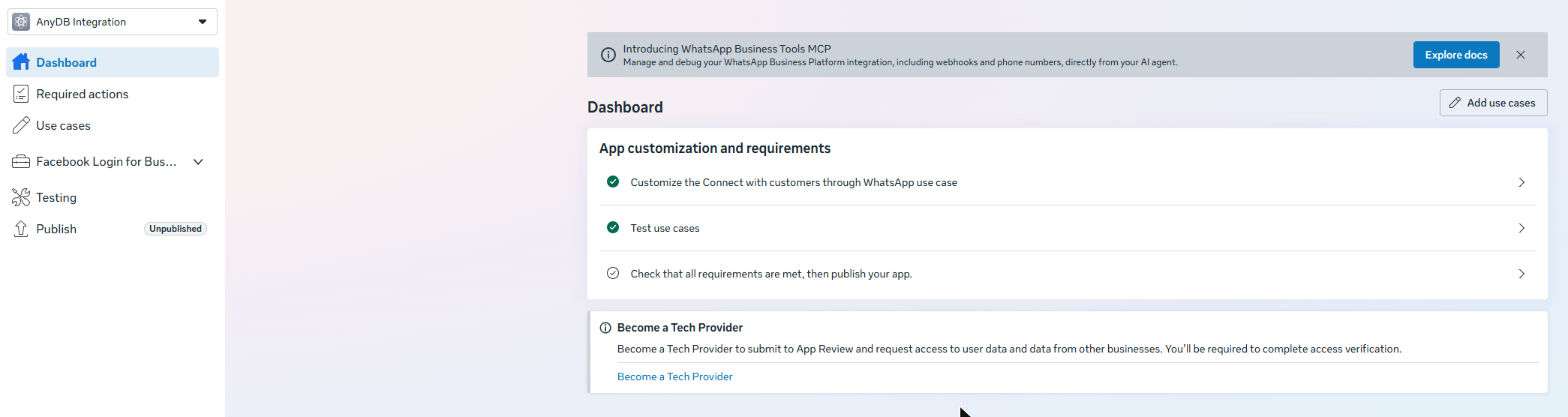
Find the Use cases page
The setup pages you need in the next steps are behind Use cases, which is easy to miss:
- In the app's left menu, select Use cases.
- Select Customize next to Connect with customers through WhatsApp.

The page that opens has the Step 1. Try it out, Step 2. Production setup and webhook pages used in this guide. Its use case switcher at the top calls the same use case Connect on WhatsApp.
If Use cases doesn't list the WhatsApp use case, select Add use cases at the top right of the page and add Connect with customers through WhatsApp. If Meta won't allow it because the app already has a use case that can't be combined with it, create a new app instead.
2. Find the Phone Number ID and WhatsApp Business Account ID
- In the App Dashboard, open your app.
- In the left menu, select Use cases, then Customize next to Connect with customers through WhatsApp. In the list on the left of the page that opens, select Step 1. Try it out. For your own number, use Step 2. Production setup instead.
- Copy the Phone Number ID and the WhatsApp Business account ID with their copy buttons. Also note the phone number itself.
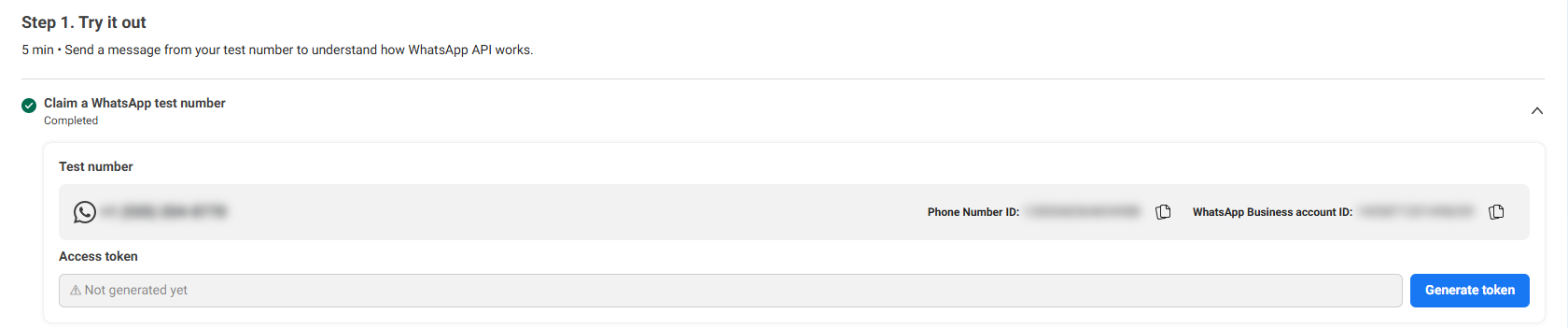
The Phone Number ID is a long number that Meta assigns, such as 1234567890123456. It is not the phone number your customers message. AnyDB needs both.
3. Create a permanent access token
The Generate token button on Try it out creates a temporary token that expires after about 24 hours. Don't use it in AnyDB. Messages would stop once it expires. Create a permanent token for a system user instead:
- Open Business Settings for your business portfolio, then go to Users → System users.
- Select an existing system user, or select Add to create one with the Admin role.
- Assign the user your app and your WhatsApp account. Select Assign assets, give Full control of the app, then do the same for the WhatsApp account. Both should be listed under Assigned assets.
- Select Generate token, choose your app, and set the token to never expire.
- Select these two permissions, then generate the token:
whatsapp_business_messaging, to send and receive messageswhatsapp_business_management, so AnyDB can connect the number's webhook for you
- Copy the token. Meta shows it only once.
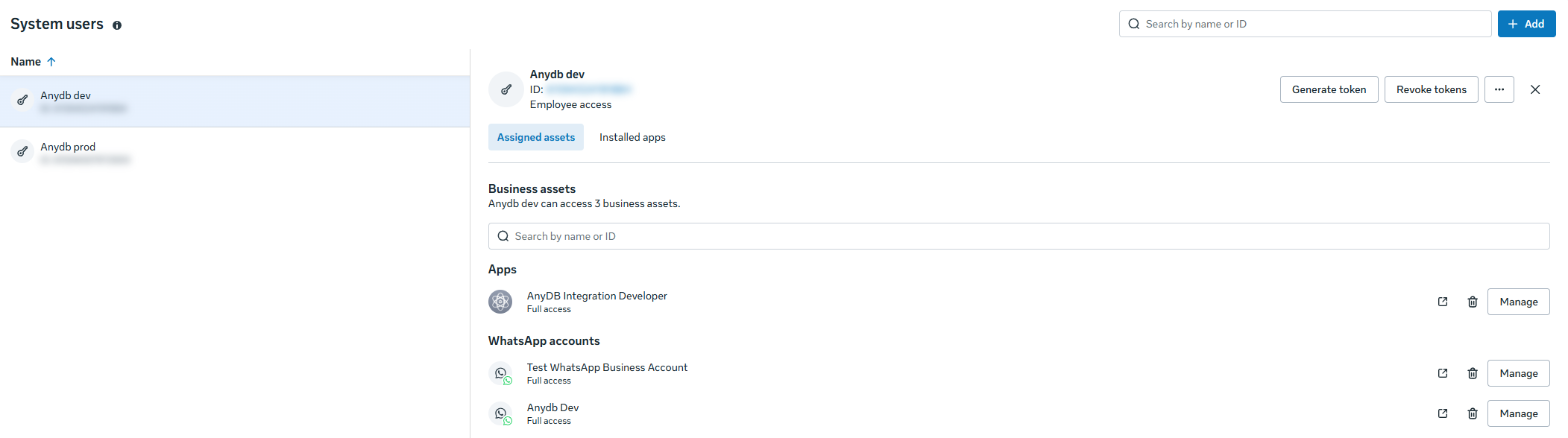
The access token lets anyone send messages as your business. Paste it only into AnyDB's Access Token field. Don't send it by email or chat, or include it in a screenshot or support ticket. If it's exposed, revoke it with Revoke tokens and generate a new one.
4. Copy the App Secret
- In the App Dashboard, open App settings → Basic.
- Next to App secret, select Show, confirm your Facebook password if asked, and copy it.

AnyDB uses the App Secret to check that every message really comes from Meta. Keep it as private as the access token.
5. Add the channel in AnyDB
- In AnyDB, open Manage Team at the bottom of the sidebar, then select Communications.
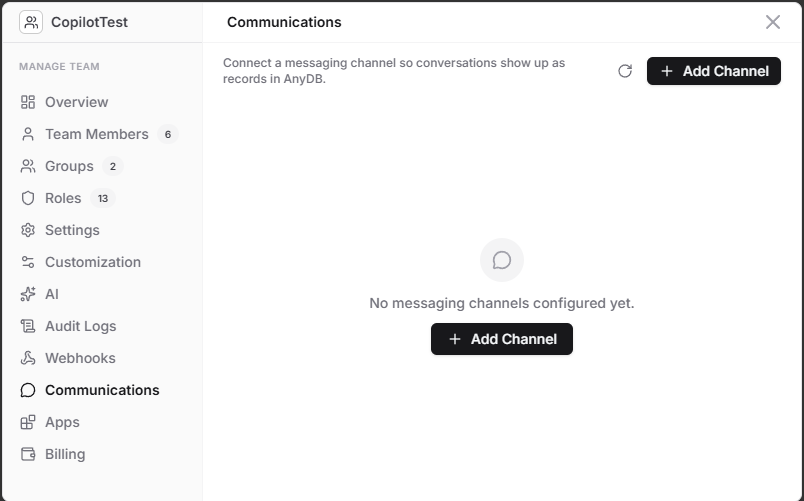
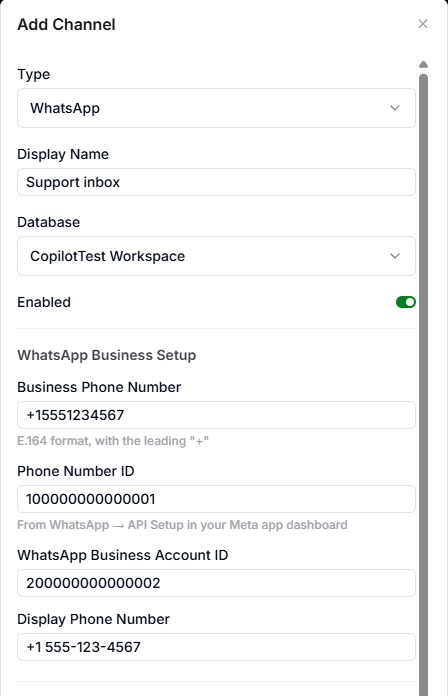
- Select Add Channel, and fill in the top of the form:
- Type: WhatsApp.
- Display Name: a name your team will recognize, such as
Support inbox. It appears on every conversation from this number. - Database: the database where conversations from this number are stored. You can't change it after the channel is created.
- Enabled: leave it on.
- Under WhatsApp Business Setup:
- Business Phone Number: the WhatsApp number in international (E.164) format, with the leading
+and no spaces, for example+15551234567. - Phone Number ID and WhatsApp Business Account ID: the two IDs from step 2.
- Display Phone Number: the number as your customers see it, for example
+1 555-123-4567.
- Business Phone Number: the WhatsApp number in international (E.164) format, with the leading
- Under Meta App Credentials, fill in all three fields:
- App Secret: from step 4.
- Access Token: the permanent token from step 3.
- Verify Token: any value you make up, such as a long random string. Meta sends it back when it checks your webhook, and AnyDB compares the two. Note it down if you plan to connect the webhook manually.
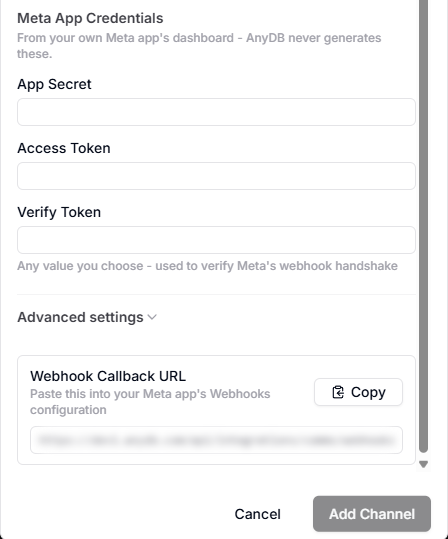
- Optionally, open Advanced settings:
| Setting | What it does |
|---|---|
| Graph API Version | The Meta API version AnyDB calls. Leave it blank to use AnyDB's default. |
| Auto-create contacts | On by default. When someone AnyDB has never seen messages you, AnyDB creates a Contact record for them and links it to the conversation. |
| Auto-import Contact type | Off by default. If the database doesn't have the Contact type yet, AnyDB adds it so contacts can be created. While it's off and the type is missing, no contacts are created. |
| Daily send cap | The most messages this channel may send per day (UTC). Leave it blank for no limit. See costs. |
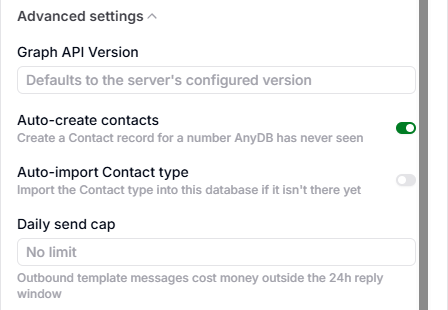
- Select Add Channel.
The channel appears on the Communications page as Enabled and Not connected.
6. Test the credentials
On the Communications page, open the channel's … menu and select Test Connection. AnyDB asks Meta for the phone number using your access token.
- Connection looks good shows the number's verified business name. The credentials work.
- Connection test failed shows Meta's reason. Check the Phone Number ID and Access Token; see Troubleshooting.
7. Connect the webhook
The webhook is how Meta delivers incoming messages and delivery receipts to AnyDB. On the Communications page, open the channel's … menu and select Connect Webhook. You can also open the channel and select Connect Webhook at the bottom of the form.
AnyDB then:
- Checks that the access token can reach the phone number.
- Points the number's webhook at AnyDB, using your Verify Token.
- Reads the setting back from Meta to confirm it took effect.
When it succeeds, you see Webhook connected and the channel shows Connected. If it fails, Could not connect the webhook shows the reason, usually Meta's own error message. The setting applies to this phone number only. Other numbers in your WhatsApp account and other apps aren't affected.
Subscribe the app to messages
Meta only sends events your app subscribes to. Check this once per app:
- In the App Dashboard, open Use cases → Customize on Connect on WhatsApp, then Step 2. Production setup → Configure Webhooks.
- Under Webhook fields, make sure messages is Subscribed. This field carries both incoming messages and delivery receipts.

While a Meta app is unpublished, Meta only delivers test webhooks sent from the App Dashboard. Real customer messages aren't delivered, even from admins and testers. Publish the app from Publish in the App Dashboard before you rely on the channel. Publishing may require Meta business verification.
Connect the webhook manually
If Connect Webhook isn't an option, for example because your token doesn't have whatsapp_business_management, set the webhook in Meta yourself:
- In AnyDB, open the channel and copy the Webhook Callback URL with its Copy button.
- In the App Dashboard, open Configure Webhooks as above.
- Paste the URL into Callback URL, and enter the same Verify Token you saved in AnyDB.
- Select Verify and save. Meta checks the URL with AnyDB, which must answer with the matching token.
- Subscribe the messages field, as above.
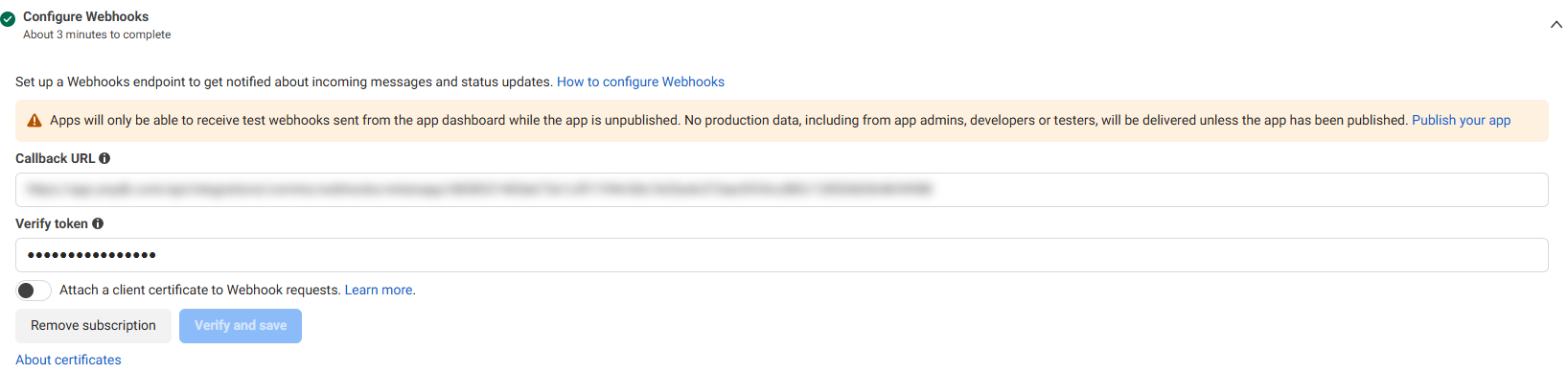
This sets the webhook for the whole app, so it applies to every number in the app.
8. Send a test message
From a phone, send a WhatsApp message to the business number. If you use the test number, the phone must be one of the recipients you verified in Meta.
Within a few seconds, a Conversation appears in the database you chose, with your message attached as a Message. See Working with WhatsApp conversations for what happens next.
Update or rotate credentials
To replace the access token or App Secret, for example after rotating them in Meta:
- On the Communications page, open the channel.
- Select Update credentials, and fill in all three fields: App Secret, Access Token and Verify Token. AnyDB saves them together, so it won't save only one or two of them.
- Select Save.
AnyDB never shows saved credentials again. The form only shows Credentials configured.
If you change the Verify Token, run Connect Webhook again so Meta uses the new value.
Disable or delete a channel
- To pause a channel, open it, turn off Enabled, and select Save. While it's disabled, AnyDB refuses incoming messages for that number and doesn't send replies. Meta retries refused messages for a limited time, so messages sent during a long pause can be lost.
- To remove it, open the … menu and select Delete. The conversations and messages it created stay in your database.
Troubleshooting
| What you see | Likely cause and fix |
|---|---|
| You can't find the Phone Number ID, Try it out or the webhook settings in Meta | The Meta app wasn't created with the WhatsApp use case. Open the app's Use cases page; see Find the Use cases page. If WhatsApp can't be added there, create a new app with it selected. |
| Test Connection fails | The Access Token has expired or been revoked, or the Phone Number ID is wrong. A token from Try it out expires after about 24 hours; create a permanent token. Then use Update credentials. |
| Connect Webhook reports a permissions error | The token is missing whatsapp_business_management, or the system user isn't assigned the WhatsApp account. Generate a new token with both permissions, or connect manually. |
| Connect Webhook says the read-back didn't match | Meta accepted the change but didn't confirm it yet. Wait a minute and run Connect Webhook again. |
| Meta's Verify and save fails | The Verify Token in Meta doesn't match the one saved in AnyDB, or the Callback URL was changed. Copy the URL again and re-enter the token in both places. |
| No conversation appears for an incoming message | Check that the channel is Enabled and Connected, the app's messages field is Subscribed, and the Meta app is published. With the test number, the sending phone must be a verified recipient. |
| Still no conversation, and everything above is set | The App Secret in AnyDB may not match the Meta app. AnyDB ignores any message whose signature doesn't match it. Copy the secret again from App settings → Basic and use Update credentials. |