Integrating Microsoft Entra ID with AnyDB
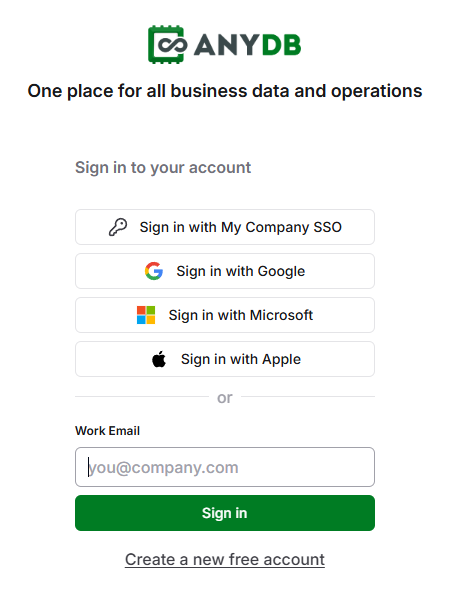
This guide connects your AnyDB team to Microsoft Entra ID (formerly Azure Active Directory) over OpenID Connect (OIDC). When you finish, people in your organization can select Sign in with your team SSO on the AnyDB login page, sign in with their Microsoft work account, and land in your team.
You work in two places: the Microsoft Entra admin center (entra.microsoft.com), to register the app, and your team's SSO settings in AnyDB, to connect it.
An AnyDB team connects to one identity provider at a time. If your team already uses another provider, such as Okta, saving the Entra settings replaces it.
Before you start
- Your AnyDB team is on a Business or Enterprise plan, and AnyDB has enabled SSO for it with your email domains approved. If not, see the SSO requirements.
- You are an owner of the AnyDB team, and you can register applications in Entra, for example as an Application Administrator.
- The people who will sign in have an Email address in their Entra profile that is in one of your approved domains. See Make sure people have an email address.
1. Copy the redirect URI from AnyDB
- In AnyDB, open Manage Team at the bottom of the sidebar, then select SSO.
- Find Redirect URI and select its copy button.
If there is no SSO page, SSO has not been enabled for your team yet. Contact AnyDB support.
2. Register the app in Entra
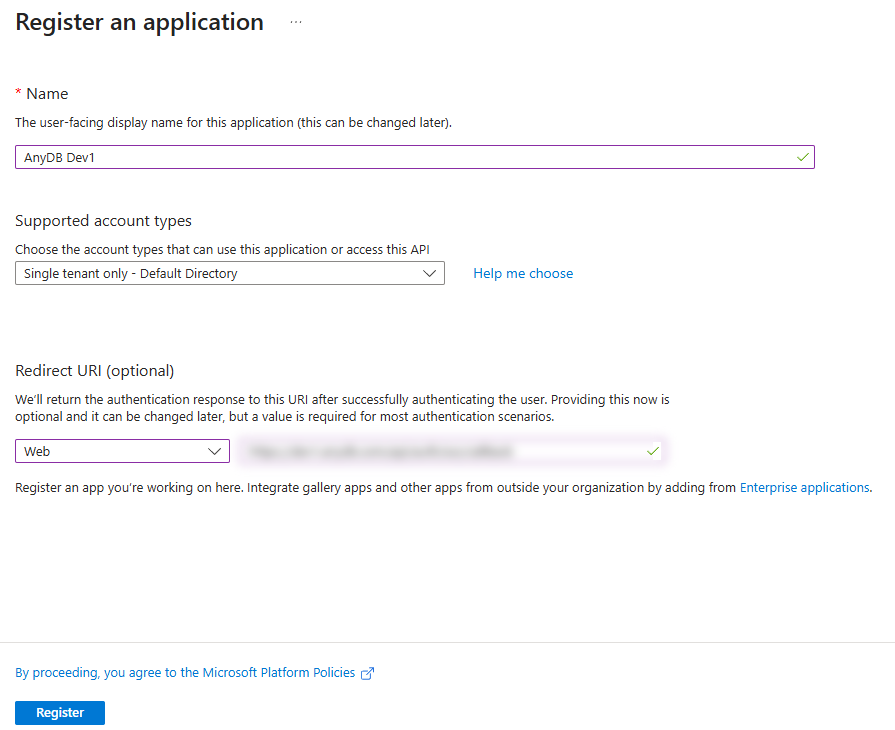
- In the Microsoft Entra admin center, go to Entra ID → App registrations and select New registration.
- Name: a name your people will recognize, such as
AnyDB. - Supported account types: Single tenant only, which Entra may also label Accounts in this organizational directory only. Only people in your directory can then sign in.
- Redirect URI: choose Web, and paste the Redirect URI you copied from AnyDB. It must match exactly.
- Select Register.
3. Copy the IDs from the app's overview
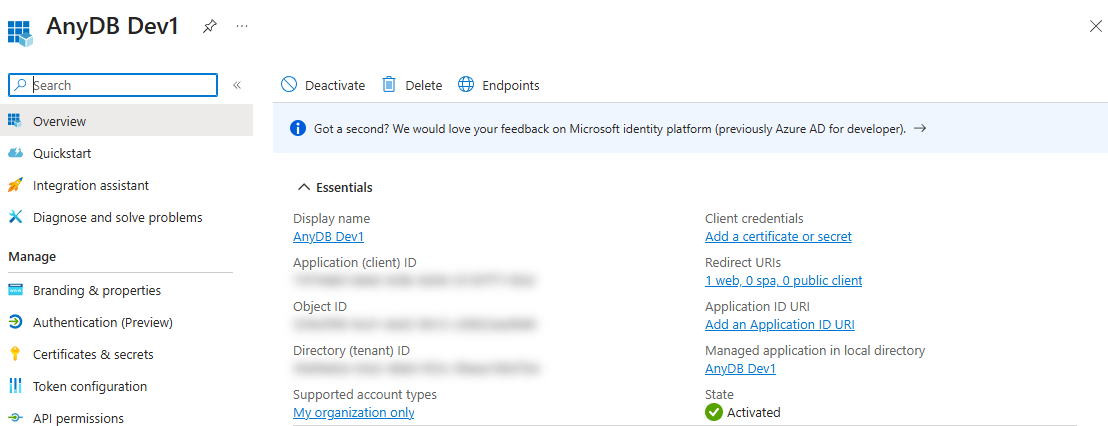
Entra opens the new app's Overview. Copy two values from Essentials:
- Application (client) ID: this is the Client ID in AnyDB.
- Directory (tenant) ID: you need it for the issuer URL in step 6.
4. Add the email claim
By default, Entra does not include the user's email address in the sign-in token that AnyDB reads. Without it, every sign-in fails with Your identity provider didn't share a verified email address.
- In the app, open Token configuration and select Add optional claim.
- For Token type, select ID.
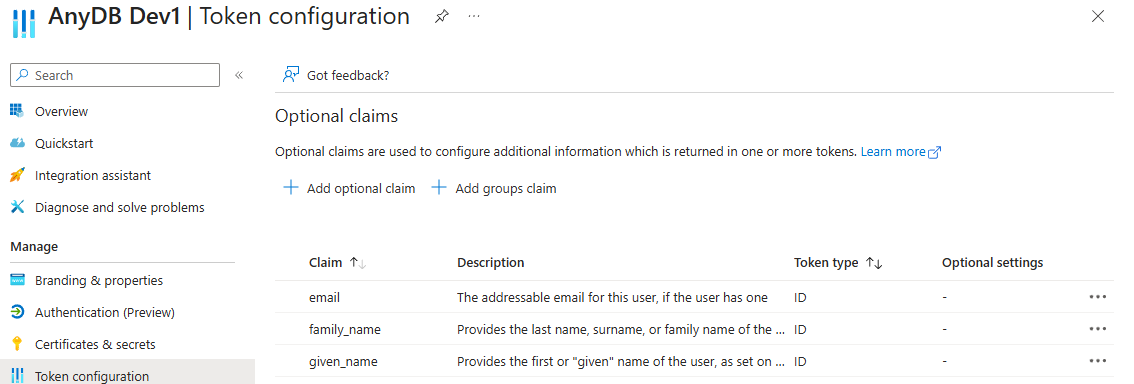
- Select email. Also select given_name and family_name, so AnyDB can name new accounts.
- Select Add. When Entra asks, select Turn on the Microsoft Graph email, profile permission, then Add again.
The three claims are then listed with token type ID:
5. Create a client secret
- In the app, open Certificates & secrets, then the Client secrets tab.
- Select New client secret, enter a description such as
AnyDB, choose an expiry, and select Add. - Copy the secret's Value straight away with its copy button. Entra shows the Value only once, just after you create it. Copy the Value, not the Secret ID.
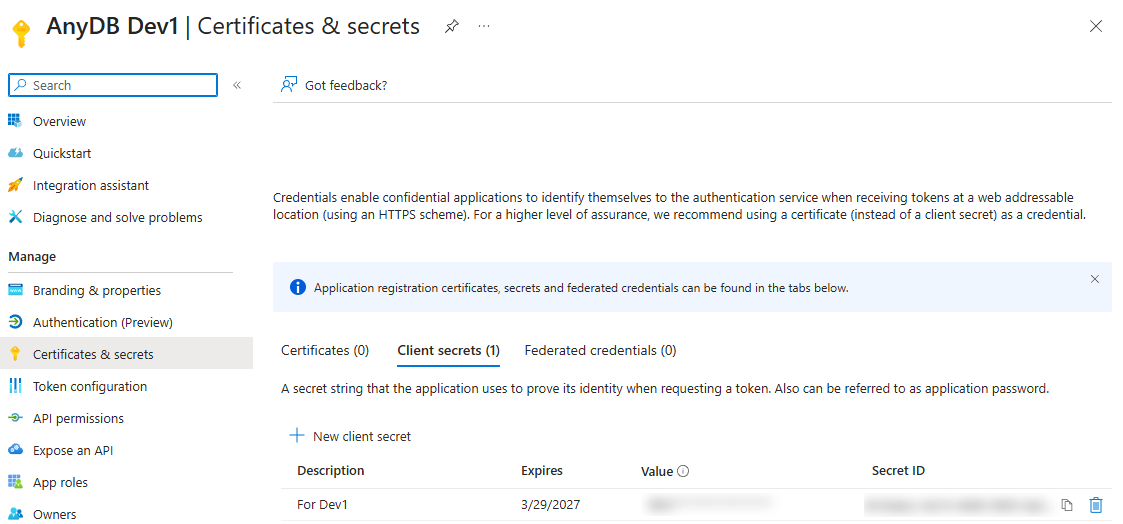
Entra client secrets have an expiry date, at most two years ahead. When a secret expires, SSO sign-ins stop working. Note the date, and rotate the secret before it expires.
Keep the secret private. Paste it only into AnyDB's Client secret field.
6. Connect Entra in AnyDB
Back on your team's SSO page in AnyDB:
- Turn on Enable SSO.
- Issuer URL:
https://login.microsoftonline.com/<Directory (tenant) ID>/v2.0, using the Directory (tenant) ID from step 3. For example:https://login.microsoftonline.com/00000000-0000-0000-0000-000000000000/v2.0. - Client ID: the Application (client) ID.
- Client secret: the secret Value from step 5.
- Allowed email domains: the domains whose people may sign in, for example
yourcompany.com. Each must be one of the domains AnyDB approved for your team. - New users: Join as members, Join as guests, or Need an owner's approval. See How people sign in.
- Select Save.
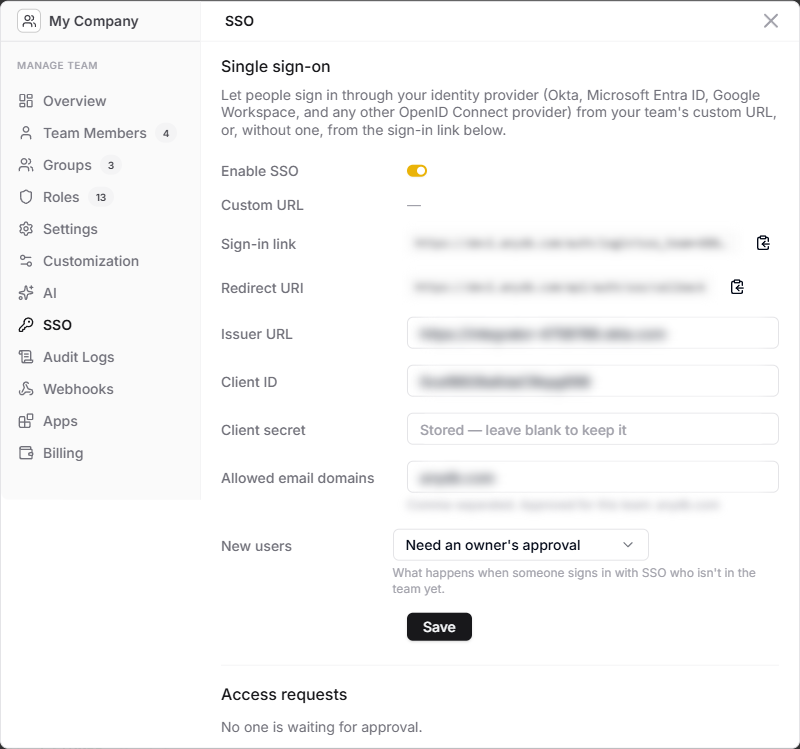
The issuer must contain your Directory (tenant) ID and end in /v2.0. The shared addresses …/common/v2.0 and …/organizations/v2.0 do not work, and saving with them fails.
If the save is refused, the message tells you why. For example, Could not read the issuer's OpenID configuration means the issuer URL is wrong. Check the tenant ID and the /v2.0 ending.
7. Sign in with Microsoft
- With a custom URL: the login page on your custom URL shows the Sign in with your team SSO button.
- Without a custom URL: share your team's Sign-in link, copied from the SSO page.
People select the button, sign in with their Microsoft work account, and land in your team.
The first time, Microsoft may ask each person to accept that AnyDB can sign them in and read their basic profile. To accept once for everyone, open the app's API permissions and select Grant admin consent for your directory.
Test it yourself first, in a private browser window so your current AnyDB session doesn't interfere.
Make sure people have an email address
AnyDB matches people by the email address Entra sends, which comes from the Email field in each person's Entra profile, under Properties → Contact information. The sign-in name (user principal name) can be different.
- For people with a Microsoft 365 mailbox, Email is filled in automatically with their mailbox address.
- For people without a mailbox, an administrator sets Email in their profile. It must be in one of your team's Allowed email domains.
For example, a person can sign in to Microsoft as pat@yourcompany.onmicrosoft.com while their Email is pat@yourcompany.com. AnyDB uses pat@yourcompany.com.
If someone already has an AnyDB account with that email address, SSO signs them in to that account.
Rotate the client secret
Before the secret expires, or if it has been exposed:
- In Entra, open the app's Certificates & secrets and create a New client secret. Copy its Value.
- In AnyDB, open Manage Team → SSO, paste the new value into Client secret, and select Save.
- In Entra, delete the old secret once sign-in works with the new one.
Troubleshooting
If a sign-in doesn't complete, the AnyDB login page shows why:
| Notice on the AnyDB login page | Likely cause and fix |
|---|---|
| Your identity provider didn't share a verified email address… | Entra didn't send an email address. Check that the email optional claim is added for the ID token (step 4), and that the person's Email field is filled in. |
| Your email address isn't one this team accepts for SSO… | The person's Entra Email is outside your Allowed email domains. Correct their Email, or add the domain; AnyDB must have approved it. |
| Single sign-on didn't complete… | Most often the Client secret in AnyDB is wrong or has expired. Check that you saved the secret's Value, not its Secret ID, or create a new one. |
| Single sign-on isn't available for this team right now. | SSO is turned off for the team, or the team's plan or SSO enablement has changed. Check Enable SSO, or contact AnyDB support. |
| Your request to join has been sent… | Not an error: New users is set to Need an owner's approval. An owner approves the request in Manage Team → SSO. |
Some problems are reported by Microsoft before the person gets back to AnyDB, as an error code starting with AADSTS:
- A redirect URI error, for example
AADSTS50011: the Web redirect URI in Entra doesn't exactly match AnyDB's Redirect URI. Correct it on the app's Authentication page. - A message that the person isn't assigned to the app: your organization requires assignment for this app. Assign the person or their group under Enterprise apps → your app → Users and groups.
Entra's Sign-in logs, under Entra ID → Users → Sign-in logs, show the reason for each Microsoft sign-in attempt.
Removing access
Disabling or deleting someone in Entra stops their next SSO sign-in, but it doesn't remove them from your AnyDB team. When someone leaves, remove them from the AnyDB team as well, from Manage Team → Team Members.
See Current limitations for what SSO doesn't cover yet.